

7 a.m. The florist unlocks the shop, and the best social media design tools for small businesses decide whether today’s post takes four minutes or forty. Canva leads this guide, Adobe Express chases it, and the rest of the list earns its place on a single job done well. What follows is one working day with those tools, and the prices behind them.
7 a.m. to 7 p.m.
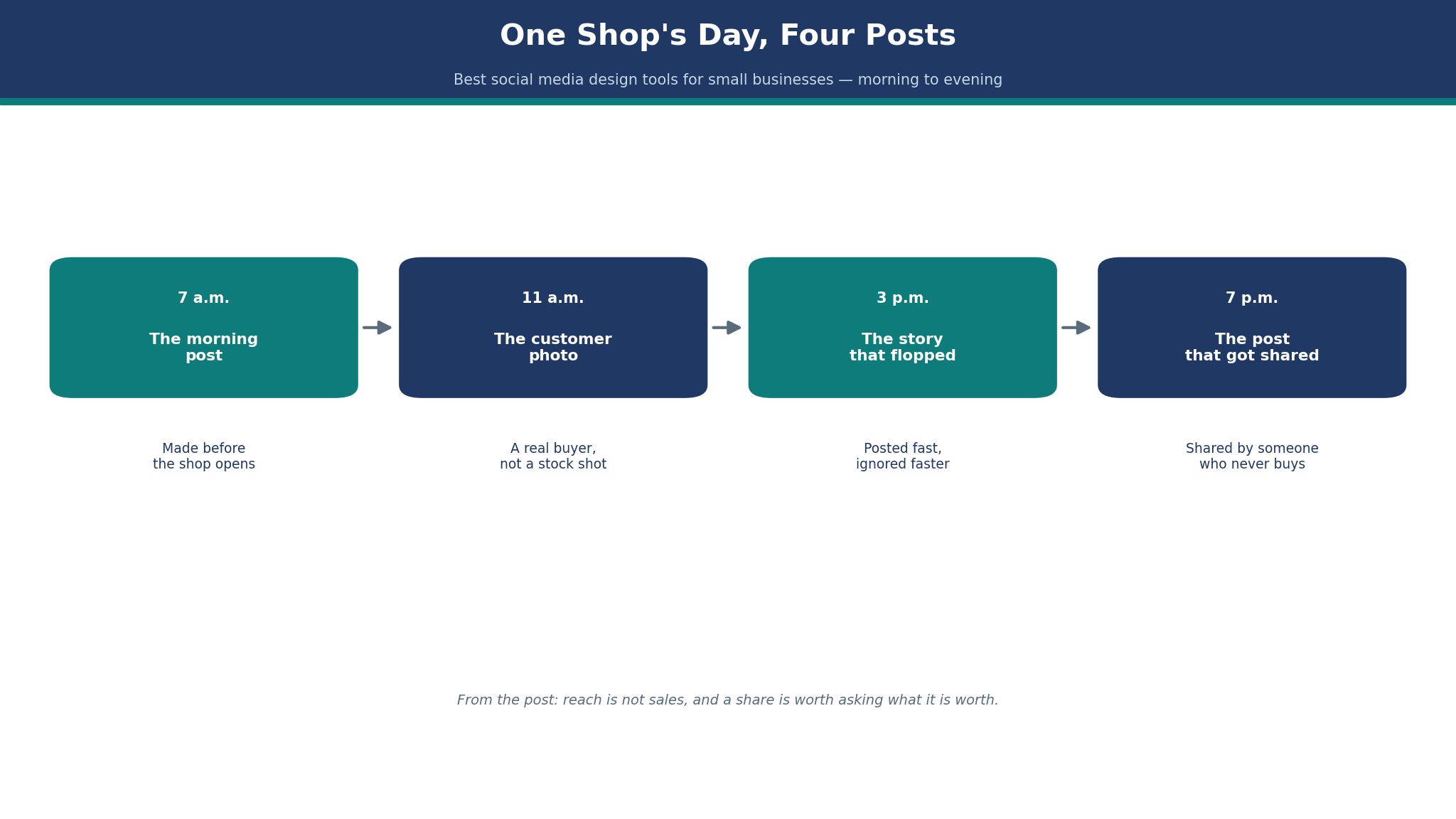
At 7 a.m. the shop is quiet, the buckets are full, and the morning post is the first job of the day. The florist opens Canva on her phone, picks a template she used last Tuesday, swaps in a photo of the new roses, and changes three words. The post is live before the kettle boils, and the whole job takes four minutes because the template already knows the shop colours and the logo sits where it always sits.
By 11 a.m. the customer photo is ready, and the best social media design tools for small businesses earn their keep in the ten minutes between serving one customer and greeting the next.
At 3 p.m. the story flops. The florist films the new display, adds music, and posts it with confidence, and by four o’clock it has twelve views and no comments. The flop teaches more than the morning success did. A story needs a face, a voice, or a question, and a silent pan across flowers is none of those. She notes it on the pad by the till, in the same place she notes which bunches sell out first.
At 7 p.m. the post that matters goes up. It is a photo of the Saturday market stall, the table full, the light low, and the caption asks followers which bouquet they would take home. Comments arrive while she locks up, and two of them turn into orders for Saturday morning.
The 10 Tools at a Glance
The ten tools below are the best social media design tools for small businesses, and they cover the whole working day, from the four-minute morning post to the evening question that sells out Saturday. Each one was judged on how fast a post gets made, how good it looks on a phone, whether the brand stays consistent, and what a year of real use costs. All prices below are the vendors’ own list prices in US dollars, read in October and November 2026, and any figure the sources disagreed on is marked reported.
| Tool | Best for | Starting price | Free plan | Watch out |
|---|---|---|---|---|
| Canva | Everyday posts | Pro $144 a year | Yes | AI uses capped monthly |
| Adobe Express | Fast branded posts | Premium $9.99 a month | Yes | Credits run out on daily posting |
| VistaCreate | Template variety | Pro $13 a month | Yes | Smaller asset library |
| Snappa | Speed over polish | Pro about $15 a month | Yes | Fewer templates |
| Design.com | Posts plus logo | Subscription | Yes | Less depth per tool |
| PicMonkey | Photo-led posts | Basic $7.99 a month | No | No free tier |
| RelayThat | Brand consistency | Pro about $15 a month | Yes | Plain designs |
| Easil | Teams and templates | Plus about $7.50 a month | Yes | Smaller community |
| Desygner | Budget teams | Pro about $6.95 a month | Yes | Dated templates |
| Stencil | Quick quote graphics | Pro about $9 a month | Yes | Basic editor |
Canva wins the glance table on breadth, and Adobe Express wins it on speed and price. VistaCreate is the template hunter’s pick, and Snappa is the one for a morning when four minutes is all there is.
Best Pick by Job
The table below matches each common job to one pick from the best social media design tools for small businesses, so you can skip straight to the row that describes your week.
| Job | Pick | Why it wins here |
|---|---|---|
| Daily posts on a budget | Canva | Biggest library, brand kit, free tier does real work |
| Fastest branded post | Adobe Express | Cheapest paid seat, one-click resize, Adobe fonts |
| Most templates to choose from | VistaCreate | Huge template range, low price, easy resize |
| Four-minute morning post | Snappa | Fastest editor, no learning curve, preset sizes |
| Posts plus a logo in one place | Design.com | One account, shared brand kit, consistent look |
| Photo-led shop posts | PicMonkey | Strong photo editing, good text tools |
| A team that must stay on brand | RelayThat | Locks fonts and colours, one-click layouts |
| Small team, tight budget | Easil | Cheap team plan, shared templates |
| Cheapest paid plan | Desygner | Lowest monthly price, decent templates |
| Quote graphics in seconds | Stencil | Fastest text-on-image tool on the list |
The 10 Tools in Detail
The ten tools below are the best social media design tools for small businesses ranked by what a working day actually demands. Canva and Adobe Express lead on different strengths, VistaCreate and Snappa chase on speed and variety, and the rest of the list earns its place on a specific job rather than on overall power. Prices here are vendor list prices in US dollars, checked in October and November 2026, with conflicts marked reported.
1. Canva
Canva is the tool most small businesses already know, and its lead in this guide comes from breadth rather than any single feature.
The template library covers every post format a shop will ever need, from a story to a square feed post to a sale banner, and the brand kit keeps the colours, fonts and logo in the same place every time. A morning post takes four minutes because the decisions were made once, months ago, and the tool remembers them.
Vendor pages list different figures for the same plan, so the prices below carry a reported note wherever the sources split.
Pro costs $144 a year on the newest vendor pages and $120 a year on older ones, or $18 and $15 a month billed monthly, for one person. Business costs $250 per person a year and adds shared brand kits, approvals and template locking.
A worked example shows the year-one arithmetic.
A florist on Pro at $144 a year makes about five posts a week, or 260 posts in a year, which works out to about 55 cents per post. The same florist hiring a designer for even one post a week would pay many times that in a month.
Canva also handles the whole week, not just one post.
The content planner schedules posts in advance, the resize tool turns one design into every format, and the mobile app is good enough that the morning post can be made at the shop door. The weak spot is originality.
2. Adobe Express
Adobe Express is the fastest route to a branded post, and it is the cheapest paid seat on this list. Premium costs $9.99 a month, billed monthly, with no annual option on the US page, and it includes 250 generative credits a month, brand kits, 100GB of storage and one-click resize.
Teams costs $4.99 per licence a month in the first year, then $7.99, with a two-seat minimum on an annual commitment. A two-person shop pays about $120 in year one for both seats, which undercuts Canva Business by a wide margin.
The speed comes from the resize and the fonts.
One design becomes a story, a feed post and a banner in three clicks, and the Adobe Fonts library gives a post a look that free fonts rarely match. Adobe Express strips backgrounds without a credit limit, which is the feature a shop reaches for when every product photo needs a clean cutout before posting.
A worked example makes the team case concrete.
A café with two people posting pays $119.76 in year one on the Teams first-year rate, against $500 for two seats of Canva Business. The saving is about $380, and the café keeps the brand kit, the shared assets and the resize tool.
3. VistaCreate
VistaCreate is the template hunter’s pick, and it earns third place on variety alone.
The library is enormous, the styles skew bright and modern, and the resize tool turns one design into every social format without a rebuild. A feed that posts daily will run out of Canva layouts eventually, and VistaCreate hands it a second library to rotate through before the repetition shows.
The price is simple. Pro costs $13 a month, with a free tier that covers occasional posting and a useful set of templates.
Paying opens the whole template library, the background tool and seats for a second poster, which is the point where VistaCreate stops being a solo tool. The editor is easy, the learning curve is short, and the mobile app handles a quick post from the shop floor. The asset library is smaller than Canva, and the brand kit is less strict, so a team that needs locked fonts and colours should look at RelayThat or Canva Business instead.
A worked example shows where VistaCreate fits.
A boutique that posts three times a week spends about $156 a year on Pro, or about $1 per post, and never repeats a template in a month. The time saved against designing from scratch is about twenty minutes per post, or roughly 50 hours a year, which is the real return on the subscription.
4. Snappa
Snappa is the fastest editor on this list, and it makes no apology for being simple. Open it, pick a size, drop in a photo, add two lines of text, and the post is done. There are no layers to manage, no brand kit to configure, and no features to learn before the first post. A shop owner who hates design software will finish a post in Snappa before Canva has finished loading its template gallery.
The price is reported at about $15 a month on the monthly plan, or about $10 a month billed annually, so treat the figure as reported and confirm at checkout. The free tier covers a few posts a month, enough to learn the tool. The template range is smaller than Canva or VistaCreate, and the photo library is thinner, so a business that needs variety will outgrow it.
5. Design.com
Design.com sits at number five because it answers a different question from the four above it. The question is not which tool makes the best post, but which account covers the most jobs. A single subscription covers social posts, a logo, a card and a kit, and every piece carries the same colours and fonts without anyone copying them across. A shop that needs posts, a logo and a card in the same week gets further with one Design.com account than with a post-only tool that does one of those jobs well.
The post maker itself is solid rather than spectacular. Templates cover the common small business formats, the editor is straightforward, and exports suit every social platform. It will not out-design Canva or out-run Adobe Express, and nobody should buy it expecting that. Its strength is the bundle arithmetic.
6. PicMonkey
PicMonkey is the photo-led pick, and it earns its place on editing power. The photo tools are stronger than anything else on this list outside Canva, with proper touch-ups, filters, background effects and text tools that sit well on a photograph. A shop that sells on the strength of its images, from a bakery to a florist to a jeweller, will get more from PicMonkey than from a template-first tool.
There is no free tier, which is the first thing to know. Basic costs $7.99 a month billed annually, and Pro costs $12.99 a month billed annually, which works out to about $96 and $156 a year. The paid tiers add more storage, more fonts and the brand kit features a team needs.
7. RelayThat
RelayThat is the brand-consistency pick, and it works differently from every other tool here. You set your fonts, colours and logo once, and the tool generates layouts that obey those choices automatically. A team of three can produce posts all week without any of them drifting off brand, because the tool simply does not offer the option. That strictness is the whole product.
The price is reported at about $15 a month for the Pro tier, with a free tier for occasional use, so confirm the figure at checkout. The designs are plain by design, and a business that wants wild creativity will find RelayThat dull.
8. Easil
Easil is the small-team pick, built around shared templates and approval flows that bigger tools charge far more for. A team of four can share a template library, lock the parts that must not change, and let anyone on the team produce a post that matches the brand. The editor is straightforward, the templates are clean and modern, and the learning curve is short enough that a new hire can post on day one.
The price is reported at about $7.50 a month for the Plus tier, which makes it one of the cheapest paid plans on this list. The template range is smaller than Canva, and the community around the tool is smaller too, so finding help or inspiration takes more effort.
- Easil in one line. Shared templates and locked branding for small teams, at one of the lowest prices on this list.
- Best moment. A new hire makes their first on-brand post on day one, without asking anyone for the logo file.
- Watch out. The template range is smaller than Canva, and the community is small.
- Verdict. Pick it for a small team on a budget, skip it when you need the biggest library.
9. Desygner
Desygner is the budget pick, and its argument is simple arithmetic. The Pro tier is reported at about $6.95 a month, which makes it the cheapest paid plan on this list, and the free tier covers a useful range of templates. A business watching every dollar can run its whole social feed on Desygner for about $83 a year, which is less than one month of some tools here.
Q. Who should actually pay for Desygner? A. A very small business that needs decent posts at the lowest possible price, and does not need the biggest library or the smartest AI.
Q. What is the drawback? A. The templates show their age next to Canva and Adobe Express, and the editor feels a step behind the leaders.
Q. When is it the right call? A. When the budget is the deciding factor and the posts are simple. A sale banner, a quote graphic or a holiday post all work fine.
Q. When does this tool stop being enough for the feed? A. The day the feed starts looking dated, or the day a second person needs to post under the same brand. That is when Canva or RelayThat earns its price.
10. Stencil
Stencil rounds out the list as the quickest route to a text-on-image post. It is built for quote graphics, announcements and simple sale posts, and it does that one job faster than any tool above it. Pick a background, type the words, export, and the post is live in under two minutes. The image library is built in, the sizes are preset for every platform, and there is almost nothing to learn.
The price is reported at about $9 a month billed annually for the Pro tier, with a free tier for occasional use. The editor is basic, and anyone who needs layers, brand kits or scheduling will outgrow it quickly. For a business that posts quotes, tips and announcements most days, Stencil is the fastest tool on this list, and the year-one cost of about $108 is fair for the time it saves.
Canva vs Adobe Express
The two leaders among the best social media design tools for small businesses split on one question, and it is not quality. It is whether you already live in Adobe’s world. Canva wins on the size of its library, the strength of its free tier, and the fact that everyone on your team probably already knows it. Adobe Express wins on price, on speed, and on the Adobe Fonts library that makes a post look expensive without trying.
On money, Adobe Express Premium at $9.99 a month undercuts Canva Pro at $144 a year, though the gap narrows when you compare annual totals, since Canva Pro works out to $12 a month on the annual rate. On teams, the gap widens sharply. Two seats of Adobe Express Teams cost about $120 in year one, while two seats of Canva Business cost $500.
On features, Canva has the bigger template library, the better content planner, and the stronger mobile app. Adobe Express has the faster resize, the free background removal, and the Firefly image generation that Canva cannot match at the same price. On AI, both cap usage, and both caps bite only on heavy use. The deciding test is simple.
How to Choose Among the Best Social Media Design Tools for Small Businesses
Start with how many posts you make in a week, because that number decides the price tier before anything else does. One post a week is a free-tier job on Canva, Adobe Express, VistaCreate or Snappa, and paying for a subscription would be money thrown away. Five posts a week is a paid-plan job, and the cheapest paid seat that covers your formats is the right buy. Ten posts a week is a team job, and the brand controls matter more than the template count.
Then look at who makes the posts. One person can use any tool on this list, and the choice is about taste and speed. Two or more people need shared templates and locked branding, or the feed will drift within a month. RelayThat, Easil and Canva Business exist for exactly that problem, and the cheapest of them is Easil at about $90 a year.
Finally, check the photo workflow, because social posts live or die on images. A shop that photographs products every day needs background removal, quick cropping and good text tools, which points to Adobe Express or PicMonkey. A shop that uses stock photos and templates needs the biggest library, which points to Canva or VistaCreate. Make three real posts in your top two choices before you pay, and the decision will make itself.
Why Did the Post That Got Shared Come From Someone Who Never Buys?
The shared post is the strangest result in social media for a small business, and the best social media design tools for small businesses cannot manufacture one. The person who shares it is often the person least likely to buy. A bride shares the florist’s photo because it shows her day, not because she needs flowers again.
The trade-off is that reach and revenue point in different directions. A post designed to sell, with a price and a call to buy, rarely gets shared, because nobody shares an advert for fun. A post designed to be shared, with a beautiful photo and a question, rarely sells directly, because it never asks for the sale.
No design tool can make a dull photo interesting, and that limit belongs in the open, not in the fine print. No template makes a post shareable. The share comes from the photo, the story and the question, and the tool only makes those three look good.

What Makes a Post Worth Designing at All?
Not every post deserves design time, and the honest answer saves hours a week. A quick update, a price change or a holiday greeting needs a template and two minutes, and anything more is wasted effort. A post that introduces a new product, announces an event or tells the shop story deserves the full treatment, with a good photo, careful words and a design that matches the brand. The skill is telling the two apart before you open the tool.
The test is simple. Ask what the post must do by tomorrow. If the answer is nothing, use the fastest template and move on. If the answer is a booking, a sale or a visit, spend the twenty minutes. Most small businesses waste their design time in the wrong direction, polishing posts that needed speed and rushing posts that needed care.
What Happens When a Post Flops?
A flop is a post that gets almost no response, and it happens to every small business, usually once a week. The first thing to know is that a flop is data, not a disaster. The 3 p.m. story in the diary above flopped because it had no face, no voice and no question, and that lesson cost nothing and improved every post after it. A flop that teaches you something is worth more than a post that performs averagely and teaches you nothing.
The fix is not to delete the post or to post again immediately. Leave it, look at what the successful posts had that this one lacked, and change one thing next time. One change at a time is the rule, because changing five things tells you nothing about which one mattered. If three posts in a row flop, the problem is usually the posting time or the photo quality, and both are easy to test.
Frequently Asked Questions
How many social posts should a small business design each week?
Three to five designed posts a week is the right range for most small businesses, with quick updates and stories on top. Fewer than three and the feed looks abandoned, and more than five usually means the quality drops and the owner burns out. A florist posting five times a week spends about twenty minutes a day on Canva, which is sustainable. Start at three, hold it for a month, and add more only when the three feel easy.
Can I design social posts on my phone?
Yes, and most small business owners do. Canva, Adobe Express, VistaCreate and Snappa all have mobile apps that handle a full post, from photo to text to publish. The morning post in the diary above was made on a phone in four minutes. The desktop is better for a careful post with many elements, but the phone is where the daily habit lives, so pick a tool whose app you actually enjoy opening.
Do I need a paid plan for social media design?
No, not to start. The free tiers of Canva, Adobe Express, VistaCreate and Snappa all produce real, publishable posts, and a business posting three times a week can run for months without paying. The paid plan becomes worth it when you need the brand kit, background removal, scheduling or the full template library. The best social media design tools for small businesses earn their subscription on volume, so let the volume arrive first and pay second.
Will my posts look the same as everyone else’s?
They will if you use the template exactly as it comes, and the fix is easy. Change the photo, rewrite the words in your own voice, and alter one design choice, such as the colour of a single element or the position of the text. Those three changes are enough to make a template yours, and they take about a minute. Canva templates are the most widely used, so the risk is highest there, and the fix is the same everywhere.
Can one tool handle posts, a logo and a brand kit?
Yes, and Design.com is the tool on this list built for exactly that, with Canva Business as the other serious option. Design.com covers posts, a logo, a business card and a brand kit in one subscription, and the shared identity is its main strength. Canva Business does the same at a higher price with a bigger library. If you only need posts, buy a post tool. If you need the whole identity, buy the bundle and stop paying twice.
What should I do when a post gets no response at all?
Leave it up, learn from it, and change one thing next time. A silent post usually lacks a face, a question or a clear photo, and the fix is to add one of those three. Do not delete it, since a thin feed looks worse than a quiet post, and do not post again immediately to compensate. The flop in the diary above taught more than the successes did, and the next post used the lesson.
The Verdict: Canva for the Feed, Adobe Express for the Craft
Canva is the best pick among the best social media design tools for small businesses, because it has the biggest library, the strongest free tier, and a brand kit that makes four-minute posts possible. Adobe Express is the pick when price matters most, since Premium at $9.99 a month and Teams at about $120 a year for two seats undercut every rival. VistaCreate is the pick for variety, and Snappa is the pick for pure speed.
What I would do, if I were setting up a small shop tomorrow, is start on Canva free, make posts for a month, and watch which ones get shared. If the volume grows past five posts a week, move to Pro at $144 a year and stop thinking about it. If a second person starts posting, look at Adobe Express Teams before Canva Business, because the $380 a year it saves buys better photos.