
A booking set for 5 PM that shows up as 5 AM is not a small display glitch. It is a 12 hour error, and it is exactly the kind of confusion reported by Calendly users whose bookings looked right in one place and wrong in another. One customer arrives at dawn for an afternoon appointment. Another misses a call entirely because the invite landed on the wrong date. The business loses the slot, the customer loses trust, and the owner is left wondering which calendar to believe. Owners who fix booking calendar showing wrong time zone small business bookings face usually find four settings that disagree.
If you need to fix booking calendar showing wrong time zone small business bookings suffer from, the answer is rarely one broken setting. It is usually four settings that disagree with each other.
Time zone errors happen because a booking passes through several systems, and each one has its own time zone. Your device has one. Your calendar app has one. Your booking tool account has one. Each booking page or event type can have another. The customer device has one more. When all of them agree, the booking looks right everywhere. When any one of them differs, the same meeting can display at different local times, or even on different dates, depending on where it is viewed. That is why fixing the symptom in one place often fails. You have to audit the whole chain.
This guide gives you that audit. It covers how to find which setting is wrong, how to align your account, calendar, booking page, and invites, how to handle daylight saving changes, travel, and virtual private networks, and how to test the fix with real bookings before customers hit it again. The steps draw on official Google Calendar help and Calendly community guidance checked at writing time, so the setting names match what you will actually see on screen.
Why One Booking Shows Different Times in Different Places
A calendar event is stored as a moment in Coordinated Universal Time, and each app converts that moment into the local time of the viewer. Google Calendar help explains this directly. When you create an event, you see it in your local time zone, and people you invite see it in their local time zones. It breaks down when one link in the chain carries the wrong zone, because the conversion then starts from the wrong local time.
The same effect appears when a booking tool and a connected calendar disagree. Calendly community answers point out that a Calendly account time zone, an event type time zone, and a connected calendar time zone can all differ, and the booking page will show the event type zone while confirmations may show another. Add a customer device set to the wrong zone, or a virtual private network that makes a browser appear to sit in another country, and the invitee can see a time that matches none of the host settings. The fix, therefore, is not to trust any single screen. It is to compare all of them side by side.
How to Fix Booking Calendar Showing Wrong Time Zone Small Business Teams Can Use
The workflow below is the spine of this guide. Work through it in order, write down what each setting currently says before you change it, and change only one setting at a time so you can tell which change fixed the problem. If you need to fix booking calendar showing wrong time zone small business customers keep reporting, this sequence covers every link in the chain.
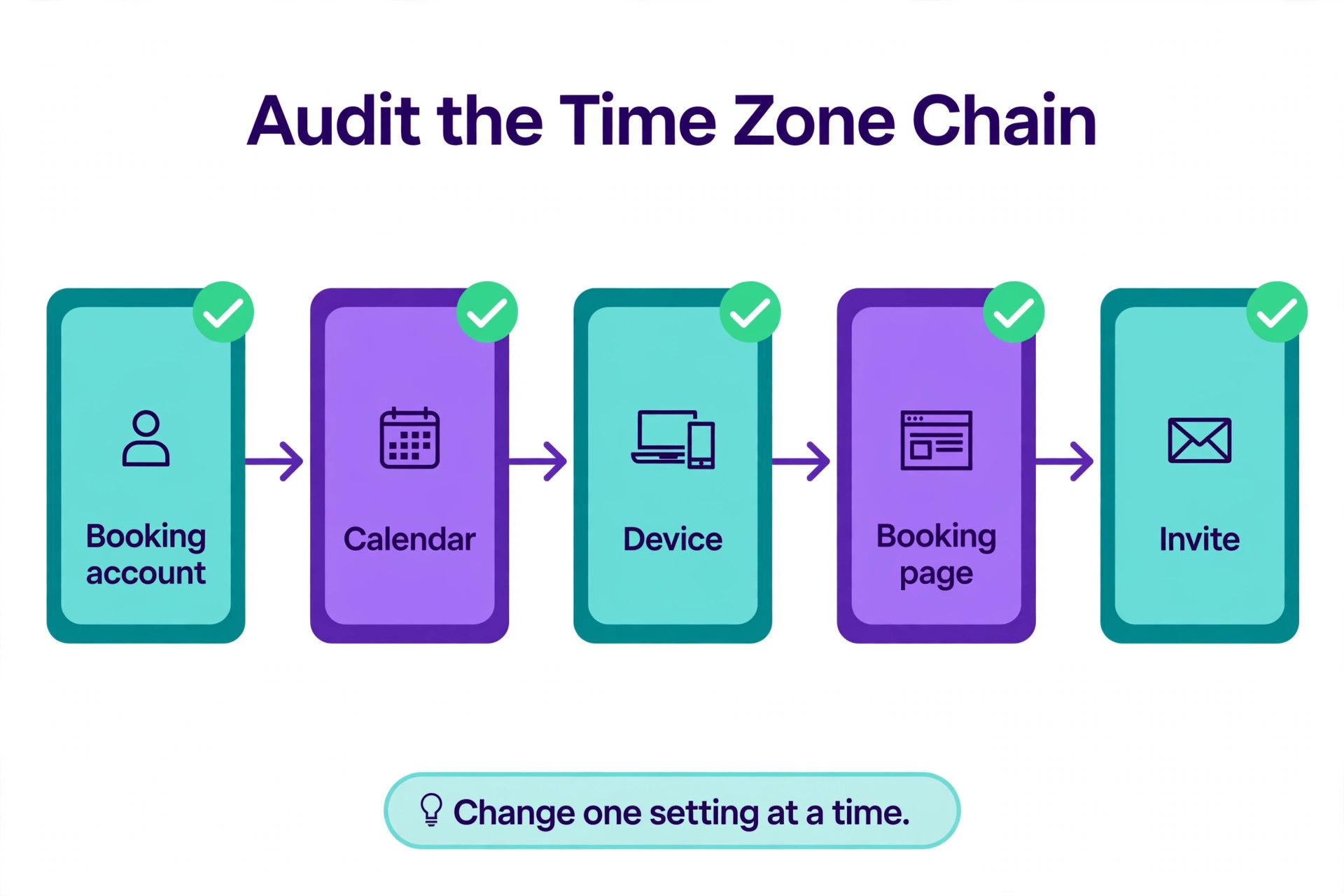
1. Confirm the real problem with one affected booking. Ask the customer what time they saw, what time zone their device showed, and what the invite said. 2. Audit your account time zone in the booking tool. Compare it with the time zone where you physically work. 3. Audit your calendar time zone. Check the connected Google or Outlook calendar and your device setting. 4. Audit the booking page and each event type. Check the display setting, the availability schedule, and any locked time zone option. 5. Audit the invite and confirmation. Check whether customers receive a calendar invitation or an email confirmation, and what zone each one shows. 6. Fix the mismatches in one pass. Align account, calendar, event type, and availability schedule to the same working zone. 7. Test with two bookings from two zones. Book once as a local customer and once with a different zone selected on the booking page. 8. Tell affected customers the corrected time in plain words, with the date, the local time, and the time zone name spelled out.
Do not skip step one, because the symptom tells you where to look. If only one customer reports a wrong time, the fault may sit on that customer device or browser. If every customer in one region reports a shift, the fault is more likely on your booking page or availability schedule. If every booking looks wrong to you but right to customers, the fault is more likely on your own calendar or device. That triage saves an hour of random setting changes, and it is the first step when you fix booking calendar showing wrong time zone small business owners report.
Audit Your Account Time Zone First
Start with the booking tool account, because it controls how you see bookings, how confirmations are worded, and often how availability is calculated. In Calendly, open your profile settings and read the time zone listed there. Calendly community guidance stresses that the profile time zone controls how you see times on your meetings page and in email confirmations, while a separate event type setting controls what invitees see. If those two zones differ, you and your customers can look at the same booking and see different times, and both screens will look correct to the person viewing them.
Compare the profile zone with the zone where you actually work, not the zone where you happen to be today. If you travel, decide whether your working zone is your home base or your current location, and set the account to the working zone. If your team works across zones, pick one base zone for the business, write it down in your booking instructions, and use it consistently.
Also check the country and language settings on the account if they are shown, because a wrong country can affect date formats and first day of week display, which adds confusion on top of a time error. Keep the account zone, the working location, and the public booking page wording aligned, and note the chosen zone in a shared document so a future team member does not change it casually. That written zone is part of how you fix booking calendar showing wrong time zone small business teams keep reintroducing.
Audit the Connected Calendar and the Device
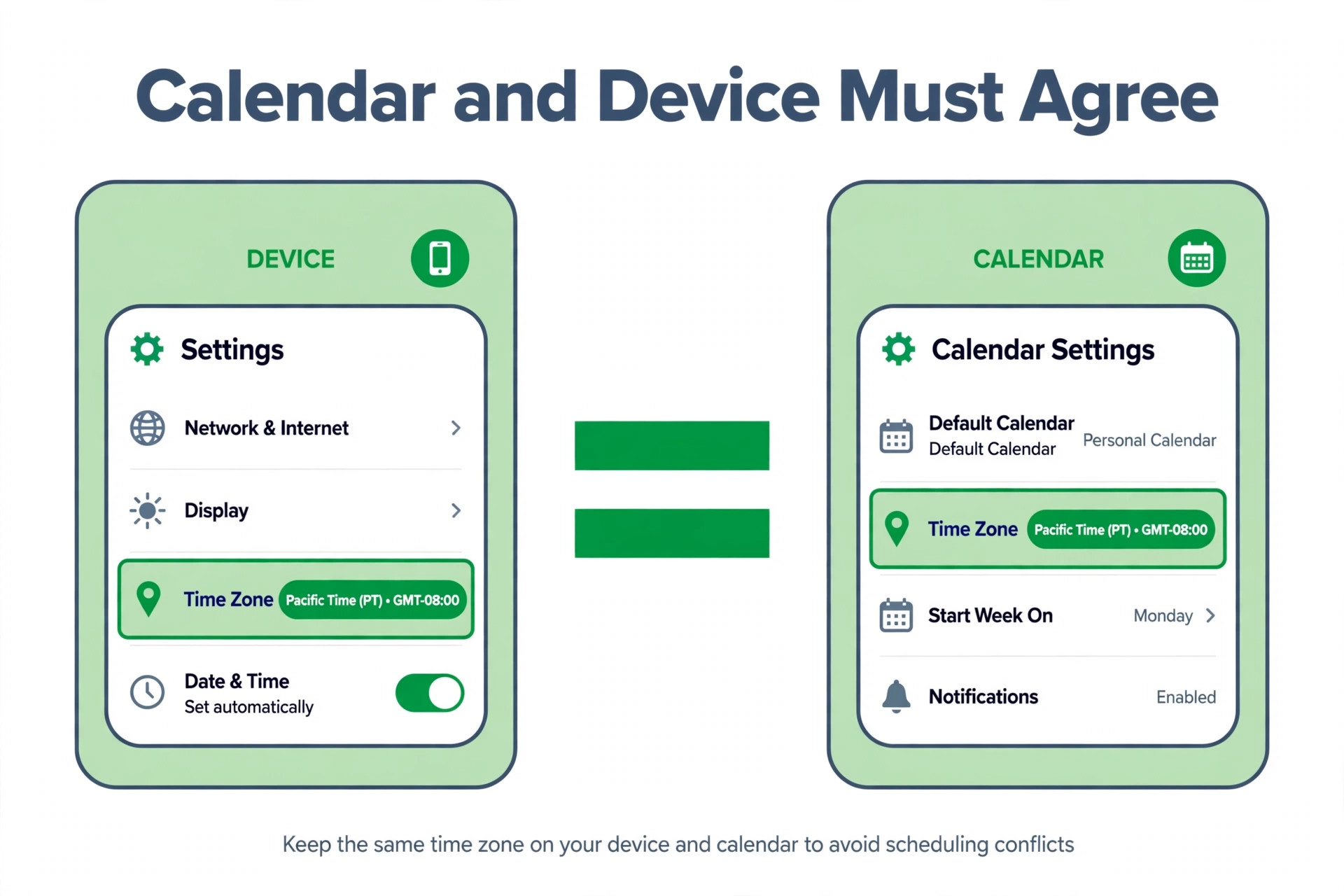
Next, check the calendar that receives the bookings. In Google Calendar, open settings and read the primary time zone, and check whether the option to follow the device time zone is turned on. Google help explains that with that option on, the calendar zone updates automatically as you travel, while with it off you can select a fixed zone. Both options are valid, but they suit different businesses. A travelling owner who wants the calendar to follow them should leave the device option on. A fixed location business should turn it off and set the home zone explicitly, so a trip does not silently move every booking display.
Check the device itself as well, on every device you use for bookings. A phone that still sits on a holiday zone, a laptop with automatic zone detection turned off, or a tablet set manually to the wrong city will all display the same event at the wrong local time. Calendly community answers repeatedly point to device and calendar mismatches as the cause of bookings that look right on the booking page but wrong afterwards. Fix the device zone, restart the calendar app, and reopen the affected booking to see whether the display corrects itself before you change anything in the booking tool.
Audit the Booking Page and Each Event Type
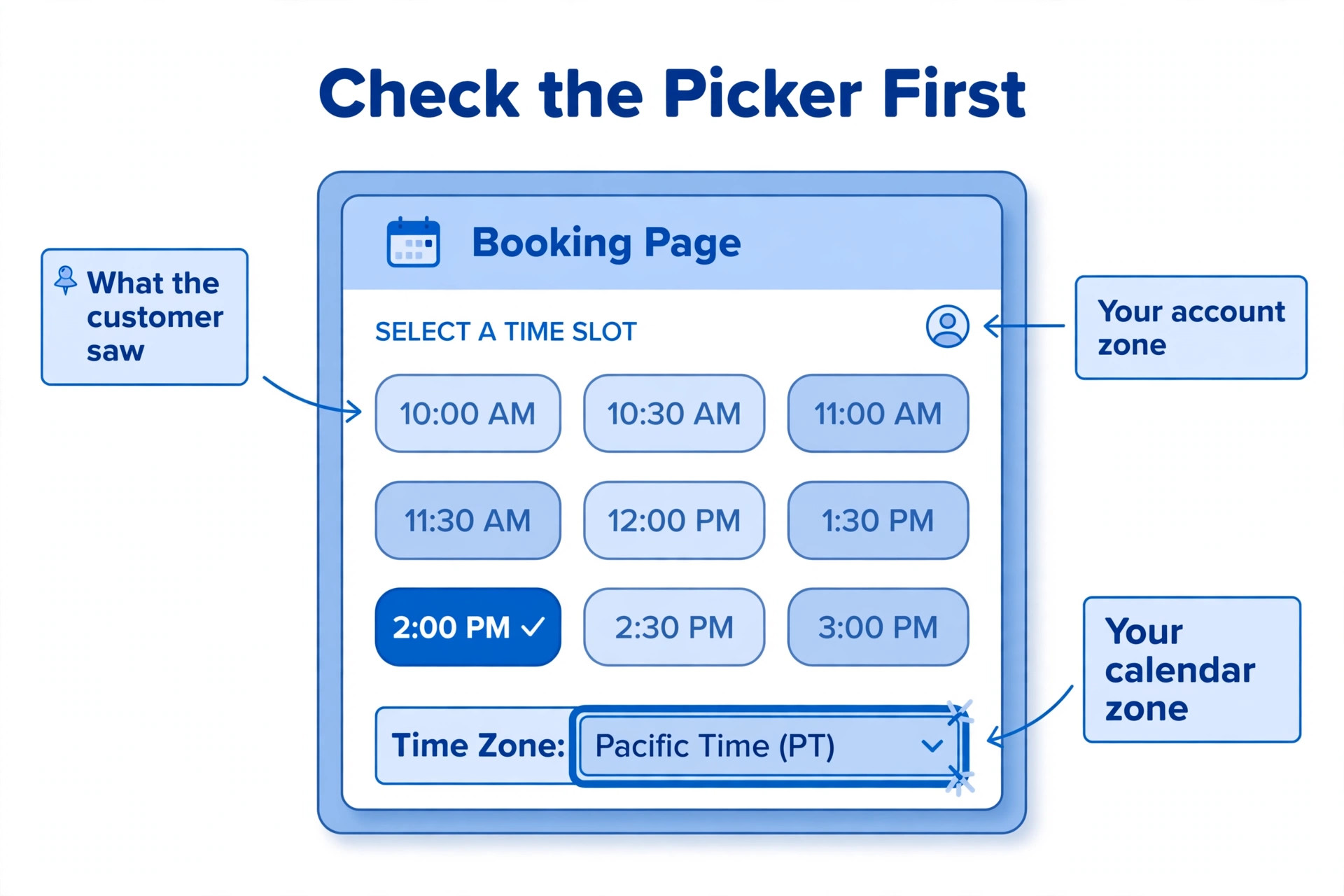
The booking page is where customers form their expectation, so audit it as a customer would. Open the public booking link in a private browser window, scroll to the time zone selector, and read what zone it shows. Calendly community guidance describes this check as the source of truth for what the invitee saw when booking, and it recommends comparing that selector with your calendar zone and your device zone. If the selector shows a zone you do not work in, you have found a likely fault, even if your account settings look right.
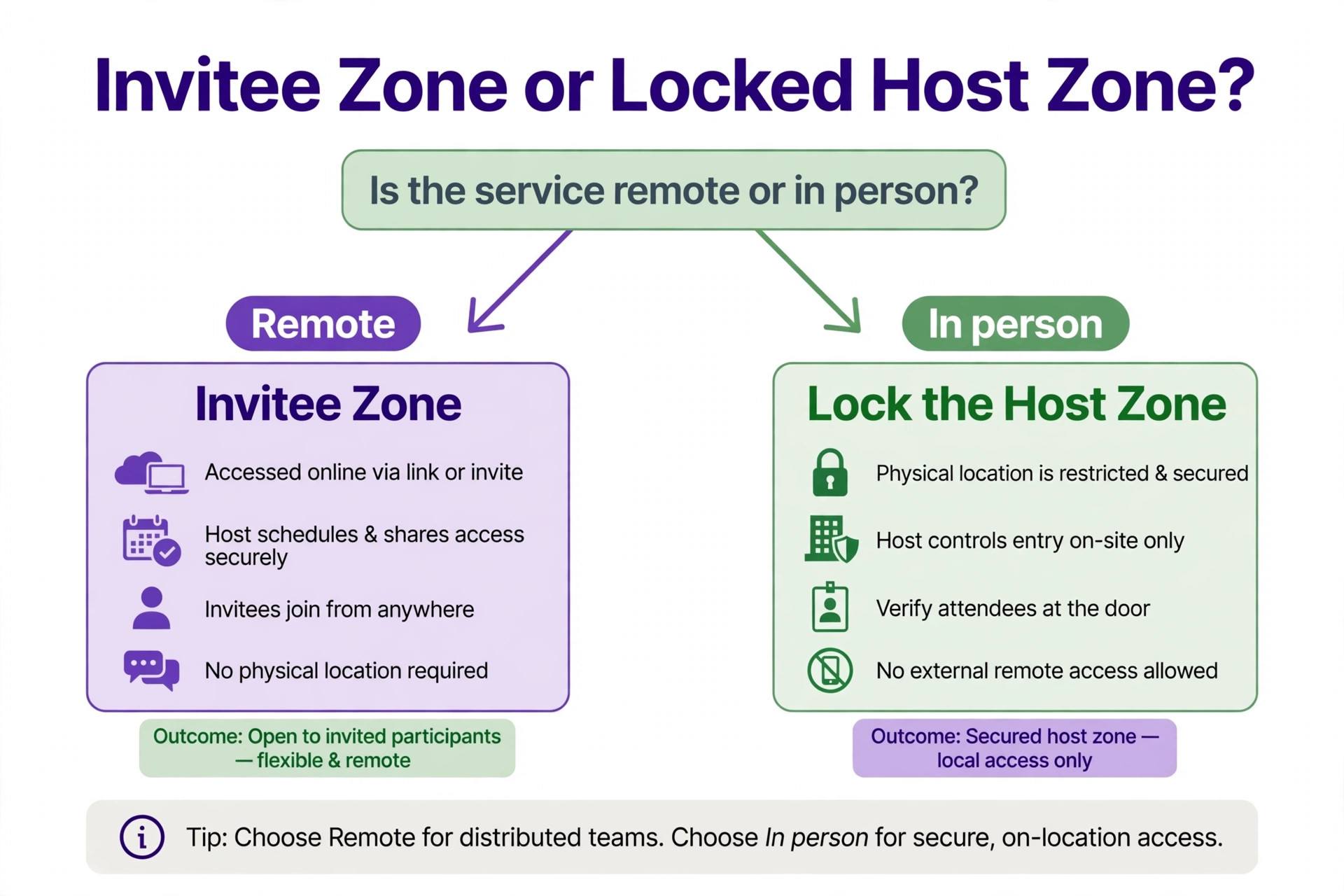
Open each event type and check its time zone display setting. Calendly offers a setting that controls whether the booking page shows times in the invitee zone or the host zone, and community answers recommend the invitee zone for most remote bookings, because the customer then sees slots in their own local time. For in person services, a locked host zone often makes more sense, because the customer must arrive at the business location at the local time there. Choose deliberately for each event type, and do not leave the setting at a default you have never reviewed. A remote consultation and a shop visit should not necessarily share the same display rule.
Check the availability schedule attached to each event type as well. An availability schedule with the wrong zone will offer slots at the wrong local hours, even when the display setting is correct. If you set availability as 9 AM to 5 PM in one zone but the schedule itself sits in another, customers will see a shifted window and may book outside your working hours. Align the schedule zone with the event type zone, and review the schedule after any move, any daylight saving change, and any change of booking tool plan, because migrations can reset schedule zones without warning.
Audit Invites, Confirmations, and Reminders
Invites cause a distinct class of time zone errors, because a calendar invitation and an email confirmation do not always show the same zone. Calendly community guidance on confirmation problems explains that calendar invitations are sent by the connected calendar and may display according to the recipient calendar settings, while email confirmations carry the zone shown on the booking page. If a recipient calendar cannot detect the zone or conflicts with it, the invite can default to Coordinated Universal Time, which looks like a large shift to the customer.
Decide which notification type your event types should use, and test both. If customers report invites showing the wrong zone while email confirmations look right, switching that event type from calendar invitations to email confirmations can remove the calendar app handling that causes the shift. Community guidance specifically notes this workaround for recipients on mail providers that frequently show Coordinated Universal Time in calendar invites. Keep the change for the affected event types only, and tell customers in the confirmation email to check the time zone name printed in the message, not just the hour. That check helps you fix booking calendar showing wrong time zone small business invites cause.
Reminders deserve the same check. A reminder sent the day before a booking should repeat the date, the local time, and the time zone name in words, such as Eastern Time, rather than relying on a bare hour. That wording protects both sides when a customer travels between booking and appointment, because the customer can see that the stated zone no longer matches their current location and can ask for confirmation. Add the time zone name to your reminder templates in the booking tool, and check that automated reminders from your calendar app and from the booking tool do not contradict each other. Two reminders with different zones will confuse a customer even when the booking itself is correct.
Handle Daylight Saving, Travel, and VPN Problems
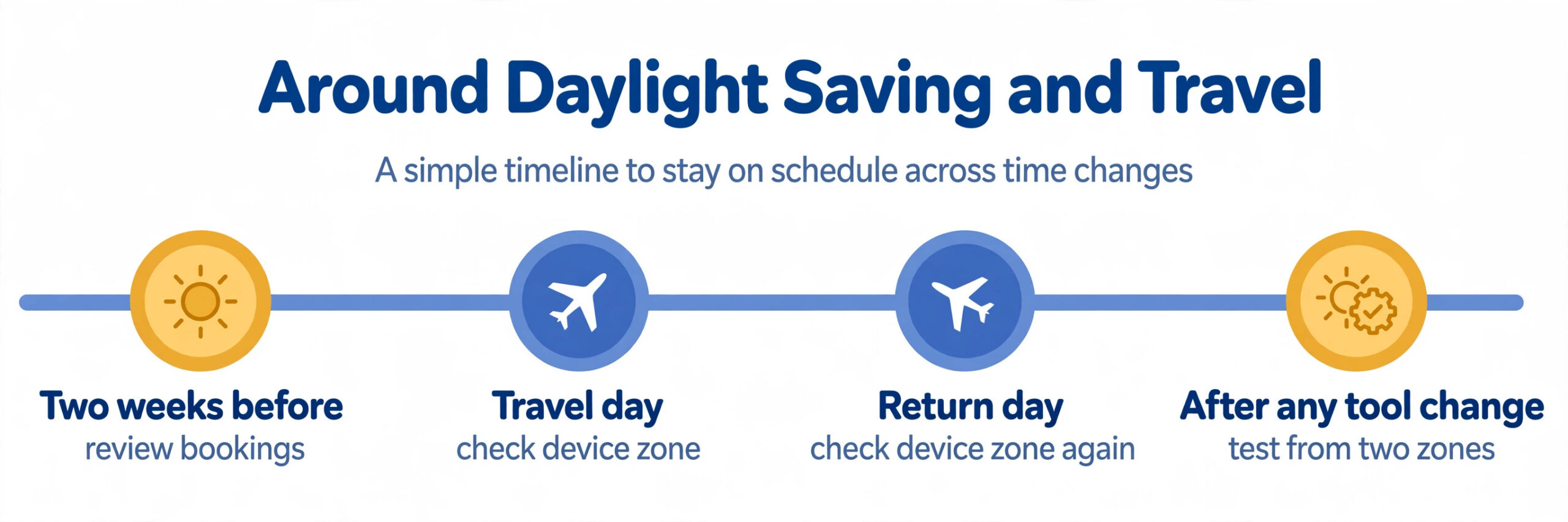
Daylight saving changes create a special trap, because the offset between two zones can change by an hour on different dates in different countries. Google Calendar help notes that events are stored in Coordinated Universal Time and converted to local time, and that events created before a zone rule change may display incorrectly. The practical fix is to review bookings that fall in the two weeks around each daylight saving change in your zone and in your customers zones, and to confirm those bookings by email with the zone name spelled out. Do not rely on the calendar display alone for that fortnight.
Travel creates a related trap. If you book appointments while travelling, your device may adopt the travel zone and your booking tool may follow it, shifting the slots you offer. Before a trip, decide whether your booking page should stay on your home zone or move with you, set the account and device accordingly, and warn regular customers if the change affects them. After you return, check the device zone first, because a phone that fails to switch back will keep displaying bookings in the holiday zone and will make every booking look wrong until it is corrected.
Virtual private networks cause a subtler version of the same problem. A customer using a virtual private network may appear to sit in another country, so the booking page detects the wrong zone for them. Calendly community guidance recommends asking such customers to turn the network off for booking or to set the zone manually with the picker on the booking page. Add a short line to your booking page instructions telling customers to check the zone shown on the page before they pick a slot, and to change it with the picker if it looks wrong.
Test the Fix With Bookings From Two Zones
Never declare a time zone fix done on the strength of one settings screen. Test it with real bookings, because settings screens can agree while the customer experience still fails. Create a test event type if you do not want to disturb live bookings, or use a quiet slot on a live event type and cancel the test afterwards. Book once with your own device and zone, and book a second time with a different zone selected in the booking page picker. Compare the confirmation email, the calendar invite, and the calendar entry for both bookings, and check that each one shows the correct local time for its viewer.
Ask a colleague or a customer in another zone to complete a test booking as well, if you serve customers across zones. A test from a different real location catches virtual private network and browser detection problems that a manual picker test can miss. Record the results in a short test note with the date, the zones used, the times shown, and the outcome. That note becomes your proof that the fix works, and it becomes the template for the next time a customer reports a shift, because you can repeat the same test and compare results.
If a test still fails, change one setting and test again, rather than changing three settings at once. Time zone faults are hard to trace precisely because several settings interact, and a batch of changes can fix the symptom while hiding the original fault, which then returns after the next daylight saving change. A slow, single change test takes an extra half hour and saves a repeat incident. When the tests pass, keep the test event type or the test note for future use, and schedule a repeat test after any booking tool change, calendar change, or team move. Repeat testing is how you fix booking calendar showing wrong time zone small business bookings for good, rather than once.
Tell Affected Customers Clearly and Quickly
A technical fix alone does not repair trust with customers who already booked at the wrong time. Contact each affected customer directly, apologise briefly, and state the corrected appointment in full. Write the weekday, the date, the local time, and the time zone name in words, and ask the customer to confirm the corrected time by reply. A message that says only that the time has changed, without stating the new time and zone, invites a second round of confusion and a second missed appointment.
Offer a simple remedy where the error caused real loss. A customer who arrived at the wrong hour may need a priority rebooking, a waived late fee, or a discount on the next visit, depending on your business. Decide the remedy before you contact customers, apply it consistently, and do not make the customer negotiate for it. A consistent remedy costs less than a lost customer, and it signals that the business owns the error rather than blaming the calendar.
Prevent the Next Time Zone Error
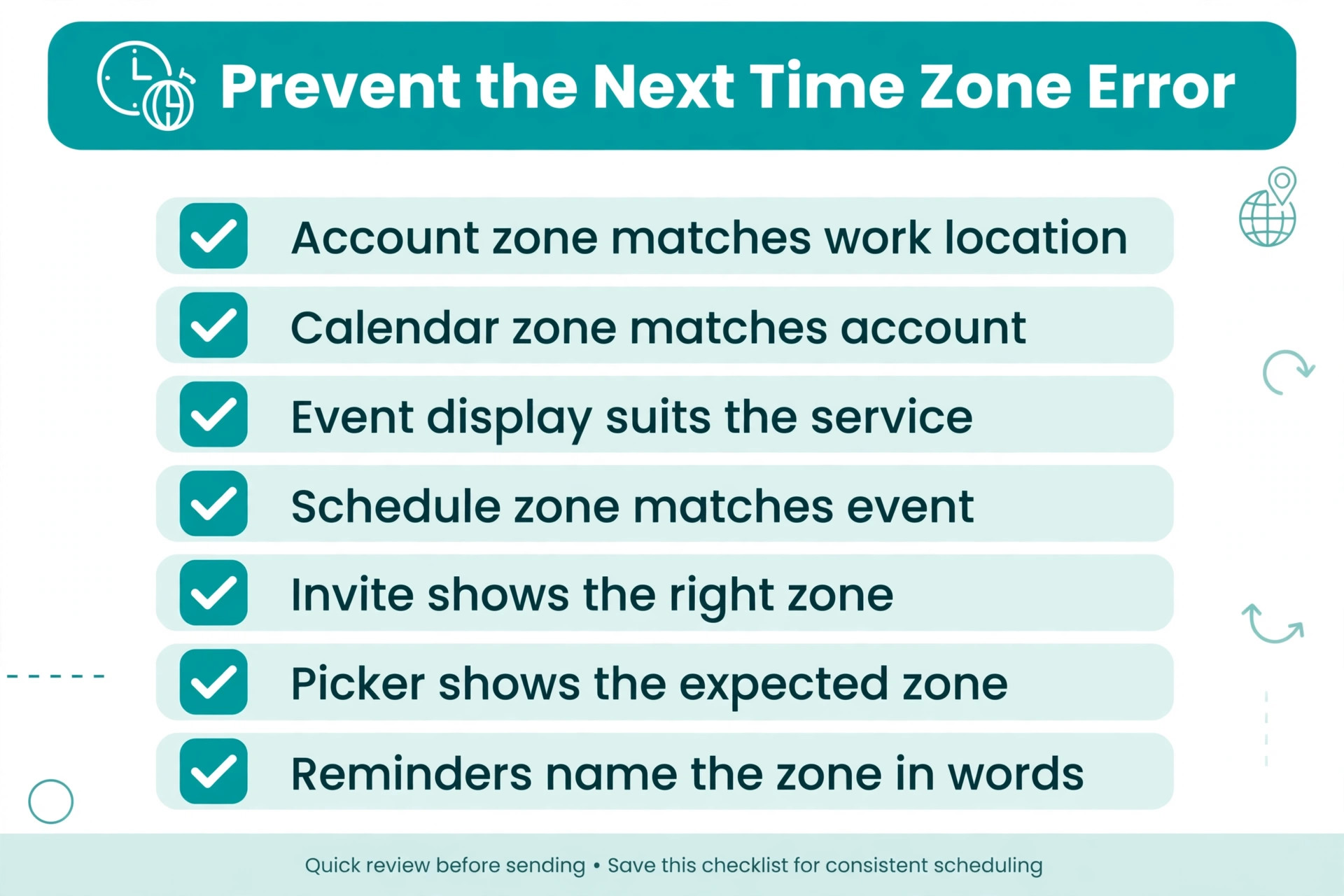
Prevention is mostly a checklist run at the right moments. Run it when you set up a new event type, when you hire staff who will book appointments, when you travel, when daylight saving changes approach, and when you change booking tools or calendar providers. Each run takes minutes, and each run catches the mismatch before a customer does. Write the checklist into your staff handbook so it survives staff changes.
| Check | Where to look | How often |
|---|---|---|
| Account time zone matches working location | Booking tool profile settings | On setup and after travel |
| Calendar time zone matches account zone | Calendar settings and device settings | On setup and after travel |
| Event type display setting suits the service | Event type scheduling settings | For every new event type |
| Availability schedule zone matches event type | Availability schedule settings | For every new event type |
| Invite type shows the right zone for customers | Notification settings per event type | When invite complaints appear |
| Booking page picker shows the expected zone | Public booking link in a private window | Monthly and before campaigns |
| Reminder templates name the time zone in words | Reminder and confirmation templates | On setup and after template edits |
Train staff to read a booking in full before confirming it to a customer, because that habit helps fix booking calendar showing wrong time zone small business errors before they reach the customer. A booking confirmation that states the date, the time, and the zone name takes seconds longer to read and prevents most phone disputes about arrival times. If your team books by phone, add the zone name to the phone script as well, especially for customers in other zones. A spoken time without a zone is an incomplete appointment, and it will fail the first time a customer travels or a daylight saving change intervenes.
Booking Tools Compared for Time Zone Control
The tools below cover the main ways a small business runs bookings, with a focus on time zone handling rather than general features. Prices are reported from vendor pages and comparison guides checked at writing time, and they change, so confirm the current price on the vendor page before buying. The right choice depends on whether your customers sit in one zone or many, and whether your services are in person, remote, or mixed.
| Tool | Best for | Reported starting price | Time zone trade off |
|---|---|---|---|
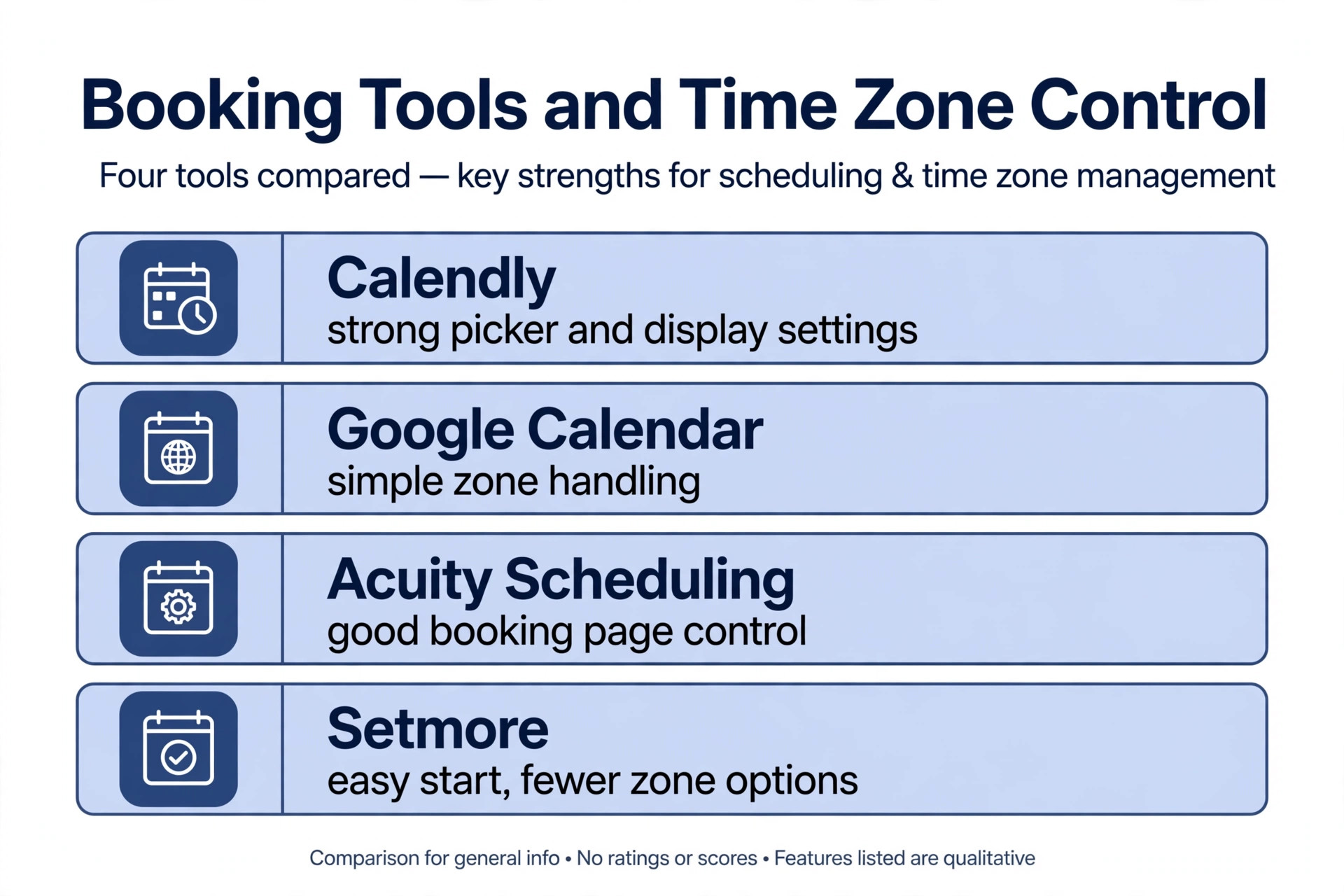
| Calendly | Teams booking remote and in person appointments | Free for one event type, paid from about $10 a seat a month on annual billing in recent guides | Strong picker and display settings, but account, event, and calendar zones must all align |
| Google Calendar | Solo owners booking directly from a calendar | Free with a Google account | Simple zone handling, but no public booking page controls without an add on |
| Acuity Scheduling | Service businesses needing intake forms with bookings | Paid plans reported from about $20 a month in recent guides | Good booking page control, but schedule zones still need a manual audit |
| Setmore | Solo owners wanting a low cost booking page | Free for up to four users, Pro about $5 a user a month on annual billing in recent guides | Easy start, but fewer zone display options than specialist tools |
Calendly suits a business with customers in several zones, because the picker and the invitee zone display setting give customers control over what they see. Google Calendar suits a business whose customers all sit in one zone and who book by phone or email, because the zone handling is simple and automatic. Acuity suits a business that needs detailed intake questions alongside booking, while Setmore suits a solo owner who wants a booking page without a large monthly cost. Whichever tool you choose, the audit in this guide still applies, because every tool separates account, calendar, and event settings in some form.
Mistakes That Keep the Error Coming Back
The most common mistake is fixing only the screen the owner looks at. An owner who corrects the calendar display but leaves the booking page zone wrong will keep receiving bookings at the wrong hours, and will conclude the fix failed. Always fix the full chain, from account to calendar to event type to invite, and test from the customer side before closing the incident. A fix that only looks right to the owner is not a fix.
The second mistake is changing settings during an active incident without recording the original values. An owner who changes three zones at once, then finds bookings improve, cannot tell which change mattered, and cannot restore the original setup if the change breaks something else. Write down each original value before you change it, change one value at a time, and keep the note with the incident record. That discipline turns a confusing incident into a repeatable fix.
The third mistake is ignoring customer side causes. Some reported errors come from a customer device set to the wrong zone, a browser with a virtual private network running, or a calendar app that defaults to Coordinated Universal Time. Those cases still need a helpful response, with a request to check the device zone and the booking page picker, rather than a defensive statement that the business calendar is correct. A customer who learns to check the picker will book correctly next time, while a customer who is told the problem is theirs will simply book elsewhere.
Verdict for a Small Business With Wrong Time Zone Bookings
The fix that works is unglamorous and thorough, and it is the practical way to fix booking calendar showing wrong time zone small business appointments depend on. Audit the account, the calendar, the device, the booking page, the event type, the availability schedule, and the invite, align them to one working zone, and test from two zones before you declare the job done. That audit takes under an hour for a solo business and a little longer for a team, and it prevents the missed appointments and lost trust that a single wrong zone can cause for months.
Keep the prevention checklist in your handbook, run it after travel and daylight saving changes, and name the time zone in words in every confirmation and reminder. Those two habits cost almost nothing and catch the errors that settings alone cannot, because they make the zone visible to customers as well as to staff. When a customer reports a shift in future, you will have a test routine, a settings note, and a clear message to send, rather than another hour of guessing.
Start with one affected booking and the booking page picker. Compare what the customer saw with what your calendar shows, and let that comparison point to the link in the chain that disagrees. That comparison is the fastest route to a booking calendar customers can trust.
More Reading on Stratilyze
For related scheduling systems, read best scheduling software for home care agencies and best booking software for med spas. For booking tool costs, see cost of Calendly for small business monthly.
Frequently Asked Questions
Why does my booking show the right time to me but the wrong time to the customer
You and the customer are viewing the same stored moment through different time zone settings. Your account, calendar, or device zone may differ from the event type zone or the customer device zone. Compare the booking page picker, your profile zone, your calendar zone, and the customer invite side by side to find the link that disagrees.
Should I set my booking page to the invitee time zone or lock it to my time zone
Use the invitee zone for remote bookings, so customers see slots in their own local time. Lock the host zone for in person services, because the customer must arrive at your location at the local time there. Review the display setting for each event type separately, rather than applying one rule to every service.
Why did bookings go wrong after I travelled
Travel can change your device zone, and your calendar or booking tool may follow the device. Check the device zone first on your return, then check the calendar zone and the booking tool profile zone. For a fixed location business, turn off the follow device option in the calendar and set the home zone explicitly.
Do daylight saving changes cause booking time zone errors
They can, because the offset between zones changes on different dates in different countries, and events stored before a rule change may display incorrectly. Review bookings in the two weeks around each daylight saving change, and confirm those bookings by email with the date, the time, and the zone name spelled out.
Why do calendar invites show a different time than email confirmations
Calendar invitations are sent by the connected calendar and display according to the recipient calendar settings, while email confirmations carry the zone shown on the booking page. If invitees report Coordinated Universal Time or a shifted hour in invites, switching that event type to email confirmations can remove the calendar app handling that causes the shift.
How do I test a time zone fix before customers book again
Book a test appointment with your own zone, then book again with a different zone selected in the booking page picker. Compare the confirmation email, the calendar invite, and the calendar entry for both bookings. Ask a colleague in another zone to test as well, and keep a short note of the zones used and the times shown.