
Verdict first. In most small team cases, Teams audio fails because the app is using the wrong device, the browser or system is blocking the microphone, or an old driver is breaking the audio path. Check those three in that order, run the built in test call, and you will solve the majority of problems without reinstalling anything. This guide shows how to fix Microsoft Teams audio not working small team issues with that order, so a meeting that starts badly can still be saved in minutes.
Audio trouble feels urgent because it blocks the whole meeting, not just one person. A team of five can lose half an hour to one faulty headset, and the usual response is for everyone to change settings at once, which makes the real cause harder to find. Slow the process down for two minutes. Identify whether the problem is input, output, or both, assign one person to test one change at a time, and keep the rest of the team on the call while you work.
Small teams have an advantage here. There is usually no long IT queue, and the person with the problem can test a fix immediately. The disadvantage is that nobody owns the setup, so headsets, Bluetooth earbuds, laptop speakers, and monitor speakers all compete as default devices. This guide gives the team a shared order of checks, so the same problem does not eat a different meeting every week.
Diagnose Before You Change Anything
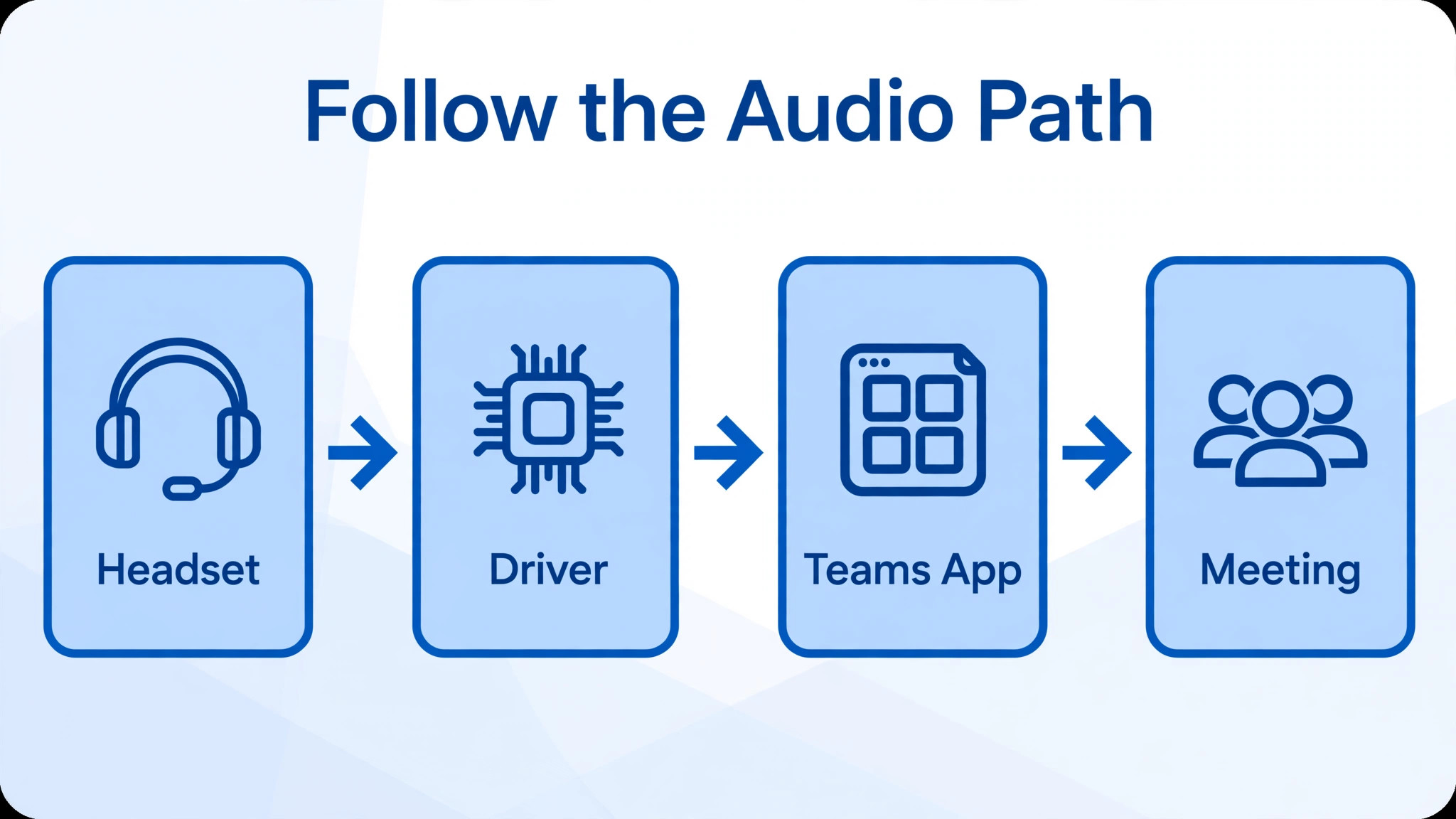
Start with two questions. Can the affected person hear others, and can others hear the affected person. If nobody can hear the affected person but they can hear everyone else, the fault sits on the input side, meaning the microphone, its permission, or its device choice. If the affected person hears nothing but others hear them fine, the fault sits on the output side, meaning speakers or headphones. If both directions fail, suspect a device selection problem, a permission block, or a broken driver, because those faults can block the whole audio path at once.
Next, check whether the problem exists outside Teams. Play a short video or a system sound. If other apps are also silent, stop troubleshooting Teams and fix the device audio first, because no Teams setting can repair a muted system device or a dead headset. If other apps sound fine, the fault is specific to Teams, and the checks in this guide will find it faster.
Ask whether the problem started after a change. A new headset, a Windows update, a move to a new laptop, or a switch from the desktop app to the browser version are all common triggers. Note the change before you forget it, because it points straight at the layer to check first. A problem that began after a Windows update points to drivers. A problem that began with a new headset points to device selection and Bluetooth profiles.
| Symptom | Likely layer | First check |
|---|---|---|
| Others cannot hear you | Microphone or permission | Teams device settings and mute state |
| You cannot hear others | Speaker or output choice | Teams speaker selection and system volume |
| Both directions fail | Device, permission, or driver | Default device, privacy settings, driver |
| Sound is muffled or echoing | Processing or feedback | Noise suppression, echo path, second device |
| Audio works in other apps only | Teams settings or app data | Teams device list, test call, app reset |
Write down the symptom in plain words before changing anything. That note keeps the team from chasing five theories at once, and it gives the person helping a clear starting point. Diagnosis takes two minutes and saves twenty.
A clear symptom note is also the fastest way to fix Microsoft Teams audio not working small team problems as a group, because it stops well meaning colleagues from changing settings on their own machines when only one machine is at fault. One symptom, one machine, one fix at a time.

How to Fix Microsoft Teams Audio Not Working Small Team in Order
The workflow below follows the order that resolves most cases with the least disruption. Device selection comes first because it is the most common cause and the fastest to test. Browser and system permissions come second because a blocked microphone looks exactly like a broken one. Drivers and updates come third because they take longer and need a restart. Echo checks come fourth because feedback often appears only after basic audio returns. The phone fallback comes last in the workflow but first in a live meeting, because keeping the meeting moving matters more than finishing the diagnosis on the call.
- Choose the correct speaker and microphone in Teams device settings, then run a test call.
- Check browser permissions when using Teams on the web, and check system privacy settings on Windows or Mac.
- Update Teams, check for system updates, and update or roll back the audio driver if the problem followed an update.
- Check echo and feedback by closing duplicate audio paths, muting unused devices, and adjusting noise suppression.
- Switch to phone audio as a fallback so the meeting can continue while the computer audio is fixed properly.
Work through the steps in order and test after each one. Speak a test sentence, watch the microphone meter, and ask one colleague to confirm what they hear. Testing after every change is what turns a list of guesses into a diagnosis, because the change that restores audio tells you exactly which layer failed.
Check Device Selection First
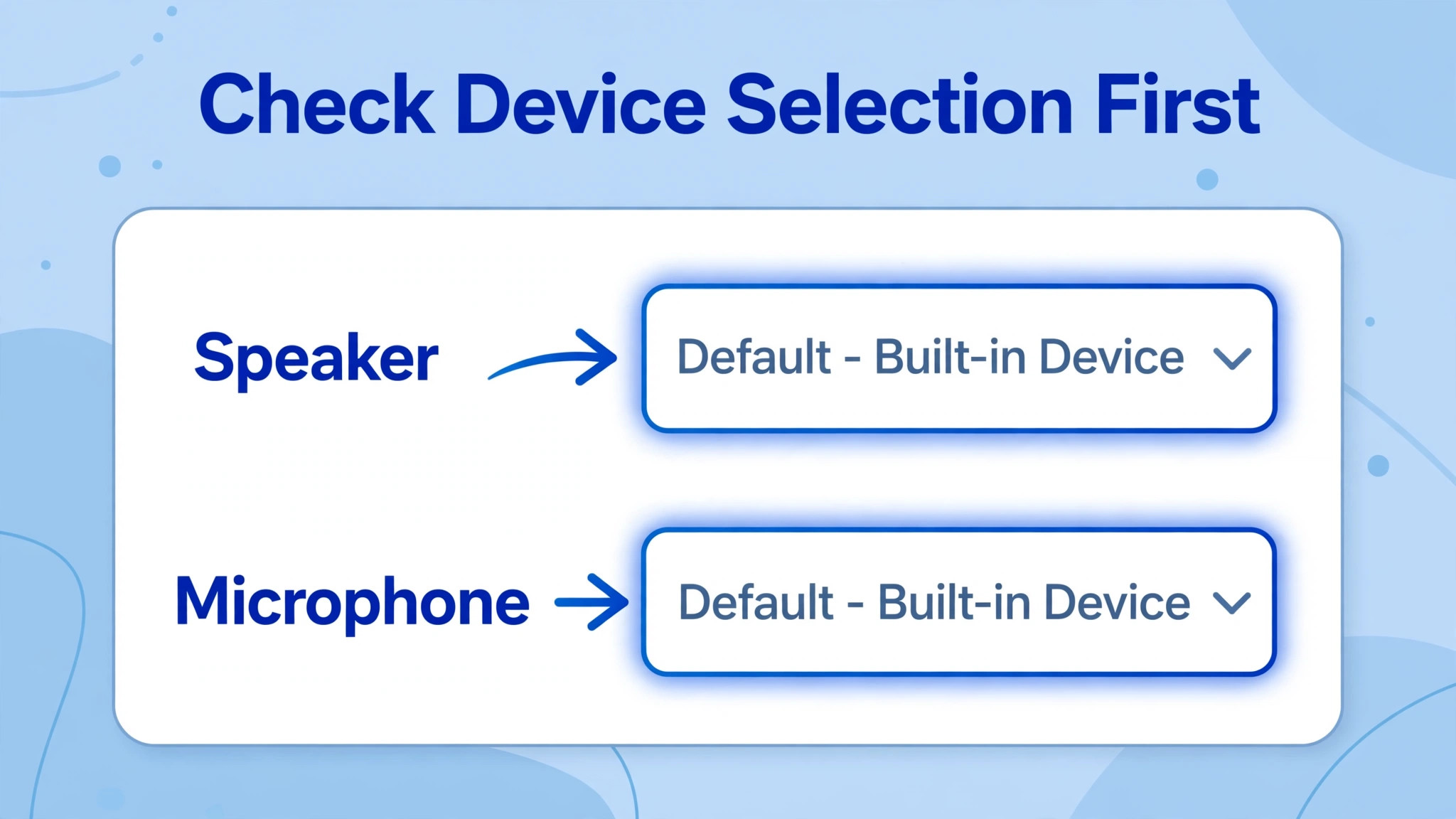
Open Teams settings and go to the Devices section. In the desktop app, this sits under the profile menu, then Settings, then Devices. Choose the intended speaker in the speaker menu and the intended microphone in the microphone menu. Do not leave either menu on a generic default when a headset, a monitor, and a laptop all offer audio devices, because the default can point at a monitor with no microphone or a speaker nobody is listening to.
Use the built in test call to verify the choice. The test call records a short sample and plays it back, which confirms both directions in one pass. If the playback is silent, the device choice is still wrong or the device itself has failed. If the playback is muffled, the microphone is working but the processing or placement needs attention, which the echo section covers later.
Bluetooth headsets deserve special care. Many Bluetooth devices offer two profiles, one for high quality listening and one for hands free calling that carries the microphone. When Teams picks the listening profile, the microphone may vanish or sound poor. If a Bluetooth headset behaves strangely, switch to a wired headset for the meeting, then sort the Bluetooth profile afterwards when nobody is waiting. Wired audio removes a whole layer of uncertainty in one move.
Check the physical device too. Headset booms have mute switches, some sit in an upright muted position, and external microphones have buttons that are easy to press by accident. Check the cable, try a different USB port, and test the headset in another app. A device that fails everywhere is a hardware problem, not a Teams problem, and no setting will repair it.
This device first habit is the core of how a small group can fix Microsoft Teams audio not working small team complaints quickly, because the fix is usually a menu choice rather than a repair. Make device selection the first question in every audio complaint, and half of all incidents will close at this step.
Check Browser Permissions Next
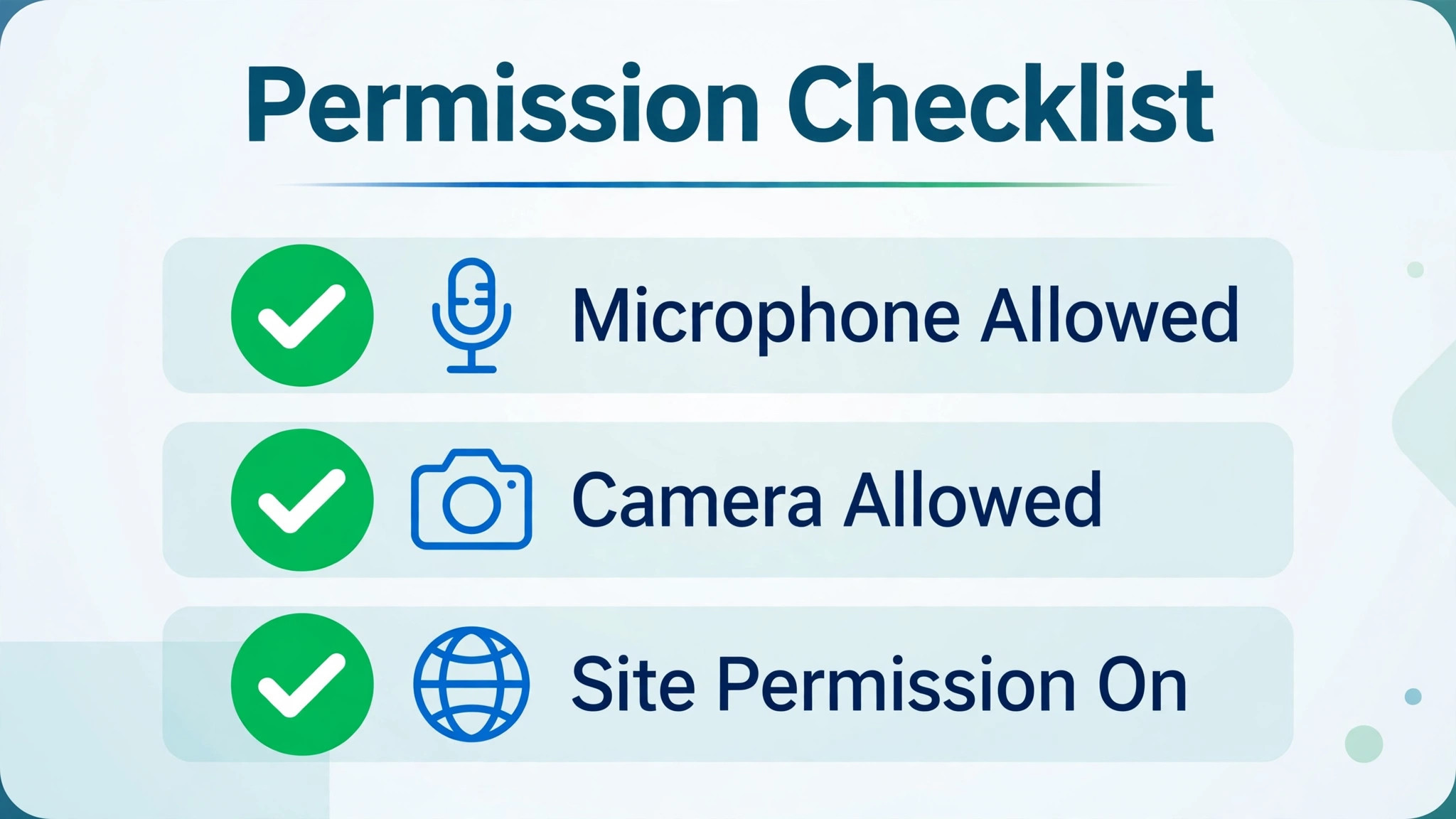
Teams on the web adds a permission layer that the desktop app does not have, and a blocked browser permission silences the microphone without any error that names the cause. When using Teams in a browser, look at the address bar for a microphone icon. If it shows a blocked state, click it, change the microphone setting to Allow, choose the correct device, and reload the meeting page. Without the reload, the new permission may not take effect in the live meeting.
System privacy settings sit behind the browser permission. On Windows, open Settings, then Privacy and security, then Microphone, and confirm that microphone access is on, that apps may access the microphone, and that Teams is allowed. The desktop app also needs the desktop apps permission switched on, because the installed Teams client runs as a desktop app. On a Mac, open System Settings, then Privacy and Security, then Microphone, and confirm that Teams is checked. Restart the app after changing a privacy setting, since a running app may not pick up the new permission until it restarts.
Managed devices add a wrinkle. Some workplaces enforce microphone permissions through policy, and a greyed out setting means an administrator controls it. In that case, try a different browser profile or the desktop app, and raise the policy question with whoever manages the device, rather than fighting a setting you cannot change. Note the exact message or greyed out control, because that detail helps the administrator unblock the right permission first time.
Browser extensions can also grab the microphone. If audio works in a guest or private browser window but fails in the usual profile, an extension or a profile setting is the likely cause. Disable extensions one at a time, testing after each change, or move the meeting to the clean profile while you sort the main one. This isolation test is quick and it prevents a long hunt through settings that were never the problem.
Permission blocks are quiet failures, and that is why they belong second in the order when you fix Microsoft Teams audio not working small team setups. The microphone is fine, Teams is fine, and yet nobody hears anything, because a privacy switch somewhere in the chain is off. Checking permissions early stops the team from replacing hardware that was never broken.
Check Drivers and Updates
When audio fails in Teams and in other apps, or when the device does not appear in the device list at all, the driver layer is the next place to look. Open Device Manager on Windows, expand the audio inputs and outputs section, right click the microphone or headset, and choose Update driver. Also check the sound, video and game controllers section for the underlying audio device, since the visible microphone entry and the real audio hardware are not always the same item.
Updates cut both ways. An outdated Teams version or an outdated operating system can break audio, and so can a fresh update that ships a faulty driver. Update Teams first through the profile menu, then check for system updates, then restart. If the problem began immediately after a system update, the driver rollback option in Device Manager is worth trying, because it returns the audio hardware to the version that worked before the update.
Audio enhancements are a frequent hidden cause of muffled or distorted sound. In Windows sound settings, open the device properties for the microphone, look for additional device properties, and switch enhancements off. Enhancements are meant to improve sound, but they can conflict with the processing Teams already applies, and the result is often worse than the raw microphone signal. Test after switching them off, before changing anything else.
Clearing Teams app data is a later step, not an early one, and it belongs here because it addresses damage to the local app rather than a setting. Close Teams fully, clear its cached data through the app settings or the documented reset route for your version, then sign back in and retest device selection. Only take this step when audio works in other apps but Teams still cannot use the microphone or speakers, because a reset costs setup time that a simple device change does not.
Driver work rewards patience. Change one thing, restart when asked, and retest with the test call before moving on. Teams audio that returns after a driver update and a restart was a driver problem, and noting that fact helps the next person with the same headset skip the earlier steps.
Keep a note of the driver version that worked, alongside the headset model and the laptop model. That small record turns a repeat incident into a five minute fix, which is exactly the kind of practical detail that helps a team fix Microsoft Teams audio not working small team setups without calling in outside help every time.
Tame Echo and Feedback
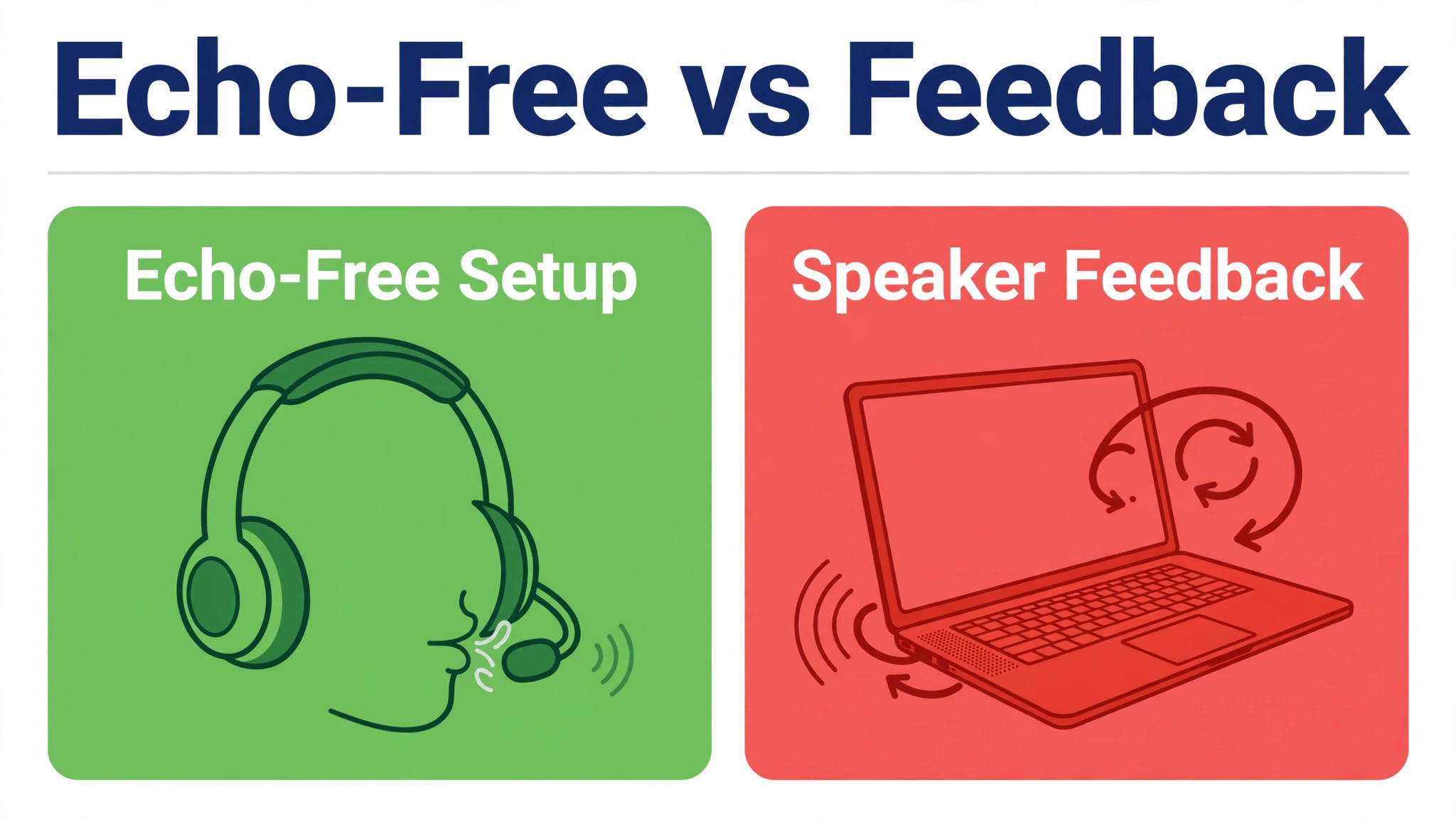
Echo usually means the same audio is travelling through two paths at once. The classic case is a laptop speaker playing the meeting while a second device, such as a phone or another laptop in the same room, picks that sound up and sends it back. The fix is to keep one audio path per room. Mute every device except the one in use, close the meeting on spare devices, and ask anyone sharing a room to use one headset between them or to sit in separate rooms.
Noise suppression in Teams helps, but it is not magic. In device settings, try the automatic level first, then the high level if background noise is strong. High suppression can clip quiet speech, so test with a normal speaking voice rather than shouting. If voices sound cut off or robotic, step the suppression back down and reduce the background noise itself, by closing a door or moving away from a fan, rather than pushing the processing harder.
Speaker placement matters more than people expect. A laptop microphone sitting next to a loudspeaker will always feed some sound back, and raising the speaker volume makes it worse. Lower the speaker volume, move the microphone closer to the speaker’s mouth, or switch to a headset, which separates input and output physically. Headsets are the simplest echo fix available, and for a small team they are worth keeping as spares for meeting days.
Check for duplicate microphones in the system device list. Virtual audio devices from recording tools, meeting tools, or streaming software can claim the microphone and route it oddly. Disable virtual devices you are not using, and set the real headset as the default for both input and output. When the meter moves locally but remote colleagues hear nothing, a virtual device or a wrong processing path is a strong suspect.
Echo that survives these checks may come from another participant’s setup rather than yours. Ask colleagues to mute when not speaking, and identify the echo source by watching whose tile lights up when the echo appears. Fixing the right person’s setup saves the whole team from changing settings that were never at fault.
In a shared room, this source check is often the step that finally lets a team fix Microsoft Teams audio not working small team meetings, because the person with the echo rarely hears it themselves. The rest of the room hears it clearly, so naming the source kindly and fixing that one setup ends the loop for everyone.
Use the Phone Dial In Fallback
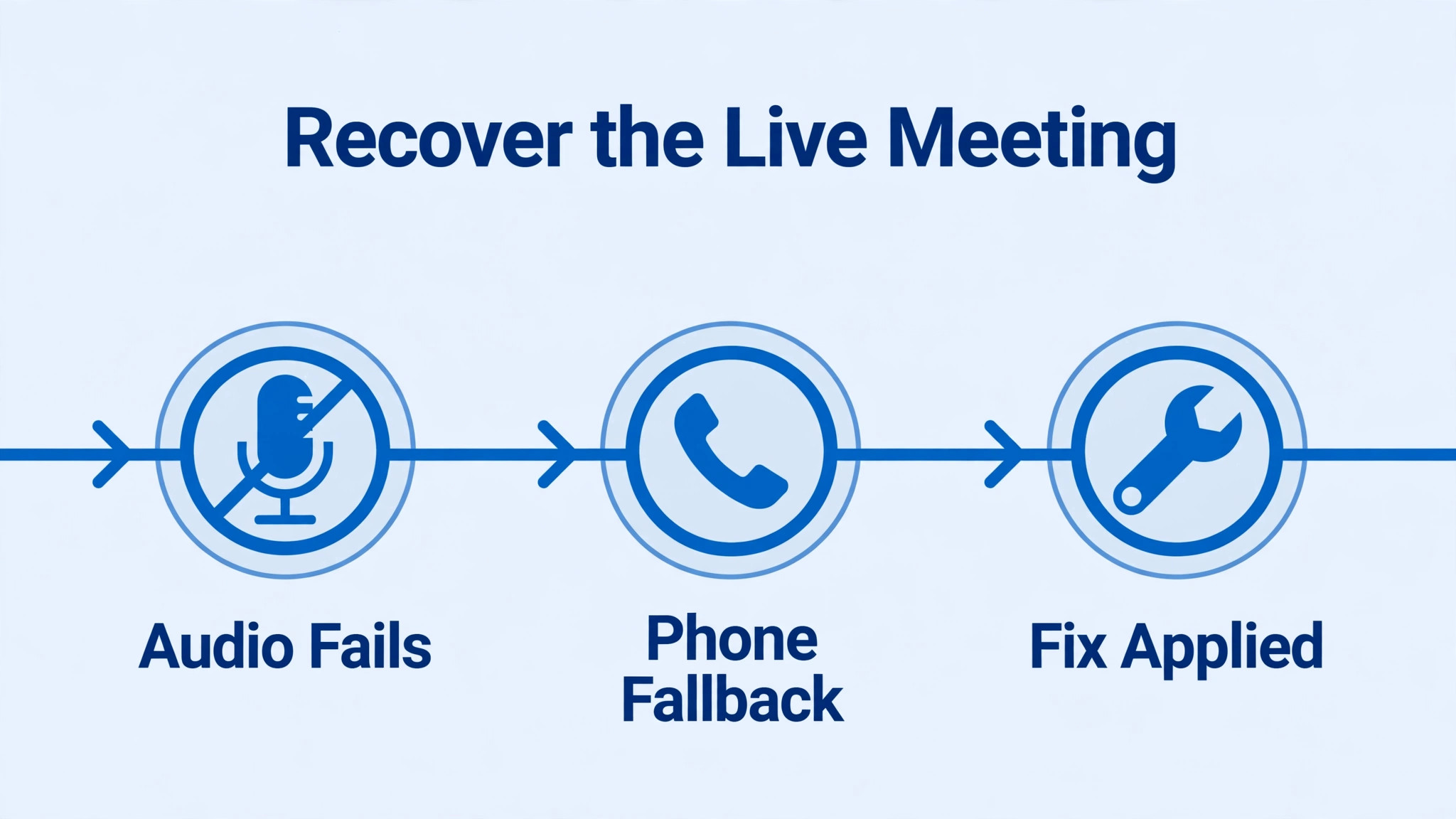
When a live meeting is waiting, stop diagnosing and switch to phone audio. In Teams, the meeting controls offer a way to use a phone for audio, often through a call me option that rings the number you enter and joins the phone to the meeting. Enter the number, answer the call, and continue the meeting on the phone while the computer keeps showing video and shared content. The meeting moves forward, and the computer audio can be fixed without an audience.
Phone audio is a bridge, not a permanent setup. Sound quality on a phone call is usually lower than a good headset, and the phone adds a second device to manage. Treat it as the fallback that protects the meeting, then return to the device, permission, and driver checks after the call. Teams that agree this fallback in advance waste far less time, because nobody has to debate what to do when audio fails mid sentence.
If the meeting organiser has dial in numbers enabled, joining by phone directly is another route. Dial the number, enter the meeting ID when asked, and join as an audio participant. Keep the computer meeting open for video and screen sharing, but mute the computer audio completely, so the phone and the computer do not create an echo loop in the same room.
Tell the team when you switch to phone audio, and tell them when you switch back. A participant who silently joins twice, once on computer and once on phone, creates echo for everyone else. One audio path per person is the rule, whether that path is a headset, a speaker, or a phone.
A Small Team Audio Playbook
A playbook turns one off fixes into a habit the whole team shares. Start by naming a default headset for meetings and keeping one spare in the meeting room. Write down the device selection steps on a single page, including where Teams device settings live and how to run a test call. New joiners should run a test call before their first real meeting, not during it.
Agree a two minute rule for live meetings. When audio fails, the affected person tries device selection, then the phone fallback, while the meeting continues. Deep diagnosis waits until after the call. This rule protects the meeting and the person, because nobody enjoys troubleshooting while five colleagues watch in silence.
Schedule a quarterly audio check. Update Teams and the operating system, check drivers, confirm privacy permissions, and test each regular headset. Quarterly checks sound dull, but they catch the slow drift that causes most failures, such as a headset that quietly became the non default device after an update. Log the check with a date and an owner, so it actually happens.
Keep a short incident note for recurring failures. Record the symptom, the device, the fix that worked, and the date. After three notes with the same headset or the same laptop, replace the hardware or rebuild the setup instead of repeating the same fix. Patterns are information, and a small team that reads its own notes stops paying the same audio tax every month.
Those notes also become the team memory for how to fix Microsoft Teams audio not working small team calls in future, so a new joiner inherits working answers instead of rediscovering the same faults. A playbook that grows from real incidents is worth more than any generic troubleshooting list.
Mistakes That Waste Meeting Time
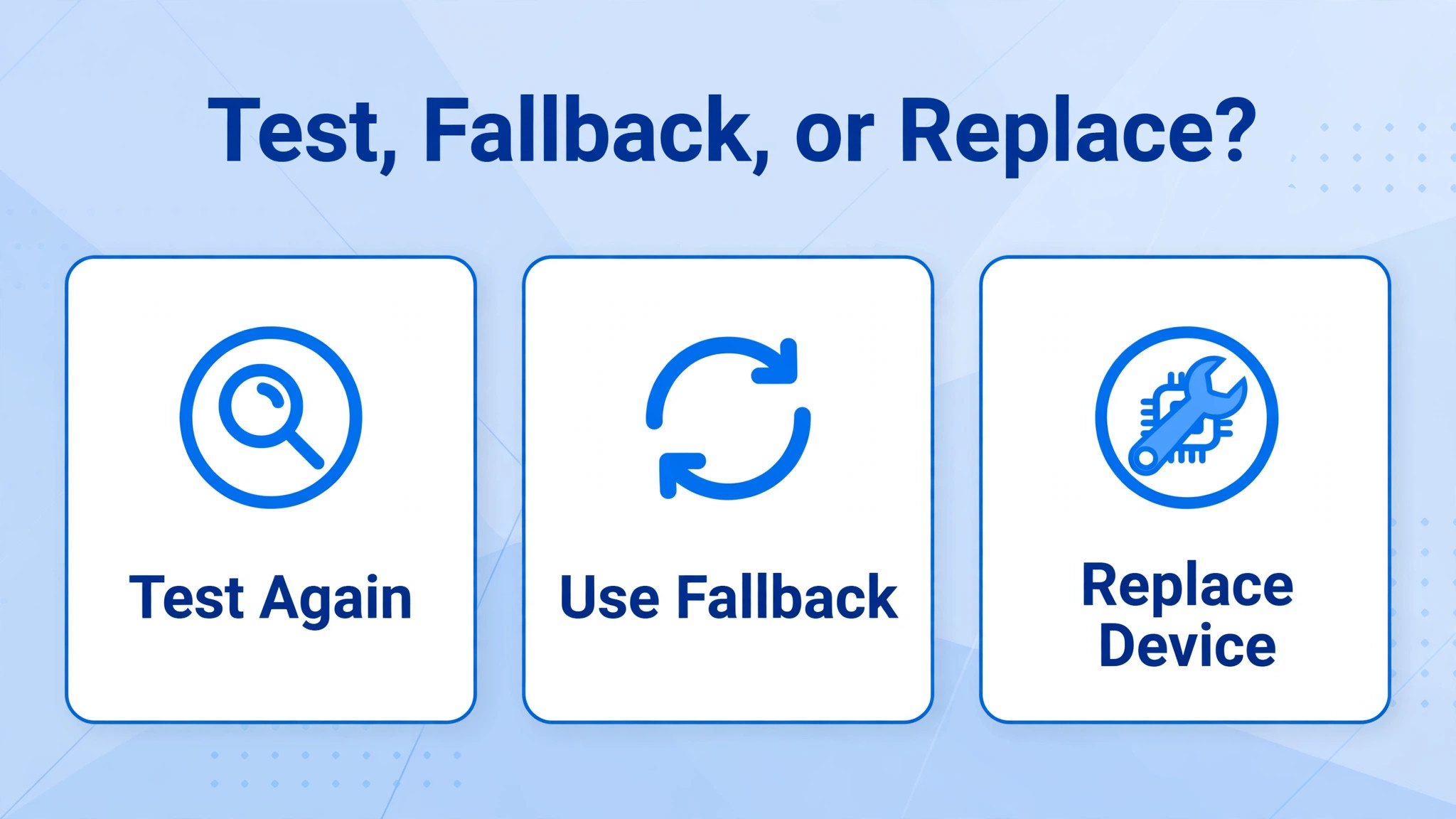
The biggest time waster is changing five settings at once. When audio returns, nobody knows which change fixed it, and the next failure starts from zero again. Change one setting, test, and note the result. The discipline feels slow in the moment and saves hours across a month of meetings.
Replacing hardware too early is the second trap. A new headset will not fix a blocked permission or a wrong device choice, and it adds a new device to the same confused list. Test the existing headset in another app first. If it works there, the fault is in Teams settings or permissions, not in the headset.
Ignoring the test call is another common error. Teams offers a free, private test that checks both directions, yet many teams skip it and test live in front of clients. Make the test call part of the pre meeting routine for anyone who changed devices, updated software, or moved desks. Two minutes before a meeting beats ten minutes during one.
Finally, do not let one person’s audio problem become everyone’s settings problem. When five people change devices at once, the meeting gains five new variables. Assign one person to the fix, keep the rest of the team steady, and share the working fix afterwards. That restraint is what separates a team that recovers fast from a team that spends the whole call in settings menus.
Frequently Asked Questions
Why does Teams keep choosing the wrong microphone?
Teams follows the system default device unless a specific device is chosen in Teams settings, and that default can change when a monitor, a Bluetooth device, or a dock connects. Choose the intended microphone explicitly in Teams device settings, run a test call, and recheck after docking or connecting new hardware. A wired headset reduces this drift, because it presents a single clear device.
What should I do when Teams audio works in other apps but not in Teams?
Focus on Teams device settings, privacy permissions, and app data, in that order. Confirm the correct speaker and microphone are chosen in Teams, confirm Teams is allowed to use the microphone in system privacy settings, then run a test call. If those steps fail, clear Teams app data and sign back in, then retest device selection before changing system drivers.
How do I stop echo in a Teams meeting?
Keep one audio path per person and one audio path per room. Mute devices you are not using, close the meeting on spare laptops and phones, and prefer headsets over speakers. If echo persists, watch for the tile that lights up when the echo appears, because that participant’s setup is usually the source. Lowering speaker volume and moving the microphone closer to the speaker also helps.
Can I use my phone for Teams audio when my computer microphone fails?
Yes, Teams offers a phone audio route that lets you join the meeting audio by phone while the computer keeps showing video and shared content. Use the call me option or dial in with the meeting details, mute the computer audio completely, and tell the team you have switched. Return to the device and permission checks after the meeting to fix the computer audio properly.
Does Bluetooth cause most Teams audio problems?
Bluetooth adds a layer of complexity, because headsets can offer separate listening and calling profiles, and the wrong profile can hide the microphone or degrade sound. Bluetooth is not always the cause, but switching to a wired headset is a fast isolation test. If wired audio works and Bluetooth does not, the Bluetooth profile or pairing is the layer to fix.
Should a small team buy new headsets to fix Teams audio?
Buy new headsets only after testing shows the existing hardware has failed in more than one app. Most Teams audio failures come from device selection, permissions, or drivers, and a new headset will not fix those layers. Spend first on a shared playbook, a test call habit, and one spare wired headset for meeting days, then replace hardware that has genuinely failed.
Keep Audio Working After the Fix
The fix that matters is the one that holds next week. Write down what worked, share it with the team, and add the device selection check to the pre meeting routine. A small team does not need an IT department to keep audio reliable. It needs a shared order of checks, a phone fallback everyone knows, and the discipline to test one change at a time.
When the next audio failure arrives, and it will, the team will already know where to start. Choose the device, check the permission, check the driver, tame the echo, and fall back to the phone when the meeting cannot wait. That order is how you fix Microsoft Teams audio not working small team problems without turning every call into a troubleshooting session.
Share the playbook with every new joiner on day one, and keep the spare headset where the team can actually find it. Reliable audio is rarely about better equipment. It is about a shared routine that everyone follows, even on busy days when the temptation is to skip the test call and hope for the best.
More Reading on Stratilyze
- Best project management software for architecture firms covers tools that keep a small team organised across projects and deadlines.
- Best client management software for accountants looks at how a small firm tracks clients, documents, and follow up work in one place.
- Best proposal software for freelancers explains proposal tools that help a small business present work clearly and win clients faster.
- Best CRM for event planners small business shows how a small team keeps contacts, bookings, and client details together.