

A six digit code that changes every 30 seconds is the cheapest security upgrade a small business can buy, because it costs nothing beyond a free app and a few minutes per account. This guide explains how to set up two factor authentication small team owners can roll out without locking anyone out, starting with the accounts that matter most and ending with a recovery plan that survives a lost phone.
A stolen password alone no longer opens the account, since the attacker would also need the phone that generates the code, or the security key plugged into the owner’s laptop. That single change stops the most common account takeover pattern small teams face, which is a password reused from another site, leaked in a breach, and tried against business mail, accounting, and social accounts.
Two factor authentication means a login needs two different kinds of proof. The first is something you know, which is the password. The second is something you have, which is a phone app, a text message code, or a physical security key, or something you are, such as a fingerprint. Most small teams will use an authenticator app as the second factor, because it works without a mobile signal, it is stronger than a text message, and it is supported by almost every major service. Security keys are stronger still, because they resist phishing in a way codes cannot, and they are worth buying for the owner account and for anyone who handles money or admin access.
The mistake most teams make is turning the feature on for one account and stopping there. Partial coverage leaves the weakest account as the way in, and attackers try the weakest account first. A team that protects mail but leaves accounting, website admin, and social accounts on passwords alone has protected the front door while leaving the side doors open. The rollout in this guide therefore covers the whole account list, in a deliberate order, with recovery set up before enforcement, so no staff member is ever locked out by the very control meant to protect them.
What the Second Factor Should Be
Not all second factors are equal, and the choice should follow the value of the account. For the owner account, the finance account, and the password manager, use the strongest method the service offers, which is usually a security key or a passkey. For everyday staff accounts, an authenticator app is the right default, because it balances security with ease of use. For accounts that offer nothing else, a text message code is still far better than no second factor at all, and it should be used rather than skipped while waiting for a better option.

| Method | Strength | How it works | Best use |
|---|---|---|---|
| Security key or passkey | Strongest | A physical key or device check that resists phishing | Owner, finance, and admin accounts |
| Authenticator app | Strong | A six digit code that refreshes every 30 seconds | Everyday staff accounts |
| Push approval | Strong with care | Approve or deny a login prompt on a phone | Teams that already use a single sign on app |
| Text message code | Better than nothing | A code sent to a phone number | Accounts with no other option |
| Email code | Weakest second factor | A code sent to the mailbox itself | Only when nothing else is offered |
Text message codes deserve a plain warning. They can be intercepted if a phone number is moved to an attacker’s SIM, and they can be phished if a staff member is tricked into reading a code aloud. That does not make them useless. It makes them a last resort, and a team that uses them should move to an app as soon as the service allows it. Email codes are weaker still, because if the mailbox is the account being protected, the code arrives in the very place an attacker wants to reach. Use them only as a temporary bridge, never as the permanent plan for an important account.
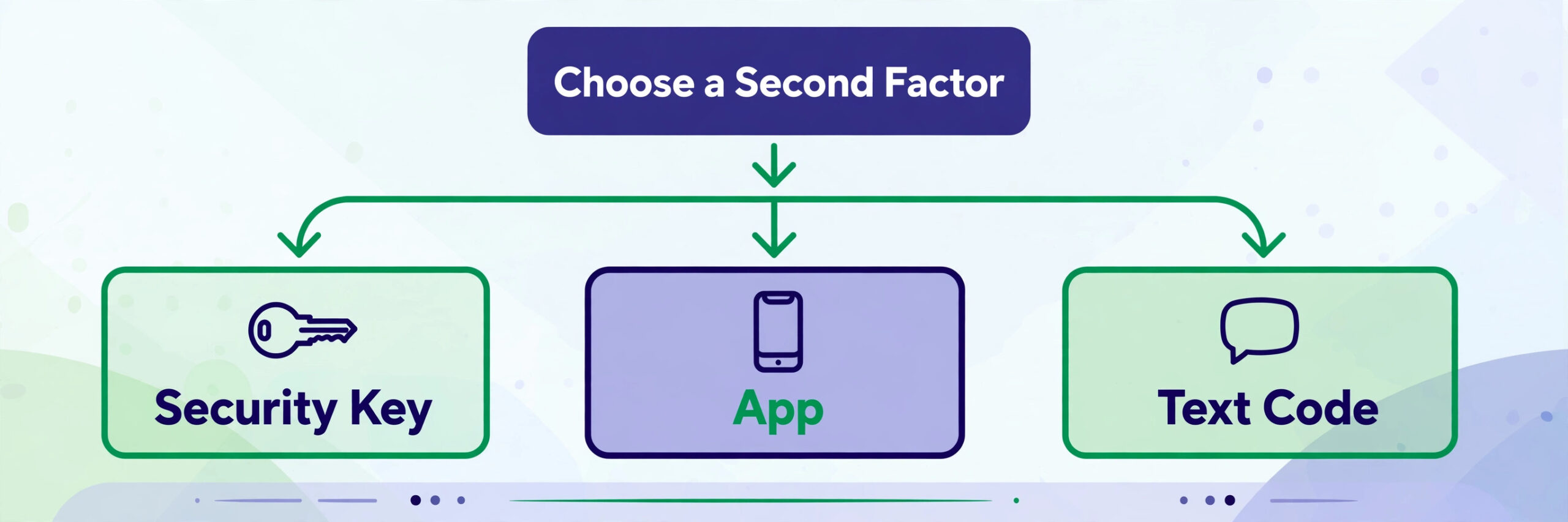
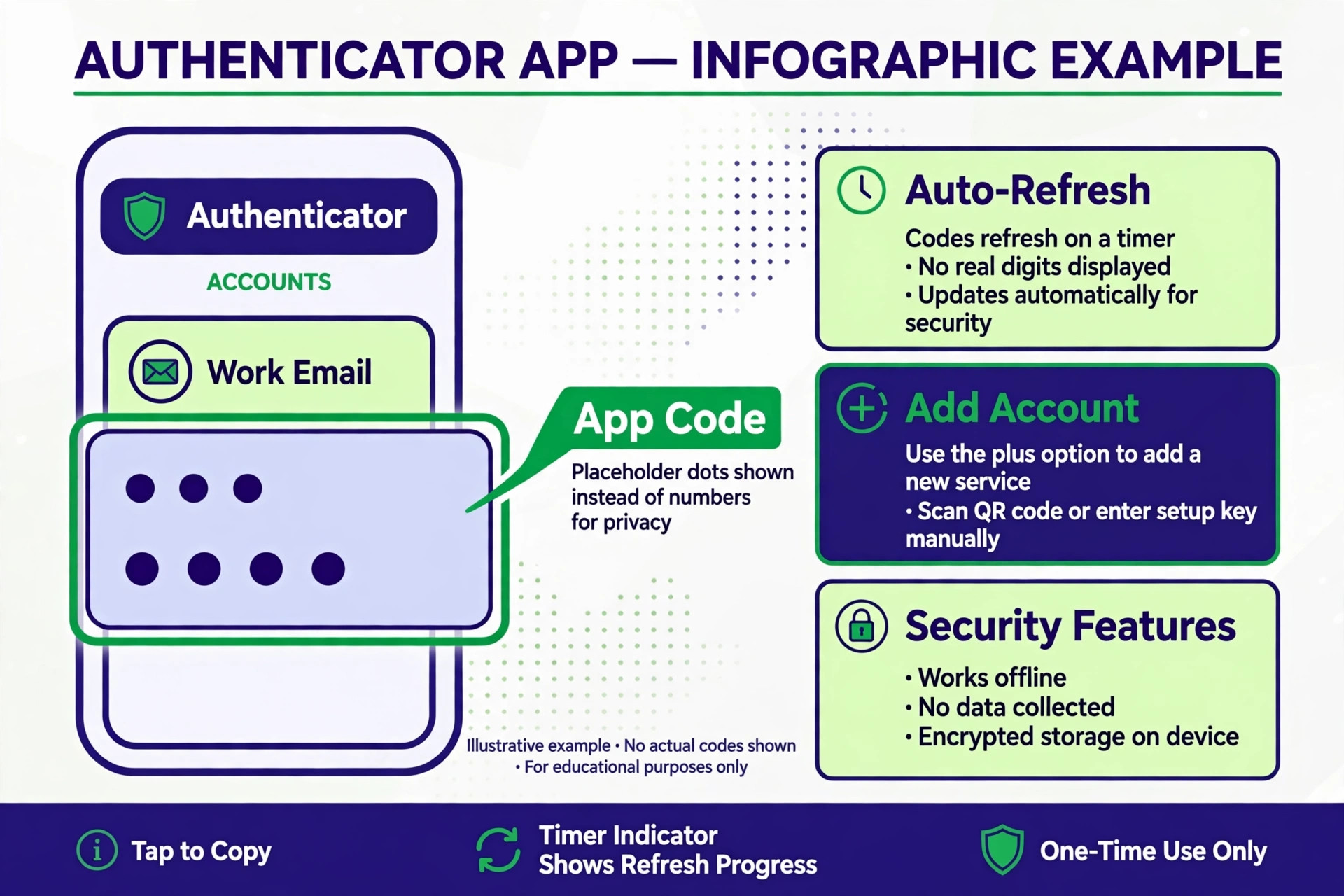
Authenticator apps also differ in one important way, which is backup. Some apps store codes only on one phone, so losing that phone means rebuilding every account from recovery codes. Others offer encrypted cloud backup or transfer to a new phone, which makes recovery far easier but means the backup account itself must be strongly protected. Decide the backup approach before the rollout, and write it down, because a team that discovers its backup approach during a lost phone incident has discovered it too late. A password manager that supports time based codes can also hold them, but keep in mind that putting passwords and codes in the same place reduces the separation between the two factors.
How to Set up Two Factor Authentication Small Team
For how to set up two factor authentication small team rollout order matters more than rollout speed. Start with email, because password resets for almost every other service go to email, and an unprotected mailbox can be used to reset protected accounts. Next, protect the password manager, because it holds the keys to everything else. Then protect finance and accounting, website admin, and cloud storage, and finally protect social media, marketing tools, and booking systems. That order means the accounts an attacker would use to take over other accounts are secured first.
Before anyone turns anything on, prepare the team. Choose one authenticator app for the whole team, so support questions have one answer instead of five. Confirm that every staff member has a phone that can run the app, and agree what happens for a staff member who does not want a work app on a personal phone, such as a company device or a security key. Write a one page note that explains why the change is happening, what staff need to do, and who to contact if setup fails. A rollout that surprises staff will generate resistance, while a rollout that explains the reason in plain terms will usually get cooperation.
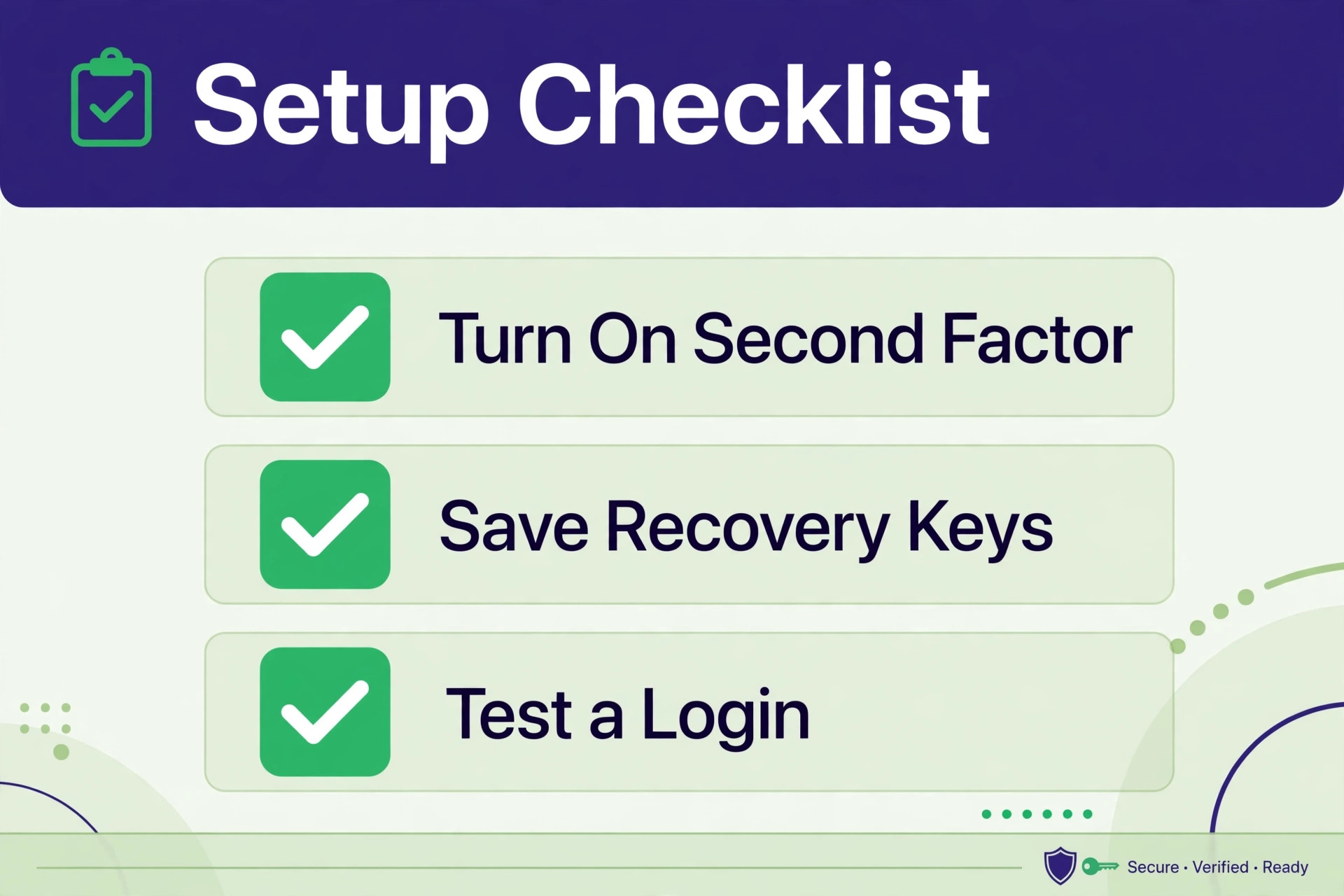
Then set up recovery before enforcement. For each critical account, save recovery codes in two places, such as a password manager and a printed copy in a locked drawer, and register a second admin wherever the service allows it. Test one recovery code to prove the stored codes work, and record who holds the second admin access. Only after recovery is proven should an admin enforce the second factor for the whole team, because enforcement without recovery turns a lost phone into a business outage.
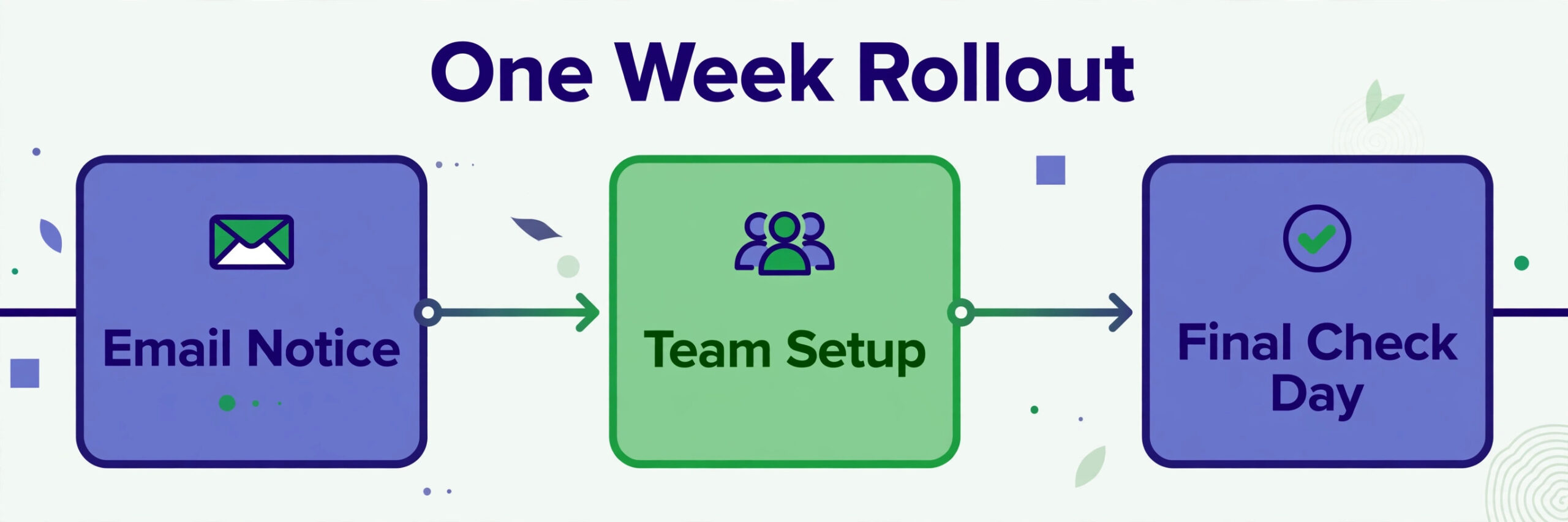
A sensible timetable is one week, not one afternoon. Day one covers email and the password manager for the owner and one trusted deputy. Day two covers finance and website admin. Days three and four cover the rest of the team in small groups, with someone available to help. Day five is a check day, confirming that every account on the list shows the second factor as active, that recovery codes are stored, and that any account that could not be protected is recorded with a reason and a follow up date. That pace is slower than a single afternoon push, but it is the pace that avoids lockouts.
Setup Checklist Per Tool
Work through one tool at a time when learning how to set up two factor authentication small team accounts, and tick off every step for every user before moving to the next tool. A half finished tool is worse than a tool not yet started, because staff will assume it is protected when it is not.
Google Accounts and Google Workspace
Sign in to the Google account, open security settings, and choose two step verification. Choose the authenticator app option rather than a text message where it is offered, scan the QR code shown on screen with the team authenticator app, and enter the six digit code the app generates to confirm the link. Save the backup codes Google provides immediately, store them in the two agreed places, and add a second verification method, such as a security key for the owner account, before finishing. Test by signing out and signing back in, and confirm that the code prompt appears and that a backup code works if the app is unavailable.
For a Workspace team, the admin should enforce two step verification for the whole organisation after the pilot users have completed setup, and should check the admin report for users who have not yet enrolled. A shared mailbox that is accessed by logging in directly should either be converted to a delegated mailbox, so staff access it through their own protected accounts, or protected with its own second factor and a second admin. Leaving a shared login unprotected undermines the whole rollout, because that login becomes the weakest account.
Microsoft Accounts and Microsoft 365
Sign in to the Microsoft account, open security settings, and turn on two step verification or security info, depending on whether the account is personal or part of Microsoft 365.
Add the authenticator app method, scan the QR code, and confirm with a code from the app. For Microsoft 365, the admin should use the admin centre to require multi factor authentication for all users, and should register the team in small groups so support can keep up. Pay attention to number matching, where the app shows a number that must be typed into the sign in screen, because that feature stops a common attack in which staff are bombarded with approval prompts until they tap approve to make the prompts stop.
Tell staff plainly never to approve a login they did not start, and to report repeated approval prompts at once. That single instruction matters as much as the technology, because approval fatigue attacks succeed through human tiredness, not through breaking encryption. Record any user who cannot use an app, and give that user a security key or an alternative method approved by the admin, rather than leaving the account unprotected.
Password Managers
Protect the password manager first among everyday tools, because it holds the passwords that the second factor is meant to guard. Turn on the second factor in the manager settings, using an authenticator app or a security key, and store the manager recovery kit or emergency access details separately from the manager itself. If the manager also stores time based codes for other accounts, understand the trade off, which is convenience against separation, and decide as a team whether that trade off is acceptable. For most small teams the convenience wins, provided the manager itself is protected by a strong second factor and a unique master password.
Test recovery for the manager before the rollout depends on it. Log out fully, log back in with the second factor, and confirm that the emergency access or recovery method works. A password manager that cannot be recovered is a single point of failure for the whole business, so this test should never be skipped.
WordPress and Website Admin
Website admin accounts are a frequent target, because a compromised site can be used to redirect customers, steal orders, or damage search rankings. Install a reputable two factor plugin from the WordPress plugin directory, or use the host or security tool two factor feature if one is already in place, and enable it for every admin and editor account, not just the owner. Each user should link their own authenticator app, and the site owner should keep a recovery method that does not depend on the site itself, such as a host panel login that is separately protected.
Test the login after setup, and confirm that a user without a code cannot reach the dashboard. Also check that any service account or automation that logs in as a user still works, because a second factor can break an automated posting tool that logs in with a password alone. Those tools should be moved to application passwords or API keys where the platform supports them, rather than having the second factor disabled to keep them working.
Social Media and Marketing Tools
Social accounts are often shared, and shared logins are where second factor setups fail. Move each social account to a business manager or team access model where one exists, so each staff member signs in with their own protected account instead of sharing one password. Where a platform only supports one login, protect that login with an authenticator app, store its recovery codes with the owner, and limit knowledge of the password to the smallest possible group. Record who holds access, and change the password and second factor promptly when a holder leaves.
Marketing tools, email platforms, and booking systems should be treated the same way. They hold customer data and the ability to send messages in the business name, so an attacker who reaches them can damage reputation quickly. Add each tool to the account list, protect it, and record its recovery method in the same place as the rest of the rollout.
Recovery Key Template
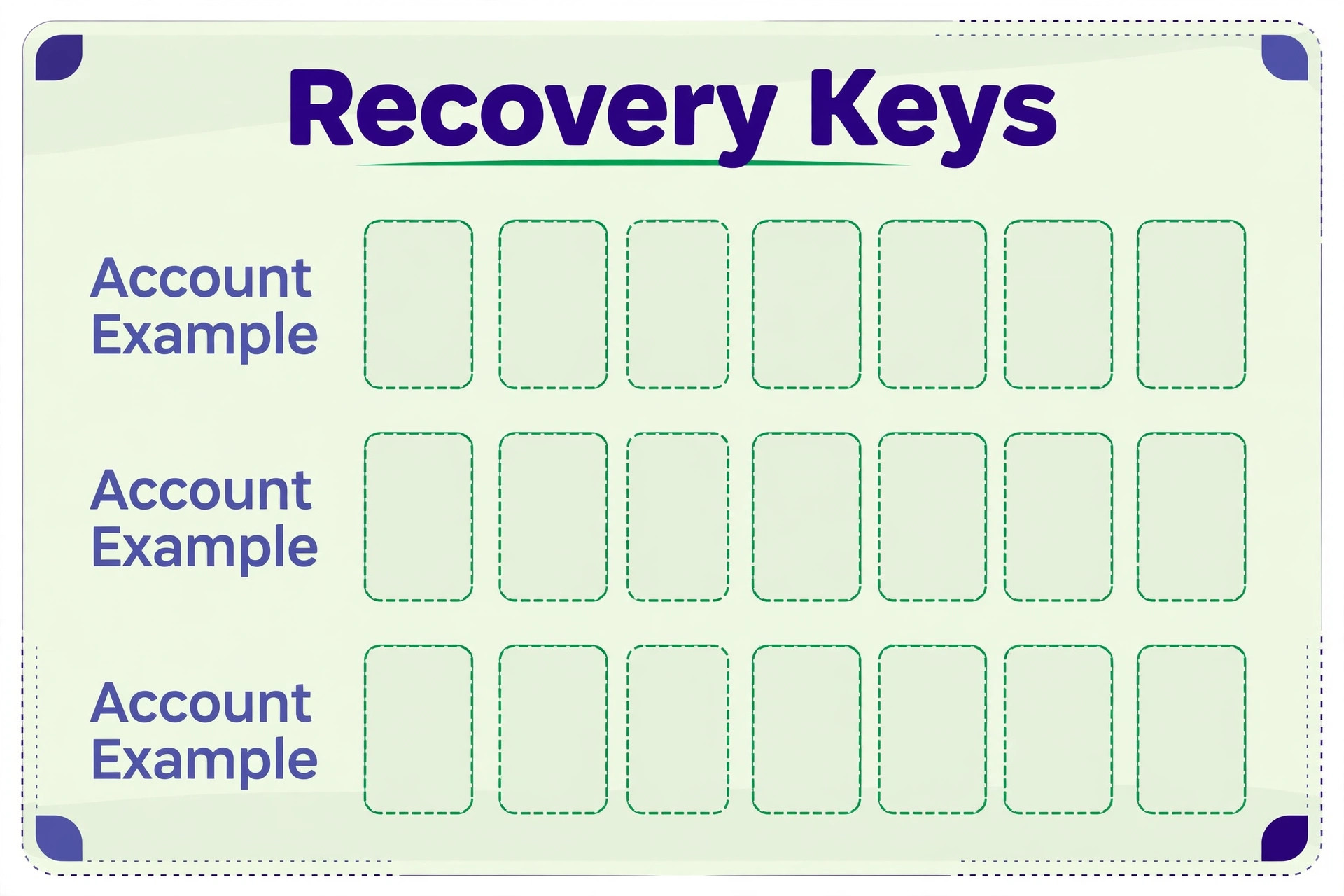
Copy the template below into a document that only the owner and one trusted deputy can open, and fill in one row per critical account for any team working out how to set up two factor authentication small team recovery. Do not store this document in the same place as the passwords it protects without its own protection, and do not email it to the team.
| Account | Owner | Second factor method | Second admin | Recovery codes stored | Recovery tested |
|---|---|---|---|---|---|
| Business email | Owner name | Authenticator app plus security key | Deputy name | Password manager and locked drawer | Yes, date |
| Password manager | Owner name | Security key | Deputy name | Printed kit in locked drawer | Yes, date |
| Accounting | Finance lead | Authenticator app | Owner name | Password manager | Yes, date |
| Website admin | Owner name | Authenticator app | Deputy name | Password manager | Yes, date |
| Social media | Marketing lead | Authenticator app | Owner name | Password manager | Not yet, follow up date |
| Cloud storage | Owner name | Authenticator app | Deputy name | Password manager | Yes, date |
A recovery code is usually single use, which means each code can rescue a login once and then stops working. That is why the template has a tested column, because a stored code that has never been tried is a hope, not a plan. When a code is used, generate a fresh set at once and replace the stored copy, so the next incident does not find an empty set. Also record the date codes were last refreshed, because a template that has not been touched in two years is likely out of date in ways nobody remembers.
Printed recovery codes need the same care as a key. A printed sheet in an unlocked drawer is a security problem, while a printed sheet in a locked drawer that nobody can open during an incident is an availability problem. Solve both by keeping two copies in two controlled places, and by telling the deputy where both copies are. A password manager copy plus a locked drawer copy is a practical pair for most small teams, provided the manager itself is protected by a second factor that the deputy can also use in an emergency.
When a Phone Is Lost, Replaced, or Stolen
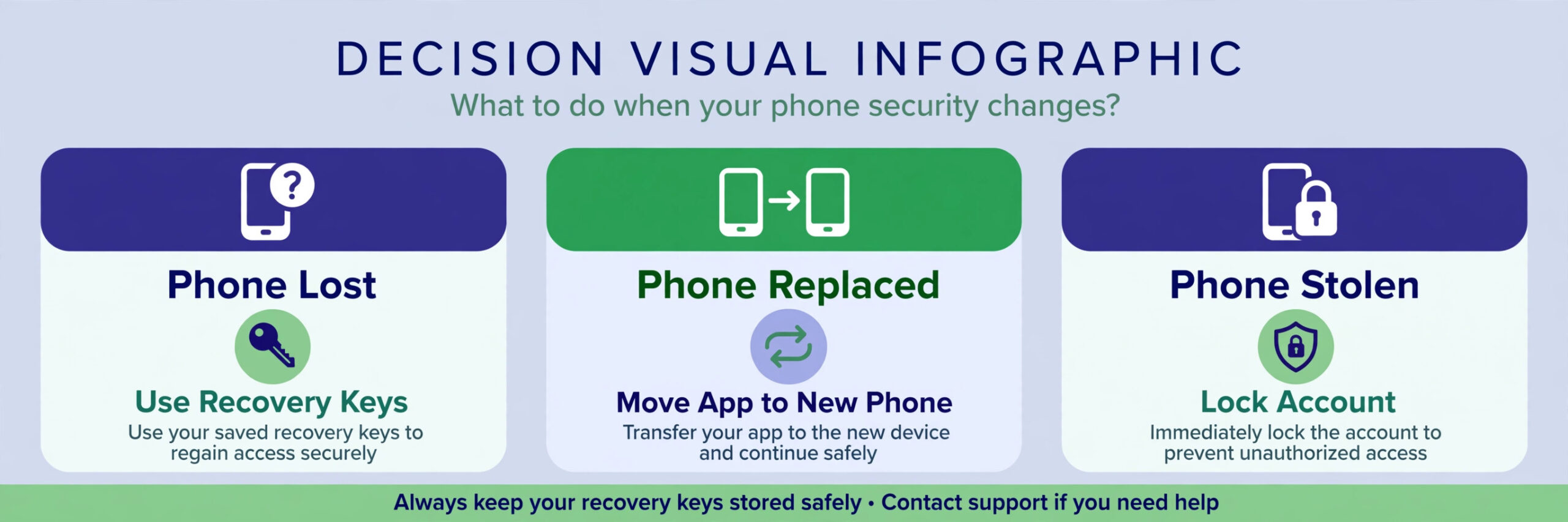
A lost phone is the test that proves whether how to set up two factor authentication small team planning worked. The staff member should tell the owner at once, so any session on the lost phone can be signed out from the account security pages. The staff member should then sign in using a recovery code, remove the lost phone as a trusted device, and set up the authenticator app on the replacement phone before the old codes are relied on again. If the app offers an encrypted backup or transfer feature, restoring from that backup is faster than rebuilding each account by hand, but the backup account itself must be protected first.
A planned phone replacement is easier, and it should be handled before the old phone is wiped. Set up the authenticator app on the new phone, transfer or re link each account while the old phone still works, and test a login on the new phone before wiping the old one. Wiping the old phone first and discovering a missing account afterwards is the most common self inflicted lockout in a small team, and it is entirely avoidable with a ten minute transfer step. Add that step to any device handover checklist the business already uses.
A stolen phone needs one extra step, which is to treat the device as untrusted until it is recovered or remotely wiped. Sign out sessions, change the password for the most sensitive accounts, and check recent sign in activity for anything unfamiliar. A second factor protects against a thief who finds the phone unlocked, but it does not replace a device lock, a remote wipe capability, or a prompt report to the owner. Staff should know that reporting a lost or stolen phone quickly is praised, not punished, because a delayed report gives an attacker time that a prompt report removes.
Leavers, Joiners, and Shared Accounts
Joiners in a how to set up two factor authentication small team rollout should get the second factor on day one, as part of account setup, not as a later task that drifts. Create the account, set a unique password, link the authenticator app, store recovery codes according to the template, and confirm a successful login before the joiner is given access to sensitive systems. A joiner who works for a week on passwords alone creates a gap that the rollout was meant to close, and a joiner who is set up properly from day one will treat the second factor as normal rather than as an extra burden.
Leavers need a prompt, written process. Disable the account at once, remove the authenticator registration, revoke sessions, and transfer any shared mailbox, document, or social access to a remaining staff member. For shared accounts that cannot be assigned to one person, change the password and reset the second factor at the moment of departure, and record the change in the recovery template. A leaver process that waits until the end of the week, or until someone remembers, leaves a working login in the hands of a person who no longer works for the business, which is a risk no small team should accept.
Shared accounts deserve a longer term fix. Every shared login should be reviewed once a quarter, with the question of whether it can be replaced by individual accounts, delegated access, or a team access model. Each shared login that remains should have a named owner, a recorded second factor method, and a second admin. That review takes an hour a quarter and steadily reduces the number of accounts that bypass individual accountability, which is the real weakness of shared logins.
Mistakes That Undo a Good Setup
The first mistake in how to set up two factor authentication small team projects is enforcing the second factor before recovery is ready. Enforcement feels like progress, because the admin report turns green, but a team without tested recovery codes will lose access at the first lost phone. Always prove recovery for critical accounts before enforcement, and keep the proof in the template, with dates, so a later audit can see that recovery was tested rather than assumed.
The second mistake is approving prompts without thinking. Push approval is convenient, and that convenience is exactly what approval fatigue attacks exploit. Staff should be told to approve only a prompt they just triggered themselves, to check the number matching code where the app shows one, and to report a prompt they did not trigger at once, even if it arrives at an awkward time. A team that treats unexpected prompts as a nuisance to dismiss will eventually approve one that matters.
The third mistake is reusing the same second factor everywhere without a backup method. An authenticator app on one phone, with no backup codes and no second device, is a single point of failure. Every critical account needs a second method or a tested recovery code set, and the owner account needs a security key in addition to the app, kept separately from the phone. That redundancy feels like extra work during setup, and it feels like a rescue during an incident.
The fourth mistake is forgetting the accounts that are not on the main list. Booking tools, review platforms, supplier portals, and old marketing accounts all hold business data or the ability to act in the business name, and they are often the accounts an attacker tries after the main systems are protected. Keep a full account list, review it quarterly, and close accounts the business no longer uses. An unused account with a weak password is an open door that nobody watches.
Frequently Asked Questions About Two Factor Authentication
What if a staff member does not have a smartphone
Give that staff member a security key, which plugs into a computer and needs no phone, or a company device that can run an authenticator app. Do not leave the account unprotected as a permanent exception, because an exception that never expires becomes the weakest account. Record the alternative method in the recovery template, and review it when the staff member role or device changes.
Should I use text message codes if the app option is missing
Yes, use the text message option rather than leaving the account unprotected, and move to an app or key as soon as the service adds one. Text codes are weaker than app codes, because they can be intercepted through SIM changes and phished more easily, but they still block an attacker who only has a stolen password. Treat text codes as a temporary bridge, and note the account for a follow up check.
How often should recovery codes be tested
Test recovery codes for critical accounts once a quarter, and generate a fresh set whenever a code has been used. A quarterly test takes a few minutes per account and catches the common problems, which are a stored copy that was never updated, a deputy who no longer has access to the storage place, and a second admin who has left the business. Record each test date in the template.
What happens if the owner loses their phone and their recovery codes
That is the hardest case, and it is why the owner account needs two admins and a security key kept separately from the phone. With a second admin, the deputy can help restore access through the provider account recovery process. Without a second admin or recovery codes, recovery depends on the provider identity checks, which can take days and may require proof of ownership. That delay is the reason this guide insists on a second admin before enforcement.
Does two factor authentication stop phishing completely
No, and that distinction matters. App codes can still be phished if a staff member is tricked into entering a code on a fake site, which is why security keys and passkeys are stronger for high value accounts. Two factor authentication still blocks the far more common attack, which is a stolen password tried directly, and it buys time against most other attacks. Pair it with staff training on checking addresses and reporting suspicious messages, rather than treating it as a complete solution.
Can I roll this out to a team that works remotely
Yes, and remote teams benefit most, because their accounts are reached from many networks and devices. Run the rollout over video calls in small groups, share screens during setup, and confirm each setup with a test login before ending the call. Keep the recovery template accessible to the owner and deputy through the password manager, not through a paper copy in an office a remote worker cannot reach. For more on keeping business mail safe, see our guide to fixing Gmail messages going to spam, and for the leaver side of the process see our guide to creating a client offboarding checklist.
The One Week Rollout to Run Next
A small team working out how to set up two factor authentication small team protection does not need a security project. It needs a week with a clear order, a tested recovery template, and a check day at the end. Start with email and the password manager, move through finance and website admin, cover the rest of the team in small groups, and finish by confirming that every account on the list shows protection and a tested recovery method. That is the whole job, and it is a job that can be done without outside help by most teams.
Keep the account list and the recovery template alive after rollout week. Review them quarterly, close unused accounts, update them when staff join or leave, and test recovery codes again. Security controls decay quietly, through staff changes, new tools, and forgotten exceptions, and a quarterly review is what keeps a good setup good. The reward is simple and practical, which is a business where a stolen password is an incident report, not a takeover.