

A journal article looks simple on a laptop until you reach page fourteen and cannot remember what mattered on page three. The PDF sits in one tab, your notes sit in another, and last week’s highlight is buried where you cannot search it. That is normal academic reading on a general purpose device, and it is why many students print articles they never finish. The problem is not discipline. A browser invites distraction and splits attention across apps. When you use e-reader for academic reading, you remove most of that friction in one move.
You get one device built for long text, a screen that does not glow like a phone, and notes that stay attached to the passage they describe.
This guide builds a complete system around that device. You will learn how to pick a reader for the material you actually read, how to highlight with a colour code you can still understand in three months, how to handle PDFs without losing margin notes, and how to export everything into notes you can cite. It covers the export limits vendors rarely advertise and a weekly routine that keeps reading, notes, and writing connected. Prices here reflect United States list prices found in October 2026 reporting. Check the checkout page before you buy.
Why Academic Reading Breaks on a Laptop
Academic reading is not the same job as reading a novel. A novel asks you to keep moving forward. A journal article asks you to stop, compare a claim with a method section twenty pages earlier, check a footnote, and hold three competing arguments in mind at once. A laptop makes each move costlier than it looks. Switching tabs breaks your place, and a notification pulls you out of a dense paragraph at exactly the point where the argument turns. A PDF on a laptop often shows a print page at a size that forces constant zooming.
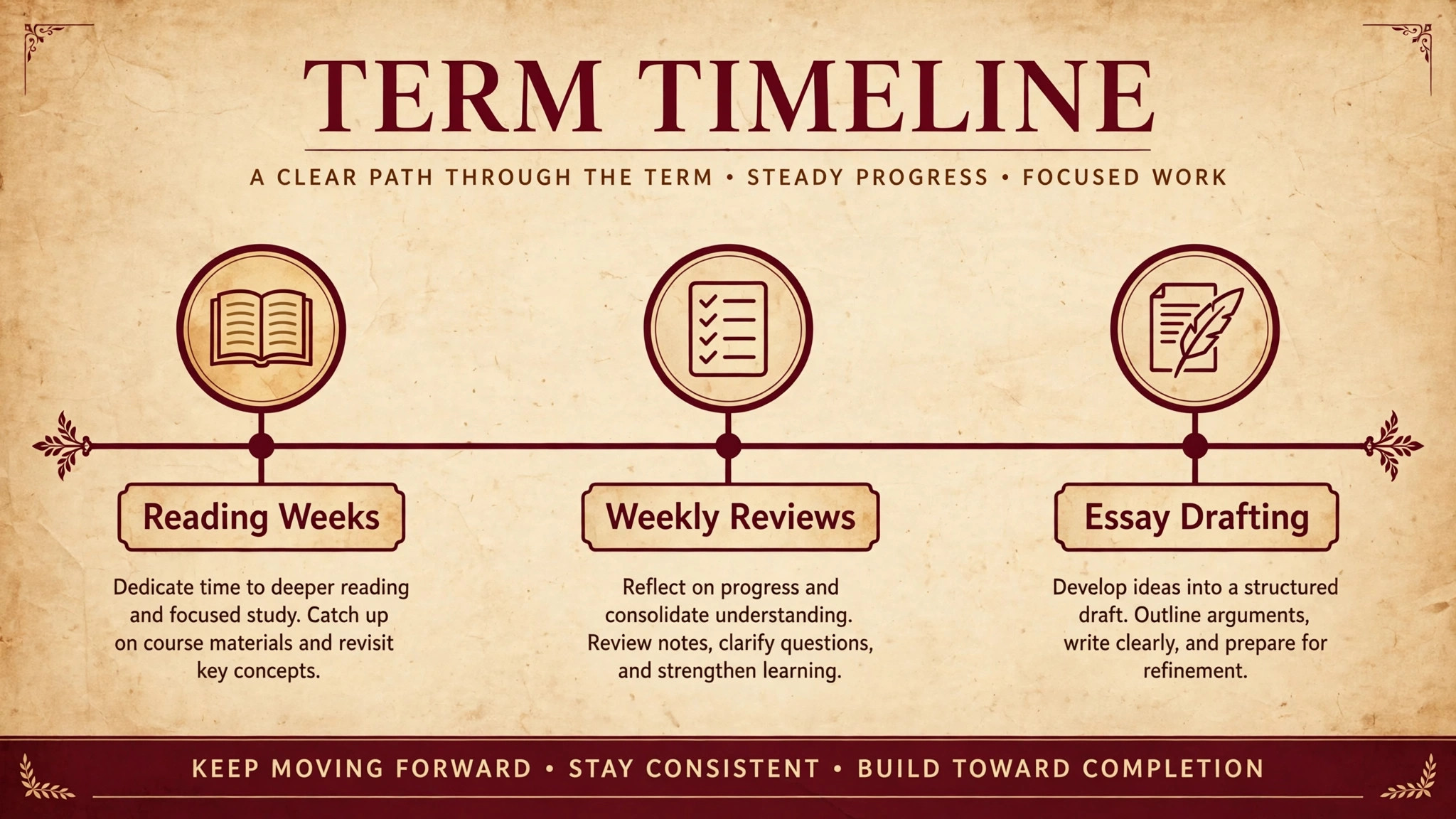
An e-reader changes the shape of the work. The screen shows one page at a time, with no other app competing for the next tap. That constraint is the point. Readers who struggle with long articles often do not need a faster device. They need a quieter one. Battery life helps too. A modern e-reader lasts weeks on a charge, so it can be picked up for twenty minutes between lectures.
There is a real trade off, stated plainly. An e-reader is poor for writing a full essay, running statistical software, or juggling ten sources at once. It is a reading and annotating device, not a replacement for a computer. This guide therefore treats it as the first stage of a workflow. You read and mark on the e-reader, export on a schedule, and write on a computer where your citation manager lives.
Studies of e-textbook annotation point the same way. Highlighting is by far the most widely adopted tool, while notes are used far less unless a system actively prompts them. The colour system and export routine below fix that imbalance.
Choose a Reader for the Material You Actually Read
The cleanest way to use e-reader for academic reading is to match the device to your source material before you compare screen sizes or storage. Three profiles cover most academic work.
If most of your reading is reflowable books and articles in EPUB or Kindle format, a standard 6 inch or 7 inch reader is enough, and it is the cheapest and most portable option. The redesigned Kindle Paperwhite, listed at 199.99 dollars for the 16 GB model in October 2026, gives you a 7 inch 300 ppi screen, warm light, waterproofing, and up to 12 weeks of claimed battery life. The Kindle store, library borrowing through Libby in supported regions, and Send to Kindle cover most book reading. Its weakness is fixed layout PDFs, which shrink to an unreadable size on a 7 inch screen.
If you read outside the Amazon store, or you want EPUB files without conversion, a Kobo reader is usually the better fit. The Kobo Clara BW was listed at about 159.99 dollars in late 2026 reporting, with a 6 inch 300 ppi screen, waterproofing, and direct EPUB support, so library files load by USB or Wi-Fi without conversion. The Kobo Libra Colour, listed at about 220 to 260 dollars across 2026 reports, adds a 7 inch colour screen, page turn buttons, and optional stylus support, which matters if you want colour coded highlights that survive export. Kobo also offers a built in annotation export for purchased books in PDF, HTML, plain text, and Markdown formats.
The trade off is store depth, and some publisher files still restrict highlighting or export, as the table below sets out.
If a large share of your reading is scanned PDFs, two column layouts, textbooks with diagrams, or documents you must write on by hand, you need a large screen reader. The Kindle Scribe starts at 429.99 dollars for the 16 GB model without a front light in 2026 pricing, rising to 499.99 dollars for the front lit 32 GB model and 629.99 dollars for the colour Scribe Colorsoft. On a Scribe you can write directly on PDFs sent through Send to Kindle and export the annotated PDF back out. The cost is size and weight. Buy the large screen only if PDF reading is your daily work.
If you read one PDF a week and mostly read books, the smaller reader plus a laptop for that PDF is cheaper and more comfortable.

What Screen Size Really Changes
Screen size changes how much context you see. On a 6 inch screen you see roughly a page of a novel at a comfortable font size. On a 7 inch screen you see a little more, and a two column article becomes barely workable turned sideways. On a 10 inch or 11 inch screen you see a full journal page at close to print size. PDF readers who buy small and then complain about PDFs are facing a geometry problem, not a software bug. Font control matters too. All three families let you change font, size, spacing, and margins for reflowable text. For PDFs that control disappears, because the page is fixed.
Some readers offer a reflow or crop mode for PDFs, but it often breaks tables and captions. Test it on your hardest document before you commit.
Colour, Pen Support and Library Access
Colour is worth paying for only if your system uses it. A colour screen lets a definition, a piece of evidence, and a disagreement look different at a glance and stay distinct after export. It also helps with figures and charts. If your field is text heavy, monochrome is sharper, cheaper, and easier on battery life. A stylus is useful for handwritten margin notes, but not if you type all your notes anyway. The Kobo Stylus 2 was listed at about 70 dollars in 2026 coverage, so count it in the total. The Scribe includes its pen.
Library access is the last check before you buy. Kindle readers borrow through Libby in supported regions and buy from the Kindle store. Kobo readers integrate with OverDrive and Libby, and load EPUB files directly. DRM protected files from one store rarely open on a rival reader. List the five sources you actually read from and check each one against the reader you are considering.
How to Use E-Reader for Academic Reading Without Losing Your Notes
Follow the workflow below exactly for two weeks before you adapt it. Most annotation systems fail because they are abandoned under deadline pressure. This one is built around five short habits, and each habit produces something you can use later. When you use e-reader for academic reading in this structured way, your highlights stop being a private archive and start being raw material for essays and exam revision.
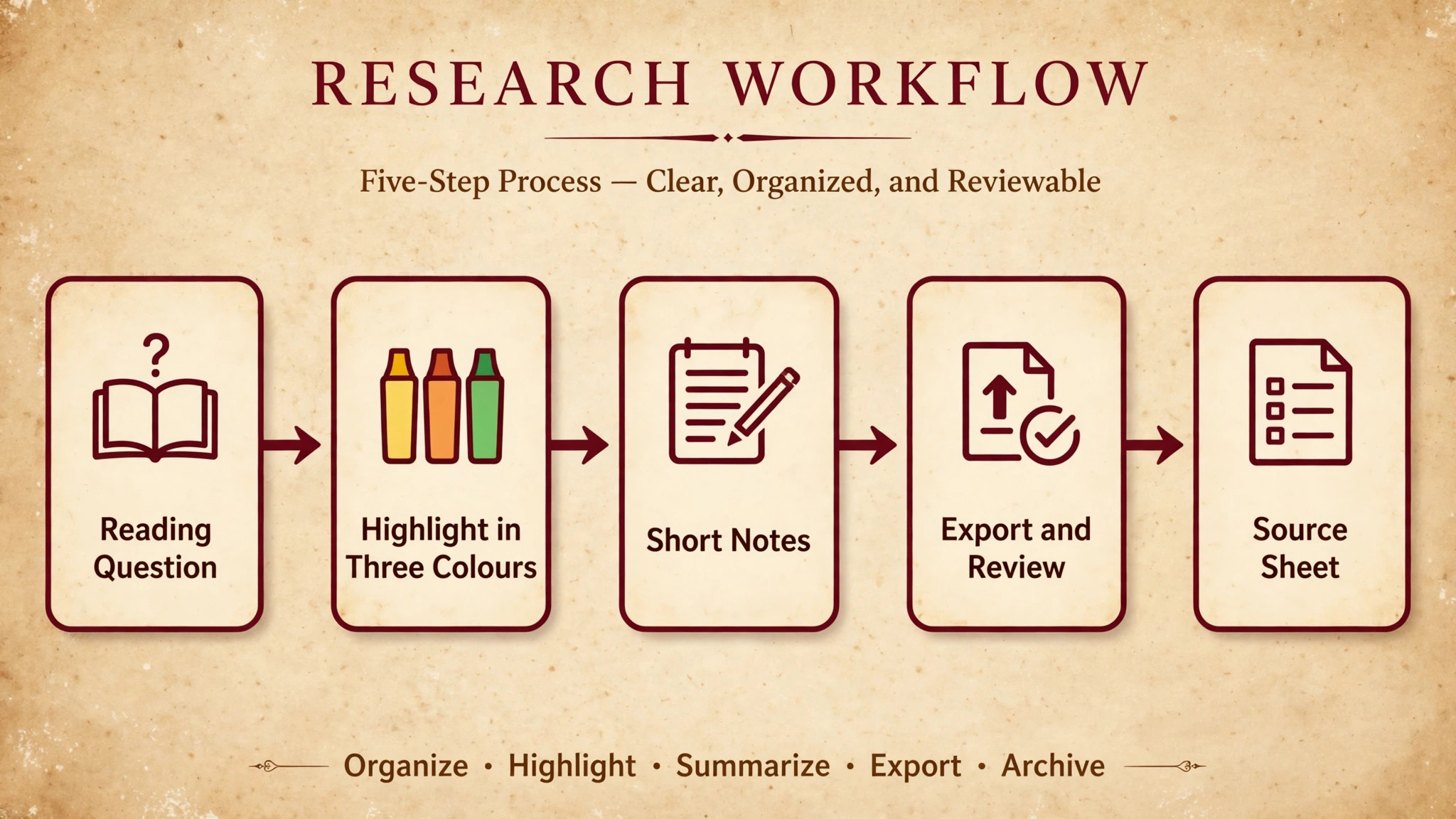
Step 1. Set a Reading Question Before You Open the Book
Before the first page, write one sentence that states what you need from this source. It might be a claim to test, a method to understand, or a gap to fill. That sentence acts as a filter. Without it, every interesting passage looks equally worth highlighting, and you end up with a book that is more yellow than white. With it, you highlight only passages that answer the question, contradict it, or change it. At the end of a chapter, add one line on whether it answered the question, complicated it, or left it open.

Step 2. Highlight in Three Colours With Fixed Meanings
Use three colours only, and keep their meanings fixed across every book for a full term. A workable code is yellow for claims and definitions you may cite, green for evidence and examples that support or test a claim, and pink or orange for disagreement, limits, and questions to return to. On a monochrome reader, use the same meanings with a short prefix in the note, such as CLAIM, EVIDENCE, or QUERY, so the system survives export even when colour does not. Stop and choose a colour before you highlight. That pause forces you to decide what kind of passage you are looking at, which is the thinking step most readers skip.
If you cannot decide, the passage is probably not worth highlighting yet.
Limit yourself to roughly one highlight per page for dense academic text. A page with five highlights tells you nothing when you review it, because everything looks important and therefore nothing is. A page with one highlight tells you what the page was for. If a page contains two points you need, highlight both, but attach a note to at least one explaining why it matters.
Step 3. Attach Short Notes, Not Transcripts
A good reader note is one or two sentences long. It says what the passage means in your own words, how it connects to another source, or what you doubt about it. It answers one of three prompts. “This means” forces a paraphrase and tests understanding. “This connects to” links the passage to another author or your research question. “I doubt this because” records a criticism while it is fresh.
Typed notes on a small e-reader keyboard are slow, so keep them short and expand abbreviations at export time. Handwritten notes can be longer, but they export as an image or need conversion before they can be searched. Type a short note on the reader and expand it during the weekly review, while the passage is still fresh.
Step 4. Export Every Night and Review Every Week
Export is where most academic e-reader workflows quietly fail. Highlights that stay on the device are useful for rereading that book, but they are invisible to your essay plan and citation manager. The fix is a nightly export habit that takes under five minutes, plus a weekly review of about thirty minutes. Each evening, export the day’s highlights using the method in the next section. Save the export with author, short title, and date in the file name.
The weekly review is where the system pays for itself. Open the week’s exports on a computer and sort them into three piles. Material you will cite goes into your citation manager with a full reference. Background understanding gets one summary paragraph per source, then is archived. Material that looked interesting but serves no current question stays in the export file but is not carried forward. With that sorting step, each week ends with a smaller, sharper set of notes than the raw highlights you started with.
Step 5. Turn Highlights Into a One Page Source Sheet
For each major source, finish with a one page source sheet you can use without reopening the book. It has five short parts. The full reference, the author’s central claim in your own words, the method or evidence base stated plainly enough to judge its limits, three to five key quotations each with a reference and a note on its use, and your evaluation of strengths, weaknesses, and relevance to your question. Write the sheet during the weekly review, not during reading, because evaluation needs distance from the text.
Annotation Workflow and Export Limits Table
The table below is the second half of the overview proof element, and it is the section to check before you choose a device or a sync tool. Export limits decide whether a highlight made in October is still usable in December, and whether a quotation survives into a draft with its reference attached. Treat any row marked as capped or device only as a reason to keep a second copy of your exports.

| Export route | What it exports | Format | Key limit to plan around |
|---|---|---|---|
| Kindle Notebook on the web | Highlights and notes from Kindle store books | Copy, PDF or flashcard export per book | Capped by publisher rules, typically around 10 percent to 20 percent of a book, so later highlights may be truncated |
| Kindle device email export | Notes and highlights for one open book | Email to your registered address | One book at a time, and the same publisher cap can apply |
| Kindle My Clippings file | Highlights, notes and bookmarks on that device | Plain text file copied by USB | Device only, formatting varies, duplicates are common |
| Kobo website annotation export | Highlights and notes from Kobo purchased books | PDF, HTML, plain text or Markdown | Only Kobo or Kobo Plus purchases, markups not supported, files stored for 30 days |
| Kobo on device export | Highlights and notes for a book on the device | Text file copied by USB after enabling the feature | Needs a settings change on some models, and PDF highlighting is limited |
| Kindle Scribe annotated PDF | Handwritten notes and marks on a PDF | Annotated PDF exported from the device | Works for PDFs sent through Send to Kindle, but handwriting is not searchable unless converted |
| Readwise sync | Highlights and notes from Kindle and Kobo | Sync to Notion, Obsidian and Evernote | Third party pricing applies, and the same publisher cap applies to cloud synced Kindle titles |
| Manual copy to a citation manager | Selected quotations with full references | Your citation manager or notes app | Slowest route, but the only route that guarantees every quotation carries its reference |
Three limits deserve emphasis. The first is the Kindle publisher cap, typically around 10 percent to 20 percent of a book, set by the publisher. Once you pass it, further highlights may be truncated in cloud exports even though they still show in the book. A heavily highlighted textbook can therefore look complete on the device and incomplete in the export. Keep the device file, My Clippings.txt, as a backup, and write paraphrase notes for passages that matter most, since your own words are not subject to the same cap. The second limit is the Kobo 30 day storage window.
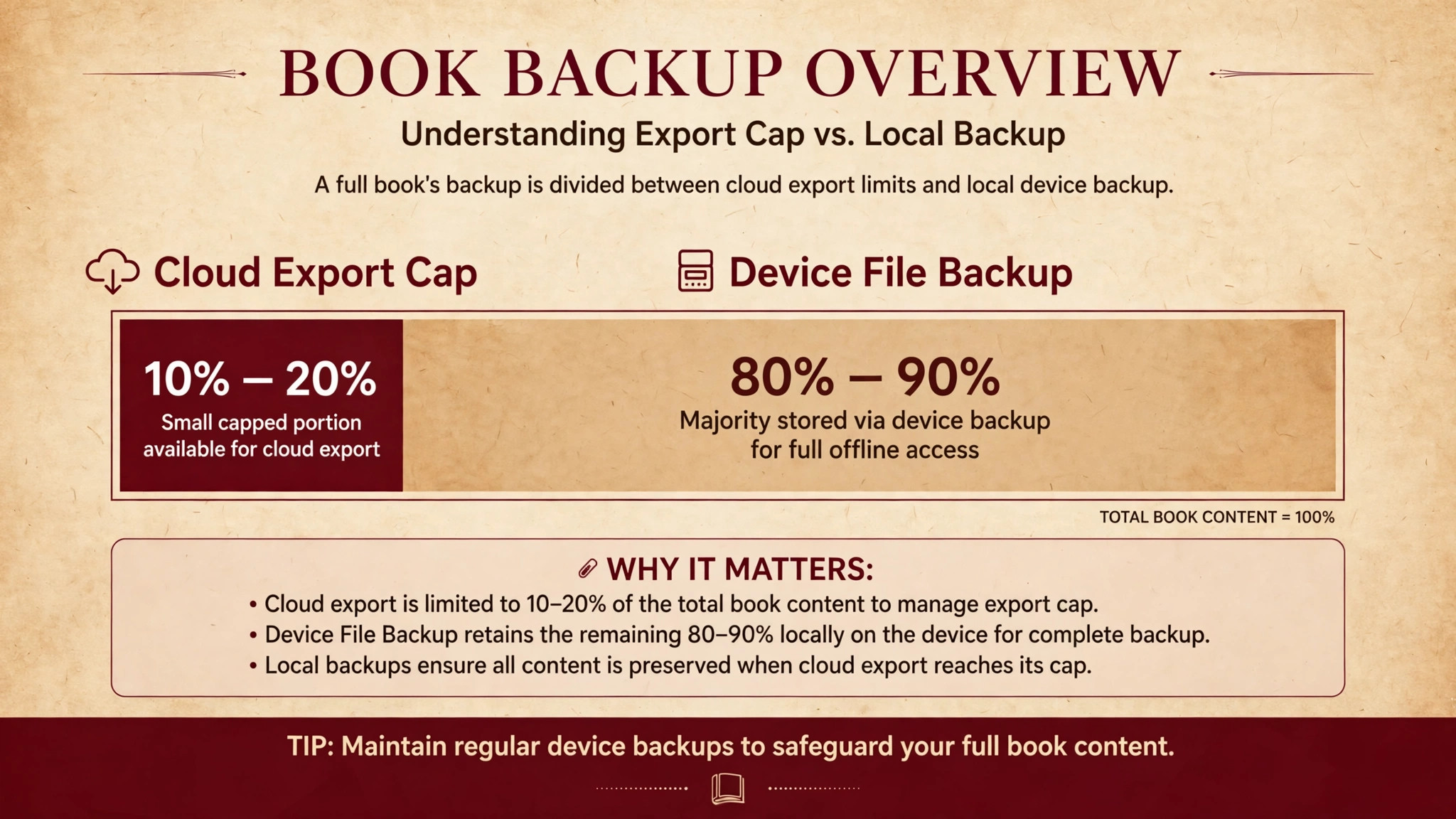
Website export files are stored in your account for 30 days and then removed, so download the file the day you generate it. The third limit is the PDF problem. Kobo readers do not support highlighting in PDFs as they do in EPUB books, and small Kindle readers handle PDFs as fixed pages that are hard to annotate precisely.
Sync tools soften these limits but do not remove them. Readwise, listed from about 5.59 dollars a month in 2026 coverage, syncs Kindle and Kobo highlights into Notion and Obsidian. Clippings.io offers a free tier with a paid plan at 1.99 dollars a month billed yearly for unlimited exports. Both are worth their price if you read daily and write from highlights weekly, because they automate the nightly export step that humans skip. Neither can export more Kindle text than the publisher cap allows through the cloud route. Full help is in the Readwise Kindle import guide and Kobo annotation export help.
Keep the Colour Code Readable in Three Months
When you use e-reader for academic reading over a full term, a highlight system fails slowly. In week one every colour feels obvious. In week eight, after four books and two hundred highlights, the same colours feel arbitrary, because you never wrote down what they meant. Write the code down once, in the same place every time, and keep it short enough to remember without looking it up. Put it at the top of your notes folder and as the first note in each new book.
PDFs, the Hard Case for Every E-Reader
PDFs break almost every assumption in the rest of this guide. A reflowable book adapts to your font size and screen. A PDF does not. It preserves the print layout, which is excellent for tables and figures, and poor for small screens, because the page was designed for paper, not for a 6 inch display. Two column articles are the worst case. In portrait mode the text is too small to read. Turned sideways you see half a page and must scroll constantly.
There are four workable responses. The first is to read PDFs on a large screen e-reader, such as the Scribe, where a full page is close to print size. The second is to convert the PDF to EPUB with Calibre, which works well for text based PDFs and poorly for scanned pages and complex tables, so test conversion on your hardest file first. The third is to read the PDF on a tablet or laptop with a dedicated PDF app, and reserve the e-reader for books. The fourth is to use a PDF crop or reflow mode, which removes white margins and enlarges text, accepting that some tables will break.
Scanned PDFs add a further problem. A scanned page is an image, not text, so highlighting, search, and export may not work until the file is processed with optical character recognition. If your course pack is scanned, check whether your library offers a text version first. A five minute check saves an hour of rework later. Rename every file with author, year, and a short title before you send it to the reader, and add the full reference to your citation manager at the same time. If you use Send to Kindle, remember that personal documents sync differently from store purchases. Check one personal document through your full export route before you rely on it for a whole module.
That check matters most if you use e-reader for academic reading across both store books and your own PDFs, because the two routes behave differently.
From Highlights to Writing Without Copying Blindly
Exported highlights are not an essay. They are quotations without an argument, and pasting them into a draft in export order produces a literature review that reads like a list. Synthesis should happen on a computer, with your source sheets open, not on the e-reader. Start by grouping highlights by theme across sources, not by book. A theme group might be definitions of a concept, evidence for a claim, criticisms of a method, or gaps several authors note. Grouping across sources forces comparison, which turns summary into analysis.
Within each theme group, write a paragraph in your own words before you insert any quotation. That paragraph should state what the group shows, where authors agree, where they disagree, and what remains unresolved. Only then add the one or two quotations that best support it, with full references. Quotations chosen after the paragraph serve the argument. Quotations chosen before it tend to become the argument.
Citation hygiene belongs here because exports are a common source of errors. An export file often gives a location number rather than a page number, and locations differ by device and file version. For any quotation you plan to cite, record the page number from the print or PDF version as well as the location from your reader, or cite an EPUB by chapter and section instead. Check your institution style guide for EPUB locations. Plagiarism risk also sits in paraphrase. A highlight lightly reworded in a draft can drift into close paraphrase that still follows the original structure. The defence is the source sheet habit.
Write the central claim in your own words during the weekly review, while the source is still open.
For help turning research into polished prose, see best AI academic writing tools and best AI citation generators. For discovery, see best AI research tools. For a wider study system, see AI tools for students and best note taking apps.
How to Choose in Ten Minutes
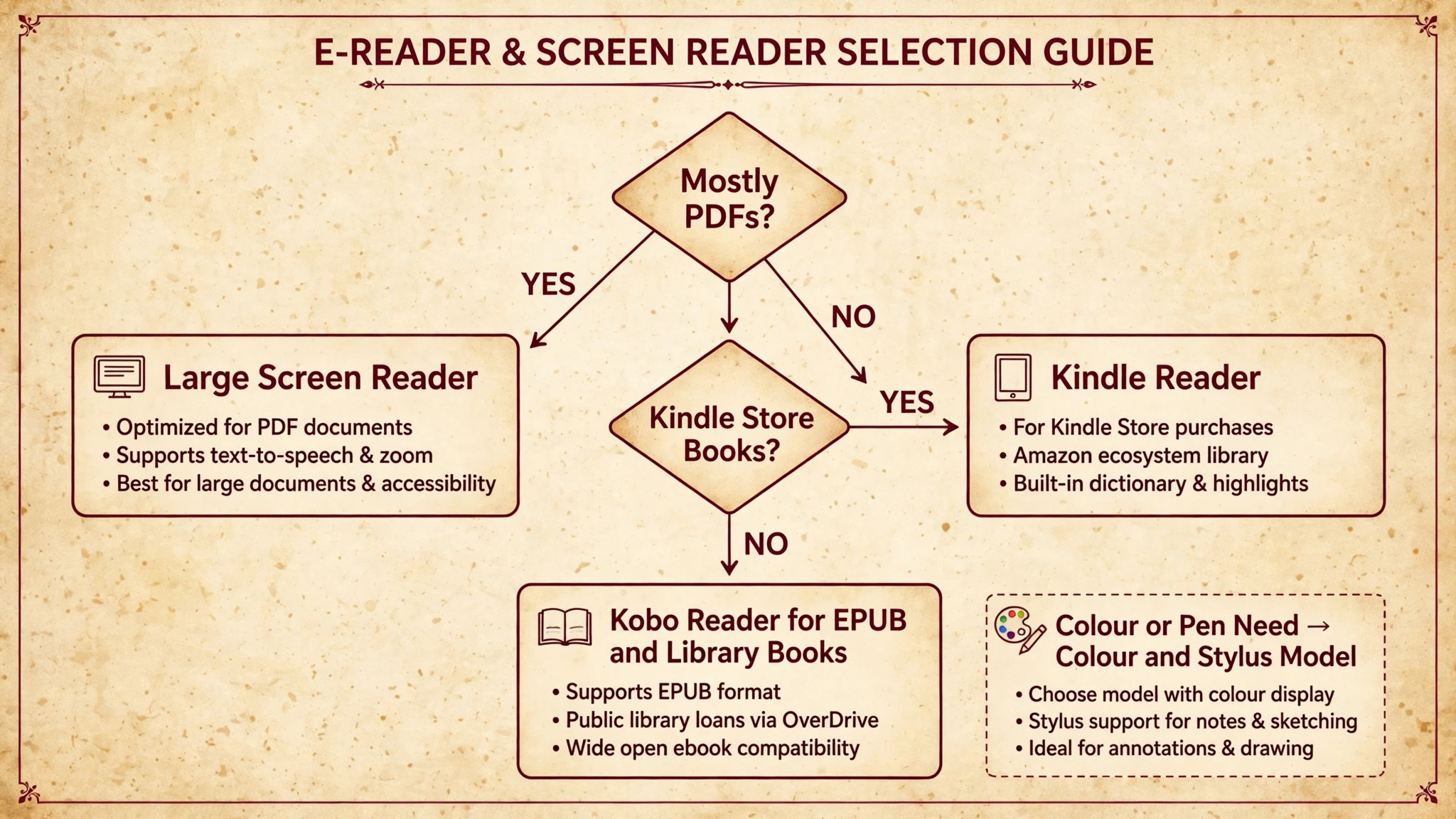
If you are still undecided, use this short decision sequence, and stop at the first answer that fits. First, count your PDFs. If more than half your weekly reading is fixed layout PDFs, scanned articles, or textbooks with complex figures, choose a large screen reader or accept that PDFs will live on a tablet or laptop. Second, check your store. If your books come from the Kindle store, a Kindle reader removes friction. If your books come as EPUB files, from Kobo, from open access repositories, or from your library in EPUB form, a Kobo reader removes a conversion step you will otherwise repeat weekly. Third, decide on colour and pen.
If you use colour coding daily and annotate by hand, pay for colour and a stylus. If you type short notes and your field is text heavy, save the money and buy a monochrome reader.
Fourth, price the whole system, not just the device. Add the case, the stylus if you need one, and a year of your chosen sync tool. A 199.99 dollar Paperwhite with no sync tool is cheaper over a year than a 159.99 dollar Clara BW plus a 70 dollar stylus plus a sync subscription you rarely open. Fifth, test the export route before the return window closes. Load one real book and one real PDF, highlight ten passages, attach three notes, and export them. If that test feels smooth, the system will survive a busy term. If it feels clumsy, return or exchange the device while you still can.
Mistakes That Quietly Break an E-Reader System
The first mistake is highlighting everything. It feels like thorough reading, but it produces a review file as long as the book and therefore as hard to use as the book. The one highlight per page guideline prevents this, but only if you enforce it when tired, which is when over highlighting happens most. If a chapter starts turning yellow, stop, reread your reading question, and delete the weakest highlights before you continue.
The second mistake is never exporting. Highlights feel safe because the device is in your bag, but a lost device, a factory reset, or a change of account can take them with it. The third mistake is exporting without reviewing. An export folder that grows every night and is never sorted becomes a second archive you do not trust. If you skip two weekly reviews, pause new reading and sort the backlog first.
The fourth mistake is buying for specifications instead of for sources. A sharper screen, more storage, and a faster processor do not change whether your PDFs are readable or your exports are usable. Sixteen gigabytes holds thousands of books, so paying extra for larger storage rarely changes academic reading. The fifth mistake is keeping two systems at once, with no rule for which one is authoritative. Pick one working notes location and export everything into it. The sixth mistake is ignoring comfort settings. Font size, spacing, margins, warm light, and dark mode decide whether you can read for ninety minutes without eye strain.
Related reading includes best AI PDF summarizers for handling long documents before deep reading.
Frequently Asked Questions
Can I use e-reader for academic reading if most of my material is PDFs?
Yes, but choose the device for PDFs, not for books. A large screen reader handles a full journal page far better than a 6 inch or 7 inch reader, and a tablet or laptop PDF app is better than a small e-reader for scanned articles. Test your hardest PDF before the return window closes.
Which e-reader is best for highlighting and notes?
For reflowable books, a colour Kobo such as the Libra Colour gives you colour coded highlights and a direct annotation export in several formats, while a Kindle Paperwhite gives you a sharp monochrome screen and a large store at a lower entry price. For handwritten notes on PDFs, a Kindle Scribe is stronger, because you write on the PDF itself.
Do Kindle highlights export completely?
Not always. Kindle cloud exports are subject to a publisher set limit, typically around 10 percent to 20 percent of a book, so highlights beyond that limit may be truncated even though they remain visible in the book. Keep the device My Clippings file as a backup.
Can I export Kobo highlights to Notion or Obsidian?
Yes, through two routes. Kobo offers a direct website export to PDF, HTML, plain text, and Markdown for purchased books, with files stored for 30 days, so download them promptly. Readwise can also sync Kobo highlights into Notion, Obsidian, and Evernote, though third party pricing applies.
Is a colour e-reader worth it for academic work?
Colour is worth it if you use a fixed colour code daily, if your textbooks rely on colour figures or charts, or if you review by scanning colours rather than rereading text. If your field is text heavy and you review from source sheets, a monochrome screen is sharper, cheaper, and easier on battery life.
How long does it take to set up a working academic reading system?
A basic system takes an afternoon. Choose the reader, set your three colour meanings, load two real sources, highlight and export them, and build one source sheet from the export. A reliable system takes about two weeks of nightly exports and weekly reviews to become a habit. Judge it after those two weeks.
Your Reading System, Not Just Your Reader
A good e-reader does not make you a better reader by itself. It removes distractions, keeps annotations attached to the passage, and makes long reading portable enough to happen in the gaps of a real week. The system around it does the rest. A reading question before each source, three colours with fixed meanings, short notes that record judgement, a nightly export, a weekly review, and a one page source sheet per major source, that sequence turns reading into material you can write from and cite correctly. That is the real benefit when you use e-reader for academic reading as a workflow, not as a gadget.
Start with the test that matters. Load one real article and one real book onto your reader, read them with the three colour code, export the highlights the same evening, and build a source sheet the following weekend. If that loop feels manageable, keep it for a full term, and add a sync tool only when manual export starts to slow you down. If the loop feels clumsy, change one element, such as device size or export route, before you abandon the whole idea.