
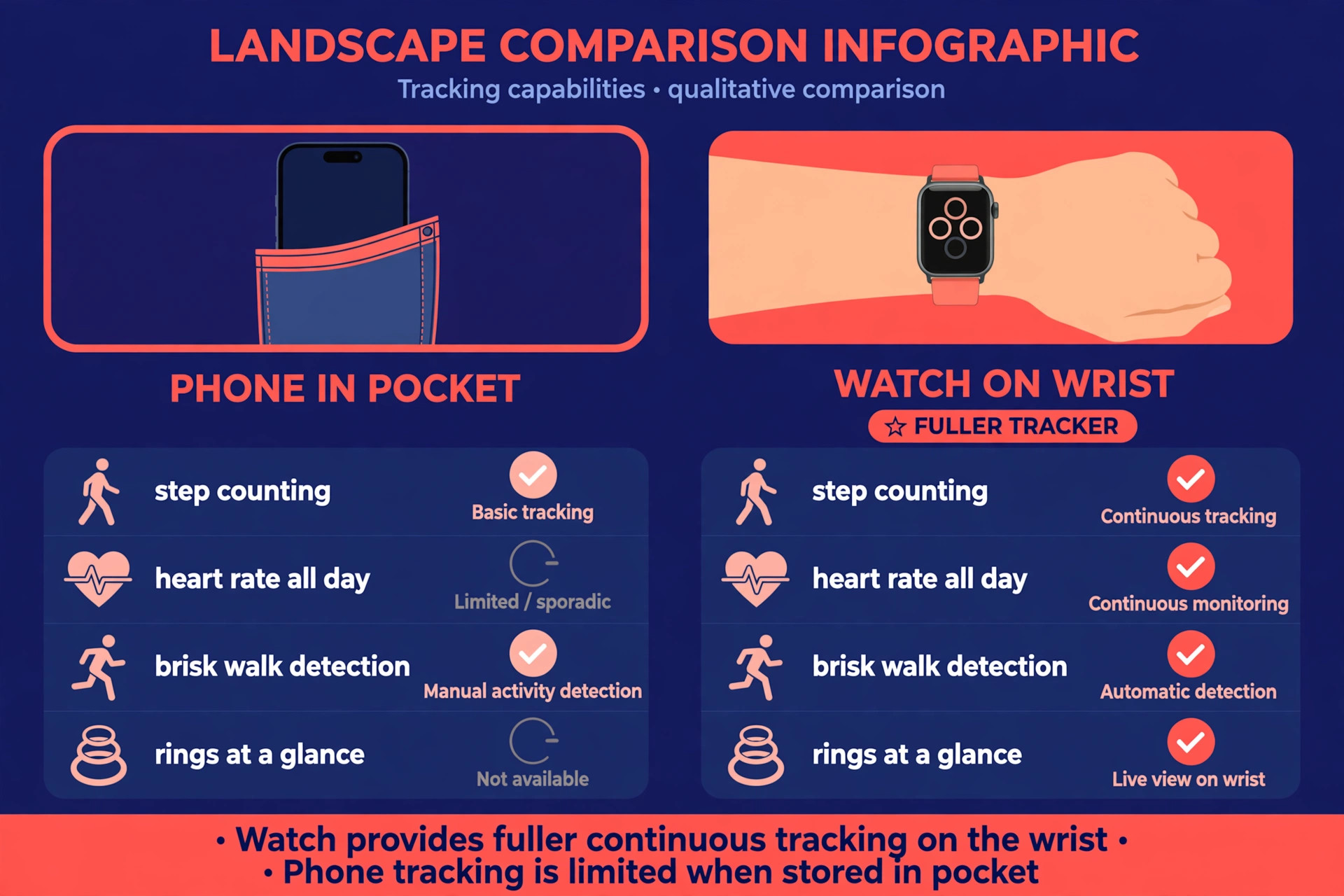
A phone in your pocket counts steps when it remembers to, and a cheap band counts steps all day but tells you little about what those steps meant. When you use Apple Watch for fitness tracking, you get a different deal. The watch stays on your wrist, it measures heart rate through the day, it notices when a walk turns brisk enough to count as exercise, and it turns all of that into three simple rings you can read at a glance. That difference matters most on ordinary days, not on race days, because ordinary days are where fitness habits are won or lost.
This guide walks through the full setup, from pairing and personal details to rings, workouts, sleep, Health data and model choice. It is written for someone who already owns an Apple Watch or is about to buy one, and who wants the watch to be useful in week one rather than a notification machine that happens to count steps. Prices quoted here are starting United States prices reported in October 2026 listings, and you should check the Apple Watch store before you buy, because case size, material, cellular choice and band can move the final price well above the starting figure.
Before You Start, Get the Basics Right
An Apple Watch needs an iPhone to set up. Android phones cannot pair with an Apple Watch, so if your daily phone runs Android, this is not the tracker for you, no matter how good the hardware looks. You also need an Apple ID, Bluetooth switched on, and your iPhone updated to a version that supports your watch model. Current models run watchOS 27, which needs a newer iPhone, so check compatibility before you open the box, especially if you are buying a used watch. A watch that cannot update will still track basic activity, but it will miss newer workout views, health features and security fixes.
Pairing itself takes only a few minutes. Open the Watch app on your iPhone, hold the watch near the phone, and follow the on screen pairing animation. Choose to set up as a new watch unless you are restoring from a backup of a previous Apple Watch, in which case restoring saves you from rebuilding faces, apps and settings by hand. During setup, the phone will ask about health permissions, location, motion and fitness, and notifications. Say yes to health and fitness permissions if tracking is the point of the purchase, because a watch that cannot read motion and heart rate data cannot close rings or log workouts accurately.
Wear fit matters more than most buyers expect. The watch should sit snug on the wrist, high enough that the sensors on the back stay in contact with skin, but not so tight that it leaves marks or cuts off circulation. A loose watch slides during a run, lets light leak under the sensor, and produces heart rate readings that jump around. If your readings look erratic, tighten the band one notch before you blame the watch. Tattooed skin, very cold weather and a dirty sensor back can also affect readings, so rinse sweat off the watch after hard sessions and dry the back before the next wear.
How to use Apple Watch for fitness tracking in the first week
Your first week should be about calibration and habit, not about chasing perfect rings. Start by entering accurate personal details in the Health app on your iPhone. Age, height, weight and sex shape calorie estimates, heart rate zones and Move targets, so a guessed weight from three years ago will quietly distort every number the watch shows you. Update weight when it changes by more than a few pounds, and update height for a child or teenager who is still growing. These details live in Health, under your profile, and they feed both the watch and the Fitness app.
Next, let the watch learn how you move. Apple Watch improves its estimates for distance, pace and calories when you do an outdoor walk or run with GPS for about 20 minutes, with the phone nearby or with GPS on the watch itself. You do not need to do this every day. One or two outdoor sessions in the first week give the watch a baseline for your stride and pace, and later sessions stay closer to reality. Indoor treadmill sessions help less for calibration, because the watch cannot check its step estimate against GPS, so it may overcount or undercount distance until you calibrate outdoors.
Set your first Move goal lower than your ambition. The watch suggests a goal during setup, and many people accept a number that looks impressive and then miss it by a wide margin for a week. A missed ring every day teaches you to ignore the rings, which defeats the purpose. A better rule is to set a Move goal you can hit on a normal day, not on your best day, and raise it by 20 to 50 calories only after a full week of closing it. Exercise and Stand goals are simpler. Exercise defaults to 30 minutes a day, and Stand defaults to 12 hours in which you stand and move for at least one minute.
Keep both defaults for week one, then adjust based on your job and schedule.
Put the Activity rings where you will see them. Add a rings complication to your watch face, or choose a face that shows rings by default, so progress is visible without opening an app. That glance is the whole point of the system. A tracker buried three taps deep gets checked once a day. A ring on the face gets checked after lunch, after a walk, and before bed, and each check is a small chance to add a short walk or take the stairs.
Turn on Stand reminders and workout reminders in the Watch app as well, because the watch can notice when you have been sitting for nearly an hour or when a brisk walk looks like a workout you forgot to start.
Your Setup Checklist, Done Once and Done Properly
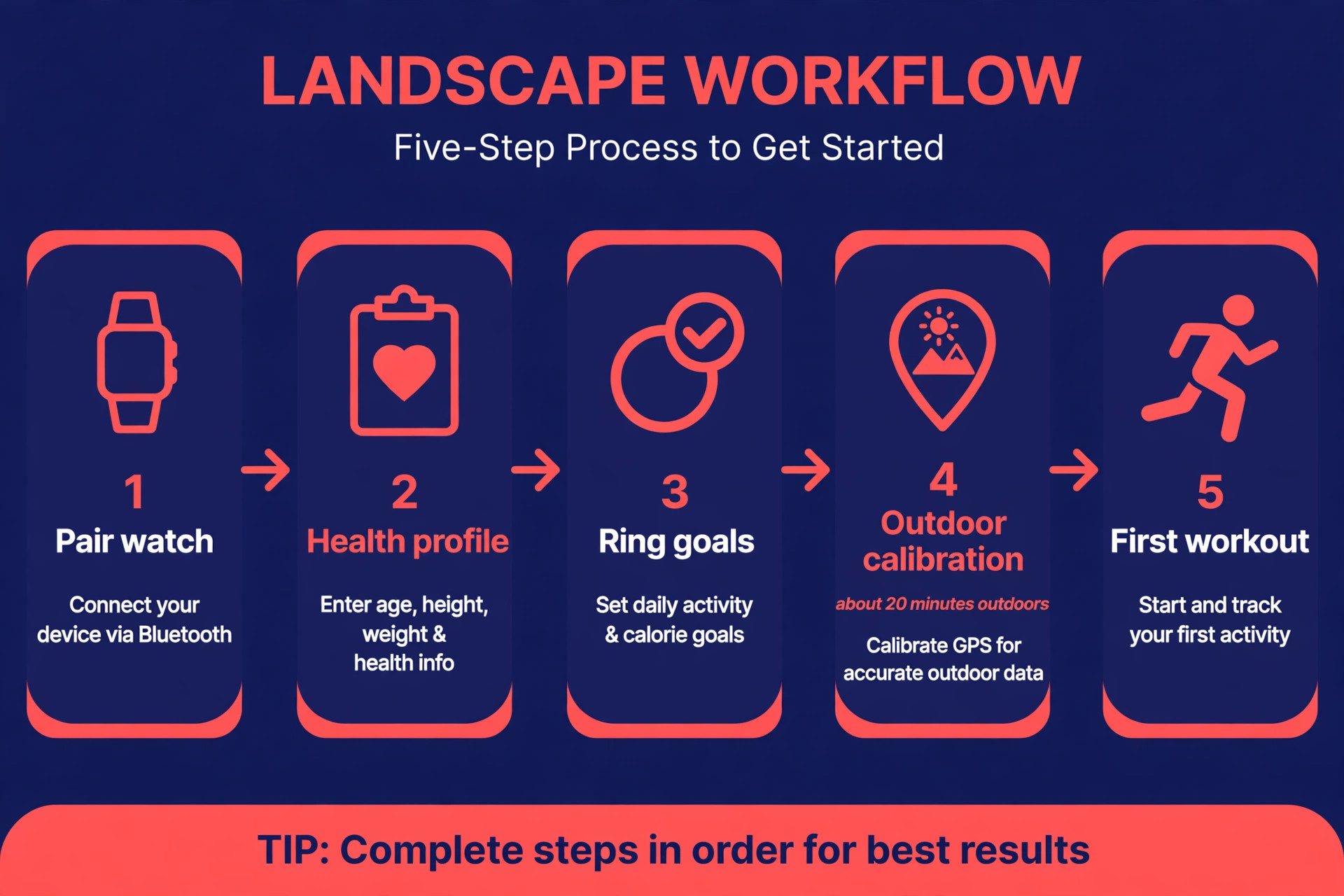
Work through this checklist in order, and do not skip the steps that look boring. The boring steps are the ones that decide whether your data is trustworthy a month from now.
- Pair the watch with your iPhone and finish the Watch app setup, including health, motion and location permissions.
- Update your Health profile with current age, height and weight, and check that the same details appear on the watch.
- Choose a Move goal you can hit on a normal day, keep Exercise at 30 minutes and Stand at 12 hours for week one.
- Add an Activity rings complication to your watch face so progress is visible at a glance.
- Turn on Stand reminders, workout start reminders and workout end reminders in the Watch app.
- Do one outdoor walk or run of about 20 minutes to help the watch calibrate distance and pace.
- Turn on fall detection if it is not already on, and fill in Medical ID with emergency contacts and relevant medical notes.
- Open the Fitness app on your iPhone and check that rings, workouts and trends appear there, not only on the watch.
- Decide what you will share, and with whom, before you accept any sharing prompt. Sharing defaults to off, and you should keep it that way until you have a reason to change it.
- Charge the watch on a routine you can keep, for example while you shower and get ready, or overnight if you do not track sleep yet.
The Three Rings, Explained Without the Hype
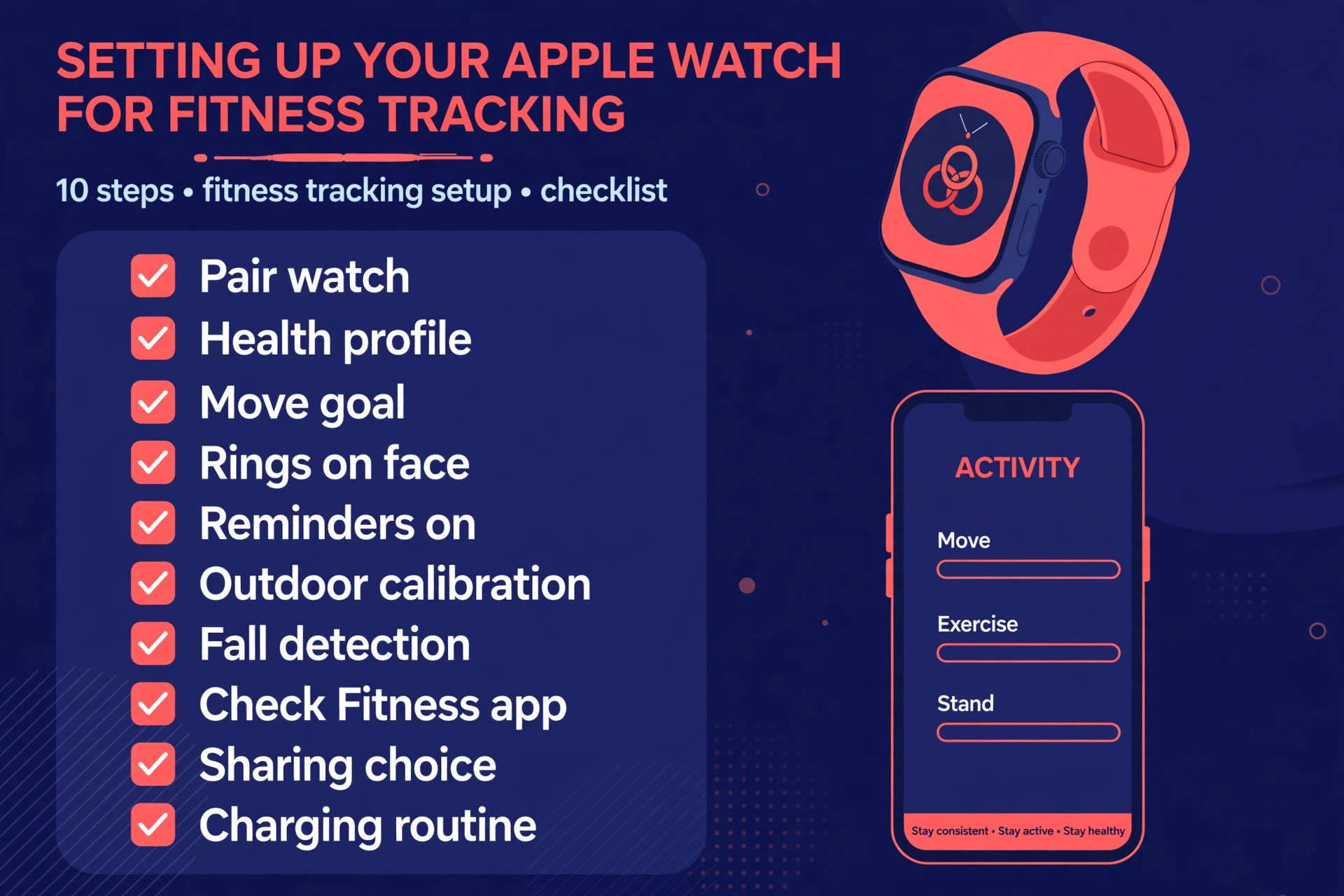
The Move ring, in red, tracks active calories, meaning calories burned through movement above your resting baseline. It does not count every calorie your body burns in a day, only the extra burn from moving, so a desk day with no walk will leave it far from closed even if you ate normally. The Exercise ring, in green, tracks minutes of activity at or above a brisk walk. A slow stroll around the house may not count, and that is intentional. The watch looks for sustained movement plus an elevated heart rate, so it rewards effort rather than mere motion.
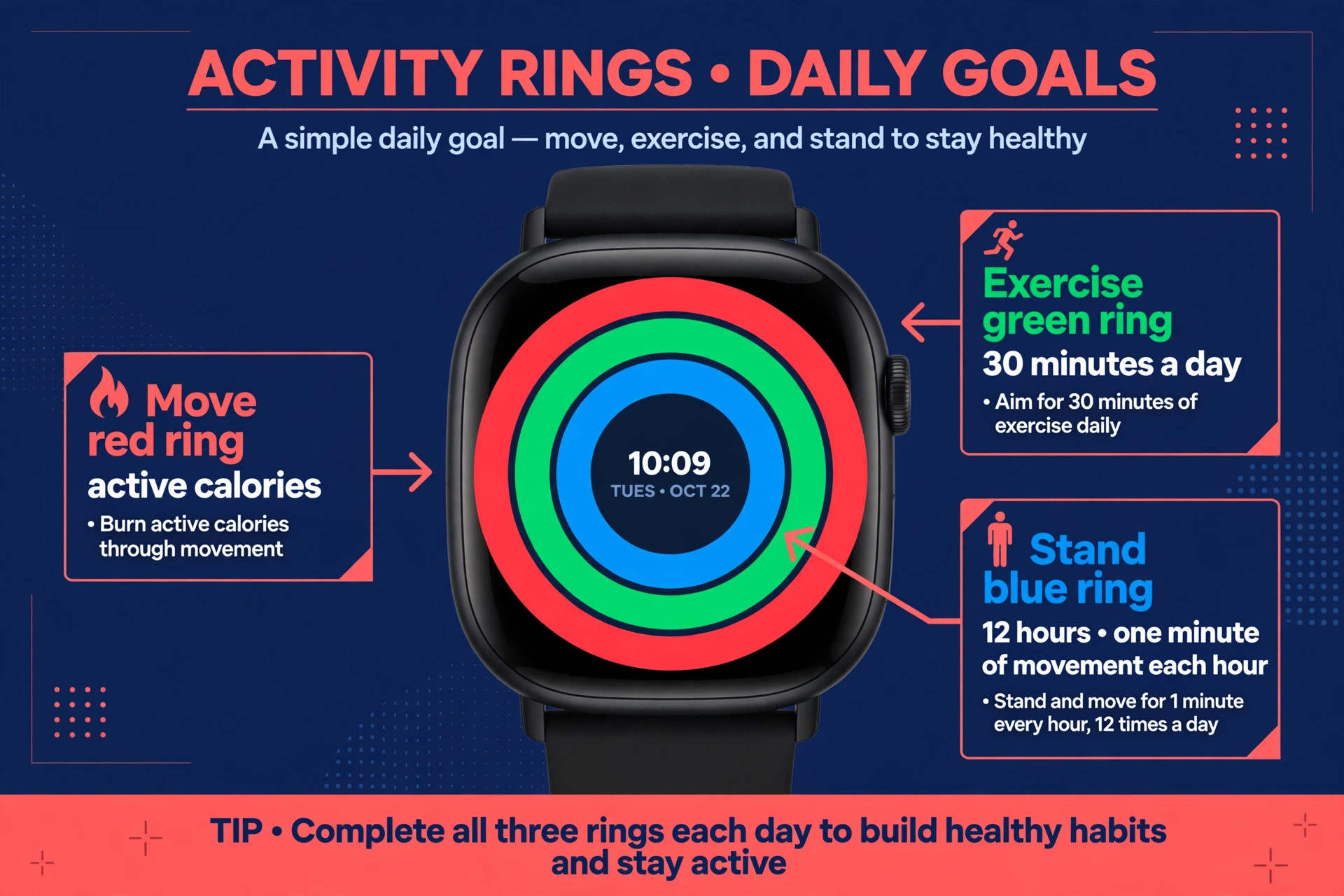
The Stand ring, in blue, gives you one hour of credit for each hour in which you stand and move for at least one minute. Twelve Stand hours sounds easy until a long meeting day or a long drive leaves you with gaps you cannot fill after the fact.
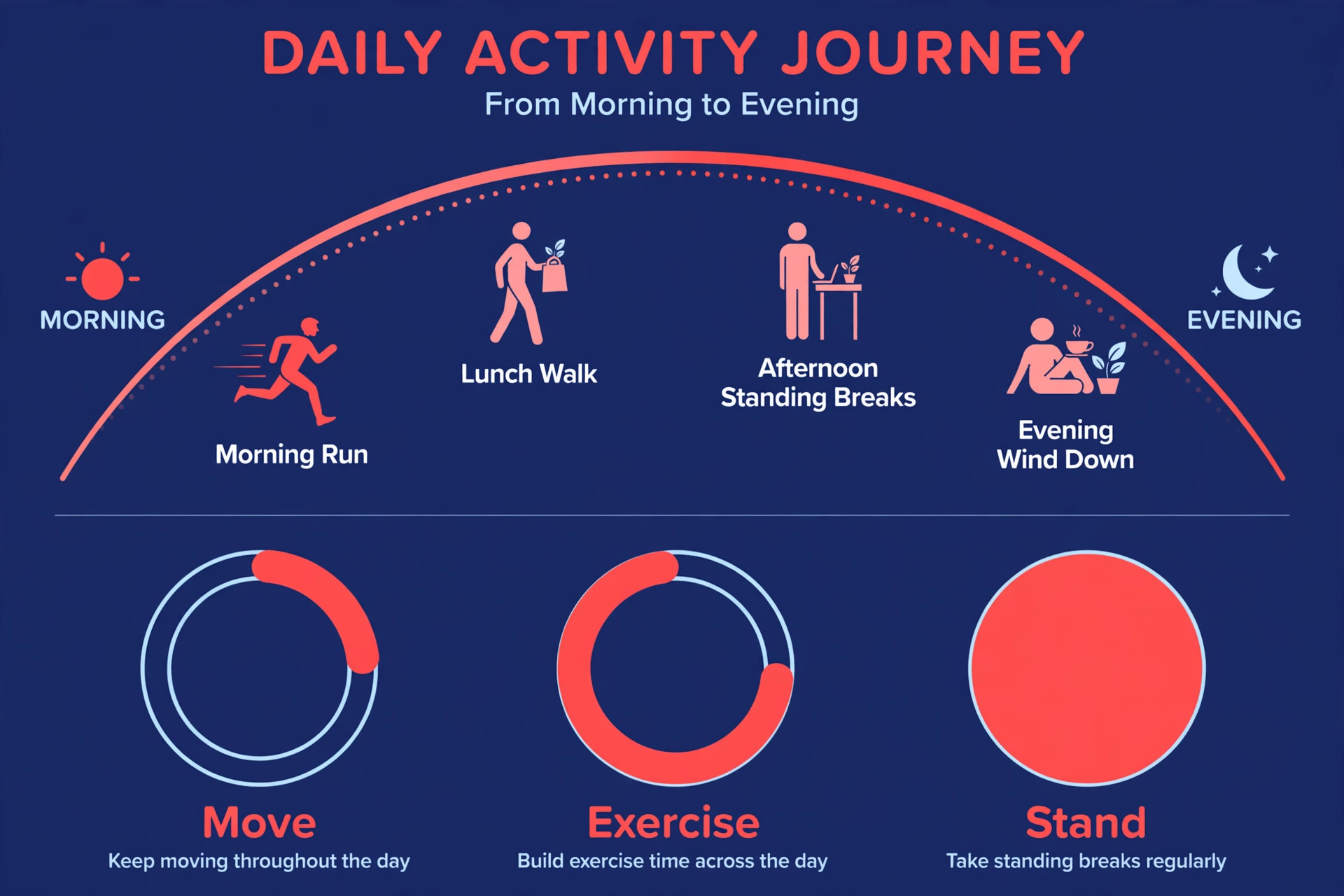
Rings work because they are forgiving in the right places and strict in the right places. You can close Move with a mix of walking, housework, workouts and general movement, so you are not forced into one kind of exercise. You cannot close Stand at 11 p.m. by standing for twelve minutes, because each hour needs its own minute of movement, so the ring pushes you to break up sitting through the day. You cannot close Exercise by wearing the watch while you sleep, because the watch needs real effort. That combination is why rings beat a raw step count for most people. Steps reward any motion, including a shaky bus ride.
Rings reward movement, effort and regular breaks from sitting, which together describe a healthier day better than steps alone.
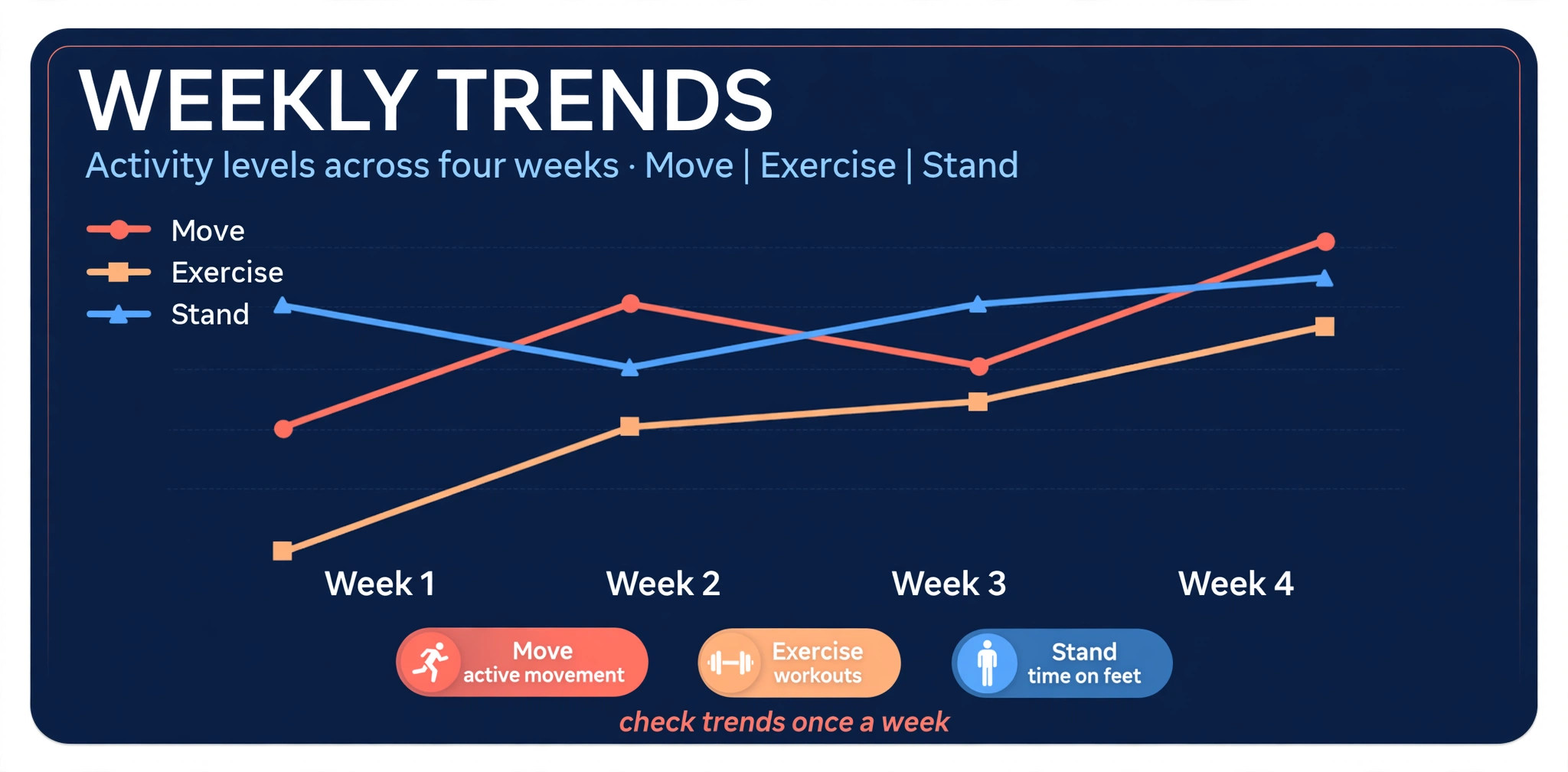
Weekly trends matter more than any single day. In the Fitness app on your iPhone, the Trends view compares your recent averages for Move, Exercise, Stand, distance and other measures against your longer history, and it flags whether each trend is up, down or steady. A single bad day means little. A four week slide in Exercise minutes means something, even if you still close rings on good days by cramming activity into the evening. Check trends once a week, on the same day, and make one change at a time. If Exercise is sliding, add a fixed walk after lunch rather than overhauling your whole routine. If Stand is sliding, set a rule to stand during every phone call.
Small, specific fixes beat grand resolutions, because they survive busy weeks.
Workouts, and How to Pick the Right Type Every Time
Starting a workout on the watch is simple, but picking the right type is where accuracy is won or lost. Open the Workout app, choose the activity closest to what you are about to do, and set a goal if you want one, such as time, distance, calories or an open goal with no target. During the session, swipe through workout views to see heart rate, pace, distance, elevation, power where supported, and ring progress. Swipe right and tap End when you finish, then save the summary. Ending cleanly matters, because a workout left running through your shower and drive home will inflate calories and exercise minutes and pollute the data you later use to judge progress.
The reason to use Apple Watch for fitness tracking during workouts, rather than only relying on all day ring data, is that a named workout gives the watch context. An outdoor run uses GPS for pace and route, a pool swim uses stroke detection and pool length, a cycling session uses speed and elevation, and a strength session uses heart rate patterns rather than distance. If you log a run as an outdoor walk, pace and calorie estimates will be off, and your trends will mix two different activities into one misleading average. Take the extra two seconds to pick the right type.
If your exact activity is not listed near the top, scroll to the bottom of the Workout app and add it, so it is easy to find next time.
The table below compares the workout types most people use, with the metrics that matter for each and the setup detail that most often gets missed.
| Workout type | Best for | Key metrics on the watch | Detail most people miss |
|---|---|---|---|
| Outdoor Walk | Daily movement and calibration | Pace, distance, heart rate, route | GPS needs a clear sky view at the start, so wait for a lock before you set off |
| Outdoor Run | Pace training and race preparation | Pace, cadence, heart rate zones, route | Custom workouts let you set intervals and pace alerts in advance |
| Indoor Walk or Run | Treadmill and bad weather days | Time, heart rate, estimated distance | Treadmill distance drifts without outdoor calibration, so calibrate outdoors first |
| Outdoor Cycle | Commutes and longer rides | Speed, distance, elevation, heart rate | Pair a Bluetooth speed sensor if you want steadier speed data than GPS alone gives |
| Pool Swim | Low impact cardio | Laps, distance, stroke type, pace | Set pool length before you start, and lock the screen so splashes do not pause the session |
| Open Water Swim | Lakes, sea swims and triathlon training | Distance, route, heart rate | GPS accuracy drops in choppy water, so judge open water distance as an estimate |
| Yoga and Pilates | Flexibility, strength and recovery | Heart rate, time, calories | Heart rate stays lower than in cardio, so judge these sessions by consistency, not calories |
| Functional Strength Training | Gym sessions and home strength work | Heart rate, time, calories | The watch cannot count reps reliably, so log sets and loads in a notes app or a training app |
| HIIT | Short, hard sessions | Heart rate, time, calories, heart rate recovery | Short bursts can lag on wrist heart rate, so wear the watch snug and warm up first |
| Rowing and Elliptical | Gym cardio without impact | Time, heart rate, estimated distance | Machine displays and watch estimates will differ, and that gap is normal, not an error |
Health Data, Trends and Sleep
Everything the watch measures flows into the Health app on your iPhone, which is the long term record. Open Health, go to Browse, and you will find categories for Activity, Heart, Sleep, Respiratory, Mobility and more. Each category shows recent data, trends and a list of sources, so you can see whether a number came from the watch, from a connected app, or from a manual entry. That source list matters when numbers disagree. If a third party app writes steps into Health as well as the watch, you can get double counted data, so check sources before you trust a sudden jump in a trend.
Heart data deserves a careful reading. The watch measures resting heart rate, walking average, heart rate variability, and, on models with the feature, ECG readings and blood oxygen. Resting heart rate and walking average are the most useful day to day signals, because they move slowly and reflect fitness and recovery. A resting rate that drifts down over months usually means improving fitness. A walking average that jumps for a week may mean illness, stress, heat or overtraining, and it is worth noticing even if you feel fine. ECG and blood oxygen are spot checks, not continuous monitors, and they come with limits.
An ECG reading can flag a possible irregular rhythm, but it is not a diagnosis, and blood oxygen readings vary with fit, skin temperature and movement, so treat single readings with caution and look at patterns instead.
Sleep tracking works best when you set a sleep schedule in the Health app or in the Watch app, with a bedtime and a wake time, and a wind down period if you want one. The watch then tracks time asleep, time in bed, and, on supported models, sleep stages. Sleep stages from a wrist sensor are estimates, not the same as a sleep lab measurement, so use them to spot patterns, such as consistently short deep sleep on nights after late workouts, rather than treating each night as a precise medical report. Sleep data also feeds into readiness thinking, even though Apple does not present a single readiness score the way some rivals do.
If sleep is short for several nights and resting heart rate is up, that combination is a reasonable signal to train lighter for a day.
Which Model to Buy, and What Fitness+ Adds
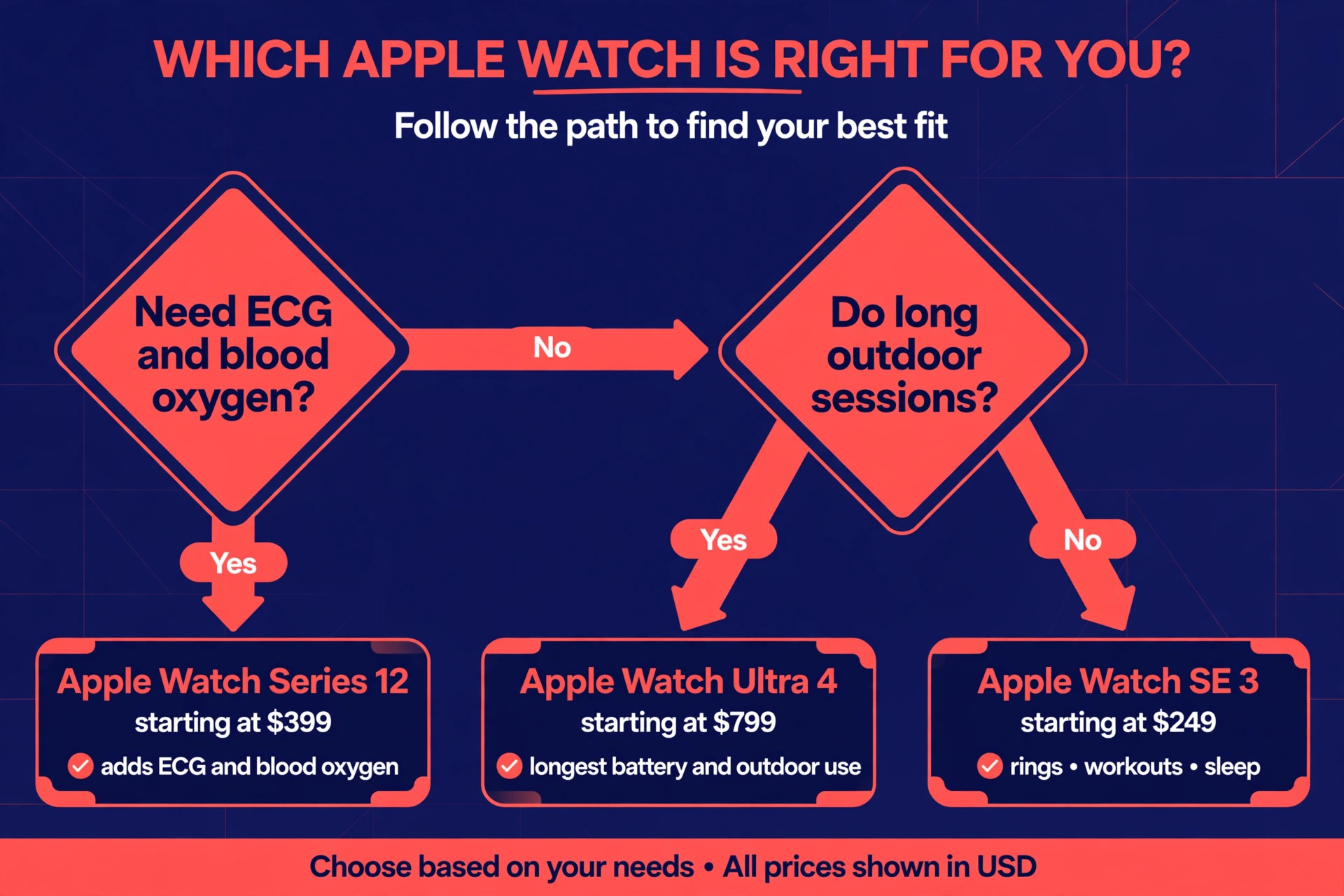
Model choice for fitness comes down to sensors, battery, screen and price, not to fashion alone. The SE 3 starts at $249 for GPS and $299 for GPS plus cellular, according to October 2026 listings, and it covers rings, workouts, sleep, fall detection and sleep apnea notifications. It lacks ECG and blood oxygen, so if those spot checks matter to you, the SE is not the right buy. The Series 12 starts at $399 for GPS and $499 for GPS plus cellular, and adds ECG, blood oxygen, a brighter display, a larger case choice and up to 24 hours of battery.
The Ultra 4 starts at $799, and it is cellular only, with up to 50 hours of battery, dual frequency GPS, a 100 metre water rating, a depth gauge to 40 metres, and satellite features for emergencies away from coverage.
For most people who plan to use Apple Watch for fitness tracking in daily life, the SE 3 is enough, and the money saved can go to better shoes, a gym membership or a coaching session that will do more for fitness than a brighter screen. Buy the Series 12 if you want ECG and blood oxygen, a larger display for workout views, or longer battery for sleep tracking plus a full day of use. Buy the Ultra 4 if you do long outdoor sessions, multi day hikes, diving, or open water swimming, or if you hate charging and want the longest battery in the lineup.
Do not buy the Ultra for a desk job and a daily walk simply because it looks serious. Its size and weight suit larger wrists and outdoor use, and a watch that feels bulky is a watch that ends up in a drawer.
Cellular is a separate decision from model. A GPS only watch needs your iPhone nearby for calls, messages and streaming. A cellular watch can make calls, stream music and share location on its own, for a monthly carrier plan on top of the watch price. That freedom matters for runners who hate carrying a phone, for parents who want a child reachable without a phone, and for anyone who trains outdoors and wants emergency contact without a phone in a pocket. It matters far less if you always carry your phone anyway, or if you mainly train at home or in a gym with Wi-Fi.
Check your carrier plan price before you choose cellular, because the monthly fee over two years can exceed the price difference between models.
Apple Fitness+ is the optional subscription that turns the watch into a guided workout system. It costs $9.99 a month or $79.99 a year in the United States, according to Apple listings reported in 2026, and it is also included in the Apple One Premier bundle. During a Fitness+ workout on iPhone, iPad or Apple TV, your watch metrics appear on screen, including heart rate, calories and ring progress, and trainers call out ring milestones as you train. The library covers strength, HIIT, yoga, Pilates, dance, cycling, treadmill, rowing, meditation and more, with sessions from five minutes upward. Try it if you like guided sessions and struggle to plan your own training.
Skip it if you already follow a coach, a sport or a training plan, because the rings and workouts work fully without it, and a subscription you do not use is just a monthly reminder to feel guilty.
Mistakes That Quietly Ruin Good Tracking
The first mistake is wearing the watch loose and then trusting the numbers. A loose band during a run, a sweaty sensor after a gym session, and a watch worn over a sleeve all produce data that looks precise but is not. Snug fit, clean sensors and bare skin under the watch are unglamorous habits, and they matter more than any setting change. The second mistake is setting a Move goal from ambition rather than from a normal week, then missing it daily and learning to ignore the rings. Set the goal from your real life, raise it slowly, and let the streak build from success rather than from willpower.
The third mistake is logging the wrong workout type, or not logging at all, and then wondering why trends look flat. If you swim and log it as a walk, your pace data is meaningless. If you do strength work and never start a workout, your Exercise minutes will undercount your effort, and you may conclude that training is not working when the record is simply incomplete. The fourth mistake is comparing your rings to someone else. Move goals are personal, because they depend on body size, age and baseline activity. A friend closing 800 calories may be doing less relative effort than you closing 400, and chasing their number is a fast route to overtraining or disappointment.
The fifth mistake is checking the watch constantly and treating every fluctuation as a signal. Heart rate varies with caffeine, heat, stress, illness and sleep, and a single high reading after coffee is not a health event. Trends over weeks, resting rate, walking average and sleep duration are the signals worth acting on. Single readings are worth a second check, not a panic. The sixth mistake is letting notifications drown the fitness purpose. If every app can buzz your wrist, the watch becomes a distraction device that happens to track steps.
Turn off notifications for apps that do not need your wrist, keep calls, messages and fitness alerts, and let the watch go quiet during workouts except for workout alerts you set yourself.
The seventh mistake is forgetting that the watch measures movement, not health on its own. It cannot measure your diet, your stress at work, your sleep quality beyond estimates, or your strength gains in the gym. If you use Apple Watch for fitness tracking as your only health record, you will miss the other half of the picture. Pair ring data with a simple weekly note, covering sleep quality, energy, soreness and one training highlight, and review that note alongside trends. That combination, watch data plus your own judgment, is what turns tracking into training rather than into score chasing.
For related reading, coaches and gym owners may find best AI tools for fitness coaches and best AI tools for gyms useful for the business side of training, while best AI tools for yoga instructors and best AI tools for nutritionists cover the coaching and food angles that a watch alone cannot fill.
Frequently Asked Questions
Do I need an iPhone to use Apple Watch for fitness tracking?
Yes. An Apple Watch pairs with an iPhone during setup, and it cannot pair with an Android phone. The Fitness and Health apps on your iPhone hold the long term record, trends and sharing controls, so even if the watch works alone for a run, the full picture lives on the iPhone.
What is the cheapest Apple Watch that still tracks fitness well?
The SE 3, starting at $249 for GPS, covers rings, workouts, sleep, fall detection and sleep apnea notifications, which is enough for most daily fitness tracking. You give up ECG and blood oxygen compared with the Series 12, but ring and workout accuracy for everyday use does not depend on those two spot checks.
How do I set a realistic Move goal?
Start from a normal week, not from your best week. Note the active calories you burn on ordinary days, set the goal near that level, and raise it by 20 to 50 calories only after a full week of closing it. A goal you hit most days builds momentum, while a goal you miss most days teaches you to ignore the rings.
Why did my Exercise ring not close after a long walk?
The Exercise ring needs sustained activity at or above a brisk walk, with an elevated heart rate, not just time on your feet. A slow stroll, a day of standing work, or a walk broken into short stops may not reach that threshold. Starting an Outdoor Walk workout, walking briskly, and keeping the watch snug will usually close the gap.
Can I track swimming and strength training accurately?
Yes, with the right workout type and honest expectations. Pool swimming tracks laps and distance well once you set pool length, and strength training tracks heart rate and time well, though it cannot count reps reliably. Log sets and loads separately, and judge strength progress by the loads you lift over weeks, not by calories from a single session.
Should I pay for Apple Fitness+ to use Apple Watch for fitness tracking?
No, Fitness+ is optional. Rings, workouts, sleep, trends and Health data all work without a subscription. Fitness+ adds guided video and audio sessions with live watch metrics on screen, and it is worth trying if you like guided training, but you should not buy it simply to make the watch work, because the watch already works without it.
The Setup That Actually Sticks
The best setup is not the most advanced setup. It is the setup you still use in month three, when the novelty has worn off and life is busy again. That setup has a realistic Move goal, a rings complication on the face, workout reminders switched on, one outdoor calibration session done, a charging routine that fits your day, and a weekly trends check that takes two minutes. It does not have twenty third party apps, a Move goal borrowed from a stranger, or a streak you protect at midnight in a hotel corridor.
Start this week, not next month. Pair the watch, fix your Health profile, set honest goals, do the checklist, and pick the right workout type for your next session. Review trends after seven days, adjust one thing, and repeat. That loop, small goal, honest data, one adjustment, is what turns a watch into a training partner. The rings are only the visible part. The real result is a clearer picture of how you move, how you sleep, and how your body responds to training, and that picture only gets useful when the data behind it is accurate, consistent and reviewed.
If you use Apple Watch for fitness tracking with that discipline, the watch stops being a gadget on your wrist and becomes a record you can trust when you decide what to do next.