
Your team is sending messages, but your phone stays silent, your desktop shows no banner, and you only discover urgent work when you open Slack hours later. If you need to fix Slack notifications not working small team members keep reporting, the problem is almost never that Slack has stopped delivering messages. Messages are arriving in channels. Something between Slack and your screen is silencing the alert, and this guide finds that layer, one check at a time, before it costs another deadline.
Silent notifications damage small teams in a specific way. In a large firm, a missed message is caught by someone else, a manager, or a second channel. In a small team, the person who misses the message often is the person who was supposed to act on it, so the delay becomes a missed client reply, a late handover, or a decision made without key information. Teams respond by checking Slack compulsively, which defeats the purpose of notifications entirely, or by moving urgent talk to personal messaging apps, which fragments the record. Fixing notifications restores trust in the tool, so people can focus without fear of missing something important.
Start by defining the failure precisely, before changing any setting. Ask whether notifications fail everywhere or only on one device. Ask whether they fail for every channel or only for one channel. Ask whether direct messages alert correctly while channel messages stay silent, or whether nothing alerts at all. Each answer points at a different layer. A failure on one device points at device settings. A failure in one channel points at channel settings. A failure everywhere points at a global pause, a schedule, or a workspace policy. Write down the answers, the device in use, and when the problem started, because that note prevents repeating checks that have already been ruled out.
Also run a controlled test before changing settings. Ask a colleague to send you a direct message, then an at mention in a channel, then a plain channel message, and note which of the three alerts you. That test separates a global silence from a channel specific silence in under a minute, and it gives you a baseline to repeat after each fix. If none of the three alerts you, start with the global checks. If only the plain channel message stays silent, start with the channel settings. If direct messages alert but mentions do not, check keyword and mention settings specifically.
How to Fix Slack Notifications Not Working Small Team Channels Suffer in Order
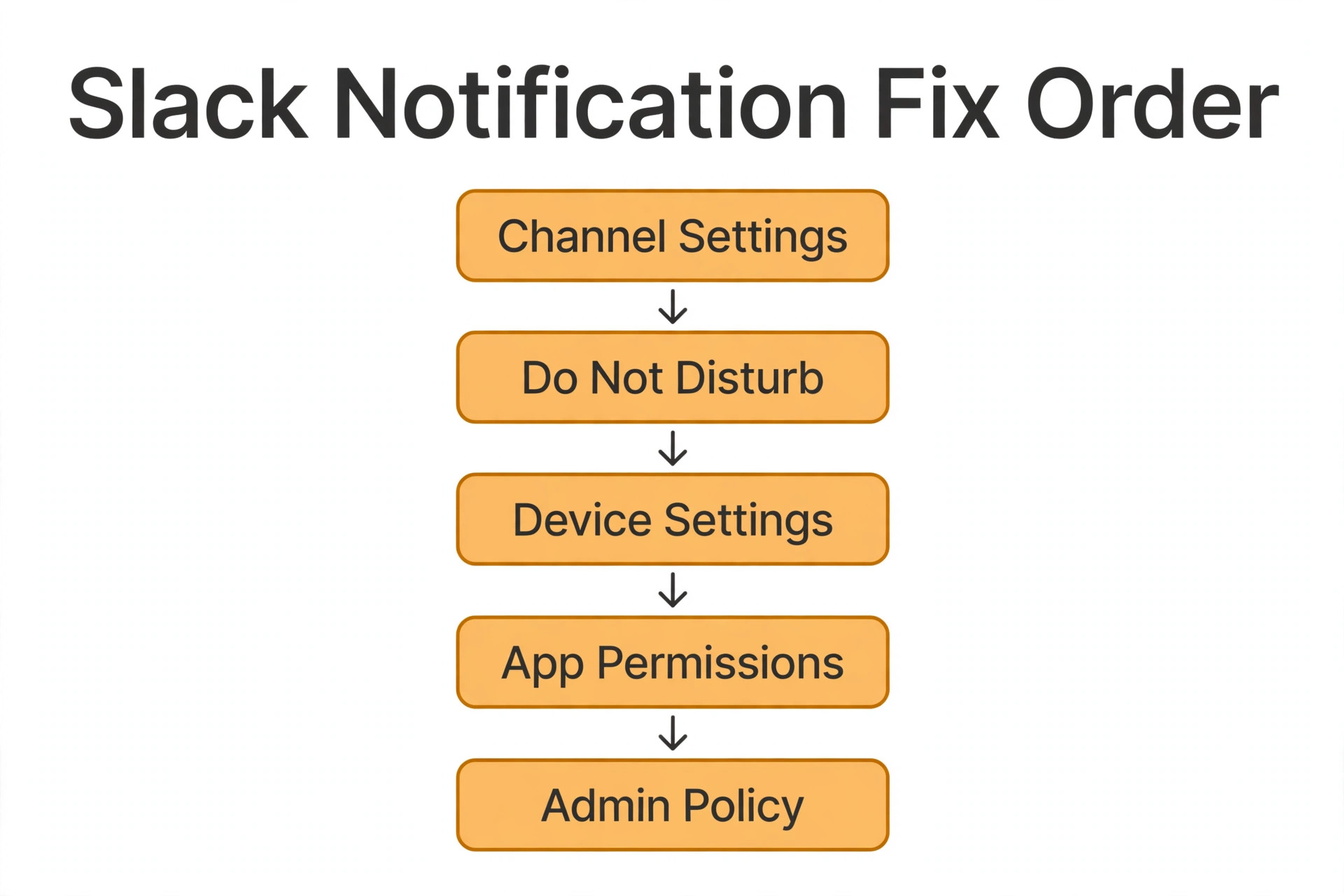
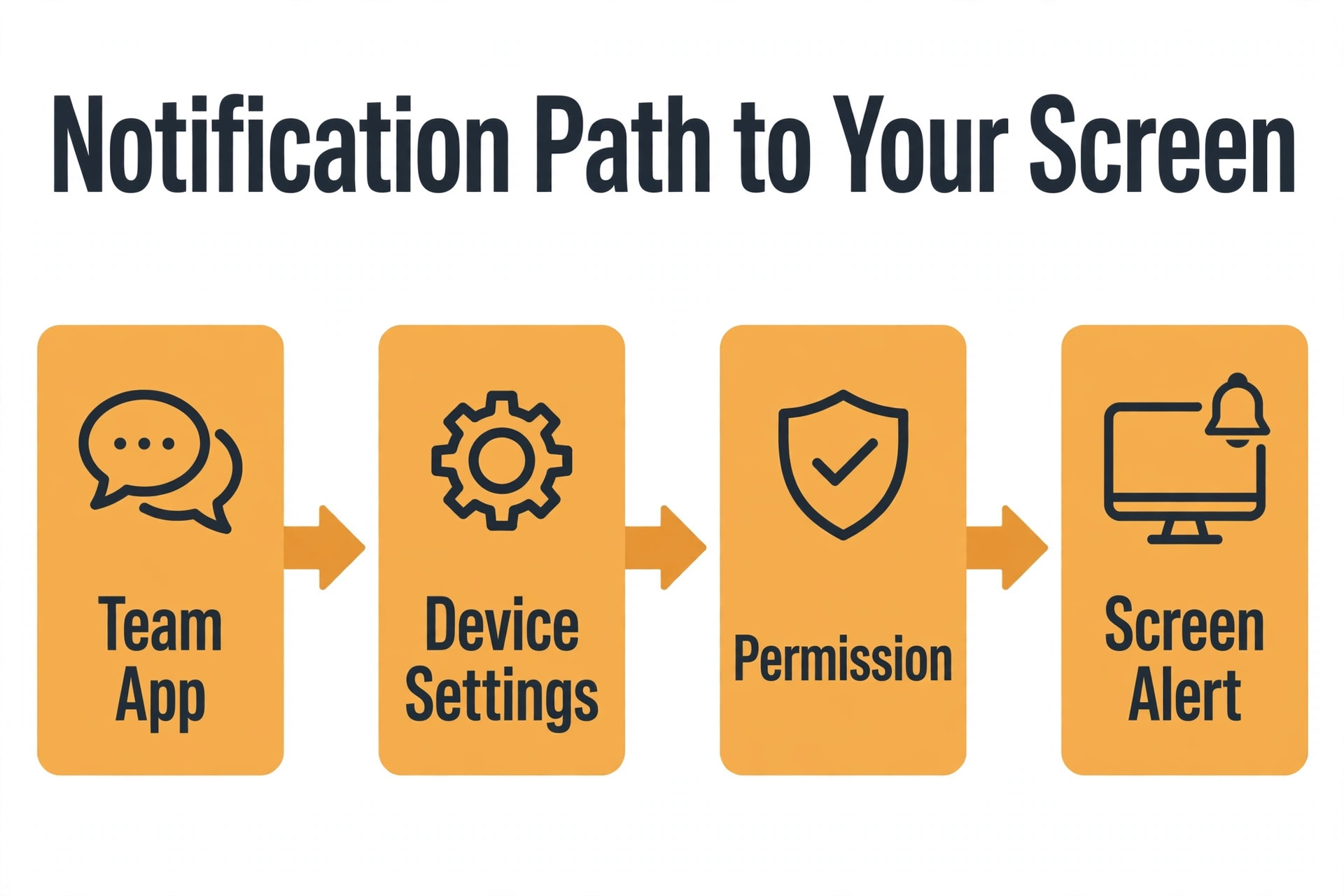
The diagnostic order in this guide runs from the settings closest to the message to the settings furthest away. Channel settings first, because a muted channel or a narrow channel preference silences exactly the messages you expect to see. Do Not Disturb check second, because a pause or a schedule silences everything for a set period and is easy to forget. Device settings third, because the operating system can block Slack even when Slack itself is configured correctly. App reinstall fourth, because a corrupted app or cache can break alerts that settings alone cannot explain. Admin policy check last, because workspace rules can override personal settings, but they need an admin conversation to change.
Change one thing at a time and test after each change, using the same three message test each time. If you unmute a channel, turn off Do Not Disturb, and change a device setting together and alerts return, you will never know which change mattered, and you will never know which of the other changes might silence something else later. One change, one test, one note in a simple log of what you changed and when. That log is also what Slack support or a workspace admin will ask for if you need their help, and having it ready shortens that conversation considerably.
Test on the device where the failure happens, not on a different device that works. Notifications are per device and per workspace, so a fix that works on a laptop may not apply to a phone at all. Check the phone and the desktop separately, with the same test messages, and log the result for each. A team member who only tests on desktop will keep missing phone alerts on the move, and a team member who only tests on a phone will keep missing desktop banners at a desk.
| Symptom you see | Most likely cause | First check |
|---|---|---|
| One channel never alerts | Channel muted or narrow setting | Channel notification preferences |
| Nothing alerts at certain hours | Do Not Disturb schedule | Pause and schedule settings |
| Nothing alerts on one device | Device notification block | System notification settings |
| Alerts stop after an update | App cache or version fault | App update, then reinstall |
| Settings look right, still silent | Workspace admin policy | Admin notification rules |
Channel Settings Check That Restores Alerts for One Channel
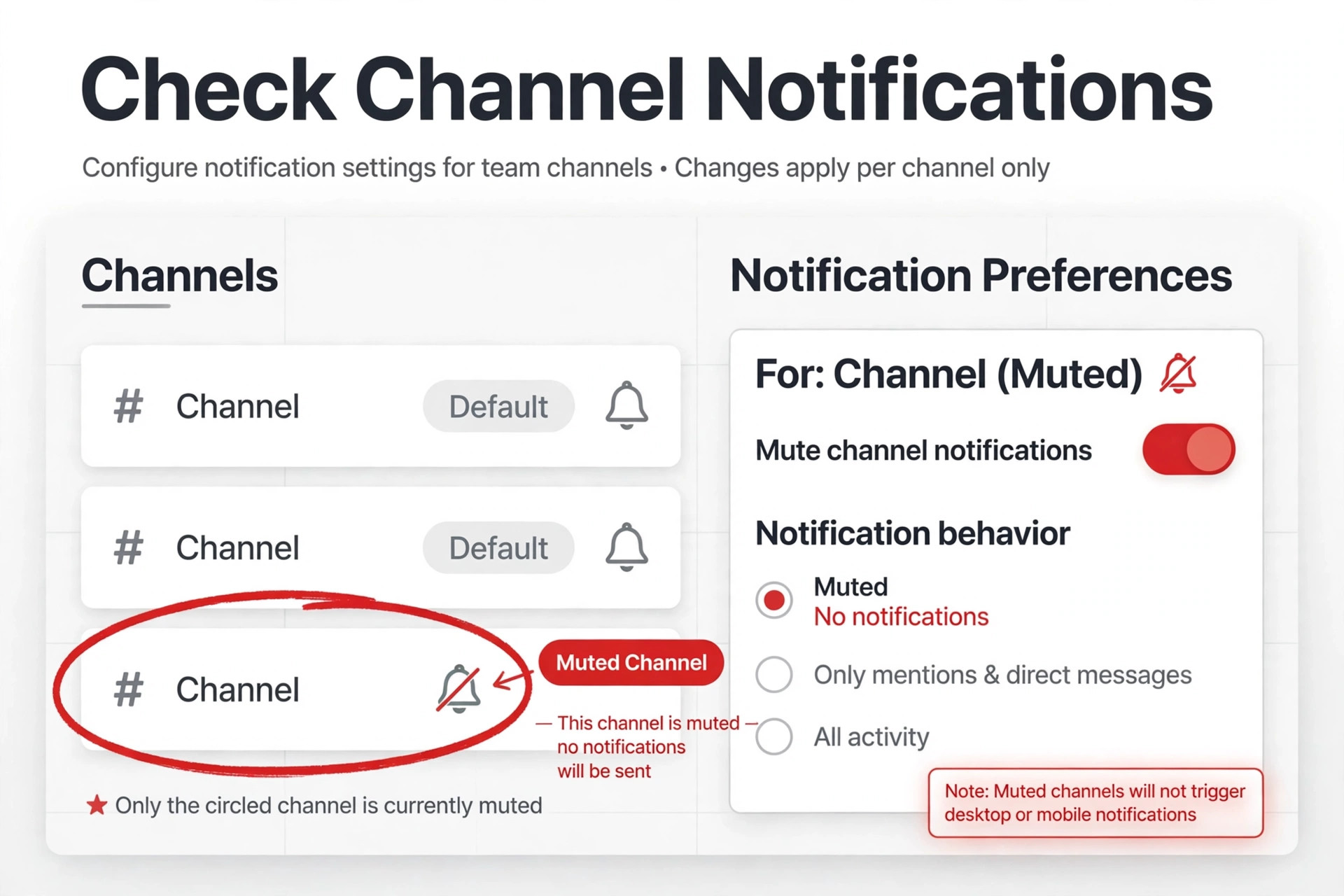
Open the channel that stays silent, click the channel name at the top, and open its notification preferences before changing any global setting. Channel settings are the first step when you fix Slack notifications not working small team channels report. Channel settings override global settings in Slack, so a channel set to mute, or set to mentions only, will stay silent for plain messages even when your global preference asks for all new messages. This is the most common cause of a single channel failure, and it is also the easiest to miss, because the channel looks normal when you open it, with unread messages sitting there in plain view.
Check the three channel choices carefully. A muted channel sends no sound, banner, or badge for any message, so it should be used only for channels you genuinely want to read on your own schedule. A mentions only setting alerts for direct mentions and keywords, but not for plain messages, which suits busy channels but surprises anyone expecting every message to alert. An all messages setting alerts for everything, which suits small urgent channels but creates noise in large ones. Choose the setting that matches how the team actually uses that channel, and write the choice into a short channel guide so new members set it the same way.
Also check your global preference, because it sets the default for channels without an override. Open your profile, open Preferences, open Notifications, and look at the Notify me about choice. If it is set to direct messages, mentions and keywords only, you will not be alerted for plain channel messages anywhere, which can look like a total notification failure. For testing, set it temporarily to all new messages, run the three message test again, and see whether alerts return. If they do, the global setting was the cause, and you can then narrow it back down channel by channel, keeping all messages only for the channels that truly need it.
Also check thread and keyword settings, because they create a second layer of silence. If you follow a thread but have thread notifications off, replies to that thread will not alert you. If you rely on a keyword alert for a project name or a client name, confirm the keyword is spelled exactly as it appears in messages, and that keyword alerts are enabled. A keyword with a typo will never fire, and a team that depends on it will keep missing the very messages it was set up to catch. After any channel change, repeat the three message test for that channel specifically, and confirm the alert appears on the device where it failed.
Do Not Disturb Check That Finds a Forgotten Pause
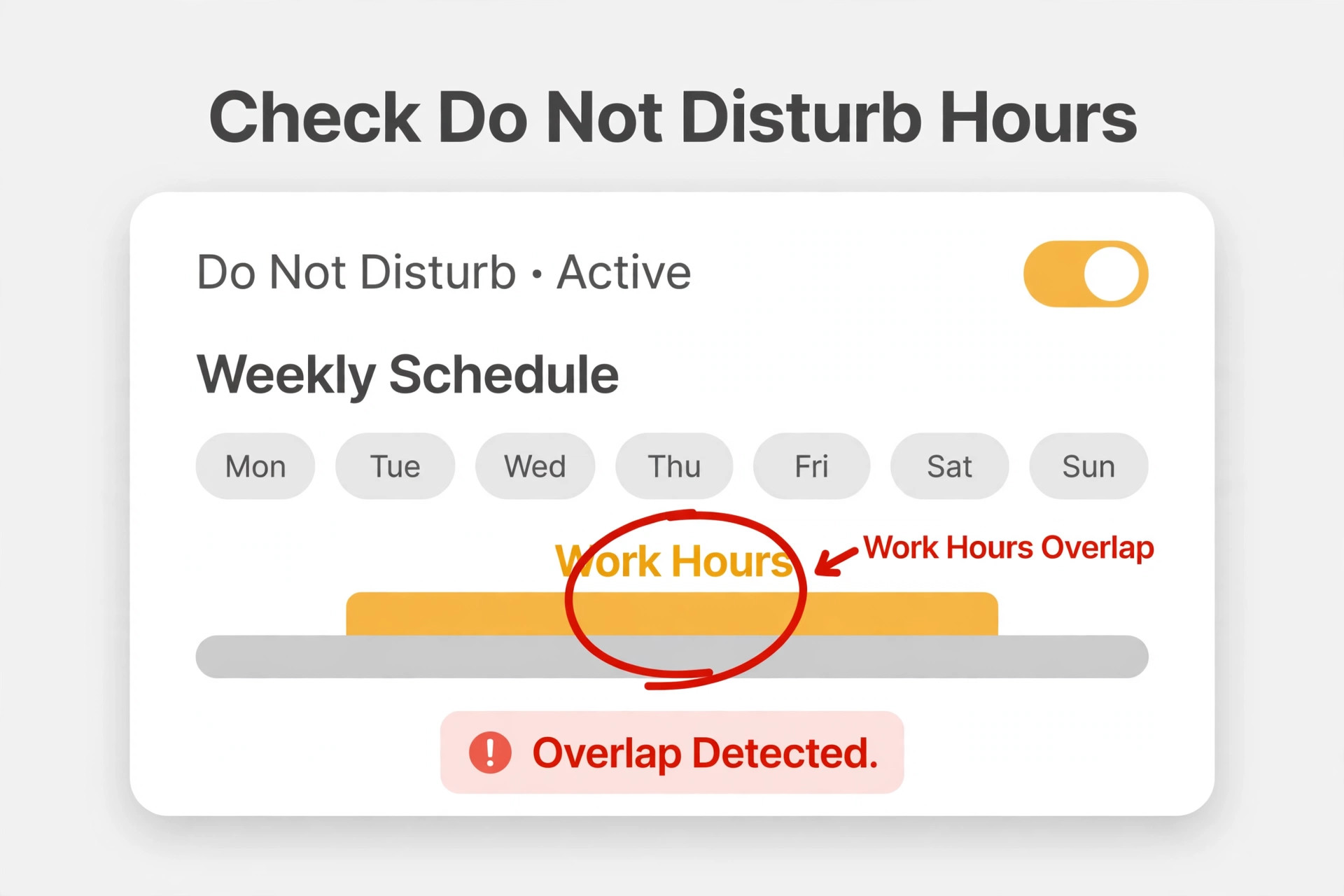
Do Not Disturb in Slack pauses notifications for a set period, and it is easy to activate and forget. A forgotten pause is a classic cause when you fix Slack notifications not working small team members chase. Look for the paused status beside your name, often shown with a small moon or pause indicator, and check the Pause notifications menu from your profile.
If a pause is active, turn it off and run the test again immediately. A temporary pause set for a meeting, a focus block, or a day off can quietly extend into the next working day if it was set to a custom end time, and the team will assume you are ignoring messages while you assume Slack is broken.
Check the recurring schedule as well as the temporary pause, because they silence mail at different times. Open Preferences, open Notifications, and scroll to the Do Not Disturb schedule section, where you can set different protected hours for each day of the week. If your working hours fall inside a protected window by mistake, perhaps after a timezone change or a schedule edit, notifications will stop every day at the same time and return later, which looks like an intermittent fault. Adjust the schedule to match real working hours, or disable it while testing, and confirm the change with a test message sent during the previously silent window.
Also check the notification schedule, which is related but distinct. A notification schedule limits alerts to certain hours of the day, outside which messages arrive silently and wait for you. That suits teams with clear working hours, but it surprises anyone working outside the schedule, such as an on call member or a colleague in another timezone. Review the schedule with the team, agree on the hours it should cover, and make an exception plan for urgent channels, so a genuine emergency is not trapped by a schedule nobody remembers setting.
For on call or urgent channels, use a channel override sparingly. Opening an urgent channel, setting its notification preference to all messages, and confirming that it alerts even during Do Not Disturb, gives the team one reliable escalation path without abandoning protected hours entirely. Keep the list of override channels very short, ideally one or two, because a long override list defeats the purpose of Do Not Disturb. Document which channels override and why, so a new admin does not remove the exception by accident during a cleanup.
Device Settings Check That Unblocks Slack at System Level
When Slack settings look correct but no banner, sound, or badge appears, the operating system is the next layer to check. System settings matter when you fix Slack notifications not working small team devices show. On Windows, open Settings, open System, open Notifications, find Slack in the app list, and confirm notifications are on, with banners and sound enabled. On a Mac, open System Settings, open Notifications, select Slack, and confirm notifications are allowed with the alert style you expect. On a phone, open device settings, open Apps, select Slack, open Notifications, and confirm the app is allowed to notify, with sound and badges as needed. A single off switch at this layer overrides everything inside Slack.
Check focus and Do Not Disturb modes on the device itself, because they are separate from Slack Do Not Disturb. Windows Focus, Mac Focus, iPhone Focus, and Android Do Not Disturb can each silence Slack banners while Slack itself reports that notifications are on. Turn the device focus mode off temporarily, run the three message test, and see whether alerts return. If they do, either leave the mode off during work hours or add Slack to the allowed apps list for that focus mode, so work alerts get through while other apps stay silent. Check scheduled focus rules too, because automatic rules for sleep, gaming, or full screen apps can silence Slack at the same time every day.
Also check battery and background activity settings, especially on laptops and phones. Battery saver modes and background restrictions can stop Slack from checking for new messages until you open the app, which produces the classic symptom where messages appear only after you open Slack yourself. On Windows, confirm Slack is allowed to run in the background. On Android, confirm Slack is exempt from battery optimisation and background restrictions. On iPhone, confirm background app refresh is on for Slack and that Low Power Mode is not suppressing alerts during work hours. These settings vary by device maker, so search device settings for background or battery if the path is not obvious.
Test sound and badge separately, because they fail independently. A banner without sound may mean the notification sound is off in Slack sound settings, while a sound without a banner may mean banners are off at system level. Open Slack Preferences, open Notifications, check the sound and appearance section, and confirm a notification sound is selected and not muted. Then check the system badge setting, so unread counts appear on the app icon. After each device change, repeat the test on that device only, and log whether banner, sound, and badge each returned, so a partial fix is not mistaken for a complete one.
App Reinstall Check That Clears a Corrupted Notification Path
When settings are correct on every layer and alerts still fail, the app itself may be at fault. A fresh install is a later step when you fix Slack notifications not working small team apps show. Start with an update, because notification bugs are often fixed in newer versions, and an outdated app can behave differently from the current one. On desktop, check for updates from the Slack menu. On mobile, open the app store, search for Slack, and install any available update. Restart the device after updating, because a restart clears temporary states that an update alone does not, and then run the three message test again before moving to stronger steps.
Clear the app cache next on desktop, if the problem persists after an update. Close Slack fully, clear its cache through the app or system cache location for your operating system, and reopen Slack. Cache problems can corrupt notification handling without affecting message reading, which is why messages look normal while alerts fail. Do not delete account data or workspace data when clearing cache, unless you have confirmed how to sign back in, because losing a workspace login during a busy day creates a second problem. Keep your sign in details and any two factor method ready before clearing anything.
Reinstall as the stronger step, and do it cleanly. Uninstall Slack, restart the device, download the latest version from the official Slack site or app store, install it, and sign back in. After reinstalling, set notification preferences again from scratch, rather than assuming they carried over correctly, and run the three message test on that device. Reinstallation is worth doing once, carefully, but repeating it several times without changing anything else rarely helps, and it wastes time that should go to the admin policy check below.
Also test Slack in a browser as a comparison while the app is being fixed. If browser notifications work while the desktop or mobile app stays silent, the fault is specific to the app installation, and reinstalling is the right path. If browser notifications also fail, the fault is more likely in Slack settings, device settings, or workspace policy, so return to those checks rather than reinstalling again. A browser comparison takes minutes and prevents a cycle of reinstalls that never addresses the real layer.
Admin Policy Check That Explains Settings That Look Right
When personal settings, device settings, and a fresh install all look correct but alerts still fail, ask a workspace admin to check workspace level rules. Admin policy is the final layer when you fix Slack notifications not working small team workspaces face. Admins can set notification related policies, manage channel defaults, and control app permissions that override what an individual member sees in their own preferences. A member cannot fix a workspace rule from personal settings, so recognising this layer early saves hours of repeated personal checks. Approach the admin with your log, showing the tests you ran on each device, so the conversation starts from evidence rather than a general complaint.
Ask the admin to check three things specifically. First, whether the workspace has a default notification setting or a channel default that resets your choice. Second, whether any app or integration policy restricts Slack notifications on managed devices, such as a mobile device management rule that silences non essential apps. Third, whether your account has a role or restriction that affects notifications, for example a guest account with limited channel access that cannot alert for channels it cannot fully see. Any of these can produce a failure that looks personal but is actually organisational.
Also ask the admin to confirm the workspace itself is healthy. Check the Slack status page for a notification incident, because a platform problem can delay or drop alerts for many workspaces at once, and no local change will fix it while the incident runs. Confirm that you are a member of the channels you expect to alert, not merely able to view them through a shared link, because membership affects notification rights. If you were removed and readded to a channel, recheck that channel notification preference, because rejoining can reset it to a default that differs from your previous choice.
Agree a team notification standard after the admin check, so the fix lasts. Write a one page standard covering global preference, urgent channel overrides, Do Not Disturb hours, and device focus rules, and share it with every new member on joining. Review the standard when the team grows, when a new channel is created, or when working hours change, because those are the moments inconsistent settings creep back in. A shared standard turns notification fixing from a personal mystery into a team routine, and it stops the same failure from returning for the next person who joins.
Mistakes That Turn a Small Slack Problem Into a Big One
The most common mistake is turning on all notifications for every channel at once. That shortcut backfires when you fix Slack notifications not working small team channels suffer. That restores alerts, but it creates alert fatigue within days, and team members soon start ignoring banners or muting everything again, which returns the team to the original problem. Fix the specific layer that failed, keep all messages only for urgent channels, and use mentions and keywords for the rest. A notification system that alerts for everything alerts for nothing, because attention is finite.
The second mistake is testing with only one kind of message. A test that uses only a plain channel message cannot distinguish a channel mute from a global pause, and a test that uses only a direct message cannot distinguish a mention problem from a channel problem. Always use the three message test, with a direct message, an at mention, and a plain channel message, and record which of the three alerts. That discipline takes a minute and prevents fixing the wrong layer.
The third mistake is changing settings on the wrong device. Notifications are per device and per workspace, so a desktop fix does not repair a phone, and a fix in one workspace does not repair another. Test and fix each device separately, and confirm the workspace name in the test, especially for team members in several workspaces. Slow diagnosis beats fast guessing, because fast guessing creates a second problem while the first one is still unsolved.
The fourth mistake is forgetting that Do Not Disturb is a schedule, not just a switch. A pause turned off for today does not remove a recurring schedule that will silence alerts again tomorrow at the same time. Always check both the temporary pause and the recurring schedule, and check device focus schedules as well, before declaring the problem fixed. A fix that lasts one day and fails the next is not a fix, it is a delay.
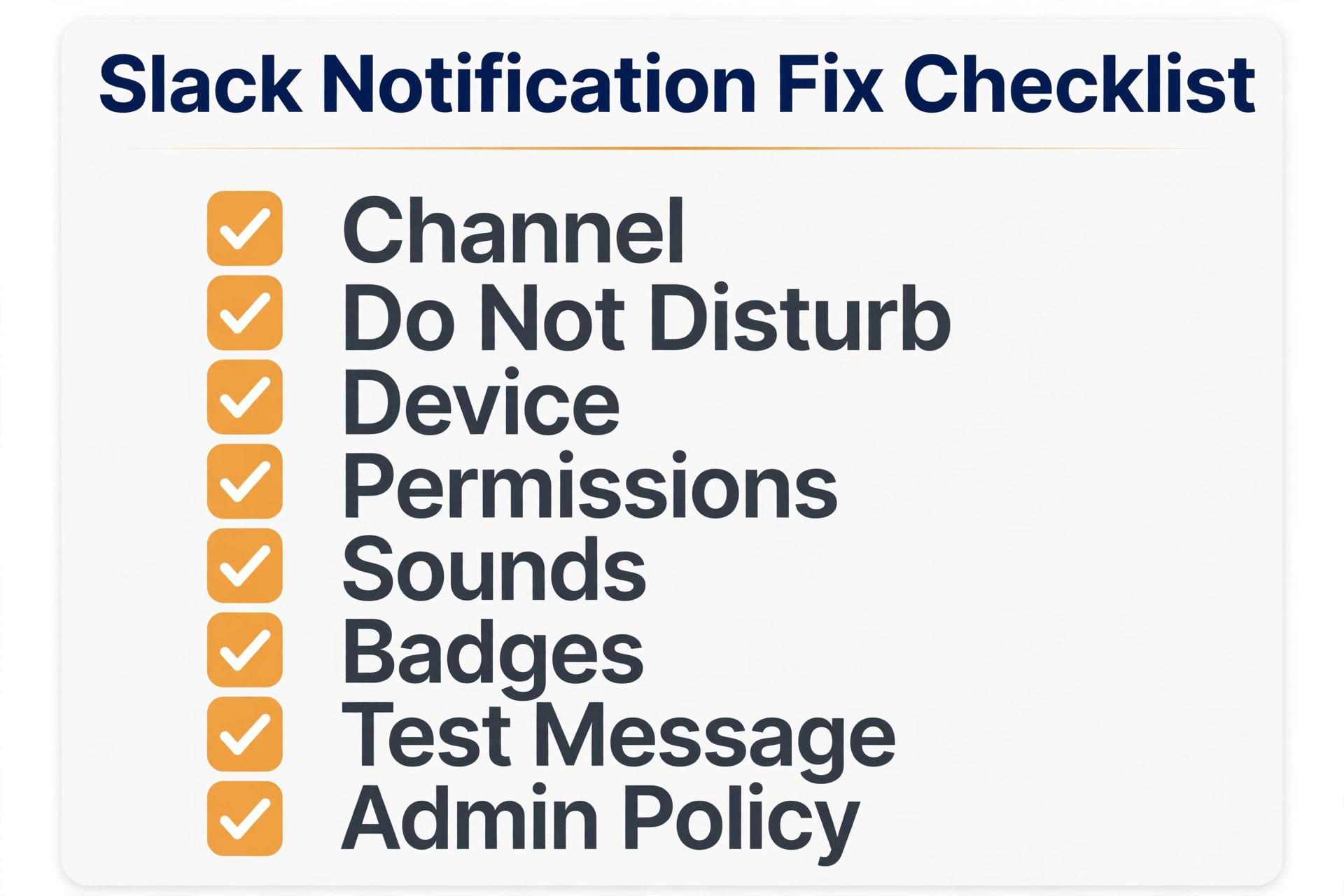
Slack Notification Fix Checklist
Use this checklist in order, and stop at the step where alerts return, then run the proof test below to confirm they stay fixed.
- Run the three message test with a direct message, an at mention, and a plain channel message, and log which alerts.
- Open the silent channel, check its notification preference, and unmute it or set it to all messages for urgent channels.
- Check your global Notify me about preference in Slack Preferences, Notifications, and test temporarily with all new messages.
- Check Slack Pause notifications and the Do Not Disturb schedule, turn off any active pause, and fix schedule hours that cover working time.
- Check system notification settings for Slack, allow banners and sound, and turn off device focus modes or add Slack to allowed apps.
- Check battery and background settings, allow Slack to run in the background, and confirm notification sound and badge settings.
- Update Slack, restart the device, clear cache if needed, and reinstall cleanly once if alerts still fail after settings checks.
- Ask a workspace admin to check workspace defaults, managed device rules, channel membership, and the Slack status page for incidents.
That checklist is deliberately short. A longer repair plan looks impressive and gets ignored under work pressure. Eight steps, done in order, fix most small team Slack notification failures without outside help, and the log they produce makes the remaining cases far easier for support to solve.
How to Prove Slack Notifications Stay Fixed
A single successful alert proves notifications worked once, not that they stay working. Monitor the next seven days with three simple measures. First, a daily three message test at a different time each day, so a schedule based silence is still caught. Second, a note of any device change, such as a new phone, an operating system update, or a focus mode change, because those are the moments notification settings reset. Third, a count of messages discovered late, compared with the week before the fix, which shows whether the routine is actually helping.
Set a monthly notification audit as a standing habit, not a one off repair. Once a month, open channel preferences for urgent channels, global preferences, Do Not Disturb schedule, and device notification settings, and confirm nothing has drifted. Review the audit after every new channel, every new team member, and every working hours change, because those are the moments inconsistent settings creep back in. A team that audits monthly finds problems in minutes, while a team that audits only after complaints finds them after missed deadlines.
Watch for the quiet failures that never produce an error message. A channel that alerts on desktop but not on a phone, a keyword alert with a typo that never fires, a focus mode that silences Slack during a client visit, and a battery setting that delays alerts until Slack is opened all lose time without a single warning. Ask team members directly whether alerts are working on each device, and treat a pattern of late replies as a notification problem until proven otherwise, even when nobody has reported a failure yet.

The Slack Verdict for Small Teams That Cannot Miss a Message
The fastest way to fix Slack notifications not working small team channels suffer from is also the least dramatic. Check channel settings, check Do Not Disturb, check device settings, reinstall once if needed, and check admin policy when personal settings look right. That order finds the common causes first, avoids the trap of turning on every alert at once, and leaves a log that makes any remaining problem easy for support to solve.
Start with the three message test, work the checklist in order, and do not skip the proof test after any change. Audit monthly after the repair, and audit again after every new channel, new device, or working hours change, because notifications are the one part of team chat where a small unnoticed change costs real time every day. Done that way, a silent notification becomes a short interruption with a known cause, not a long crisis with a guessed fix.
Frequently Asked Questions
Why do direct messages alert me but channel messages stay silent?
Because channel settings override global settings, and your global preference may be set to direct messages, mentions and keywords only. Open the channel, check its notification preference, and set urgent channels to all messages. Also check your global Notify me about choice in Preferences, Notifications, and test temporarily with all new messages to confirm the cause.
How do I know whether Do Not Disturb is causing my silence?
Look for a paused status beside your name, open the Pause notifications menu, and check for an active pause or a recurring schedule in Preferences, Notifications. If alerts return when a pause is turned off, Do Not Disturb was the cause. Also check the schedule hours, because a recurring schedule can silence alerts at the same time every day even after a temporary pause ends.
Can my phone block Slack even when Slack settings are correct?
Yes, because device notification settings override app settings. On a phone, open device settings, open Apps, select Slack, and confirm notifications, sound, and badges are allowed. Also check device focus modes and battery optimisation, because a focus mode or a background restriction can silence Slack while Slack itself reports that notifications are on.
Should I reinstall Slack if notifications stop working?
Reinstall only after settings checks have passed, because most failures are settings, not app corruption. Update Slack first, restart the device, and clear cache if needed. If alerts still fail after channel, Do Not Disturb, device, and admin checks, then reinstall cleanly once, set preferences again, and test with the three message test.
Why do notifications work on my laptop but not on my phone?
Because notifications are per device and per workspace. A desktop setting does not repair a phone, and a phone focus mode does not affect a laptop. Check phone notification permissions, focus modes, and battery settings separately, run the three message test on the phone, and log banner, sound, and badge results for that device alone.
When should I contact a workspace admin or Slack support?
Contact an admin when personal settings, device settings, and a fresh install all look correct but alerts still fail, because a workspace default or managed device rule may override personal choices. Contact Slack support when the failure affects the whole team at once, or when the Slack status page shows a notification incident. Send your device logs and test results, so support can move faster than a general report that notifications do not work.
More Reading on Stratilyze
– Cost of Slack for Small Business Monthly – Best Live Chat Software for Small Business Websites – Fix Shopify Checkout Not Working for a Small Store – Best CRM Software for Consultants