

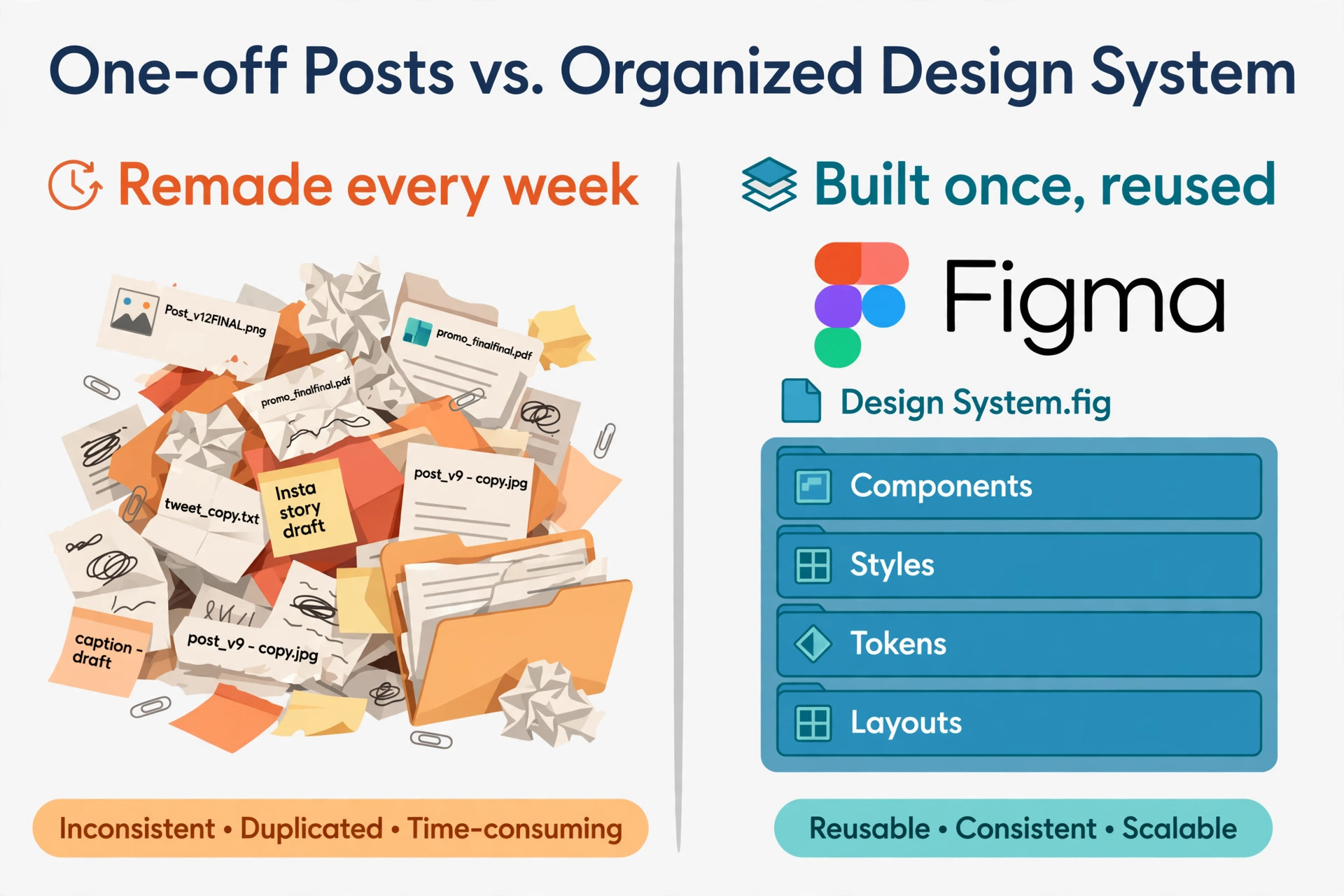
A social media designer faces the same choice every week, and it is rarely framed as a choice at all. One option is to open a fresh file for every post, pick colours from memory, retype the handle and hope the result looks like last week’s post. The other option is to use Figma for social media templates as a single system, where one file holds the brand rules, the reusable parts and the finished posts, and a new post starts from a proven frame instead of a blank canvas. The first option feels fast on Monday and expensive by Friday, because every small decision gets remade and every correction gets repeated.
The second option feels slow for one afternoon and then pays back every week after, because the decisions are made once and reused on purpose.
This guide builds that second option from scratch. You will set up one file with clear pages, build colour and text styles the whole team can trust, turn repeated parts into components with variants, and create master templates for the formats you actually publish. You will also learn how to handle brand variants without duplicating the file, which sizes prevent rework, and what weekly habits keep the file clean. The result is a system that lets one person publish a consistent post in minutes and lets a team hand work back and forth without a style argument.
One File or a Folder Full of One Offs
The scattered approach breaks in predictable places. A designer exports a square post, then rebuilds the same layout for a story and discovers the headline font is a different weight. A teammate opens an old file to copy a layout and copies an outdated logo with it. A client asks for the same announcement in a dark version and the designer rebuilds it from scratch because the original file has no colour logic, only coloured shapes. None of these are talent problems. They are system problems, and they grow with volume. At ten posts a week across three platforms, design time goes to repair instead of ideas.
One file fixes this by giving every post the same source of truth. When the brand colour changes, you change it in one style and every template that uses that style updates. When the logo is replaced, you replace the component and every instance follows. That is the difference between a template and a template system. A template is a single finished layout you copy. A system is a set of parts, rules and pages that can produce many layouts without losing consistency. The system takes longer to build, usually one focused afternoon for a solo creator, but it removes the repeated decisions that eat a scattered workflow.
There is a limit worth stating early. One file does not mean one endless canvas with everything piled together. A file with hundreds of loose frames and no page structure is just a folder with worse search. The system in this guide uses pages with jobs, a library page that nobody publishes from, and a production page where finished posts live. If you already have a scattered folder, build the system for your three most published formats first and migrate the rest as they come up again.
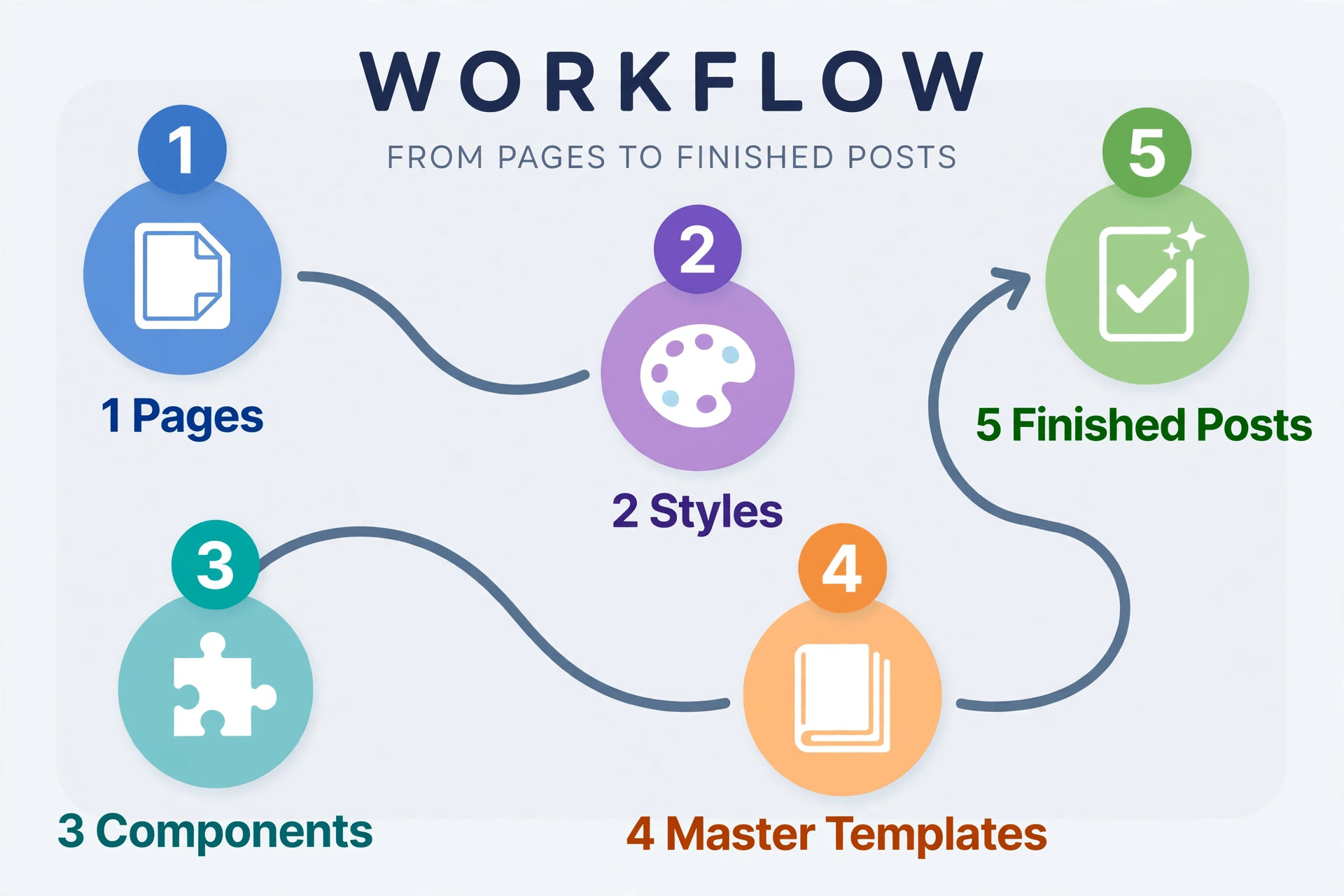
Start with a blank file and a clear promise to yourself. You are not designing this week’s posts today. You are building the machine that will design them. Work in this order, and resist jumping to a finished post before the parts exist.
Set up pages with jobs
Create five pages and give each one a single job. The Cover page holds the file name, the owner, the date of the last brand update and a short note on who may edit the library. The Styles page holds colour swatches, text samples and the rules for using them. The Components page holds every reusable part, each one built as a component and named clearly. The Templates page holds one master frame per format, marked as the only frames to duplicate. The Posts page holds dated production work, one section per week, where duplicated templates become finished posts.
Naming matters more than it seems. Name pages, frames, components and layers so that a stranger could find things. A frame called Frame 47 tells nobody anything. A frame called IG Carousel Cover 1080×1350 tells a teammate exactly what it is, where it goes and what size it exports at. Use a simple pattern for component names, such as Social, then the part, then the variant. That pattern groups related parts in the Assets panel and makes search work.
Build colour, text and effect styles first
Before you draw a single post, define the brand in styles. Create colour styles for the primary colour, the secondary colour, the backgrounds, the text colours and the accent used sparingly for calls to action. Keep the palette small. Four to six colours are enough for most social systems. Add a dark mode set at the same time if you publish dark posts, and name it clearly.
Text styles come next. Define styles for the headline, the subheadline, the body text, the caption, the label and the small legal line. Set the font, size, line height and spacing for each, and test each style at real post sizes, not zoomed in on a large monitor. A headline that looks elegant at 200 percent zoom may be unreadable on a phone feed. If your brand font is not available in Figma, use a close free font and check the font licence before you share the file with clients.
Variables are the upgrade that turns styles into a system. In Figma, variables can hold colours, numbers and text, and modes let you switch a whole set of values at once. A practical starting point is colour variables for background, surface, text and accent, plus string variables for the brand name, the handle and the website. When you switch a variable mode from light to dark, every frame bound to those variables changes together. Variables take an hour to learn and they repay that hour on the first brand variant you build.
Turn repeated parts into components with variants
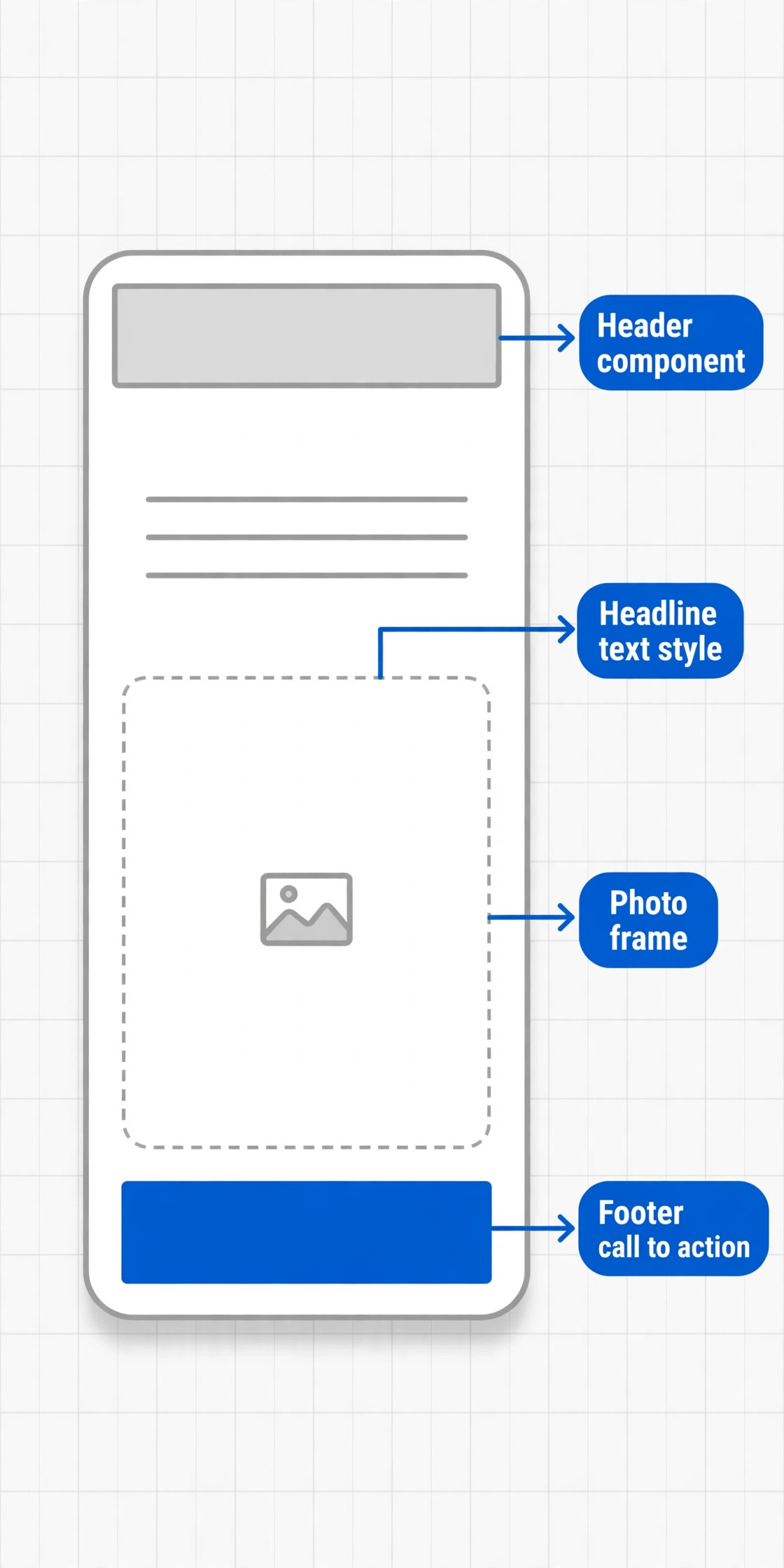
A component is a master part that you reuse as instances. Build components for the parts that appear in almost every post. The header with the logo and handle, the footer with the call to action, the badge for a series number, the quote card and the stat card are all good candidates. Each component should use auto layout, so it grows or shrinks cleanly when text gets longer or shorter. A quote card that breaks when a quote runs to three lines instead of two is not a component yet.
Variants are what make components flexible without multiplying files. A header component can have variants for logo left and logo centred, for light and dark backgrounds, and for with and without a series badge. A card component can have variants for with image, without image and with a stat. Set these up as properties on the component, so a teammate changes a post by picking from a dropdown instead of redrawing. Keep the variant list short.
Build one master template per format, and no more
Now build the master templates, one per format you publish regularly. For most creators that means a square post, a portrait post, a carousel cover plus one inner slide, a story, and a short video cover frame. Each master template should be a frame at the exact export size, built only from components and styles, with placeholder text that shows the intended length. Write the placeholder headline at the longest length you realistically publish.
Mark the master templates clearly. Put them on the Templates page, label them MASTER and do not edit them in place during production. Production always starts by duplicating a master onto the Posts page and editing the duplicate. If someone edits the master by accident, every future post inherits the mistake. For a first build, keep everything in one file until the templates have survived a month of real posts.
The Template System Structure
This section is the overview proof of the whole guide, the structure you can check your file against before you call it done. A working system has five layers, and each layer has a job that the others do not do. If a layer is missing, its job gets done by hand every week.
| Layer | What lives there | Who touches it |
|---|---|---|
| Brand layer | Colours, fonts, logos, tone rules | Owner or lead designer only |
| Parts layer | Headers, footers, cards, buttons, badges | Lead designer, reviewed monthly |
| Template layer | One master frame per format | Lead designer, reviewed monthly |
| Production layer | Dated posts made from duplicates | Any designer or creator |
| Archive layer | Finished campaigns, moved monthly | Owner, for reuse and reference |
The brand layer is the smallest and the most protected. It holds the colour styles, text styles, variables and logo components, plus a short written note on voice and claims. Only the owner edits it, and every change gets a date on the Cover page. The parts layer changes more often, because new series need new cards and badges. The template layer changes least of all once it is built. The production layer is where the daily work happens. The archive layer is the memory of the system. Move finished campaigns there at month end, keep the best performing posts as reference, and delete the rest.
A file that follows this structure answers the questions a new teammate asks in their first week. Where do I find the brand rules. Which frame do I duplicate. Where does the finished post go. The answers are places in the file, not knowledge held by one person. If only the person who built it can use it, it is a personal habit, not a team asset. Walk a teammate through the file before you declare it finished and fix the naming at the points where they hesitate.
Brand Variants Without Rebuilding Every Post
The second overview proof is the brand variant table, and it is where variables earn their keep. Many creators and small agencies serve more than one brand, or one brand with sub-brands for different audiences. The naive approach duplicates the whole file per brand, and then every improvement has to be repeated in every copy. The system approach keeps one set of templates and switches the brand values underneath them. The reason to use Figma for social media templates with variables is that a variant becomes a setting, not a rebuild.
| Variant | What changes | What stays the same | When to use it |
|---|---|---|---|
| Light default | Background, text and accent colours | Layout, type scale, spacing | Everyday feed posts |
| Dark version | Background and text colours swap | Layout, logo placement, type scale | Evening posts and video covers |
| Client brand A | Colours, logo, handle, website | Layout, card parts, export sizes | Agency work for one client |
| Client brand B | Colours, logo, handle, website | Layout, card parts, export sizes | Agency work for a second client |
| Campaign accent | Accent colour and badge only | Brand colours, layout, type scale | Launches, sales and events |
| Print friendly | Background to white, contrast raised | Layout, type scale, spacing | Handouts and slides from posts |
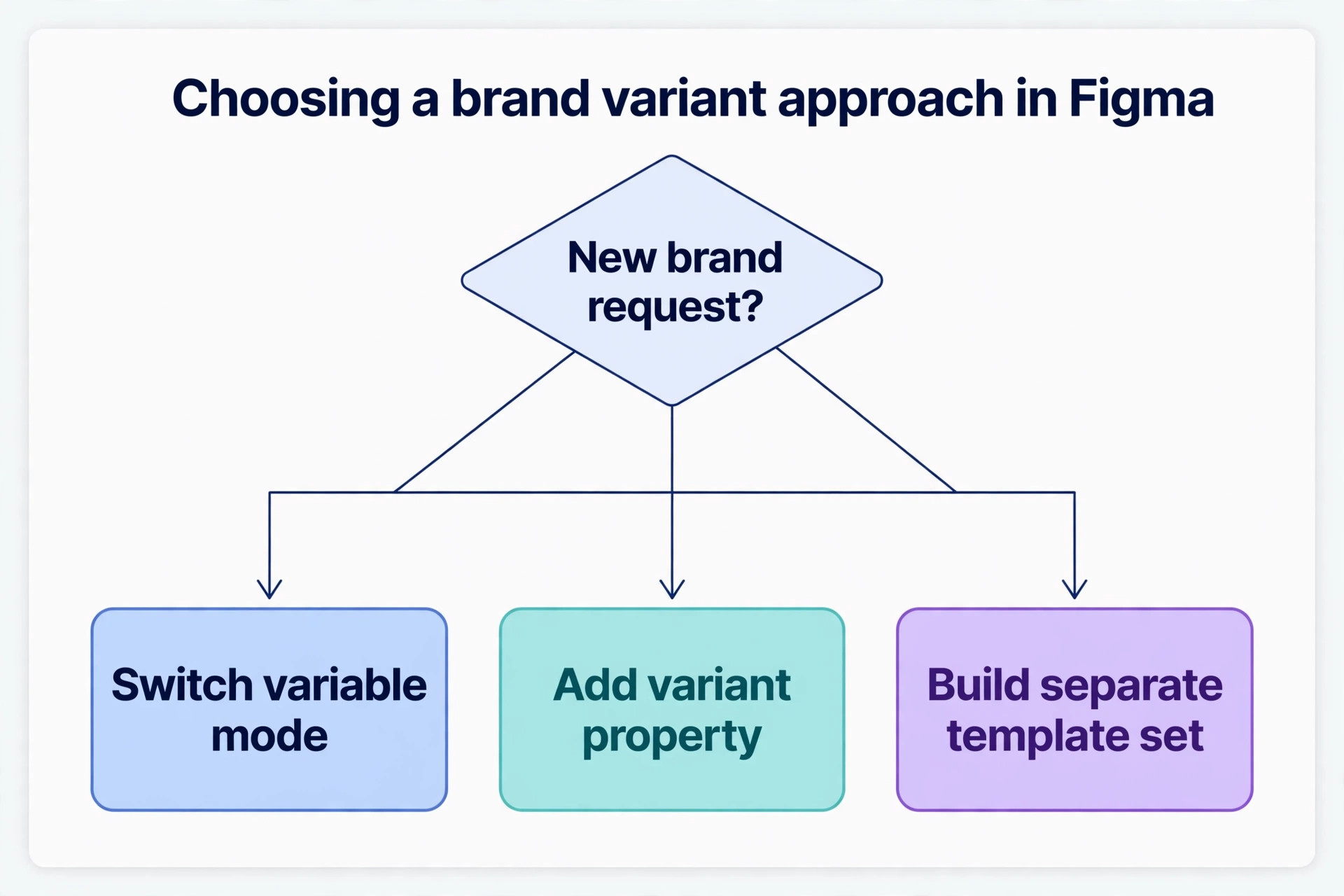
Build variants with variable modes, one mode per brand or per theme, and bind every colour in your templates to a variable instead of a fixed colour value. Add string variables for the handle, the website and the brand name, so a client variant updates the footer text everywhere at once. Test each variant on one template of each format before you trust it, because a mode that looks right on a square post can fail on a story. Fix those failures with a variant property on the affected component, such as a logo version for dark backgrounds.
There are limits to variants, and naming them now prevents disappointment later. Variables change values, not layout. If client A needs a completely different layout, that is a second template, not a variant. Photography style and tone of voice also do not switch with a variable. Keep a short brand sheet on the Styles page for each variant, with the logo files, the photo treatment and example posts, so a variant is a complete brand, not just a colour swap.
Sizes, Safe Areas and Export Settings That Prevent Rework
Size mistakes are the most expensive errors in social design, because they are discovered after the post is written and approved. Build the sizes into the master templates so nobody has to remember them. The square feed post is 1080 by 1080 pixels. The portrait feed post is 1080 by 1350 pixels. The story and reel cover is 1080 by 1920 pixels. The wide link post is 1200 by 628 pixels. Keep those numbers in the frame names, and export at those exact sizes, usually as PNG for graphics with text and JPG for photo heavy posts.
Safe areas matter more than pixel counts. On stories, the top and bottom bands hold the platform interface, so keep headlines, logos and calls to action inside the middle of the frame, away from the top 250 pixels and the bottom 250 pixels. Build safe area guides into your master templates as a non exporting layer.
Export discipline is part of the system too. Name exports by date, platform, format and version, so a file called 2026-10-27 IG Carousel v2 is findable without opening it. Export finished posts to a shared folder with the same structure as the Posts page, and keep the Figma file as the source, not the exported image. When a correction is needed, fix the Figma duplicate and re-export. Finally, check every export on a phone before scheduling.
A Weekly Workflow That Keeps the File Clean
A system that nobody maintains becomes a scattered folder again within a month, so the workflow matters as much as the build. The weekly rhythm has four steps. First, plan the week’s posts in a simple list, with the format, the message and the template for each one, before anyone opens Figma. Second, duplicate the needed masters onto the Posts page, one section per week, and edit only the duplicates. Third, review the finished posts on a phone sized view, checking spelling, safe areas, logo versions and calls to action. Fourth, export, schedule and move the section to the archive at month end.
Teams that use Figma for social media templates every week should assign two roles, even if one person fills both at first. The library owner approves changes to components, styles and masters. The producer makes the week’s posts from duplicates and never edits a master to fix a single post. When you catch yourself editing a master to fix one post, stop, duplicate it instead, and note the fix for the next library review.
Batching fits naturally into this workflow. Write all the week’s copy first, then make all the posts in one session, then review and export in a third session. Copy errors drop when copy is written once and pasted into templates, rather than typed fresh into each frame. Test any plugin that fills template text from rows on a copy of the file first. The official Figma help on Buzz templates also describes bulk editing of template text and media, which is a safer starting point than an unknown plugin.
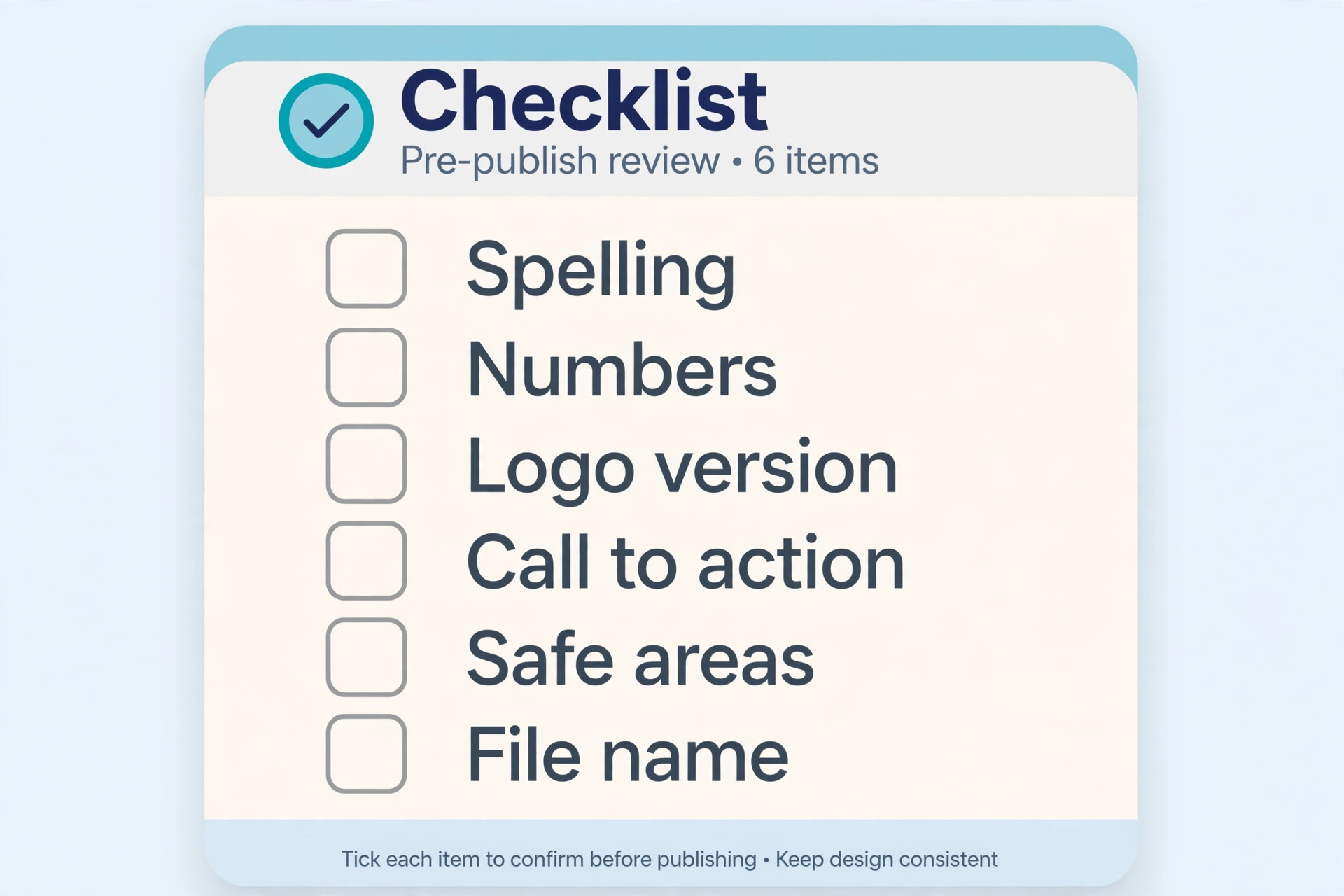
Review deserves its own checklist, and it should be short enough to actually use. Spelling and names, checked by reading aloud. Numbers and prices, checked against the source. Logo version, checked against the background. Call to action, checked for one clear action, not three. Safe areas, checked on a phone view. Alt text and file name, checked before export.

Figma, Canva or Something Else
The honest comparison is not about which tool is better in general. It is about which tool fits the work you actually do. Figma wins when you need a shared system, precise control, components with variants, variables for brand switching, and a file that a team can maintain together. It also wins when social posts sit next to other design work, because the same library can serve all of it. The cost is learning time. A new user needs a few hours to understand frames, auto layout, components and variables, and a team needs an owner for the library, or the file drifts.
Canva wins when speed for a single post matters more than system control, when the maker is not a trained designer, or when the team publishes simple posts and values its built in stock library. Canva templates are easy to start and hard to systematise at the level this guide describes. That trade off is fine for many small businesses, and a Canva workflow that ships consistently beats a Figma system that nobody finishes building. For a fuller comparison, see Canva vs Figma and Figma alternatives.
Other tools fill narrower gaps. A scheduling tool publishes what the system makes, so pair Figma with a scheduler. A photo editor still matters for retouching before images enter Figma, and check every AI generated image before it enters a template.
Prices below reflect public listings checked in October 2026, and you should check the official pricing page before you pay, because Figma changes seat types and prices without much warning. The Starter plan is free, with unlimited personal drafts and a small number of collaborative files, plus limited version history. It is enough to build a first system, but a team that publishes weekly will outgrow its collaborative file limit quickly. The Professional plan is the realistic starting point for a working creator or small team.
A Full seat on Professional is listed at about 16 dollars per editor per month on annual billing, with a higher monthly billing figure, and it includes unlimited files, shared libraries and the full product set.
Larger teams face a steep jump. A Full seat on Organization is listed at about 55 dollars per editor per month on annual billing only, and Enterprise at about 90 dollars per editor per month on annual billing only. Those tiers add centralised libraries, shared fonts, admin controls and security features, but they are rarely needed for a social template system alone. The seat mix matters as much as the tier. Dev seats are listed at about 12 dollars on Professional, 25 dollars on Organization and 35 dollars on Enterprise per month, while Collab seats are listed at about 3 dollars on Professional and 5 dollars on the higher tiers.
View seats are free on paid plans, so reviewers should never be given a paid seat by default.
Do the maths for your real roster before you choose. A solo creator on Professional pays about 192 dollars a year for one Full seat on annual billing. A team of two designers and one reviewer can often run on two Full seats and one free View seat, which keeps the yearly cost near 384 dollars instead of 576 dollars. A team that buys Organization for single sign on alone should check whether that security requirement is real or assumed, because the jump from 16 dollars to 55 dollars per seat is the single biggest cost decision in this guide.
If the budget to use Figma for social media templates is tight, start on Starter and upgrade only when a real limit blocks work.
How to Choose the Right Setup for Your Team
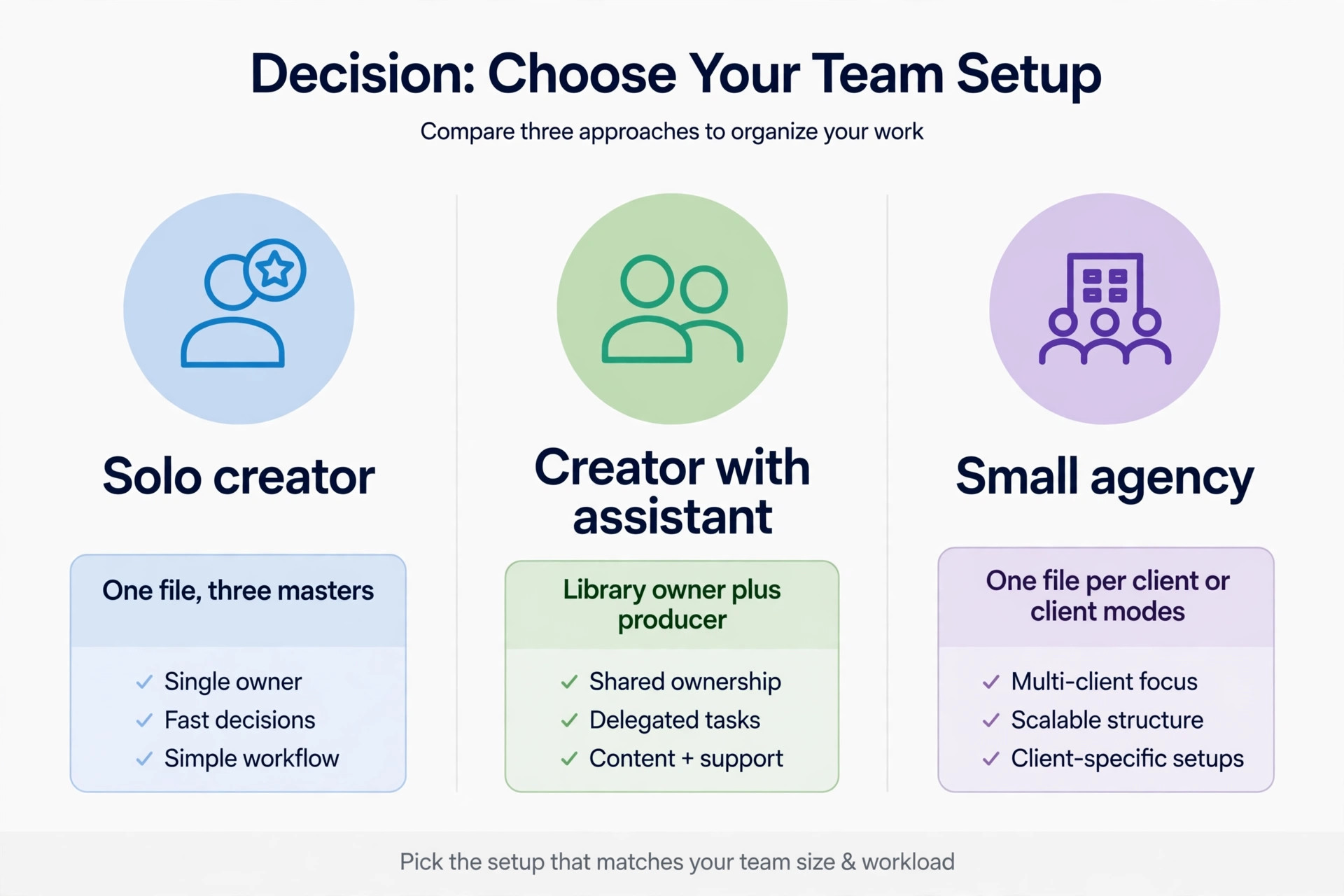
Choose by team shape, not by feature list. A solo creator should build one file, five pages, and masters for the three formats they publish most, and should ignore team libraries until the system has survived a month. A creator with a virtual assistant should add the role split, with the creator owning the library and the assistant producing from duplicates, plus a shared export folder and a review checklist. A small agency should build one file per client or one library with client variable modes, and should decide that question before building.
Decide whether to use Figma for social media templates as your only design tool or as the system layer above other tools. If you already use a scheduler, a photo editor and a stock library, keep them and let Figma be the assembly point. If you are starting from nothing, build the Figma system first and add tools only when a specific bottleneck appears. Adding tools before the bottleneck is visible usually adds subscriptions without adding speed.
Test the setup with a real week before you commit to it. Publish the week’s posts from the system, time each step, and note every moment you had to work around the file. If a template needed manual fixing on three posts, the template is wrong, not the week. If a variant failed on stories, the variable binding is wrong, not the brand. Fix those things, run a second real week, and only then call the system ready.
For planning the posts that will fill these templates, how to plan a month of social media content with AI covers themes, batching and review. For the wider tool choice, best AI social media management tools covers schedulers, and best AI tools for Instagram and best AI tools for TikTok cover platform options.
Mistakes That Break a Template System
The first mistake is building too many templates before publishing anything. A library with forty masters that nobody has used is a museum, not a system. Build three masters, publish from them for a month, and add a fourth only when a format repeats often enough to deserve one. The second mistake is editing masters during production. Every master edit made to fix one post risks every future post. The third mistake is naming things for today instead of for search. A frame called Final Final v2 will be misused within a week.
The fourth mistake is letting the file grow without archiving. A Posts page with a year of finished campaigns slows the file, slows search and tempts people to copy outdated posts. Archive monthly, keep only the best examples, and delete the rest. The fifth mistake is the most common reason people who use Figma for social media templates give up, which is building components without auto layout. A component that breaks on longer text will be abandoned. Test every component with short text, long text and no image before you call it done.
The sixth mistake is ignoring the phone check. A post that looks balanced on a desktop monitor can have a headline that is too small or a logo that blends into the background on a phone. Check on a phone, every time, before scheduling. The seventh mistake is sharing the file without rules. A shared file with no Cover page note, no role split and no archive habit will drift. Write the rules in the file, keep them short, and repeat them when a new person joins.
Frequently Asked Questions
A solo creator can build a working system for three formats in one focused afternoon, roughly three to five hours, including styles, components and masters. A team with brand variants and approval steps should allow a few days of part time work.
No, not to start. The free Starter plan is enough to learn the workflow and to build a first system for personal use. You will likely want Professional when you need unlimited collaborative files or a team workflow with proper seats. Start free, upgrade when a real limit blocks work, and keep reviewers on free View seats.
Can one Figma file really hold every post for a brand?
Yes, for most small brands and teams, as long as the file uses pages with jobs and monthly archiving. Very large teams with many brands may prefer a library file plus one production file per brand, but the principle is the same, one source of truth per brand, not one file per post.
How do variables differ from colour styles in Figma?
Colour styles store one value, such as a single brand blue. Variables store values that can switch by mode, so the same background variable can be white in light mode and dark grey in dark mode, or one client’s blue in one mode and another client’s green in another. Styles are fine for a single brand with one theme. Variables are the right choice when you need light and dark versions or multiple brands from the same templates.
What is the best way to handle client work in one system?
Use variable modes for colours, logos and text such as handles and websites, and keep layout and parts shared across clients. When a client needs a different layout, build a separate template set for that client. Keep a short brand sheet per client on the Styles page, so a variant is a complete brand and not just a colour change.
Use Figma when you need a shared system with components, variants and variables, when a team maintains the file together, or when social posts sit next to other design work. Use Canva when speed for single posts matters more, when the maker is not a trained designer, or when simple posts and stock assets are the priority. Many teams use both, but keep the brand rules in one place.
Build the File Once, Then Let It Do the Repetition
A social media template system is not a design trick. It is a decision to stop remaking the same choices every week and to spend that saved time on the message, the image and the audience instead. Build five pages with clear jobs, define a small palette and a readable type scale, turn repeated parts into components that survive long text, and create one master per format you actually publish. Add brand variants through variables, protect the masters with a simple role split, and check every post on a phone before it goes out. Once you use Figma for social media templates as one file instead of a folder of one offs, the work changes shape.
Start with three formats this week and run two real weeks through the system before you add more.
For related reading, start with how to plan a month of social media content with AI for planning and batching, compare the tool choice in Canva vs Figma and Figma alternatives, explore platform options in best AI tools for Instagram and best AI tools for TikTok, and build the wider brand story with how to build a personal brand with AI.