
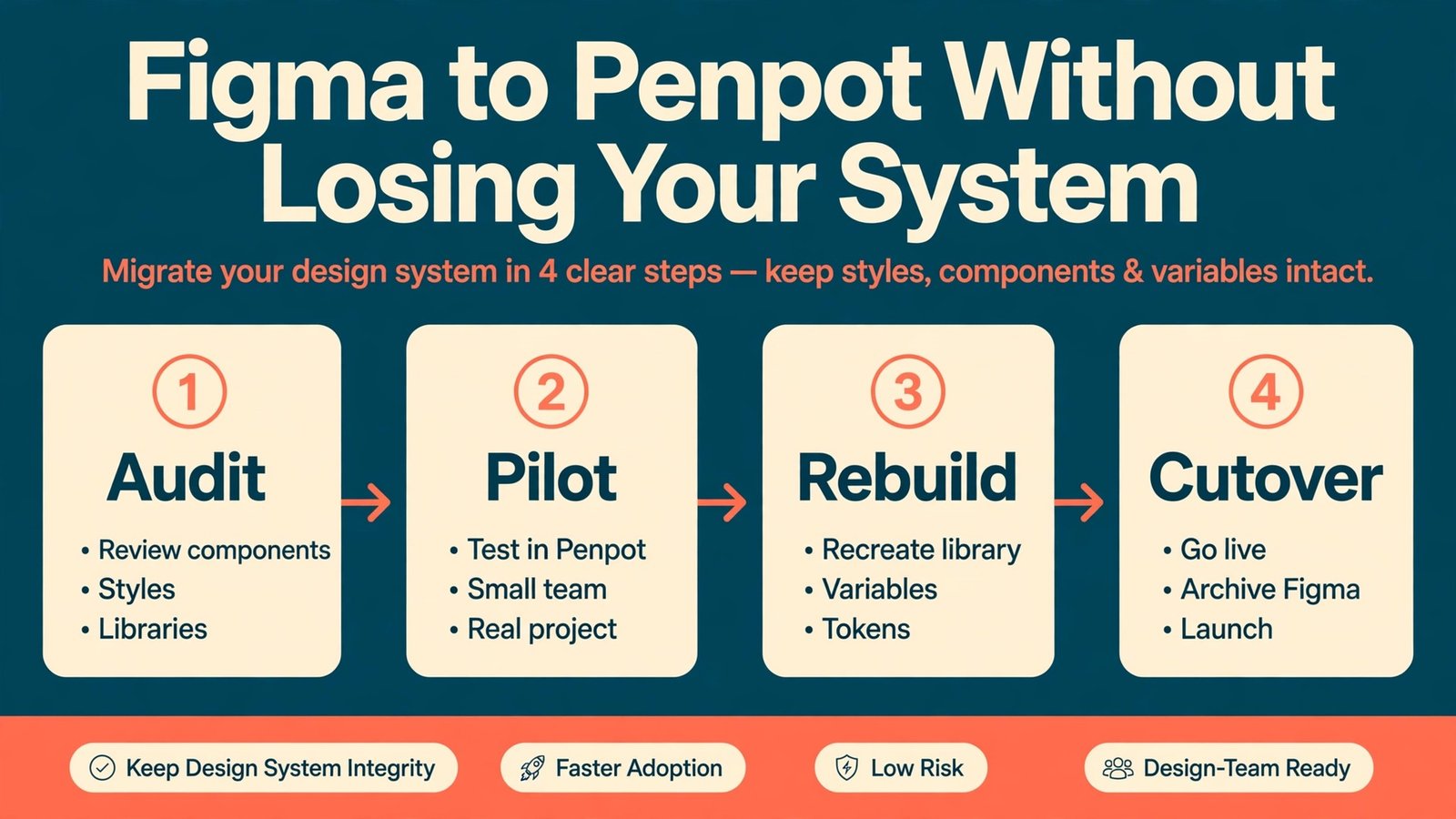
Teams that gain most from open source design tooling want to own their files, control where work lives, and stop paying per editor seat for standard interface design. Teams that should stay on Figma, for now, are deep in Figma-only plugins, complex variables, or advanced prototyping with no close match elsewhere. If you decide to switch Figma to Penpot, treat it as a planned design system migration, not a weekend file copy.
This guide follows that order, from what transfers to components, fonts, permissions, cost, and a phased plan that keeps Figma available until Penpot proves itself on real work. Test every step on one project before the whole team commits.
Who Gains, Who Waits, and How to Decide in One Week
Penpot is an open source, browser based design tool built on open web standards. Its files are expressed in SVG, CSS, and HTML concepts that developers already work with, which is why handoff often feels direct. You can run it in the cloud at penpot.app or host it on your own server, and the open source core is free. That combination appeals to teams with data residency rules, public sector clients, tight budgets, or a simple dislike of being locked into one vendor’s file format and price changes.
Figma still leads in several areas that matter to larger product teams. Its plugin library is far bigger, its community file library is deeper, its prototyping is more mature, and features such as variables, advanced auto layout behaviour, and Dev Mode integrations are more developed. Figma also bundles adjacent tools such as FigJam, Slides, and Sites into its plans, which matters if your team actually uses them every week. Penpot has a plugin system and design tokens, but a team that depends on five specialist Figma plugins should check each one for a Penpot match before moving, not after.
How to switch Figma to Penpot Without Losing Your Design System
A design system migration fails in predictable places. Files import but components flatten, text keeps its words but loses its typeface, and layout looks right at one width and breaks at another. Treat each gap as a separate workstream with its own owner, so a font problem does not quietly become a developer complaint two sprints later.
Start by freezing the source. Pick a cut date, duplicate the Figma files you plan to move, and work from the copies. Never migrate the live files your team is editing that week, because a half imported library and a live edit will collide. Name the copies clearly, for example with a migration prefix and a date, and keep the originals untouched until the fallback window closes. This single habit prevents most migration horror stories, which are rarely about the tool and usually about someone editing the source while someone else copies it.
What Imports Cleanly, What Needs Work, and What Gets Left Behind
Penpot offers two main routes in from Figma. The first is the official Penpot Exporter plugin, run inside Figma, which exports a file into a format Penpot can import. The second is a manual SVG export, where you export frames as SVG files in a ZIP folder and import them from the projects menu, with a chance to review and discard incompatible files first.
What needs checking, even when it looks fine at first glance, is layout and text. Figma auto layout and Penpot flex layout share ideas but are not the same system, so spacing, wrapping, and resizing can shift. Check every imported screen at mobile, tablet, and desktop widths, and look for text that wraps early, buttons that grow unevenly, and cards that no longer align.
What does not transfer reliably is the interactive and systemic layer. Prototypes with complex interactions, variables and modes, advanced component properties, and plugin generated content are the weakest part of any import. Treat a prototype as a reference to rebuild, not a file to import. Screenshot the key flows, note the transitions, and rebuild the flow in Penpot once screens are stable.
The File and Component Mapping Table
Build this table before you import anything beyond the pilot. It stops arguments about what was supposed to transfer, and it becomes the checklist you sign off at the end of each phase. Add a row for every library pattern your team actually uses.
| Figma item | Penpot result | Action before the team moves |
|---|---|---|
| Simple frames and vector shapes | Usually imports cleanly as SVG based shapes | Import, then check alignment and spacing at three widths |
| Icons and illustrations as SVG | Imports well, stays editable as vectors | Export as SVG, import in batches, check stroke widths |
| Raster images and photos | Imports as images, quality depends on the source file | Replace low resolution exports with original assets |
| Text layers with Google Fonts | Often transfers if the font is available in Penpot | Confirm each font in the font checklist below |
| Text layers with custom fonts | May substitute a different font on import | Upload the custom font to the team first, then import |
| Colour styles | Transfers as colour values, needs a token pass | Rebuild as Penpot colour tokens and check hex values |
| Text styles | Transfers in part, needs a style pass | Rebuild heading and body styles and test line height |
| Grid and layout settings | Needs manual checking against flex layout | Rebuild layout rules on the pilot screens first |
| Components, simple | Often imports, but check instances and overrides | Test overrides on three instances before trusting the set |
| Components with variants | Needs rebuilding in most cases | Rebuild as Penpot components, keep a variant list |
| Auto layout frames | Needs a flex layout rebuild or adjustment | Rebuild spacing, wrapping, and resizing rules by hand |
| Variables and modes | No direct equivalent to carry over | Rebuild theming as tokens and document each mode |
| Prototypes and interactions | Does not transfer reliably | Screenshot flows, rebuild the key flows in Penpot |
| Plugin generated content | Depends on the plugin, often flattened | Identify the plugin, export its output, rebuild by hand |
| Comments and version history | Does not carry over | Export a PDF of key comments, archive the Figma file |
| Shared libraries | Needs a deliberate library rebuild | Rebuild one library, publish it, then migrate screens |

Components and Variants That Need Rebuilding
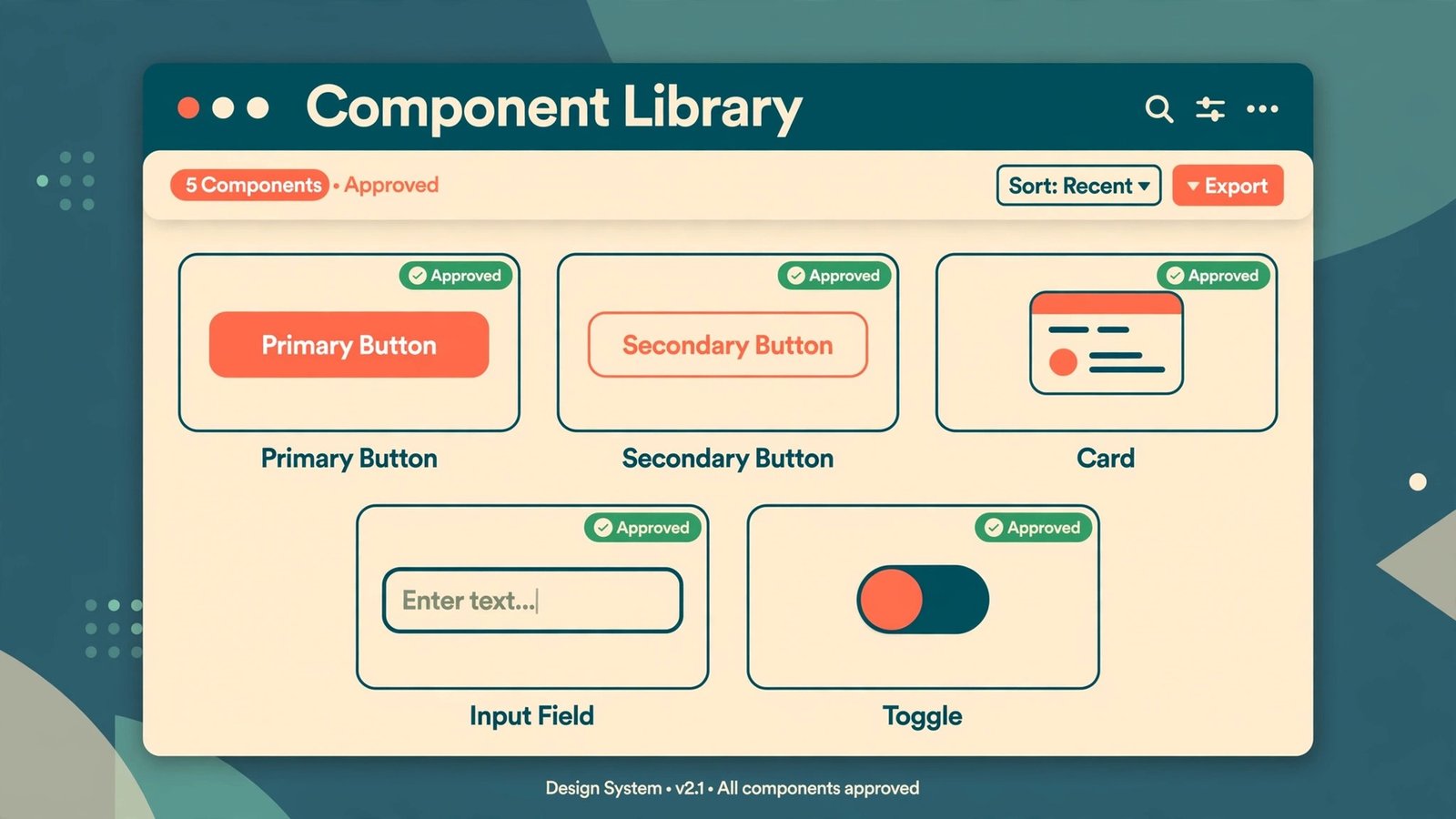
Components are where a migration is won or lost, because a screen import can look perfect while the system behind it is broken. In Figma, a component with variants, properties, and overrides lets a designer change a button from primary to secondary, or a card from default to selected, without breaking the layout. Penpot has components and is adding variations, but at the time of writing you should not assume that a Figma variant set arrives as a working Penpot equivalent. Plan to rebuild the variant logic, even if the shapes import.
Start with a component census. List every component, its variant count, its instance count, and which properties designers actually change. A small number of components usually carry most usage, while a long tail accounts for most rebuild effort. Rebuild the high usage set first, park the long tail or rebuild it on demand, and delete components nobody used in six months.
Rebuild in Penpot with tokens from the start. Define colours, typography, spacing, and radii before rebuilding the components that use them, so a later colour change touches one token, not fifty components. Test each rebuilt component with real content and real states, including hover, disabled, and error states, not placeholder text.
Handle overrides with care. In Figma, an instance can override text, colour, or visibility while staying linked to the main component. After an import, check whether those overrides survived or whether instances flattened into detached shapes. If they flattened, the screens still look right, but future edits will not propagate, which defeats the purpose of a component library. Re-link the important instances to the rebuilt components, even if that takes longer than accepting the imported screens. A library that looks right but does not update is a liability, because the next brand change will require editing screens one by one.
Fonts, the Quiet Breakage That Ruins an Otherwise Good Import
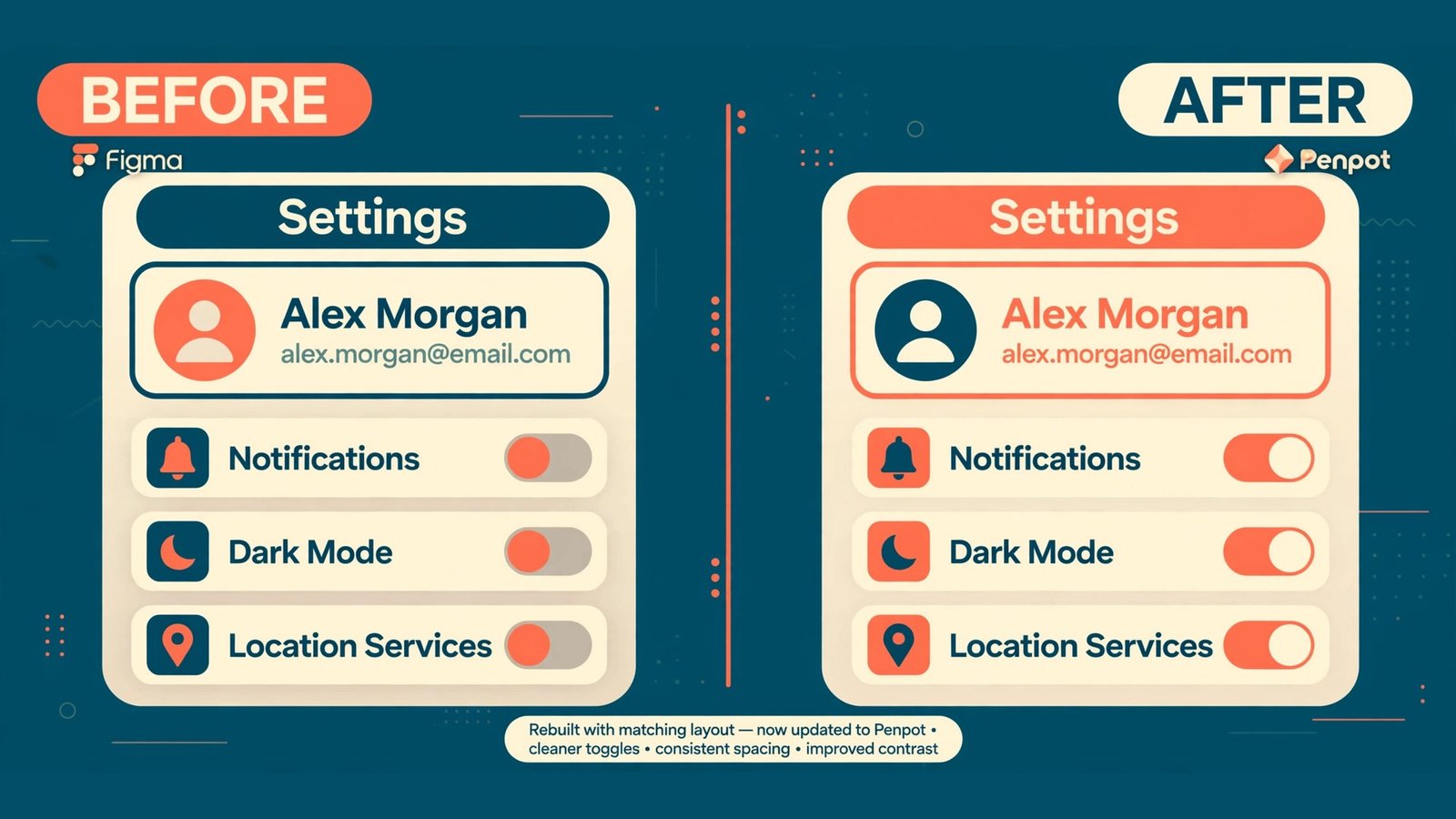
Fonts cause more visible damage than any other import issue, because a substituted typeface changes every screen at once. A heading that fit on one line now wraps to two. A button label that sat centred now sits high. A dense data table that fit its column now overflows. The words are all correct, which makes the problem easy to miss in a quick review and hard to miss in a client presentation. Treat fonts as a separate migration workstream with its own sign off, not as a detail to fix after import.
Penpot manages custom fonts at team level through the team dashboard. When a font is uploaded to a team, members can use it across projects, so font management is a team decision, not a per file decision. Confirm who may upload fonts and whether your licence permits use in a hosted tool or only on self hosted infrastructure, before you upload anything. Assume an import may lose custom font information and check fonts manually after import.
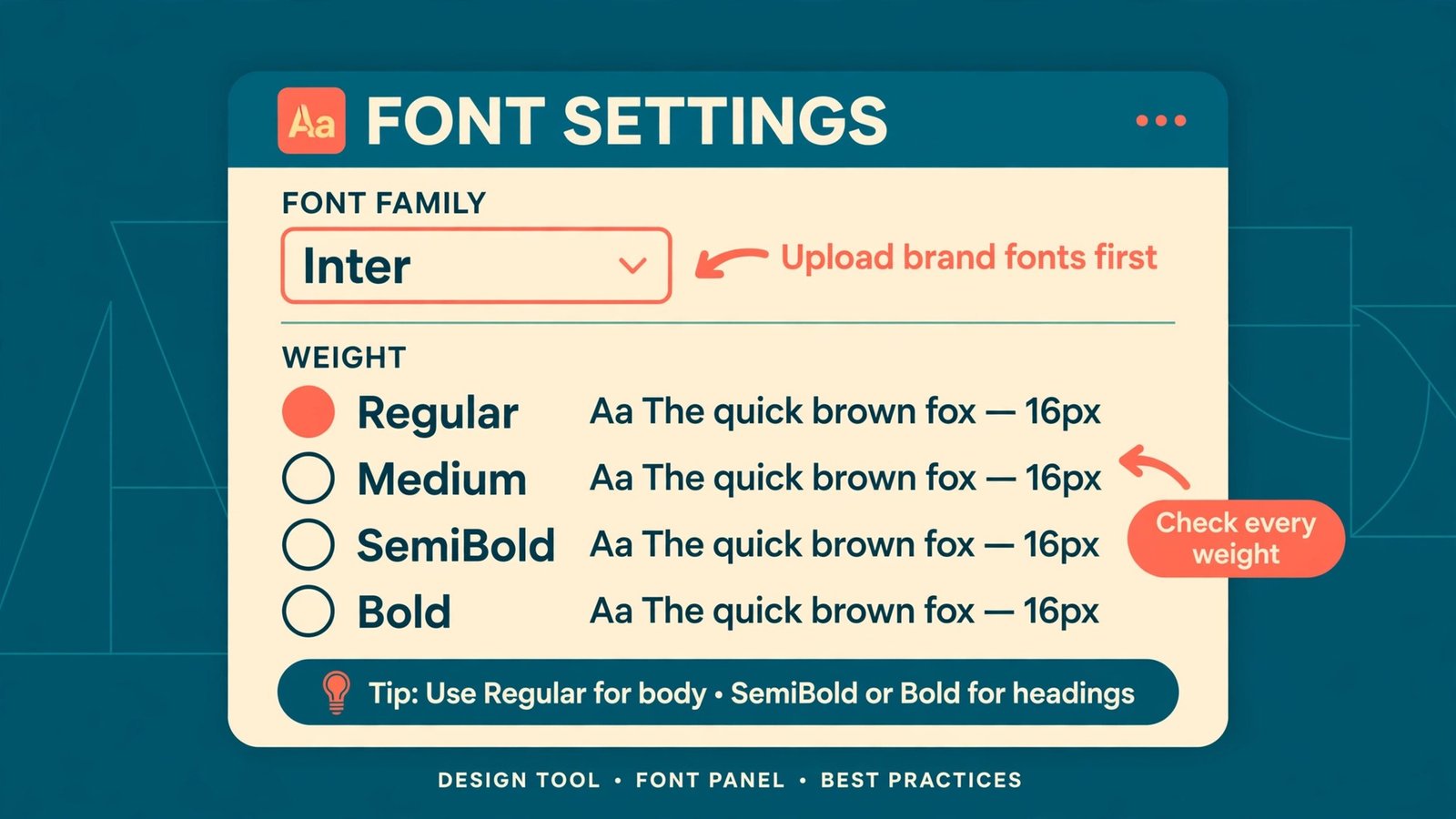
Google Fonts are the easy case, but verify weights one by one. A file using Inter Regular, Medium, SemiBold, and Bold needs all four weights, not just the family name. A missing Medium weight will be faked or substituted, and the result looks almost right, which passes a quick glance and fails a careful one.
The Font Checklist to Complete Before Any Screen Goes Live
- List every font family, weight, and style used in Figma, from the styles panel and a manual scan of key screens.
- Mark each font as Google Font, brand font, Adobe Font, or bought licence, and note the licence terms for team use.
- Confirm each Google Font and weight is available in Penpot, with a screenshot of the rendered heading and body text.
- Upload brand fonts to the Penpot team dashboard in the web format the product ships, and confirm every team member sees them.
- Check Adobe Fonts separately, because a font that requires an Adobe subscription may not be available to upload or use in Penpot at all.
- Replace any font you cannot legally upload with an approved alternative, and get brand approval for the replacement before rebuilding screens.
- Test headings, body text, buttons, form labels, error messages, and data tables at mobile, tablet, and desktop widths.
- Test line height, letter spacing, and wrapping on the longest realistic labels, not on short placeholder words.
- Record the approved font list in the design system documentation, with the file format and licence note for each family.
- Re-check fonts after every import batch, because a new file can reintroduce a font the team thought it had retired.
When you switch Figma to Penpot, font sign off should be a named gate in the plan. No screen moves to production handoff until its fonts pass this checklist, even if the layout looks perfect. Layout can be fixed in an afternoon. A wrong typeface shipped to a client takes longer to explain than it took to check.
Collaboration, Permissions, and Developer Handoff Compared
Figma and Penpot both offer real time collaboration, comments, and shared libraries, but permission models and handoff details differ enough to change daily habits. In Figma, teams juggle Full, Dev, and Collab seats plus free viewers. In Penpot, cloud Professional is free for small teams within its limits, paid tiers cover larger teams, and self hosting moves cost to infrastructure you run.
Map roles before you invite anyone. In Figma, roles often grew organically, with a person as editor on one file and viewer on another. In Penpot, decide team structure first, assign editor and viewer roles clearly, and restrict library publishing to design system owners. A slower publish process beats a fast one that ships an unfinished button to every screen.
Comments need a reset too. Run one review cycle in Penpot during the pilot with a real stakeholder, and watch where they get stuck. If a product manager cannot find the comment thread or a developer cannot find the spec, close that training gap before rollout.
Developer handoff is where Penpot often surprises teams in a good way. Its inspect panel surfaces real CSS values, flex layout information, and measurements that map closely to production code. Test handoff on pilot screens against Figma Dev Mode output. Teams that depend on Code Connect to map components to live code should test the API and plugin route early, because Penpot has no direct equivalent.
What the Move Costs, Honestly
Cost is often why a team starts looking at Penpot, and it is also where optimistic articles mislead. Penpot’s open source core is free, and cloud Professional is free within its included limits for small teams. At the time of writing, paid cloud tiers are listed at 7 dollars per editor per month for Unlimited, capped at 175 dollars per month for the whole team, and 25 dollars per member per month for Enterprise. Check the pricing page before budgeting, because prices change.
Figma pricing at the time of writing is higher and seat based. Professional Full seats are listed at 16 dollars per month billed annually, or 20 dollars month to month, with Dev seats at 12 dollars and Collab seats at 3 dollars. Organisation Full seats are listed at 55 dollars per month billed annually, and Enterprise at 90 dollars. Run your own numbers for your seat mix rather than copying a headline saving.
Self hosting is free in software and not free in effort. A small virtual server can run Penpot for a modest team, with guides putting infrastructure around 10 to 20 dollars per month for teams up to about twenty editors. That covers the server, not the person who updates, backs up, and restores it. Teams with an existing DevOps function absorb that easily. Teams without one should start on the cloud.
Budget the migration itself, not just the subscription. Include designer rebuild time, developer handoff testing, a pilot week, training, and a fallback window where both tools are paid for. Keeping Figma paid until Penpot earns cutover feels wasteful, but it is insurance, and insurance is cheaper than a failed cutover.

The Phased Team Migration Plan
Phase one is audit and pilot, in weeks one and two. Freeze copies of the pilot project, complete the mapping table and font checklist for it, run the import, rebuild the top components, and hand screens to a developer for a real build test. Hold a go or no go review. If the pilot fails, you spent two weeks and learned exactly why.
Phase two is library rebuild, in weeks three and four. Rebuild the design system library in Penpot, publish it, and migrate screens that use it most, starting with marketing pages that import cleanly. Keep product screens in Figma for now. Train designers in short sessions on flex layout, components, and tokens, not one long day everyone forgets.
Phase three is team rollout, in weeks five and six. Move remaining teams one by one, each with a named owner and a checklist per project. Migrate active files, archive finished Figma files with a PDF export, and confirm developers can work from Penpot specs. Give stakeholders a one page guide on commenting and reviewing in Penpot.
Phase four is cutover and watch, in weeks seven and eight. New work starts in Penpot by default, while Figma stays available for emergency fixes only. Watch for missing assets, broken links, and developer questions. Only downgrade Figma when no active project still depends on it, and keep an archived copy of key files.
The Fallback Window and How to Use It
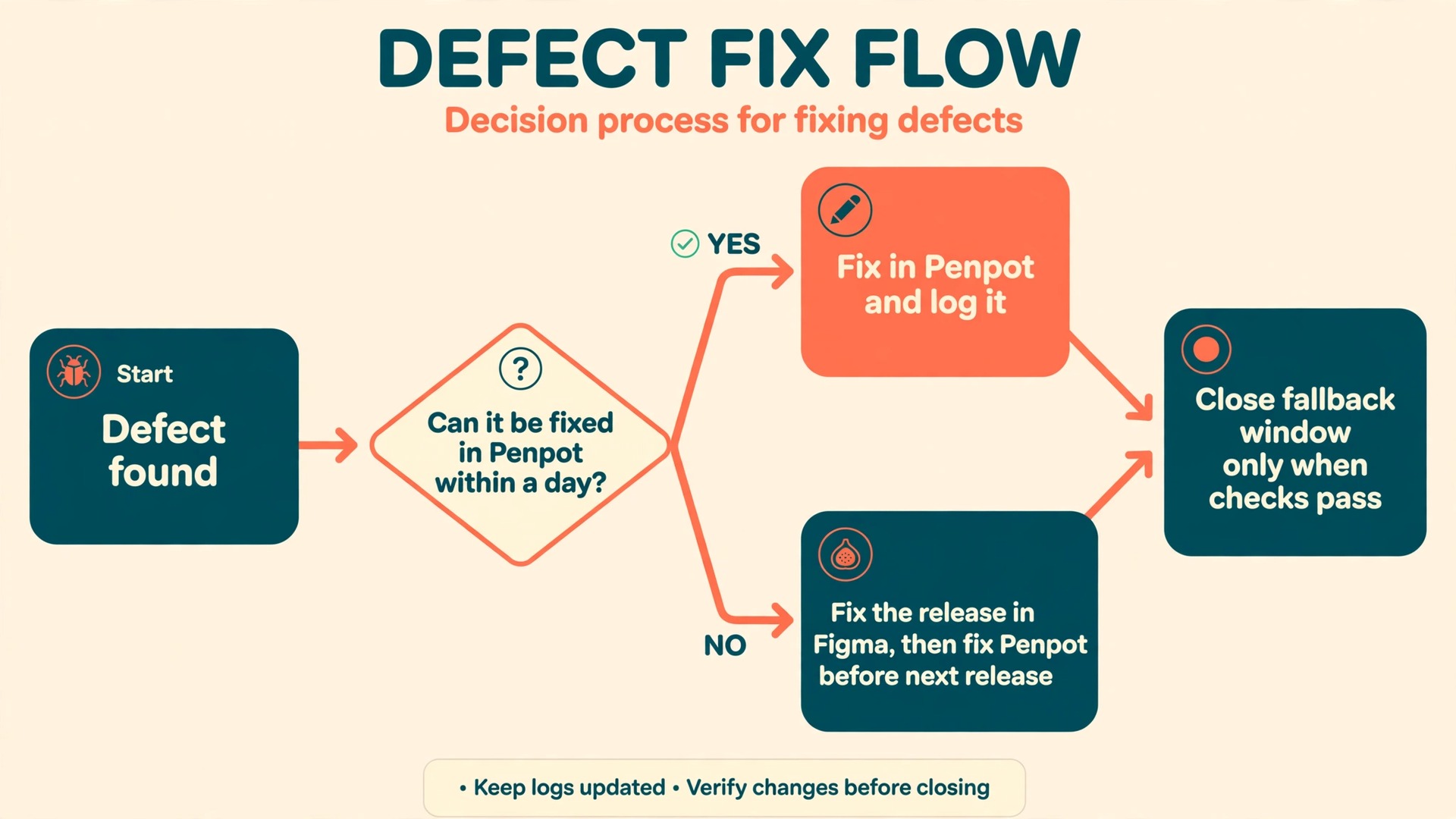
The fallback window is the period when Figma remains available after Penpot becomes the default, and it is the cheapest insurance in the migration. A four week window after cutover is a sensible default. If a Penpot file breaks or a client needs a file in its original form, the team can recover from Figma without panic.
Define fallback triggers in advance. Worth writing down are a library defect blocking a release, a font defect on a client screen that cannot be fixed in Penpot within a day, and a handoff failure blocking a sprint. The response is usually to fix that release in Figma, log the defect, and fix Penpot before the next release.
When you switch Figma to Penpot, the end of the fallback window is a decision, not a date on a calendar. Close it only when three conditions hold. First, no active project has edited a Figma file in the last two weeks. Second, developers confirm they can build from Penpot specs without Figma screenshots. Third, the design system owner confirms the Penpot library covers the components in active use. When those three hold, downgrade Figma, archive the files, and write a short retrospective.
The retrospective should record what imported cleanly, what had to be rebuilt, what the font issues were, and what you would do differently next time, because that note will save the next team that migrates a tool, even if the tool is different.
Mistakes That Turn a Good Migration Into a Support Queue
The first mistake is migrating files without migrating the system. Imported screens look finished, so the team starts using them, and only later discovers that components are detached, tokens are missing, and a brand colour change requires editing fifty screens. Prevent this by making library approval a gate, not a suggestion. No project moves to Penpot production work until its components are rebuilt and approved, even if that delays the project by a week.
The third mistake is underestimating training. Penpot looks familiar, so teams assume no training is needed, then lose time on flex layout differences and token workflows. Run short, task based training, such as rebuilding a card together and handing a screen to a developer, and pair each designer with a buddy for the first Penpot project.
The fourth mistake is moving images and assets badly. Figma files often reference images that live only inside Figma, or low resolution exports that were good enough for a mockup but not for a rebuilt library. During the audit, list external assets, replace low resolution images with originals, and store brand assets in a shared location the Penpot team can reach. When you switch Figma to Penpot, an asset audit done early prevents a week of searching for a logo file during rollout, and it gives developers clean assets for production at the same time.

If you are still weighing the tool choice, read Canva vs Figma for a simpler comparison and Figma alternatives for the wider field, then look at best AI tools for UX designers and best AI tools for graphic designers to see how Penpot fits a broader workflow. Teams that decide to switch Figma to Penpot often find the decision easier after that comparison, because it separates the question of which tool is most popular from the question of which tool fits their files, fonts, and budget.
A One Page Pilot Scorecard to Take Into the Review
Score the pilot on five measures, each out of five, and do not average away a low score. The measures are import quality, component rebuild completeness, font accuracy, developer handoff quality, and stakeholder review ease. A pilot that scores four or five on every measure is ready for phase two. A pilot that scores two on fonts but five everywhere else is not ready, because the font problem will touch every screen the team ships. Write the score, the evidence, and the owner for each measure on one page, and bring that page to the review meeting.
It keeps the decision honest, because a vague feeling that the pilot went well cannot hide a failing measure the way a single overall score can.
Use the scorecard again at the end of phase two and at cutover, so the team can see whether scores improved or whether early problems were simply carried forward. When you switch Figma to Penpot, a scorecard that improves across phases is the best evidence the migration is working, and a scorecard that stalls is the earliest warning to pause rollout and fix the root cause before more files depend on a weak library.
Frequently Asked Questions
Can Penpot open a Figma file directly
Penpot does not open a native Figma file the way Figma does. The practical routes are the official Penpot Exporter plugin run inside Figma, which exports a file into a format Penpot can import, and a manual SVG export for individual frames and assets. Both routes transfer vector shapes well and both need a verification pass for layout, text, and components. Test the Exporter on a pilot file before promising a timeline for a whole library, and split very large files if the browser struggles with a single export.
Will my components and variants survive the move
Simple components often import in recognisable shape, but you should plan to rebuild variant logic and check overrides. A screen can look perfect while its components are detached, which means future edits will not propagate. Rebuild the high usage components first, test them with real content and real states, and keep a rebuild log showing which components are approved. When you switch Figma to Penpot, the rebuild log is what lets the team trust the new library, because it separates imported placeholders from finished components.
What happens to my fonts in Penpot
Fonts are managed at team level in Penpot, so an uploaded font becomes available across team projects. Google Fonts are the easy case, provided every weight and style is available and verified. Brand fonts need uploading in the web format your product ships, and Adobe Fonts may not be available to upload at all, so check that case separately. Complete the font checklist in this guide before any screen goes live, and compare text at 100 percent zoom, because a substituted weight can look almost right and still break a layout.
Is Penpot really free for a design team
The open source core is free, and the cloud Professional plan is free within its included limits for small teams. Paid cloud tiers are listed at 7 dollars per editor per month for Unlimited, capped at 175 dollars per month for the whole team, and 25 dollars per member per month for Enterprise, at the time of writing. Self hosting the open source edition is free in software, but you pay for a server and for the time to maintain, back up, and update it. Check the current pricing page before budgeting, and budget the migration work itself, not just the subscription.
Can developers work from Penpot specs as easily as from Figma
For many web teams, yes, and sometimes more easily, because Penpot surfaces real CSS values and flex layout information in its inspect panel. Developers should test handoff on pilot screens and compare the output with Figma Dev Mode, checking spacing, colours, typography, and layout code. Teams that depend on Code Connect to map design components to live code components need a separate test, because Penpot has no direct equivalent of that wiring, and the API and plugin route should be proved before cutover.
Should a team keep Figma after moving to Penpot
Yes, through a fallback window of about four weeks after cutover, and longer if the fallback log is still growing. During that window, Figma is for emergency fixes and recovery, not for new work. Close the window only when no active project has edited a Figma file in two weeks, developers confirm they can build from Penpot specs without Figma screenshots, and the design system owner confirms the Penpot library covers active components. When you switch Figma to Penpot, that three part test is a better close signal than any calendar date.
The Call to Make After the Pilot
A migration to Penpot is worth doing when the pilot proves three things. The library rebuilds cleanly, the fonts pass their checklist, and a developer builds from Penpot specs without asking for Figma screenshots. When those three hold, the gains are real, because the team owns its files, controls where work lives, and stops paying per seat for work that standard tooling handles well. When any one of the three fails, the honest move is to narrow the scope, migrate marketing work first, and keep Figma for the product work that still needs it. Either outcome is a good use of a pilot week, because it replaces a debate about tools with evidence from real screens.
Start small, rebuild the system properly, keep the fallback window open, and let the pilot decide how far the move goes.