
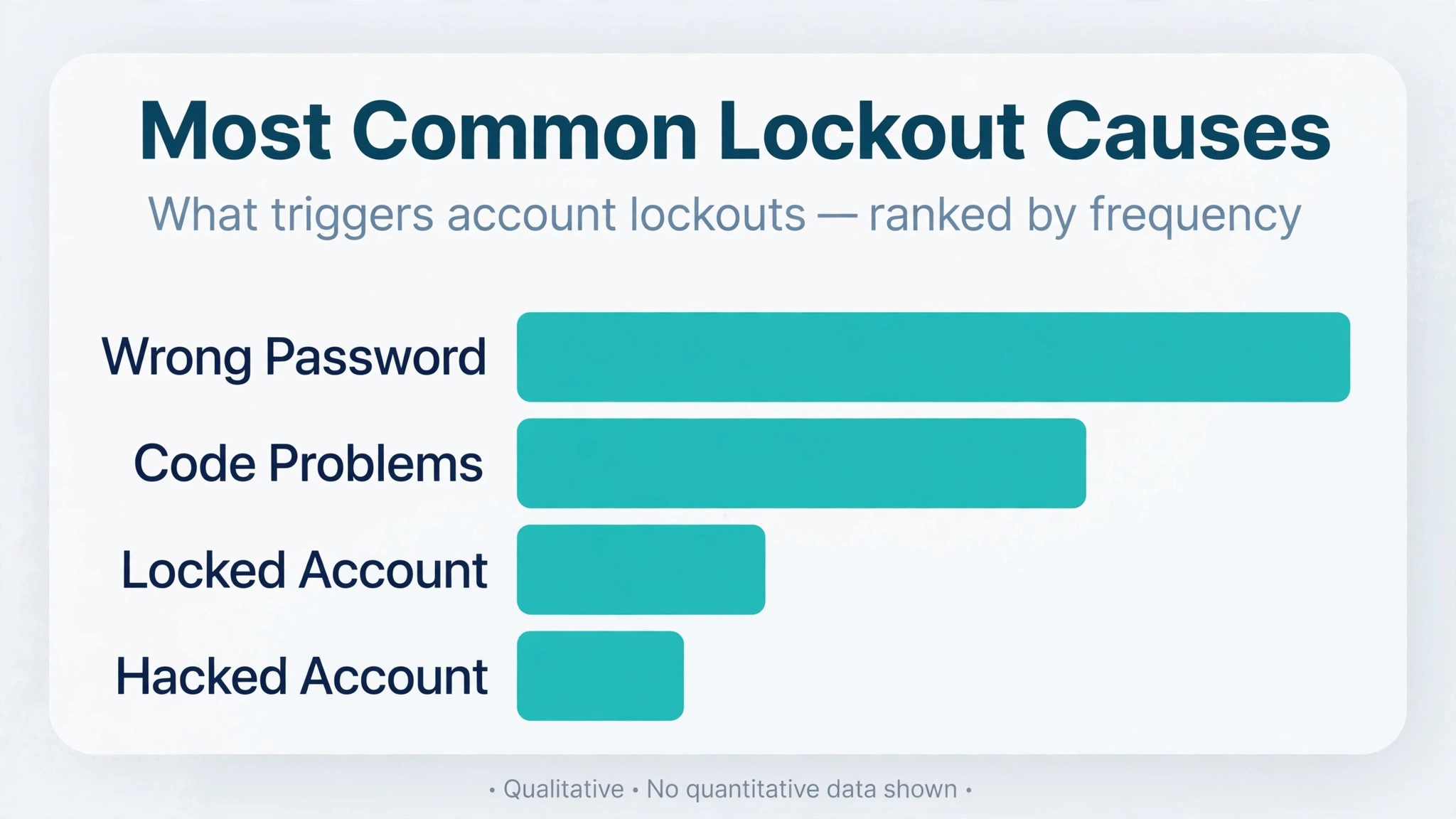
Most Instagram lockouts trace back to a handful of causes, and that is good news, because it means most of them have a known fix. A forgotten password, a phone that no longer receives verification codes, a security hold after an unusual sign in, or an account that someone else has taken over covers nearly every case. To fix Instagram account login problems, work through those causes in order, from the fastest check to the deepest recovery step, and stop as soon as you are back in.
This guide follows that order. Each section names the symptom it fits, gives the exact taps to try, and says what the step rules out, so you know whether to keep going or move on. It also separates three situations people constantly mix up, a locked account, a hacked account, and a disabled account, because each one has a different recovery path and using the wrong one is the most common reason recovery stalls.
The Fix Order Checklist
Before you change anything, run this checklist from top to bottom. It takes about ten minutes, and it tells you which section of this guide actually applies to you. Do not skip ahead to the appeal or hacked-account flow until the fast checks have failed, because most lockouts end at step two or three.
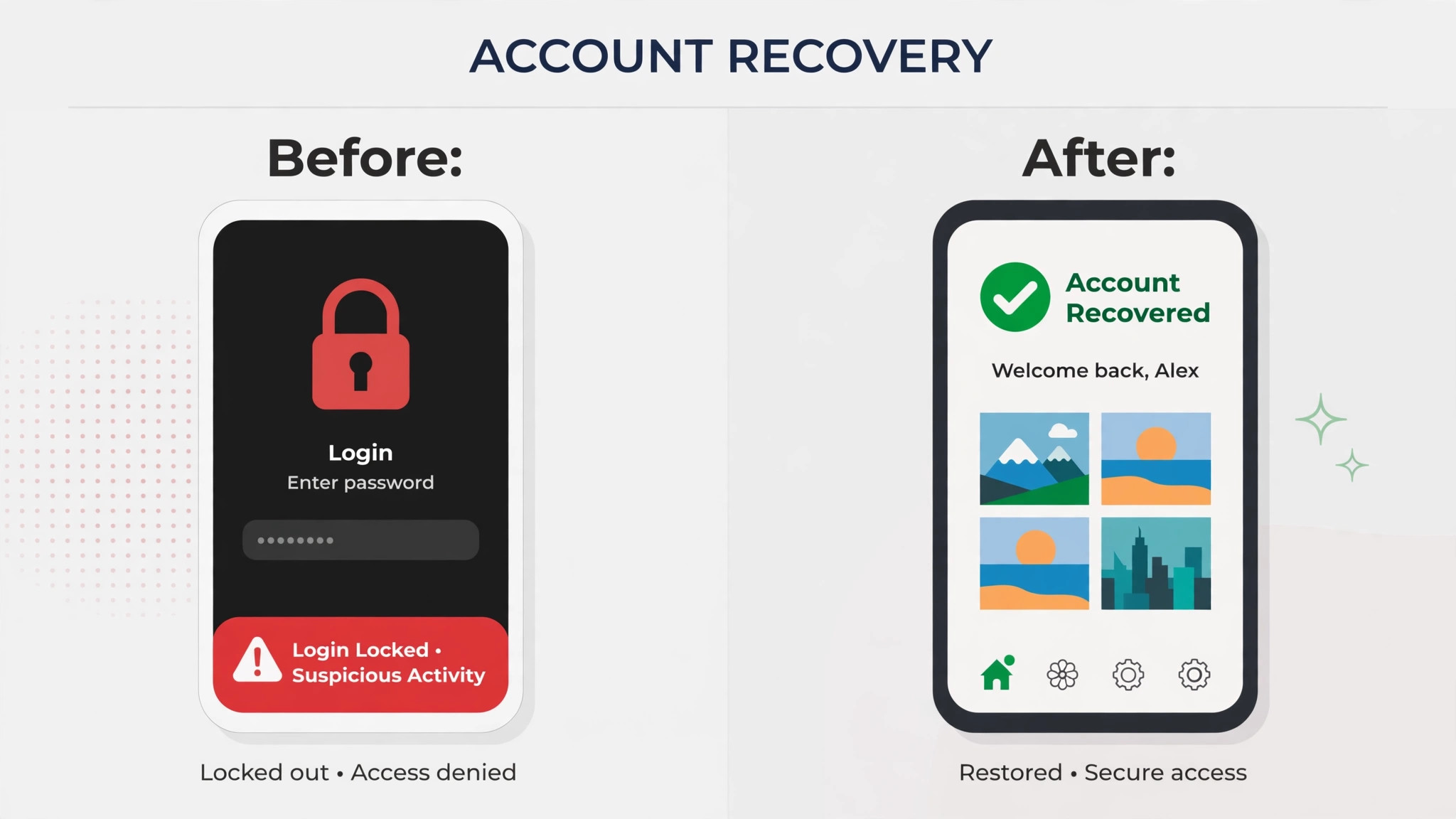
- Confirm the password is right. Type it slowly, check caps lock, and try signing in on instagram.com in a browser. If the browser sign in works, the problem is the app, not the account, so jump to the app and device section.
- Try the password reset. On the login screen, tap Forgot password on iPhone or Get help logging in on Android, enter your username, email, or phone number, and follow the link or code Instagram sends. Check the spam folder if nothing arrives within a few minutes.
- Try a second way in. If your Instagram and Facebook accounts were linked before the lockout, try the Facebook login option. If you are still signed in on another phone, tablet, or browser, use that session to change the password instead of fighting the locked device.
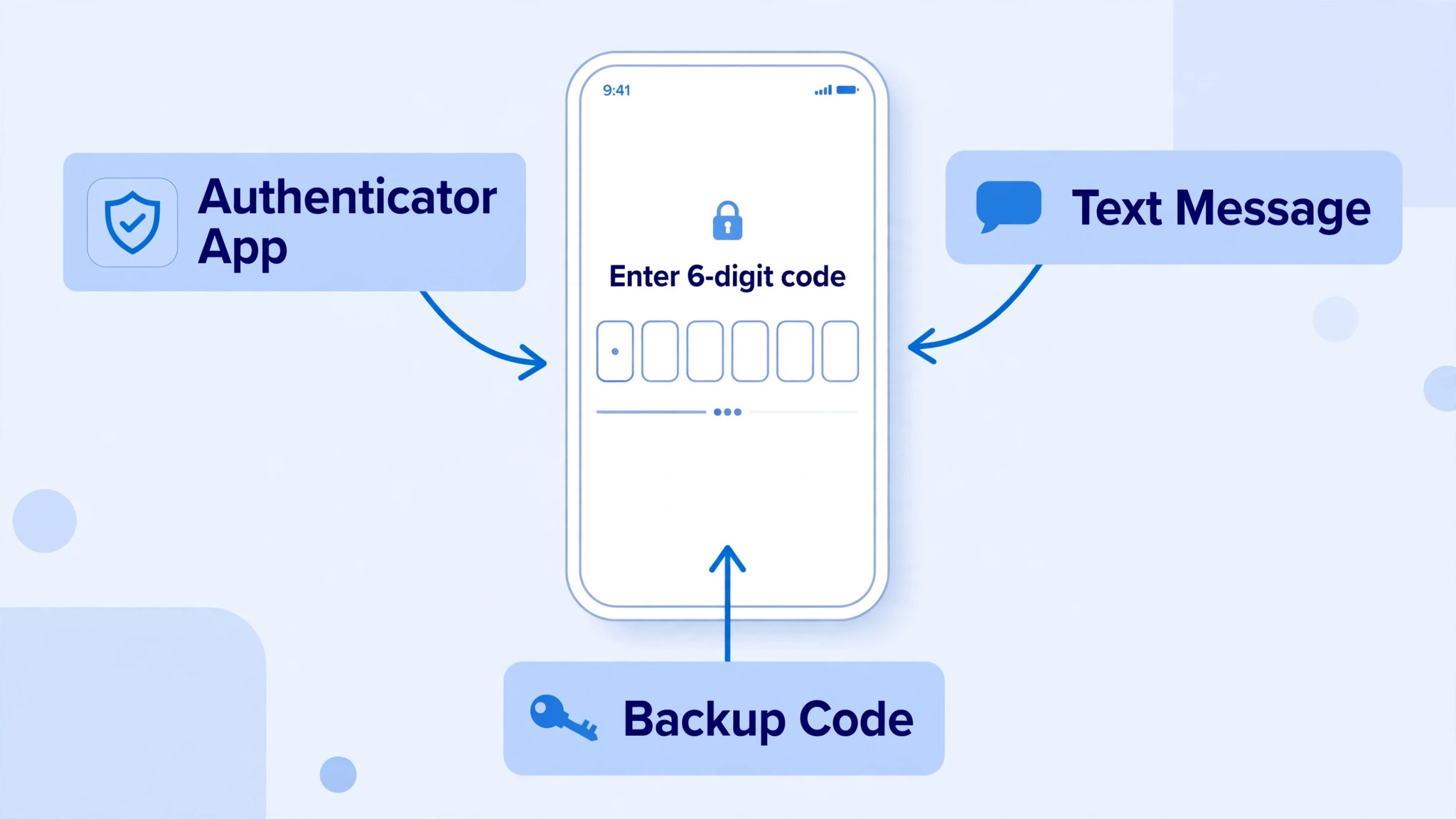
- Work the two-factor screen properly. Use the authenticator app code first, then an SMS or WhatsApp code, then one of your 8 digit backup codes. On the code screen, look for Try another way to switch between these options.
- Read the exact message on screen. “Incorrect password”, “suspicious login attempt”, “temporarily locked”, and “account disabled” are four different problems with four different fixes. Write down the exact wording before you act on it.
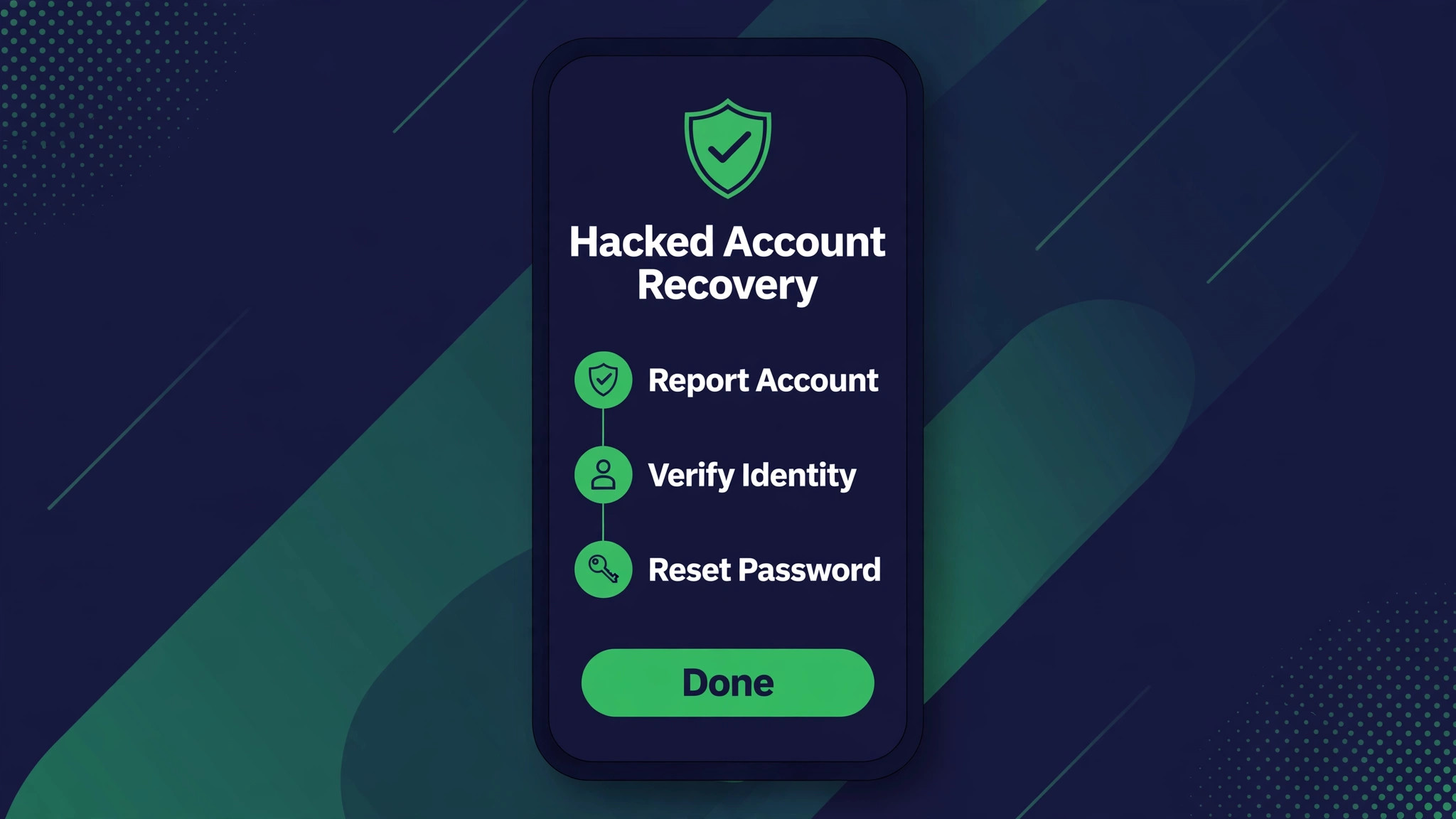
- If the account was hacked, go to instagram.com/hacked in a browser and follow the flow for a hacked account. Do not use the normal password reset alone if the attacker has already changed your email address, because the reset link will go to them.
- If the screen says the account is disabled, use the appeal path in the disabled section. A password reset will not reopen a disabled account, no matter how many times you try it.
- If nothing above works, use the Need more help or Cannot access this email or phone option and complete the identity check Instagram offers, usually a short selfie video. This is the slowest path, so treat it as the last resort, not the first move.
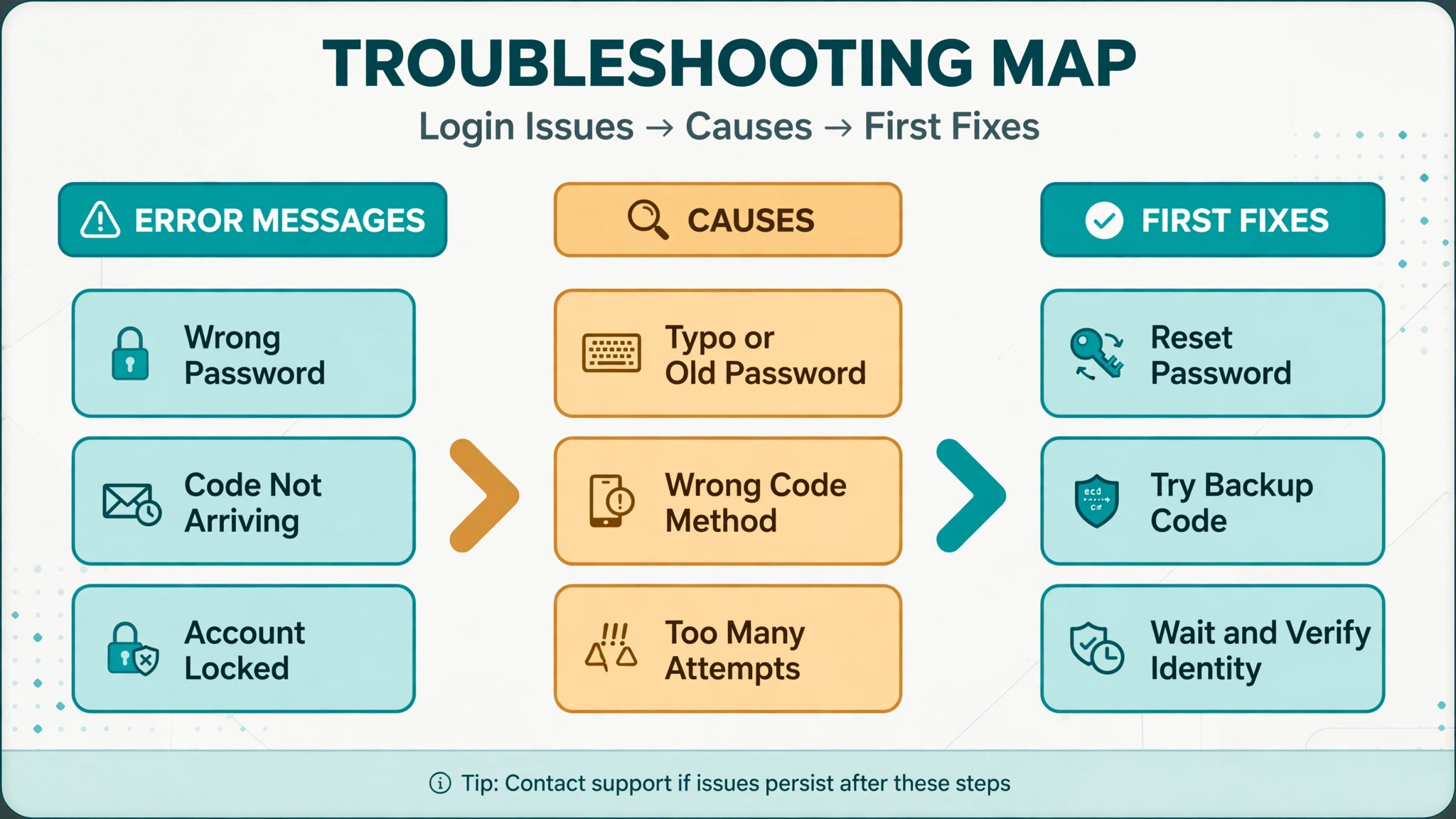
| What you see | Most likely cause | First move |
|---|---|---|
| Incorrect password | Forgotten or mistyped password | Password reset by email or SMS |
| Code screen with no code arriving | Lost phone, changed number, or app problem | Try another way, then a backup code |
| Suspicious login or temporarily locked | Unusual sign in or too many attempts | Wait, then verify it was you |
| Posts or messages you did not send | Account taken over | instagram.com/hacked recovery flow |
| Account disabled notice | Policy enforcement or a hacked account that broke rules | Appeal from the notice screen |
| App crashes or spins at sign in | Outdated app, bad cache, or connection problem | Update, clear cache, try the browser |
How to Fix Instagram Account Login Problems When the Password Fails
A failed password is the most common starting point, and it is also the one people overcomplicate. Start with the simplest explanation. Passwords get mistyped on small keyboards, autocomplete fills in an old password after a change, and caps lock catches everyone sooner or later. Type the password by hand, slowly, with the show password option on if the app offers it, and try once on the web version as well. If the web sign in succeeds, your password is fine and the app is the problem.
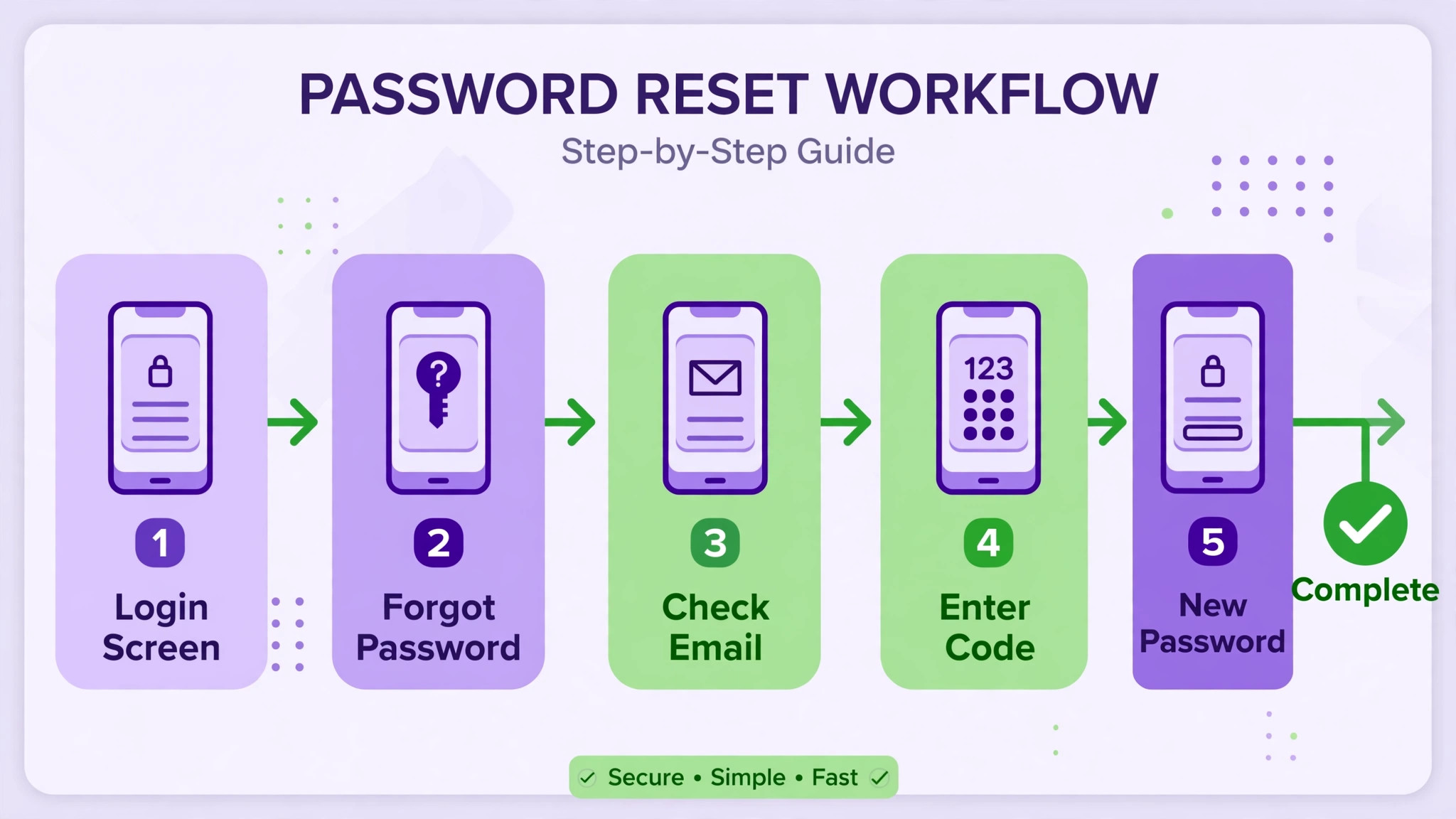
If the password really is wrong or forgotten, use the reset flow built into the login screen. On iPhone, tap Forgot password. On Android, tap Get help logging in. Enter your username, email address, or phone number, whichever you remember, and Instagram will send a login link or a code to the contact details on the account. Open that link on the same device if you can, because opening it on a different device sometimes triggers a fresh security check.
When the reset message does not arrive, work through the delivery problems before assuming the account is gone. Check the spam and junk folders, and search your inbox for Instagram, because filters sometimes file these messages away from the inbox. If you use Gmail and Instagram mail keeps vanishing, the filter audit in our guide to Gmail delivery problems can help you find where it went. Wait a few minutes and request the link once more, but do not request it ten times in a row. A flood of reset requests can look like abuse and add a security delay. Also confirm you are checking the right inbox.
Many people have two or three email addresses and are watching the wrong one while the link sits in another.
Reset paths in order
- Email link. The fastest path for most people. Tap the link in the message, set a new password, and sign in with it right away.
- SMS code. If a phone number is on the account, choose the SMS option and enter the code on the login screen. Make sure the phone has signal and is not blocking short code messages.
- Facebook login. If the accounts were linked through Accounts Center before the lockout, the login screen may offer a Facebook option. This only works if the link was set up earlier. It cannot be created while you are locked out.
- A session you still control. If you are still signed in on another device, open Settings and activity, then Accounts Center, then Password and security, and change the password from there. This bypasses the reset email entirely.
After a reset, choose a password you have not used anywhere else, and save it in a password manager before you close the screen. Reusing a password from another site is how many hacked accounts start, because a leak elsewhere hands the attacker your Instagram password for free. If the reset link goes to an email address you no longer control, do not keep retrying the same flow. Move to the identity check at the end of this guide, because only Instagram can move the account to contact details you can actually reach.
Get Past the Two-Factor Code Screen
Two-factor authentication, usually shortened to 2FA, is the step that locks out the most legitimate owners. The password is right, but the code never arrives, the authenticator app is on a dead phone, or the backup codes are in a drawer nobody can find. The key fact for anyone trying to fix Instagram account login problems at this screen is that Instagram usually gives you several code sources, and the code screen has a way to switch between them. Look for Try another way or a similar option rather than staring at one empty inbox.
Start with the authenticator app if you set one up. Open the app, find the Instagram entry, and enter the current 6 digit code before it expires, usually within thirty seconds. If the code keeps being rejected, check the phone clock. Authenticator codes are time based, so a phone whose clock is set manually, or is minutes out, will generate codes Instagram rejects. Set the date and time to automatic in the phone settings, wait a minute, and try the fresh code. Also confirm you are reading the right entry. People with several accounts often have several near identical entries in the same app.
If the authenticator app is gone, try SMS or WhatsApp codes, if you enabled those methods. The code should arrive within a couple of minutes. If it does not, check signal, check that short code or verification messages are not blocked, and try the WhatsApp option if SMS is failing, since it travels over data rather than the mobile network. Do not request code after code in a panic. Repeated requests can trigger a temporary block on code delivery, which feels exactly like a broken system but is really a rate limit.
Backup codes and trusted devices
Backup codes are the safety net most people forget they have. When you turned on two-factor authentication, Instagram offered a set of 8 digit recovery codes. Each one works once, in place of a normal code, and you enter it on the code screen. If you saved them in a password manager, a notes app, or on paper, now is the time to find them. If you used one, generate a fresh set as soon as you are back in, because a used code cannot be used again.
A trusted device gives you another route. If you are still signed in on another phone, tablet, or computer, open Settings and activity, then Accounts Center, then Password and security, then Two-factor authentication. Choose the account, then Additional methods, then Recovery codes, and copy one of the codes shown there. Use it on the locked device by choosing the recovery code option on the code screen. This route surprises people, because it needs no email and no SMS, only a session you still control.
If every code route is dead, the phone is gone, the number changed, and no backup codes exist, use the Need more help path from the login screen. Instagram will ask you to confirm what you can, and may offer identity verification, usually a short selfie video where you turn your head as directed. Record it in good light, follow the on screen prompts exactly, and submit it once with care. A blurry or rushed video is a common reason this step fails and has to be repeated.
When Instagram Locks the Account for Unusual Activity
A lock for unusual activity feels alarming, but it is usually a protective hold, not a punishment. It fires when Instagram sees a sign in from a new place, a new device, a VPN exit point, or a burst of rapid actions that look automated. The account is not necessarily hacked. Instagram is pausing access until it is sure the sign in was really you. That pause is one of the easier cases to fix Instagram account login problems from, because it usually clears once you confirm the sign in was yours.
The first move is to stop hammering the login button. Repeated failed attempts during a security hold can extend the hold, because each attempt looks like another suspicious try. Wait several hours, then try once, calmly, from a device and network you have used before, with the VPN off if you normally browse without one. If Instagram asks whether the recent sign in was you, answer honestly. Confirming a sign in you recognise often clears the hold on the spot.
Check your email for a message from Instagram about the unusual sign in. That message usually names the device type and rough location, and it may include a link to secure the account or confirm the activity. Only follow links in messages you are sure came from Instagram, and never enter your password on a page reached from a random direct message or comment. Phishing pages that mimic the Instagram login screen are a major cause of real hacks, and they tend to appear exactly when people are locked out and desperate.
If the lock persists beyond a day or so, or if the screen offers a verification step, complete it rather than waiting indefinitely. Instagram may ask for a code sent to your email or phone, or for the selfie video check. Once you are back in, open the login activity and security settings, review the devices listed, and remove anything you do not recognise. Then change the password, even if you got in with the old one, because a lock sometimes means someone else tried the account, and a fresh password closes that door.
Recover a Hacked Account Step by Step
A hacked account has different signs from a forgotten password. The password stops working and the reset email never arrives, because the attacker changed the email address. Or you are still signed in and see posts, messages, or follows you did not create. Or friends tell you they received strange links from your account. In any of these cases, the way to fix Instagram account login problems is to act on the hack first and the password second.
Go to instagram.com/hacked in a browser. This is Instagram’s dedicated recovery flow, and it asks what happened to the account, whether it was hacked, whether you forgot the password, or whether you lost access to two-factor authentication. Answer for your real situation, because the flow branches on that answer. Enter your username, email address, or phone number, even the old ones, and follow the steps Instagram shows. If Instagram offers identity verification, complete the selfie video carefully, in good light, following the prompts.
While the recovery is in progress, secure the email account linked to Instagram. If the attacker controls your email, they can intercept every reset link Instagram sends, so recovering Instagram before recovering the email is wasted effort. Change the email password, turn on two-factor authentication for the email account, and check its forwarding rules and recovery address for changes you did not make. Attackers often add a forwarding rule so they keep receiving your mail even after you change the password.
What to do the hour you get back in
- Change the Instagram password to something long and unique, and save it in a password manager.
- Check the email address and phone number on the account in Accounts Center, and correct anything the attacker changed.
- Review the devices and sessions in Password and security, and sign out every session you do not recognise.
- Turn on two-factor authentication with an authenticator app, and save the backup codes somewhere safe.
- Review recent posts, messages, and follows, delete anything the attacker sent, and warn contacts who may have clicked a bad link.
- Check connected apps and websites in the account settings, and remove anything you do not recognise or no longer use.
Do not pay anyone who promises to recover the account for a fee. Instagram does not charge for recovery, and third party recovery services are a common second scam aimed at people who have just been hacked. Real recovery happens only through the app, the Help Center, and instagram.com/hacked. Anyone asking for your password, a verification code, or payment is not helping you.
Appeal a Disabled Account
When you fix Instagram account login problems that involve a disabled notice, start by knowing that a disabled account is not the same as a locked one. A lock is a security pause. A disabled account means Instagram removed access, usually for breaking its rules, or because a hacker used the account to break rules before you recovered it. The screen will say the account has been disabled, and a password reset will not fix it, because the password was never the problem.
If the disabled notice appears when you try to sign in, look for an Appeal, Request review, or Learn more option on that same screen and follow it. Instagram will ask you to confirm you own the account and may ask for identity verification, such as a selfie video. Give a short, factual account of what happened. If the account was hacked first, say so plainly, and say what you have already fixed, such as a new password and two-factor authentication. Long, emotional appeals do not help. Clear facts do.
If no appeal option appears in the app, use the Help Center form for disabled accounts. You will need your username, a reachable email address, your full name, and possibly a selfie video. Submit the appeal once, carefully, and then wait for Instagram’s decision rather than submitting the same appeal many times a day. Duplicate submissions can slow the review or get treated as spam. Decisions can take days, and sometimes longer, so keep the reachable email address monitored and do not delete the account or create a copycat account in the meantime, since that can complicate the review.
Be honest with yourself about the odds. An account disabled for a clear, repeated rule break is hard to win back. An account disabled by mistake, or disabled because a hacker misused it, has a much better chance, especially when the appeal explains the hack and shows the security steps already taken. If the appeal is refused, Instagram’s decision screen will say whether any further review is available. Follow that screen rather than hunting for a back door, because there is no support phone line or email shortcut that overrides the appeal result.
App, Device, and Connection Problems That Look Like Account Problems
Not every failed sign in is an account problem, and that distinction matters when you fix Instagram account login problems, because a recovery flow cannot repair a broken app. Sometimes the account is fine and the app, the phone, or the connection is at fault. The giveaway is that the web version works while the app does not, or that the same account signs in fine on another device. Rule these causes out before you start a recovery flow you do not need.
Start with the basics. Update Instagram to the latest version, because an old version can fail against current login checks. Force close the app completely and reopen it. Restart the phone, which clears temporary glitches that survive an app restart. Then try signing in on instagram.com in a browser on the same phone. If the browser works, the account and password are fine, and the fault sits in the app.
On Android, clear the app cache by opening Settings, then Apps, then Instagram, then Storage, and choosing Clear cache. Do not choose Clear data at this stage, because that signs you out everywhere in the app and can delete saved drafts. On iPhone, where there is no cache button, offload the app from Settings, then General, then iPhone Storage, then Instagram, and reinstall it. Offloading keeps your documents and data while replacing the app itself.
Connection issues cause a surprising share of login failures. Turn off any VPN and try again, because a VPN exit in another country is a classic trigger for a security hold. Switch between Wi-Fi and mobile data to rule out a network problem. Check that the phone date and time are set to automatic, since authenticator codes and secure connections both depend on an accurate clock. And check whether Instagram itself is down before you change anything. A quick search for Instagram outage reports will tell you if other people are reporting the same failure at the same time. If it is an outage, the only fix is patience.
How to Avoid Lockouts After You Are Back In
Getting back in is half the job. The rest of the work to fix Instagram account login problems for good is making sure you never have to do it again. Most repeat lockouts happen because the recovery details were never updated after the first scare, so the same dead phone number or old email address is still the only way back.
Start with the three recovery pillars, and make sure all three are current. First, a unique password stored in a password manager, not in a notes file or reused from another site. Second, an email address you actually check, with its own two-factor authentication turned on. Third, a phone number you still control. Check all three in Accounts Center, under Password and security, and update anything that changed since you created the account. A recovery email you lost access to years ago is not a safety net. It is a trap.
Then set up two-factor authentication properly, with more than one method. An authenticator app is the strongest everyday option. Add SMS or WhatsApp as a second method, and generate the backup codes. Store those codes in two places, for example in your password manager and on paper kept somewhere safe at home. A backup code stored only on the phone it is meant to rescue is not a backup. Review the login alerts setting as well, so Instagram tells you about new sign ins, and glance at the logged in devices list every few months. Removing an old phone you sold or a browser on a borrowed computer takes seconds and closes a door you forgot was open.
Finally, change the habits that trigger locks. Sign in from a VPN only when you need to, and expect a security check when you travel or switch devices. Do not use automation tools that like, follow, or message at high speed, because Instagram reads that behaviour as bot activity and it is a common path to a lock or a disable. And never share your password or a verification code with anyone, including someone claiming to be Instagram support. Instagram will never ask for your password in a message, and a code you share is a key you just handed over.
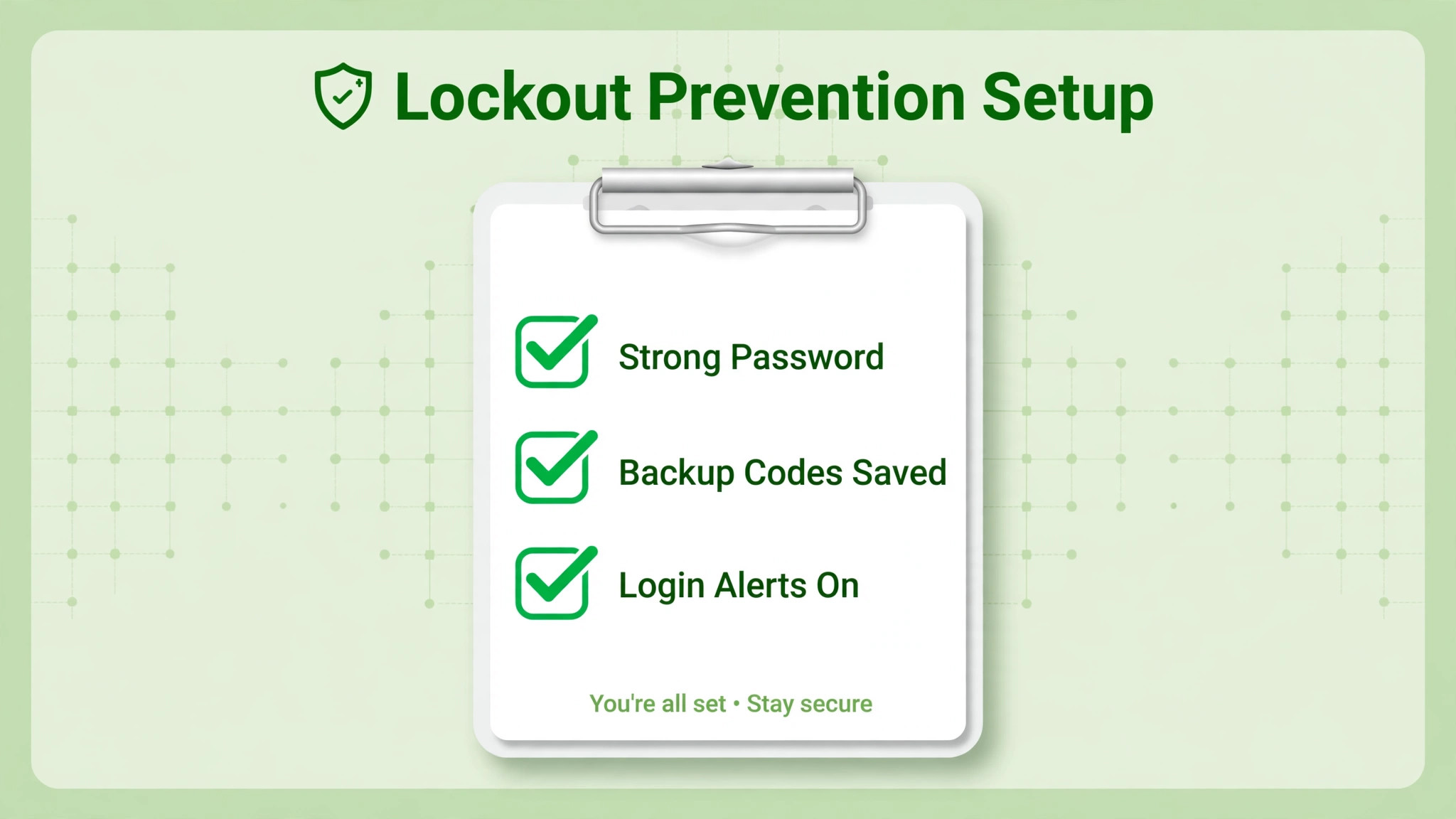
If the reset email itself is the problem, the issue may sit with your inbox rather than with Instagram, so our guide to fixing Gmail delivery problems, at https://stratilyze.com/fix-gmail-not-receiving-emails-checklist/, walks through filters, storage, and forwarding checks that hide messages like reset links. And once you are back in and want to get more from the app, our roundup of the best AI tools for Instagram, at https://stratilyze.com/best-ai-tools-for-instagram/, covers tools for creating and planning content. To fix Instagram account login problems for good, though, the prevention steps above matter more than any tool, because a current email address, a second verification method, and saved backup codes turn the next lockout from a crisis into a two minute fix.
Frequently Asked Questions
Why does Instagram say my password is incorrect when I know it is right?
The most common reasons are a mistyped password, an old password filled in by autocomplete, or a password that was changed from another device or by someone else. Type it by hand with the show password option on, and try signing in on instagram.com in a browser. If the browser sign in also fails, use the Forgot password flow to set a new one. If the reset link goes to an address you do not control, the account may have been taken over, so use the hacked account flow instead of retrying the reset.
What do I do if the two-factor code never arrives?
First, switch methods on the code screen using Try another way. Try the authenticator app, then SMS, then WhatsApp, then one of your 8 digit backup codes. Check signal, check that verification messages are not blocked, and check that the phone clock is set to automatic, since authenticator codes depend on accurate time. Do not request code after code, because that can trigger a temporary block on delivery. If no method works, use the Need more help path and complete the identity check.
How long does a temporary Instagram lock last?
There is no fixed timer Instagram publishes, and the length depends on what triggered the hold. Many locks clear within hours once you stop retrying and sign in from a familiar device and network. If the lock is still there after a day or so, complete any verification step Instagram offers rather than waiting indefinitely. Repeated login attempts during a hold can extend it, so one calm attempt after a wait beats twenty rushed ones.
Can I recover an Instagram account without access to the old email or phone number?
Yes, but it is the slowest path. Use the Need more help or Cannot access this email or phone option from the login screen, or the hacked account flow at instagram.com/hacked, and complete the identity verification Instagram offers, usually a short selfie video. You will need to give a reachable email address where Instagram can contact you. The better your answers match the account details, such as the username and the original contact information, the smoother the review goes.
What is the difference between a locked, hacked, and disabled account?
A locked account is a temporary security hold after unusual activity, and it usually clears once you verify the sign in was you. A hacked account means someone else changed your password, email, or phone number, and recovery runs through instagram.com/hacked plus securing your email account. A disabled account means Instagram removed access, usually for rule breaking, and the only path back is an appeal from the disabled notice or the Help Center form. Using the wrong path wastes days, so read the exact message on screen before you act.
How do I stop getting locked out of Instagram again?
Keep three things current, a unique password in a password manager, an email address you actually check with its own two-factor authentication on, and a phone number you still control. Turn on Instagram two-factor authentication with an authenticator app, add a second method, and store the backup codes in your password manager and on paper somewhere safe. Review logged in devices every few months, avoid high speed automation tools, and never share a verification code with anyone.
Back In, and Staying In
The fastest way to fix Instagram account login problems is also the least dramatic one. Read the exact message, try the fast checks first, switch code methods before assuming the account is gone, and save the hacked and disabled flows for the situations they actually fit. Most people are back in within minutes of finding the right step, and the ones who wait longest are usually the ones who spent days on the wrong path. Once you are in, spend ten minutes on the prevention checklist. A current email address, a second verification method, and backup codes stored somewhere safe are the difference between a two minute fix next time and another week of recovery forms.