
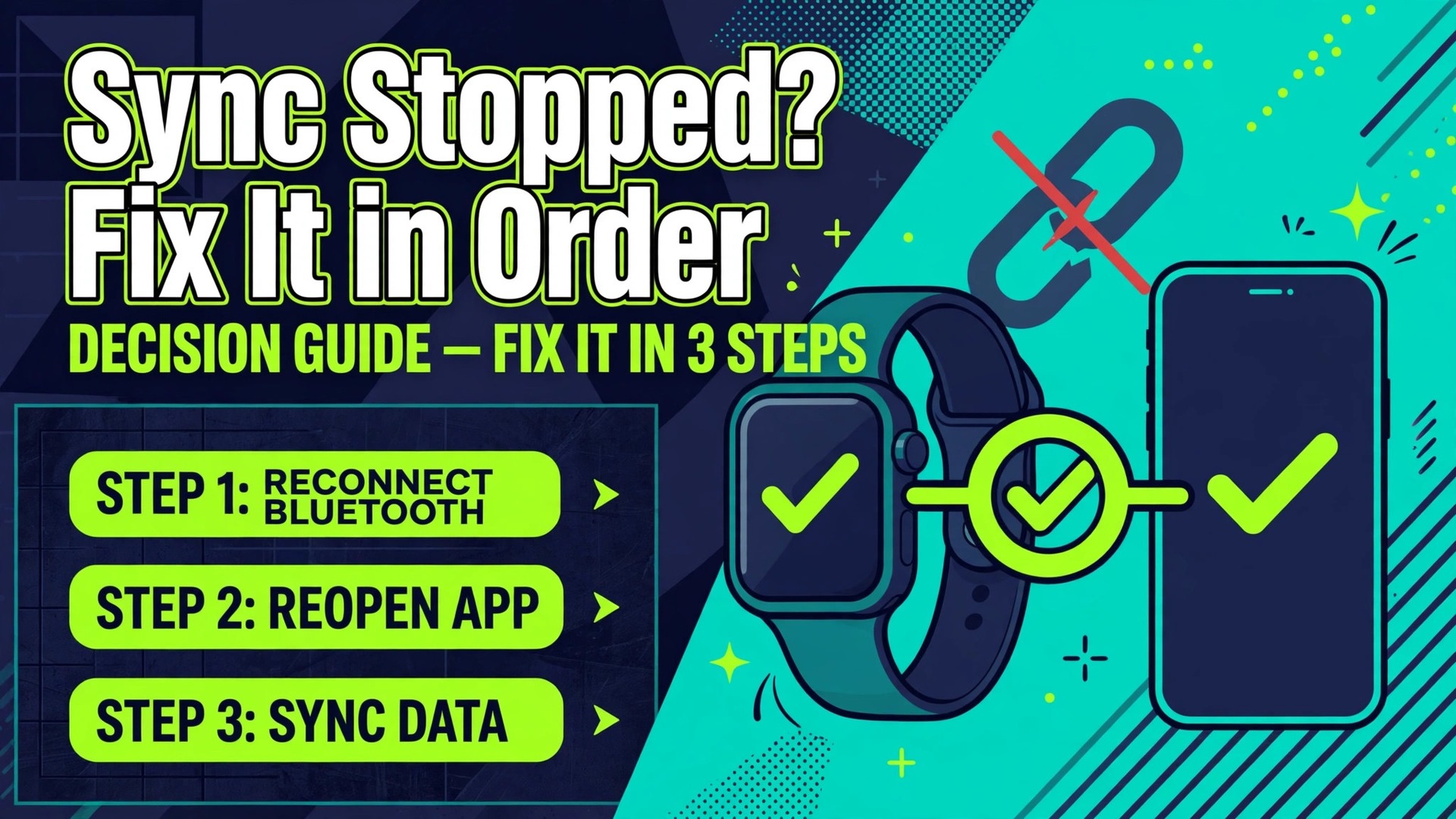
A watch that stopped syncing yesterday and a watch that never paired at all look identical on your wrist. Both show old step counts, both miss notifications, and both make you wonder whether the watch is broken. The causes are usually different, though, and that difference decides which fix works. To fix smartwatch not syncing with phone trouble without wasting an afternoon, you need to know which of the two cases you are in, then work from the fastest check to the deepest reset and stop the moment sync returns.
A stopped sync normally points at a setting that changed, an update that reset a permission, a tired Bluetooth link, or an account that signed itself out. A watch that never paired normally points at distance, a missed permission during setup, an incompatible phone, or a pairing started in the wrong app. This guide keeps those two cases apart, gives you a checklist you can run in order, and tells you what each step rules out, so you never reset a watch that only needed a permission switched back on.
The Fix Order Checklist
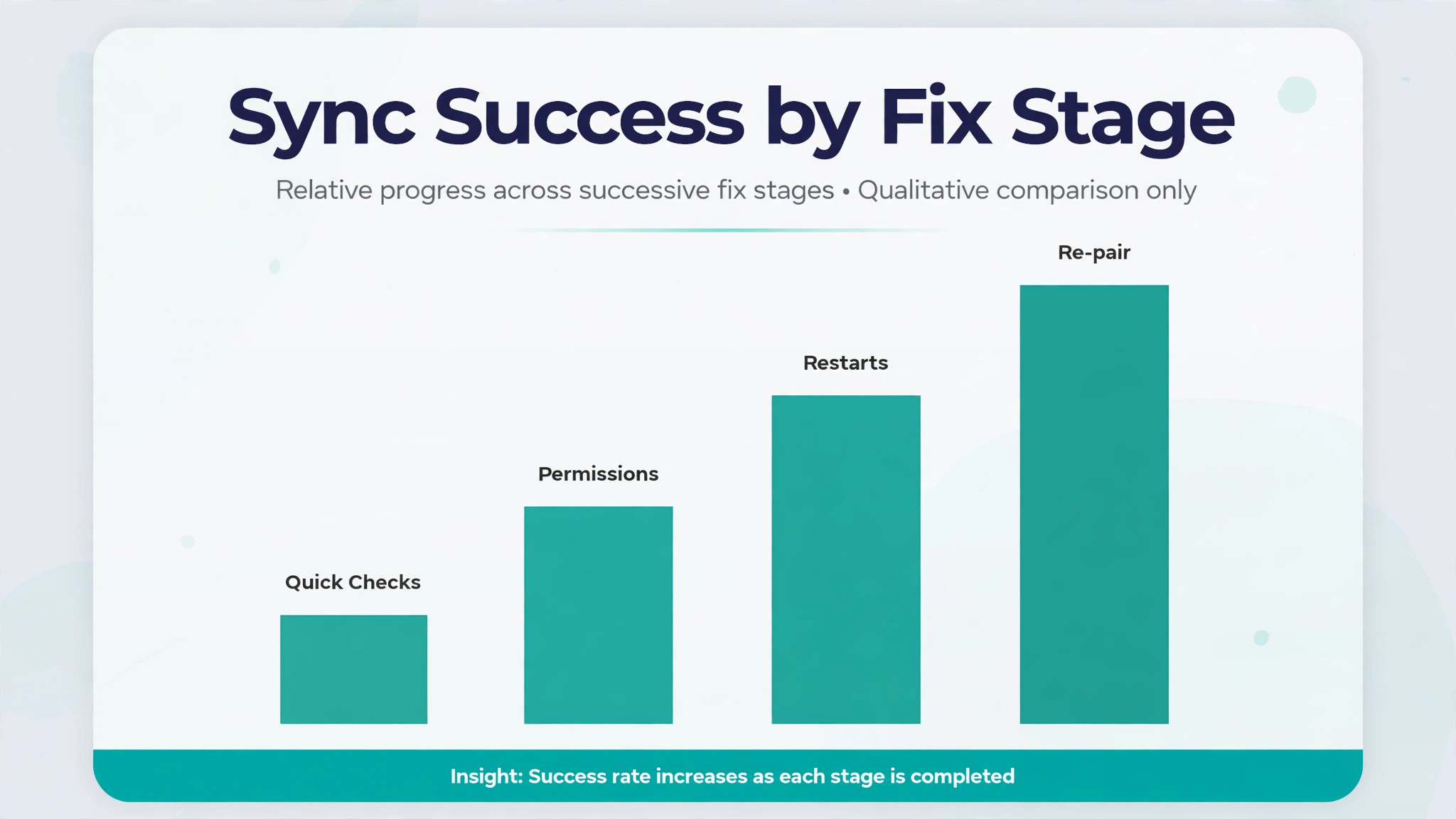
Run these checks in order to fix smartwatch not syncing with phone problems. Do not jump to a factory reset, because a reset erases watch settings and stored data, and it cannot fix a permission or a sign-in problem that will simply block the fresh pairing too. Test sync after each step. Stop as soon as it works.
- Charge both devices and bring them close together. This rules out low battery and distance.
- Turn Bluetooth off and on again on the phone, then on the watch if it has its own Bluetooth switch. This rules out a stale radio link.
- Force close and reopen the companion app, then trigger a manual sync. This rules out an app that stopped running in the background.
- Check Bluetooth, location, and notification permissions for the companion app. This rules out the most common post-update cause.
- Restart the phone, then restart the watch. This rules out a temporary fault on either side.
- Update the phone system, the companion app, and the watch software. This rules out a known bug that is already fixed.
- Check that both devices use the same account and that cloud sync is switched on. This rules out data going to the wrong account.
- Clear the companion app cache on Android, or reset sync data on Apple Watch. This rules out corrupt local sync data.
- Forget the watch on the phone and remove the phone on the watch, then pair again. This rules out a corrupt pairing.
- Factory reset the watch and set it up as new. This rules out a corrupt watch system, and it is the last step for a reason.

A Watch That Stopped Syncing Is Not the Same Problem as a Watch That Never Paired
Start by placing your watch in one of two groups, because the fix order changes slightly for each.
| Situation | Most likely cause | Start here |
|---|---|---|
| It synced last week and stopped | Update, permission, account sign-out, or app killed in background | Checklist steps 3 to 7 |
| It never paired or never finished setup | Distance, wrong app, missed permission, or incompatible phone | Checklist steps 1, 2, 4, and 9 |
| It pairs but data arrives hours late | Background refresh off, battery saving on, or weak Bluetooth link | Checklist steps 3, 4, and 5 |
| It pairs but notifications never arrive | Notification permission or Do Not Disturb on phone or watch | Checklist step 4, then notification settings |
| It syncs workouts but not sleep or heart rate | Health permission switched off for one data type | Checklist steps 4 and 7 |
A watch that worked and then stopped is good news in disguise. The hardware proved it can connect, so the fault is almost always software or settings. A watch that never paired needs more care at setup, and it is worth checking compatibility before you spend an hour on fixes. Apple Watch pairs with iPhone only, not with Android. Galaxy Watch models running Wear OS pair through the Galaxy Wearable app on Samsung phones and the companion app on other Android phones, and Pixel Watch pairs through the Pixel Watch app. Garmin watches pair through Garmin Connect.
If you are trying to pair in the phone Bluetooth menu alone, without the companion app, many watches will appear in the list but never complete setup, because the app carries the account, health permissions, and firmware steps.
How to Fix Smartwatch Not Syncing With Phone in Order
Phase 1. Charge, Closeness, and the Bluetooth Toggle
Charge the watch to at least half full and charge the phone above low battery mode. Low battery modes on phones and watches cut background activity first, and sync is background activity. A watch that records a workout perfectly but only uploads it when placed on the charger is often not broken at all. It is waiting for power and a stable link.

Bring the watch within a metre of the phone and keep it there while you test. Google support notes that a Pixel Watch needs to be within 0.5 metres of the phone for Fast Pair to work, and the same closeness rule helps every brand during troubleshooting, even when normal use works across a room. Move away from other Bluetooth devices for a minute, because a watch already connected to a tablet, a laptop, or an old phone cannot connect to the phone in your hand at the same time. Turn Bluetooth off on that other device if you can.
Now toggle Bluetooth on the phone. Go to Bluetooth settings, switch it off, wait ten seconds, and switch it back on. Do the same on the watch where a Bluetooth switch exists. On a Galaxy Watch running Wear OS, that switch sits under Settings, then Connections, then Bluetooth. Then open the companion app and watch for the connected status. If the watch connects and syncs, you have ruled out everything deeper. The fault was a stale link, and no reset was ever needed.
Phase 2. Permissions and Background Activity
Permissions cause more sync failures than faulty hardware, and they fail quietly. A phone update can reset them, a battery saving mode can revoke background activity, and a permission declined during setup can sit unnoticed for months until you wonder why sleep data never arrives.
On iPhone, open Settings, then Privacy and Security, then Health, and check that the companion app and the watch have access to the data types you expect, such as steps, workouts, sleep, and heart rate. Then go to Settings, then General, then Background App Refresh, and make sure it is switched on for the companion app and the health app. Without background refresh, the app only syncs while it is open on screen, which looks exactly like a watch that stopped syncing on its own.
On Android, open Settings, then Apps, then the companion app, then Permissions, and allow nearby devices, location, notifications, and any health or activity permission the app requests. Location permission matters even though it sounds unrelated, because Android requires it for Bluetooth scanning. Samsung support makes the same point for the Galaxy Wearable app, where location and nearby device permissions must be allowed for pairing and sync to hold. While you are in the app settings, check battery usage and set the companion app to unrestricted, or at least not optimised, so the phone does not kill it overnight to save power.
Next, check notification permissions separately from Bluetooth permissions, because they are different switches. A watch can sync steps while never showing a single message, and that is a notification permission problem, not a sync problem. On the phone, allow notifications for the companion app. On the watch, check Do Not Disturb, theatre mode, and any bedtime mode, because each of those can silence notifications while leaving step sync untouched. Also check Do Not Disturb on the phone, since some phones mirror that state to the watch.
Finally, force close the companion app and reopen it. On Garmin watches, open Garmin Connect and pull down to refresh, which triggers a manual sync. On Apple Watch, open the Watch app on the iPhone and check that the watch appears under My Watch. On Galaxy Watch, open the Galaxy Wearable app and check the connection status at the top. A manual sync that succeeds after a permission fix proves the permission was the fault. A manual sync that still fails moves you to restarts and updates.
Phase 3. Restart Both Devices, Then Update Everything
Restart the phone first, then restart the watch. A restart clears temporary faults in the Bluetooth stack on both sides, and it costs two minutes. On Apple Watch, press and hold the side button and the Digital Crown together until the screen goes dark and the Apple logo appears. On Pixel Watch, press and hold the crown for three seconds, scroll, and tap Restart, as Google support describes. On Galaxy Watch, press and hold the Home key until the power menu appears, then restart. On Garmin watches without a power button, plugging the watch into a USB power source restarts it, while models with a button restart from the power menu.
If sync still fails, update in this order. First, update the phone system software. Second, update the companion app from the App Store or Google Play. Third, update the watch software through the companion app or the watch settings menu. Apple support pairs this advice with unpairing guidance, and Samsung support lists software updates among the first checks when pairing fails, so this is not guesswork. Updates fix Bluetooth bugs, health permission bugs, and sync bugs that shipped in earlier versions, and a watch running old firmware against a new phone system is a common mismatch after either device updates alone.
Phase 4. Clear Sync Data and App Cache Before You Re-Pair
On iPhone with Apple Watch, open the Watch app, go to General, then Reset, and tap Reset Sync Data. This clears the sync data and starts a fresh sync without unpairing the watch. It is the gentlest deep fix Apple offers, and it belongs before unpairing in your order.
On Android, clear the companion app cache. Open Settings, then Apps, then the companion app, then Storage, and tap Clear Cache. Do not tap Clear Data at this stage, because clearing data removes accounts and settings and turns a cache clear into a setup job. Samsung support gives the same cache step for the Galaxy Wearable app under Settings, then Apps, then Storage, then Clear Cache. After clearing the cache, force stop the app, reopen it, and trigger a manual sync.
On Garmin, the equivalent step is to close Garmin Connect fully, reopen it, restart the watch and phone, and then check the device status at the top of the My Day view. Garmin support describes a green status dot and spinning sync arrows as the signs of a live sync. If those signs appear but older workouts still do not arrive, check the account step next, because the watch may be syncing to a different Garmin account than the one you are viewing.
Brand Paths for Apple, Samsung, Pixel, and Garmin
The generic order above works for every watch, but the exact menu names differ by brand. Use your brand path here when the generic steps stall, because a menu missed by one tap can look like a failed fix. When you work through a brand path to fix smartwatch not syncing with phone faults, follow the path for the watch you own, not a path written for a different system.
Apple Watch and iPhone
Apple Watch sync runs through the Watch app and the Health app on the iPhone, and both must agree. First, confirm the watch appears in the Watch app under My Watch and that the iPhone and watch run current iOS and watchOS versions. Check Health permissions under Settings, then Privacy and Security, then Health, and confirm Fitness Tracking is switched on. If Health syncing was recently enabled, open the Health app, tap your profile, and check iCloud sync, because health data that never reaches iCloud will not appear on a second Apple device even when the watch and phone link looks healthy.
If the watch will not pair at all, Apple support gives two separate paths. With the paired iPhone in hand, open the Watch app, tap the My Watch tab, tap All Watches, tap the info button beside the watch, tap Unpair Apple Watch, and confirm. The watch erases and leaves your iCloud account, including Activation Lock, and it is then ready to pair again. Without the paired iPhone, erase on the watch itself through Settings, then General, then Reset, then Erase All Content and Settings, but note that Activation Lock stays in place, so you will need the original Apple Account and password to pair it again.
If you forgot the passcode, put the watch on its charger, press and hold the side button until the power screen appears, then press and hold the Digital Crown until the Reset button appears, and confirm. Each path ends at the same place, a clean pairing, but the account consequences differ, so pick the path that matches what you have in hand.
Galaxy Watch and Other Wear OS Watches
Galaxy Watch and Pixel Watch both run Wear OS, but their companion apps differ, so start with the right one. Galaxy Watch uses the Galaxy Wearable app, and Pixel Watch uses the Pixel Watch app. In both cases, keep the phone and watch close, switch Bluetooth and location on, and confirm the phone connects to Wi-Fi or mobile data, because setup and updates need a network as well as a Bluetooth link.
Samsung support lists the same core checks for a Galaxy Watch that will not connect. Restart both devices, update the watch and phone software, update the Galaxy Wearable app, and allow every permission, with location and nearby devices called out in particular. To unpair on a Samsung phone, go to Settings, then Connections, then Bluetooth, find the watch in paired devices, tap its settings icon, and tap Unpair. Then reconnect through the Galaxy Wearable app and follow the on-screen pairing prompts. To reset a Galaxy Watch itself, swipe down for Quick Settings, tap Settings, tap General, tap Reset, and confirm, after backing up anything you want to keep.
For Pixel Watch, Google support starts with a full charge and current firmware on the watch, the Pixel Watch app, and the phone. Bluetooth must be on, location and Wi-Fi must be on, and the phone must sit within 0.5 metres of the watch for Fast Pair. If the watch freezes during pairing, restart it from the crown menu and bring the devices together again. If pairing still fails after restarts and updates, Google support points to a factory reset, with the warning that all apps, settings, and data on the watch are erased.
Wear OS 4 and later also offer a transfer option for moving to a new phone without a factory reset, through the transfer setting in the watch System settings or the companion app on the old phone, so use transfer for a phone upgrade and reserve a full reset for a watch that will not pair at all.
Garmin Watch and Garmin Connect
Garmin watches record activity, heart rate, workouts, and sleep on the watch itself, even with no phone nearby, so a Garmin sync fault is about upload, not recording. Your data is usually still on the watch while you troubleshoot, which means patience pays. Do not factory reset a Garmin watch in a hurry, because the reset is not needed to recover data that is already stored and waiting for a successful sync.
Start in Garmin Connect. Confirm Bluetooth is on for phone and watch, confirm location permission is allowed for Garmin Connect on Android, and confirm Background App Refresh is switched on for Garmin Connect on iPhone. Open the app manually and pull down to refresh, which triggers a manual sync. Garmin support describes the healthy state as a green status dot at the top of the My Day view, with sync arrows spinning during a sync. If the watch is paired but not connecting, close the app fully and reopen it, power the watch off and on, power the phone off and on, and then remove and add the device again in Garmin Connect.
On the watch, the remove path runs through Settings, then Connectivity, then Bluetooth, then Remove Phone, after which you pair again fresh.
If sync still fails, check two Garmin-specific points. First, confirm you are signed into the correct Garmin account, because data synced to a second account will look like missing data in the account you normally check. Second, try Garmin Express on a computer with a USB cable as a second sync route. A cable sync that succeeds proves the watch and its data are healthy and points the fault at the phone Bluetooth link or the mobile app, while a cable sync that also fails points at the watch software or the account.
Account and Cloud Sync Checks
A watch can connect to a phone perfectly and still show missing data, because the phone app and the cloud account disagree. Check the account before you reset anything, since a reset cannot fix data that went to the wrong account. To fix smartwatch not syncing with phone data gaps, confirm one account on both sides.
On Apple Watch, confirm the iPhone and watch use the same Apple Account. On Galaxy Watch and Pixel Watch, confirm the same Google or Samsung account is signed in on the phone app and the watch setup screens. On Garmin, confirm the Garmin Connect app and the Garmin Connect website show the same email address. If you created a second account during a hurried setup, perhaps with a work email instead of a personal email, workouts may be syncing correctly to an account you never open.
Next, check cloud sync switches. On iPhone, check iCloud sync for Health. On Android, check that the companion app is allowed to sync in the phone account settings and that no data saver mode blocks background sync. On Garmin, check the Connected Apps section in Garmin Connect when data should flow onward to Apple Health or another service, because a broken onward link looks like a watch sync fault when the watch itself synced fine.

The Re-Pair as a Last Resort, Done Properly
A re-pair is the strongest software step to fix smartwatch not syncing with phone faults short of a factory reset, and it works because it deletes the stored pairing on both sides and builds a new one. It fails when only one side is cleared, so the rule is simple. Clear both sides, every time. Forget the watch in the phone Bluetooth settings, remove the phone on the watch where that option exists, and clear the device entry in the companion app if it still lists the watch. Then restart both devices before pairing again.
Pair through the companion app, not through the phone Bluetooth menu alone. Open the companion app, start Add Device or the equivalent setup flow, put the watch in pairing mode, and keep the devices close and still until the pairing code appears. Confirm the code matches on both screens before you accept it, because a mismatched code means you may be pairing with a different nearby device. On Pixel Watch, Google support stresses closeness for Fast Pair, and the same rule helps every brand. Do not walk away, answer a call, or let either screen lock during pairing, because an interrupted pairing often leaves a half stored entry that blocks the next attempt.
After pairing, test in stages rather than assuming success from a connected status. First, send a test notification from the phone and check it arrives on the watch. Second, walk for two minutes and check the step count updates in the companion app. Third, start and stop a short test workout if your watch supports it, and check it appears in the app history. If notifications work but workouts do not, the fault is health permissions or the cloud account, not Bluetooth. If nothing works, forget and re-pair once more, then move to a factory reset, because two clean pairings that both fail point past the pairing itself.

When the Fault Is Hardware, Not Settings
Most sync faults are software, but a few are hardware. When you need to fix smartwatch not syncing with phone faults that survive every software step, the fastest way to tell is the two device test. Pair the watch with a second phone or tablet that runs the companion app, if you can borrow one for ten minutes. If the watch pairs and syncs on the second device, stop working on the watch and work on the first phone, because the fault sits in that phone settings, app, or Bluetooth radio. If the watch fails on two unrelated devices after clean pairings, the fault sits in the watch.
Stop troubleshooting and contact support when three conditions are true together. The watch fails on two devices, a factory reset changes nothing, and the battery or charging behaviour is also abnormal. At that point further resets only waste time. Take your notes, including device models, software versions, the steps you tried, and the two device test result, because support can move faster with that record than with a general complaint.

Mistakes That Make a Sync Fault Worse
The first mistake is resetting before checking permissions and accounts. A reset feels decisive, but it erases settings while leaving the permission or account fault untouched, so the fresh pairing fails in the same way and you have lost your setup for nothing. The second mistake is pairing in the phone Bluetooth menu instead of the companion app, which can create a partial pairing that blocks the proper app pairing until you forget it on both sides.
The fifth mistake is ignoring the second device that already holds the connection. A watch connected to an old phone in a drawer, a tablet on a shelf, or a laptop with Bluetooth on can look free while it is not. Turn Bluetooth off on those devices during troubleshooting. To fix smartwatch not syncing with phone trouble on the phone in your hand, that phone must be the only device competing for the watch.
For related reading, fix Bluetooth headphones not pairing covers the same stale pairing logic for audio devices, fix Spotify playlists not syncing helps when an app account, not a Bluetooth link, is the sync fault, and fix iPhone battery drain after update is useful when battery saving after an update is quietly killing background sync.
Frequently Asked Questions
Why does my watch show as connected but my steps never update?
Connected means the Bluetooth link is live. Step updates need health permissions and background refresh on top of that link. Check Health permissions on iPhone or activity permissions on Android, confirm background refresh or unrestricted battery use for the companion app, then trigger a manual sync in the app and wait a minute. If steps update after a manual sync but not on their own, background activity is the fault, not the watch.
Why did my watch stop syncing right after a phone update?
Phone updates commonly reset permissions, change battery optimisation, or introduce a Bluetooth bug that a companion app update then fixes. Check permissions for the companion app first, set its battery use to unrestricted on Android, confirm background refresh on iPhone, and then update the companion app and the watch software. Restart both devices after the updates and test sync again before you consider a re-pair.
Should I unpair and re-pair, or factory reset first?
Unpair and re-pair first, always. A re-pair clears the stored pairing on both sides without erasing watch settings and stored data. A factory reset erases the watch and should follow only when a clean re-pair, permission checks, updates, and account checks have all failed. If you reset first and the fault was a permission, the fresh pairing will fail again and you will have lost your setup for nothing.
Will I lose my workouts if I unpair my watch?
Unpairing through the official companion app normally keeps synced data in the app and the cloud account, because that data already left the watch. Unsynced data still stored only on the watch is at risk, so trigger a manual sync and confirm recent workouts appear in the app before you unpair. A factory reset is riskier than an unpair, so back up or sync first, and use a transfer or backup option for your brand where one exists.
Why does my watch sync workouts but not notifications?
Workouts and notifications travel through different permissions. Workout sync needs health and activity permissions plus a live Bluetooth link, while notifications need notification permission for the companion app plus Do Not Disturb switched off on both devices. Check notification permission on the phone, check Do Not Disturb and theatre or bedtime mode on the watch, and confirm the companion app is allowed to mirror the specific app whose notifications are missing.
Why does my watch pair with one phone but not another?
A watch that pairs on one phone and fails on another points at the failing phone, not the watch. Compare the two phones for system version, companion app version, Bluetooth and location permissions, battery optimisation, and any work profile or device management rules. The failing phone usually differs on one of those points. Fix that point, forget the watch on the failing phone, and pair again through the companion app with the devices close together.
Get Back to a Watch You Can Trust
Most watches that stop syncing are not broken. They are waiting on a permission, a restart, an update, or a clean pairing, and the fix order in this guide finds that cause without erasing anything you needed to keep. Start with charge and closeness, work through permissions and restarts, check the account, and save the re-pair and the factory reset for the end, where they belong. Test after each step, keep your short note of what changed, and use the two device test before you blame the hardware.
To fix smartwatch not syncing with phone faults for good, finish with prevention as well. Keep permissions allowed for the companion app after updates, keep background activity unrestricted, clear out old pairings you no longer use, and update the phone, app, and watch together rather than letting one drift far behind the others. A watch you can trust is one that syncs quietly in the background, and that quiet sync is the result of those few settings staying correct, not of a stronger watch.