
A customer stands at the counter with a card in hand, the reader shows no connection, and the queue behind them starts to shift. That moment is the whole problem. When you need to fix Square card reader not connecting small business checkouts, the fix is rarely one magic button. It is a short, ordered check of Bluetooth, the Square app, the reader hardware and the checkout fallback, done calmly while the customer is still in the shop. A business that has that order written down keeps the sale. A business that improvises under pressure loses the sale and the customer’s patience.
A card reader connection can fail in several places, and each place needs a different fix. Bluetooth can be paired to the wrong device, or to no device at all. The Square app can be out of date, or signed in to the wrong location. The reader can be flat, dirty, or stuck in a failed pairing state. The phone or tablet can have Bluetooth permissions blocked, or another Bluetooth device can be interfering. Treating every failure as a broken reader leads to buying a replacement that then fails for the same Bluetooth reason. Treating it as a system check, in order, finds the real cause faster.
This guide gives a step workflow for the Square Reader for contactless and chip, with notes for the magstripe reader where the steps differ. It covers Bluetooth pairing as Square itself documents it, app and device checks, hardware checks, and a checkout fallback that keeps sales moving while the reader is fixed. Steps here are drawn from Square support pages and Square community troubleshooting threads checked at writing time. Where a step differs by iOS or Android, the guide says so, and where a step depends on your device model, it says to check the device settings for that model.
What Not Connecting Actually Means
Not connecting is not one fault. It is a symptom with at least four causes, and the reader lights and the app message, where they appear, help separate them. A reader that will not appear in the Square app at all usually points to Bluetooth pairing, Bluetooth permissions, or a reader that is off or flat. A reader that appears but will not pair usually points to a stale Bluetooth pairing, a reader already paired to another device, or a reader that needs a reset. A reader that pairs but drops during a sale usually points to distance, interference, battery, or an app or operating system issue.
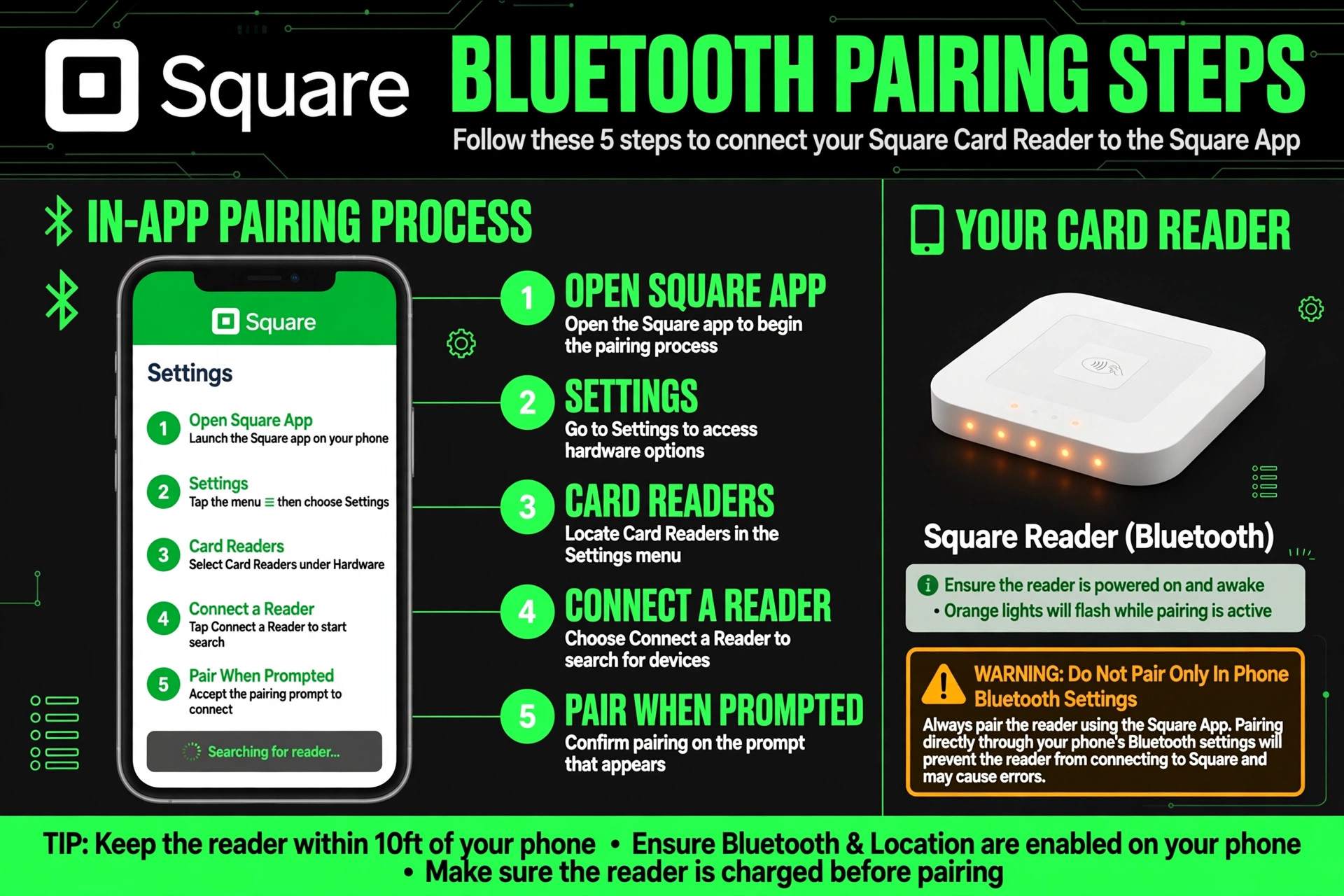
The first diagnostic rule is to pair through the Square app, not through the phone Bluetooth settings alone. Square support guidance for the contactless and chip reader stresses connecting through the Square Point of Sale app, in Settings and then Card Readers, rather than pairing only in the device Bluetooth menu. A reader paired in the phone settings but not in the Square app may appear connected to the phone while Square cannot use it. That distinction explains many cases where a business insists Bluetooth is on, and is right, while Square still cannot see the reader.
The second diagnostic rule is to check one device at a time. A reader paired to a tablet in the back room, a phone in a pocket, or a second till will not pair cleanly to the till that needs it now. Square troubleshooting for pairing on multiple devices requires resetting the Bluetooth state on each device involved. Before assuming the reader is broken, check whether it is already connected elsewhere, and forget it from any device that should not be using it. That check takes a minute and prevents a reset that was never needed.

How to Fix Square Card Reader Not Connecting Small Business Checkouts, Step by Step
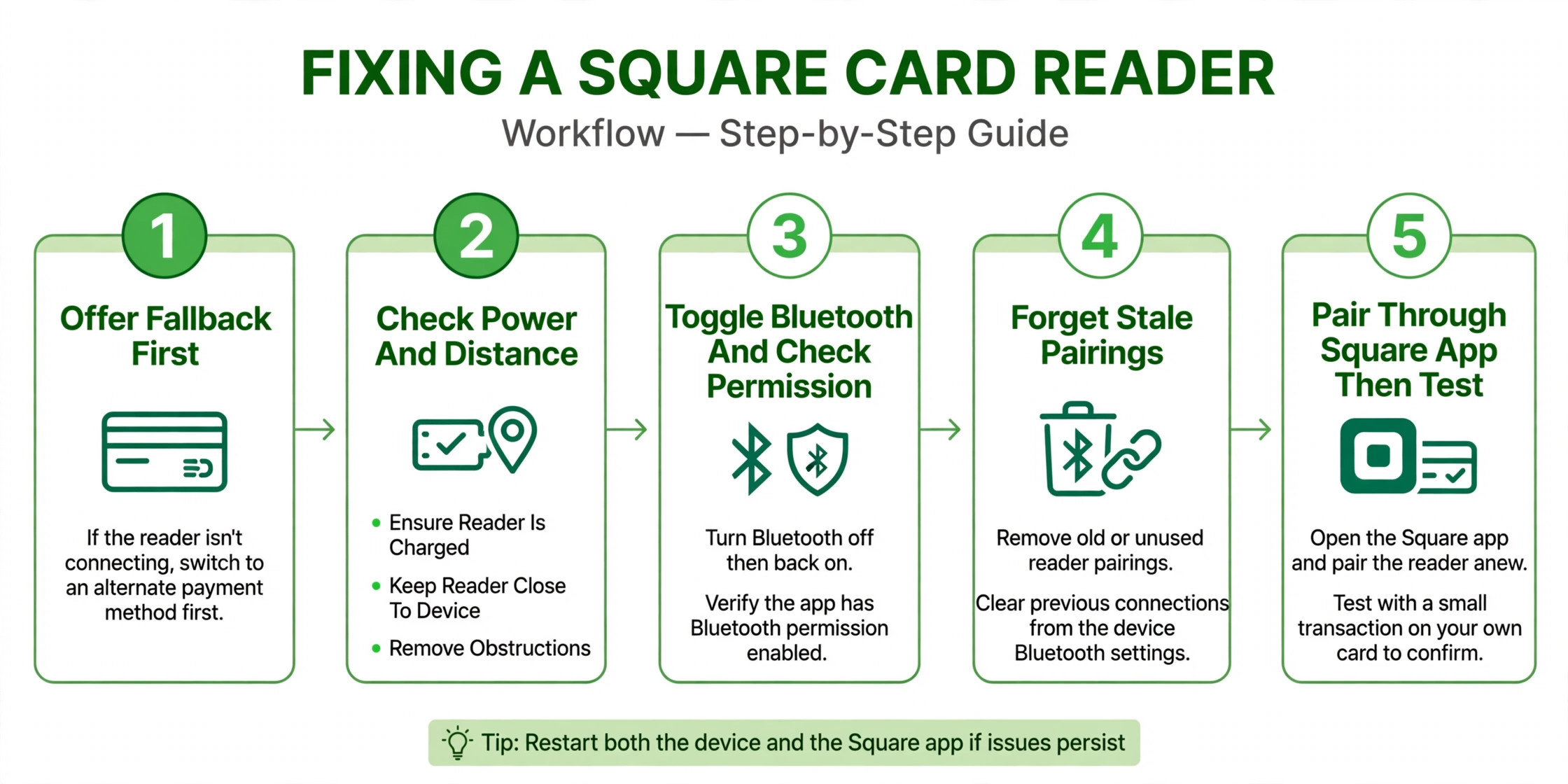
The workflow below is the overview proof element for this guide, and it should be followed in order. Each step has one job, and skipping ahead to a factory reset before the simple checks is the most common way to waste time during a busy checkout. Work through the steps for the till that needs the reader now, and keep the customer informed at each step so a short delay does not feel like a failure. These steps show how to fix Square card reader not connecting small business checkouts without losing the sale.
1. Keep the sale moving with a fallback first. Offer a clear fallback, such as manual card entry in the Square app, a Square invoice, or a second till, and tell the customer what will happen next, before diving into troubleshooting. 2. Check reader power and distance. Confirm the reader is charged and powered on, and keep it within a short distance of the phone or tablet, with no thick counter or metal barrier between them. 3. Check Bluetooth on the device. Open device Settings, confirm Bluetooth is on, toggle it off and back on, and confirm that Square has Bluetooth permission on the device. 4. Forget stale pairings. In device Bluetooth settings, forget any Square Reader entry that should not be there, and in the Square app, forget the reader under Settings and then Card Readers where it appears as a stale entry. 5. Pair through the Square app. Open the Square Point of Sale app, go to Settings and then Card Readers, select the reader, and follow the app pairing prompts. Do not pair only through the phone Bluetooth menu. 6. Restart both devices if pairing still fails. Restart the phone or tablet and the reader, then repeat the app pairing step once, rather than repeating it many times without a restart. 7. Hard reset the reader only when the app pairing still fails. Hold the reader button until the lights stop flashing red, as described in Square community troubleshooting, which performs a hard reset, then pair again through the Square app. 8. Update the app and the operating system. Check for a Square Point of Sale app update and a device operating system update, install them, and retry pairing, because compatibility issues can block pairing after an update gap. 9. Test with a small real transaction. Run a small test transaction on your own card, as Square community guidance suggests, and confirm that the sale completes and appears in Square sales history before returning the reader to live service. 10. Record the fix and the fallback used. Note the device, the reader serial number where shown, the step that fixed it, and the fallback that kept the sale moving, so the next failure starts from evidence rather than from scratch.
The Diagnosis and Fix Table
The table below summarises the symptom, the likely cause and the first fix, drawn from Square support and community troubleshooting. Use it to choose the next step, rather than trying every step at random. If a symptom persists after its first fix and a restart, move to the next step in the workflow, not back to the same step.
| Symptom | Likely cause | First fix |
|---|---|---|
| Reader does not appear in Square app | Bluetooth off, permission blocked, reader off or flat | Charge reader, turn Bluetooth off and on, check Square Bluetooth permission, pair through the app |
| Reader appears but will not pair | Stale pairing, reader paired elsewhere, failed pairing state | Forget the reader in device Bluetooth and in the Square app, then pair through the app |
| Reader pairs then drops during a sale | Distance, interference, low battery, app issue | Move reader closer, charge fully, restart app and device, retry |
| Reader charges but will not turn on or pair | Battery, charging port dirt, hardware fault | Try a different USB cable and power adapter, clean the charging port gently, then hard reset |
| Magstripe reader not recognised | Loose plug, wrong device identification on iOS, app issue | Unplug and replug with the Square app open, choose Headphones when prompted on iOS, reinstall the app if needed |
| App says reader is connected but sale will not complete | Internet issue, card issue, app version | Check internet, try a different card, update the app, use a fallback payment method |
Bluetooth pairing steps differ by device system, and that difference matters. On iOS, Square guidance describes enabling Bluetooth permissions and then deleting the Bluetooth connection for the reader. On Android, Square guidance describes deleting the Bluetooth connection first and then clearing Bluetooth storage cache, with the cache steps varying by Android device model. Do not apply the iOS steps to an Android device or vice versa. Follow the steps for the device in front of you, and check the device maker guidance for cache clearing where the Square page lists device specific steps.
A note on the magstripe reader helps avoid a common iOS trap. When a magstripe reader is plugged into an Apple device, the device may ask whether the reader is Headphones or another device. Square guidance says to choose Headphones to allow the reader to connect. If another device was chosen by mistake, Square guidance describes forgetting all USB audio accessories under Sounds and then Headphone Safety in iOS settings, then replugging the reader and choosing Headphones. That trap looks like a broken reader, but it is a device identification choice, and it is fixed by correcting that choice rather than replacing the reader.
Bluetooth Checks in Detail
Bluetooth checks, when you fix Square card reader not connecting small business checkouts, should start with the simplest facts. Is Bluetooth on. Is the reader within range. Is the reader charged. Is another device already connected to the reader. Those four questions answer most pairing failures, and they can be checked in under a minute. A reader at the far end of a long counter, behind a metal till, or in a pocket while the tablet sits at the counter may be technically in range on paper but not in practice. Move the reader close to the tablet for pairing, then test it at the normal counter distance once paired.
Interference is the next Bluetooth check, and it is often missed because it is invisible. Other Bluetooth devices, a busy Wi-Fi environment, and a phone that is connected to many Bluetooth accessories can all make pairing less reliable. Temporarily turn off Bluetooth on nearby devices that are not needed for the sale, and disconnect unused Bluetooth accessories from the till device during pairing. If pairing succeeds after that step, interference or a competing connection was the cause, and the business should keep the till device paired only to the accessories it actually needs during trading.
Permissions are the third Bluetooth check, and they change with operating system updates. After an iOS or Android update, an app permission that was previously allowed can be reset or restricted, and Square may lose Bluetooth access without an obvious warning. Open device Settings, find the Square Point of Sale app permissions, and confirm that Bluetooth and nearby device permissions are allowed. A permission check after every major operating system update, done before trading starts, prevents a pairing failure from being discovered at the first sale of the day.

App, Device and Account Checks
App version, when you fix Square card reader not connecting small business checkouts, matters more than most businesses expect. Square support threads link pairing failures to outdated app versions and to operating system compatibility issues, and the fix in those threads is often an app update rather than a hardware change. Check the app store for a Square Point of Sale update, check the device for an operating system update, and install both before concluding that a reader is faulty. After updating, restart the device and pair through the Square app again, because an update alone does not always clear a stale pairing.
Account and location checks matter too. A Square app signed in to the wrong location, or a reader assigned to a different location in a multi location business, will not behave as expected at the till that needs it. Confirm that the app is signed in to the correct business location, and that the reader serial number shown in the app matches the physical reader in hand, where Square guidance asks for that check. A serial number mismatch means the app is looking at a different reader, and pairing the physical reader will not fix a location or account mismatch.
If pairing still fails after Bluetooth, permission, app and account checks, delete and reinstall the Square Point of Sale app as a later step, not as a first step. Square guidance for the magstripe reader notes that deleting and reinstalling the app will not affect the Square account or completed payments, because that data is stored on Square servers. The same caution applies to offline payments. Offline payments are not considered complete until they are uploaded to Square servers once internet connection is restored, and Square guidance notes that offline payments should be uploaded within 72 hours of taking the first payment. Do not reinstall the app while offline payments are waiting to upload without checking that upload first.
Hardware Checks and When a Reader Is Faulty
Hardware checks, when you fix Square card reader not connecting small business checkouts, start with power. A reader that is flat will not pair, and a reader that is low may pair and then drop during a sale. Charge the reader fully with a known good USB cable and power adapter, and test pairing after a full charge rather than after a few minutes on charge. Check the charging port for dirt or debris, and clean it gently with a soft dry cloth, without solvents or sprays directly on the device. A dirty charging contact is a common cause of a reader that seems to charge but never reaches a full charge.
Physical damage checks come next. Look for a cracked case, a damaged charging port, a button that does not respond, or lights that never appear. If the reader has been dropped, exposed to water, or stored in extreme heat or cold, note that history, because it helps support diagnose a hardware fault faster. A reader that will not respond to a hard reset, will not charge with a known good cable, and will not appear in any device Bluetooth list after a full charge is more likely to be a hardware fault than a pairing problem, and that is the point to contact Square support about a replacement rather than repeating pairing steps.
Keep a spare reader where the business can afford one, because a spare turns a hardware failure from a lost trading day into a short swap. A spare reader should be paired and tested before it is needed, not left in a box untested until the main reader fails. Test the spare monthly, with a small test transaction, and keep it charged. A spare that is flat, unpaired or out of date when it is needed is not a spare, it is only a box.
Checkout Fallbacks That Keep Sales Moving
A checkout fallback is not a workaround to be embarrassed about. It is a planned part of running a small business, and customers accept it readily when it is explained clearly. The fallback options in Square include manual card entry in the Square app, sending a Square invoice for payment, using a second paired reader or till, and, where the business offers it, another payment method the customer already has. Choose the fallback before the failure, write it on the till procedure, and train every person who takes payments in it, so the fallback does not depend on the owner being present.
Manual card entry deserves a clear procedure of its own. Tell the customer that the reader is not connecting and that the card details will be entered manually, confirm the total before entry, and complete the sale in the app. Manual entry may carry a different processing rate than a tapped or chip sale, so check the current Square processing terms for manual entry before relying on it heavily, and note that rate in the till procedure. That transparency prevents a surprise in the monthly processing statement, and it helps the business decide whether a spare reader is cheaper than regular manual entry.
Offline payments are a fallback with a deadline, not a permanent solution. Square allows offline payments in some configurations, but those payments must be uploaded within 72 hours of taking the first payment, and they are not complete until uploaded. A business that takes offline payments and then forgets to upload them will lose sales that looked successful at the till. If offline payments are used, assign the upload check to the close out routine for that day, and confirm in Square sales history that the offline sales have uploaded before the 72 hour window closes.

Preventing the Next Reader Failure
Prevention, when you fix Square card reader not connecting small business checkouts, starts with a morning till check that takes two minutes. Before the first sale, confirm that the reader is charged, paired in the Square app, and able to complete a test or a first real sale without delay. Check that the Square app is up to date, that Bluetooth permissions are allowed, and that the reader is not paired to a device that is not at the till. A morning check finds a pairing failure before a customer does, which is the difference between a quiet fix and a queue.
Charging discipline is the second prevention habit. Charge readers overnight on a known good cable, keep the charging port clean, and do not leave readers in a hot vehicle or in direct sunlight for long periods. A reader that starts the day at full charge and is topped up during a quiet period will rarely drop during a sale for battery reasons. A reader that starts the day half charged because it was left in a drawer will drop at the worst time, because busy periods are when battery drain is highest.
Pairing discipline is the third prevention habit. Pair each reader to one till device, forget it from devices that no longer need it, and do not share a reader casually between tills without a pairing check. When a device is replaced, forget the reader from the old device before pairing it to the new one. When a new staff member starts, show them the pairing check and the fallback procedure on day one, rather than during a busy sale. Those small disciplines cost minutes and save sales.
Measuring Recovery and Keeping Checkout Reliable
Recovery should be measured, not assumed. After a fix, check three things over the next trading day. First, does the reader stay paired through a full day of sales, without dropping or needing a re-pair. Second, do completed sales appear promptly in Square sales history, including any offline sales that needed uploading. Third, does the fallback procedure remain unused because the reader is working, or is the business still relying on manual entry for some sales. If all three checks pass, the reader is recovered. If any check fails, the fix is incomplete, and further sales should use the fallback until the failing check is understood.
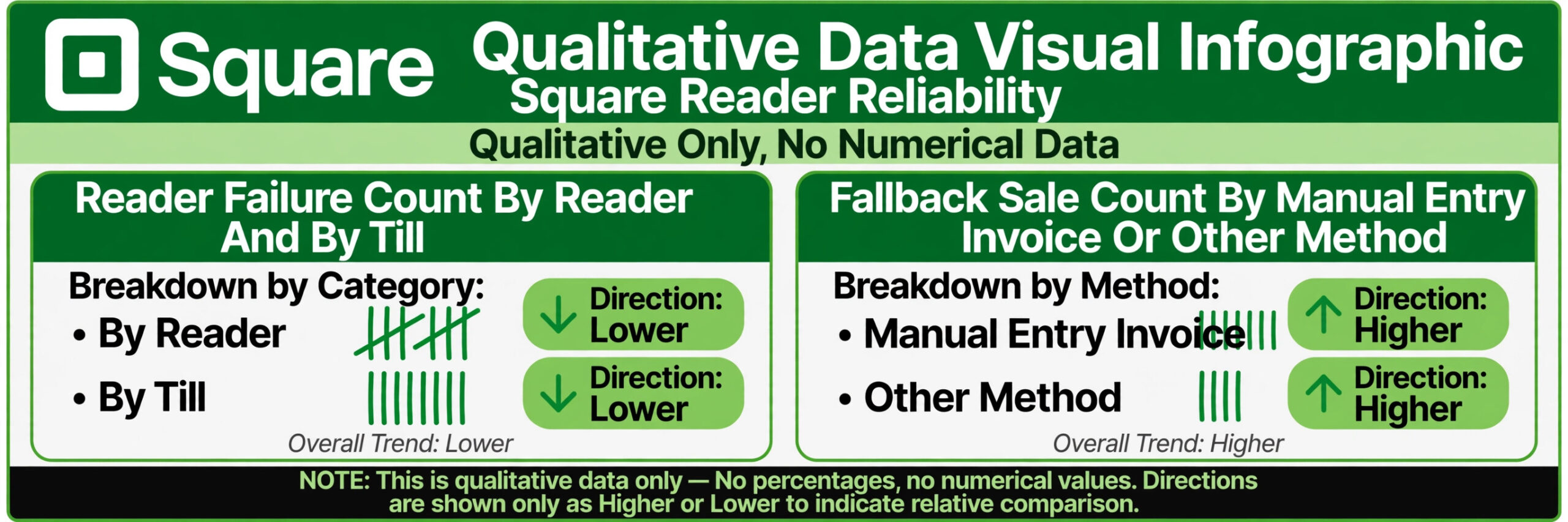
Add two standing numbers to the weekly till review. The first is reader failure count, meaning the number of times a reader failed to pair or dropped during a sale in the week, split by reader and by till device. The second is fallback sale count, meaning the number of sales completed by manual entry, invoice or another method because the reader was unavailable. A reader failure count that rises for one reader points to that reader. A failure count that rises for all readers on one device points to that device, its Bluetooth, or its app version. That split is what turns a vague reader problem into a specific fix.
The habit that matters most is the simplest one. Record the fix. Note the date, the till device, the reader serial number where shown, the symptom, the step that fixed it, and the fallback used. Next time the same symptom appears, that note turns a diagnosis into a repeat of a known fix, and it turns a support conversation into a short exchange with evidence. Businesses that record reader fixes rarely spend long on the second occurrence. Businesses that do not record them start from zero every time.
Mistakes That Make a Reader Problem Worse
The most common mistake is pairing only through the phone Bluetooth settings, without pairing through the Square app. A reader paired in the phone menu may look connected while Square cannot use it, and repeated phone pairing attempts will not fix that gap. Pair through the Square app, in Settings and then Card Readers, and confirm the reader appears there before attempting a sale.
The second mistake is resetting the reader before checking power, distance, permissions and stale pairings. A hard reset clears a failed pairing state, but it does not fix a flat battery, a blocked permission, or a reader paired to another device, and it adds a step that must then be undone by pairing again. Check the simple causes first, restart both devices, and only then hard reset when app pairing still fails.
The third mistake is continuing to take offline payments without uploading them, or continuing to use manual entry without checking its processing rate. Both fallbacks are useful, but both have costs and deadlines that must be managed. Upload offline payments within the 72 hour window, check manual entry rates, and return to normal reader sales as soon as the reader is reliably paired. A fallback that becomes the normal method without a decision is how a temporary reader problem becomes a permanent cost increase.
Verdict, What to Do First When the Reader Will Not Connect
When you need to fix Square card reader not connecting small business checkouts, the first five minutes should follow a short order. Offer a fallback and tell the customer what will happen, check reader power and distance, toggle Bluetooth and check Square permissions, forget stale pairings, and pair through the Square app. Restart both devices if that fails, hard reset only then, update the app and operating system, and test with a small real transaction before returning the reader to live service. That order fixes most reader failures without buying a replacement, and it gives support a clear record if the reader still will not pair.
The longer lesson is about routine rather than rescue. A morning till check, a charged and tested spare reader, a written fallback procedure, and a record of each fix will prevent most reader failures from becoming lost sales. A card reader is a small device that carries the whole checkout, and it deserves a routine proportionate to that importance. Build that routine now, while the reader is working, and the next time it will not connect, the fix will be a known step rather than a queue forming at the counter.
Start with the till that needs the reader now, work through the workflow for that till alone, and do not change settings for other tills until the first till is understood. If the first till reveals a shared Bluetooth or app cause, the other tills will usually follow the same fix. If the first till reveals a single reader cause, the other tills should be left alone. That discipline, one till at a time, is what keeps a reader fix clean.

More Reading on Stratilyze
For a related small business system, read best accounting software for small business and best CRM for cleaning companies. For a different booking workflow, see use AI for carpet cleaning booking.
Frequently Asked Questions
Why will my Square reader not pair with my phone or tablet
The most common causes are Bluetooth off or blocked by permission, a stale pairing, a reader already paired to another device, or a reader that is off or flat. Forget the reader in device Bluetooth settings and in the Square app, toggle Bluetooth off and on, and pair again through the Square app in Settings and then Card Readers. Pairing only through the phone Bluetooth menu is not enough for Square to use the reader.
How do I hard reset a Square Reader for contactless and chip
Square community troubleshooting describes holding the reader button until the lights stop flashing red, which performs a hard reset. After the reset, pair the reader again through the Square Point of Sale app, not only through the phone Bluetooth menu, and test with a small transaction on your own card before returning the reader to live service. Hard reset only after power, distance, permission and stale pairing checks have been tried.
Should I pair a Square reader through phone Bluetooth settings or the Square app
Pair through the Square app. Open the Square Point of Sale app, go to Settings and then Card Readers, and follow the app pairing prompts. A reader paired only in the phone Bluetooth menu may appear connected to the phone while Square cannot use it, which is a common cause of a reader that looks connected but will not take a payment.
What can I do at checkout while the reader will not connect
Offer a clear fallback immediately, such as manual card entry in the Square app, a Square invoice, or a second paired reader or till, and tell the customer what will happen next. Manual entry may carry a different processing rate, so check current Square terms for manual entry, and upload any offline payments within 72 hours of taking the first payment, because offline payments are not complete until uploaded.
How do I fix a Square magstripe reader that is not recognised
Unplug the reader and plug it back in while the Square app is open, temporarily toggle Bluetooth off and on, and on an Apple device choose Headphones when prompted to identify the reader. If another device was chosen by mistake, forget all USB audio accessories under Sounds and then Headphone Safety in iOS settings, then replug and choose Headphones. If the problem persists, delete and reinstall the Square app, which will not affect the account or completed payments.
When should I replace a Square reader instead of troubleshooting further
Replace the reader when it will not charge with a known good cable, will not respond to a hard reset, will not appear in any device Bluetooth list after a full charge, or shows physical damage to the case, button or charging port. Before replacing, confirm that Bluetooth, permissions, app version and account location have all been checked, because a replacement will fail for the same Bluetooth or permission reason if that cause is not fixed first.