
The verdict first is simple. When you need to fix QuickBooks bank feed not syncing small business accounts, start with the bank website and the error message, not with disconnecting the account. Most stopped feeds are a changed password, a bank maintenance window, a pending bank message, or a fresh authentication request, and all of those can be checked in ten minutes. Disconnecting first, by contrast, can lose the link between downloaded transactions and the QuickBooks account, and it can create duplicate imports later. Work through the diagnosis in order, keep a record of what you tried, and only reconnect or reimport when the diagnosis points to that step.
A bank feed matters because it is the daily bridge between the bank and the books. When it stops, transactions stop arriving, balances drift from reality, and month end reconciliation becomes a hunt for missing entries. A small business owner who notices the gap early can usually close it with a password update or a reconnect. A business that notices the gap at tax time must reconstruct weeks of transactions from statements, with a higher risk of duplicates and miscategorised entries. The cost of a stopped feed is therefore not the feed itself. It is the time and error that accumulate while it stays stopped.
This guide gives a step workflow for QuickBooks Online, with notes for QuickBooks Desktop where the steps differ. It covers error code diagnosis, reconnect steps, manual import without duplicates, and the checks that prevent the same failure next month. Error codes and steps here are drawn from QuickBooks support community pages and reputable troubleshooting guides checked at writing time, and codes can vary by bank and by product version, so confirm the exact meaning of your code in QuickBooks support before acting on it. No step here asks you to share a bank password with anyone, and you should never enter bank credentials into a site other than your bank or QuickBooks itself.
What a Stopped Bank Feed Actually Means
A bank feed is a connection between QuickBooks and a bank, maintained through a data provider that logs in to the bank on the business behalf, under the authorisation the business gave. When that connection breaks, QuickBooks usually shows a banner, an error code, or a last updated date that stops moving. The break can sit in three places. It can sit at the bank, where maintenance, a security change or a new authorisation prompt blocks the provider. It can sit at QuickBooks, where a credential change, a duplicate account or a product issue blocks the download. Or it can sit in between, where the provider is waiting for a multi factor authentication step that nobody completed.
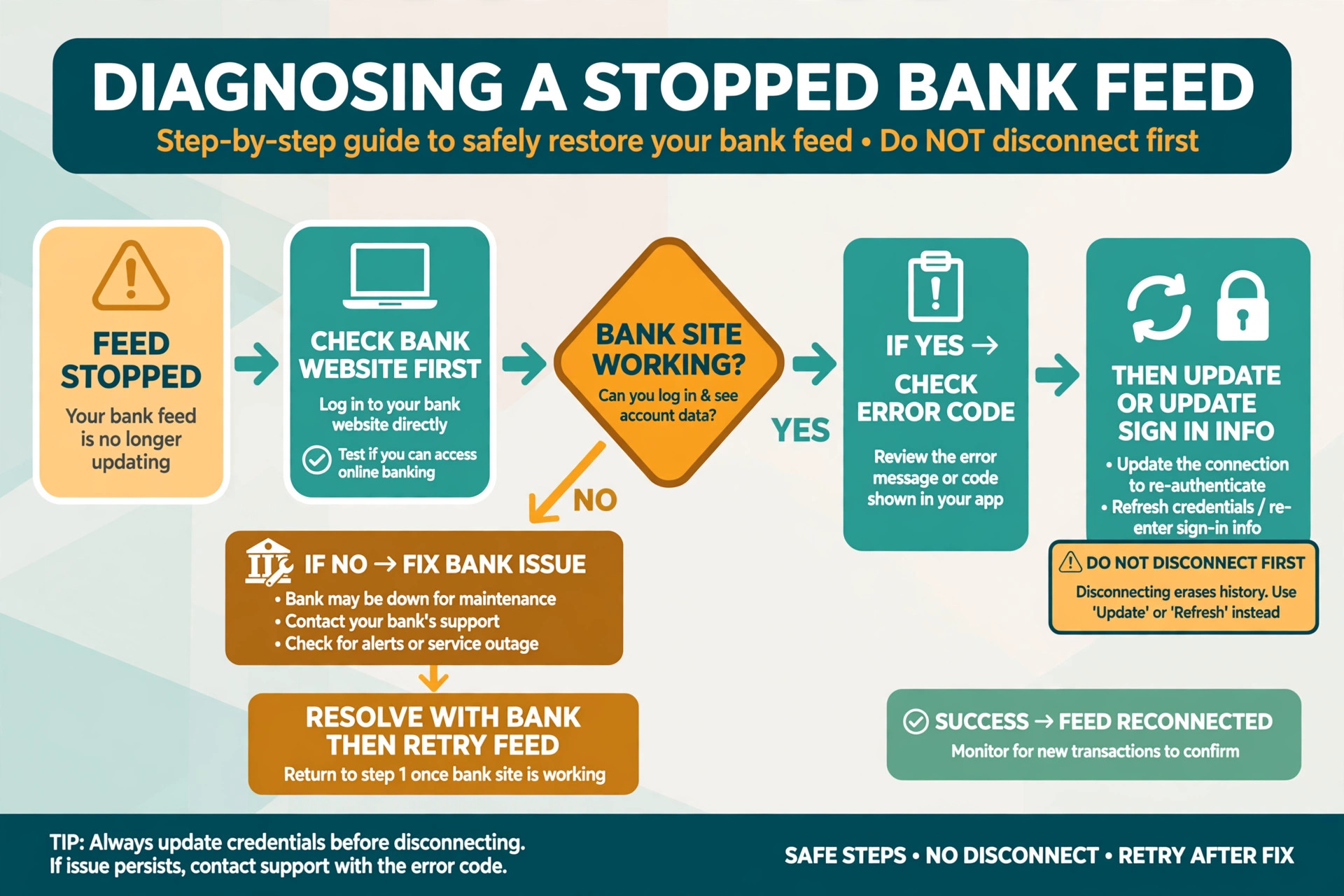
The first diagnostic question, when you fix QuickBooks bank feed not syncing small business accounts, is therefore where the break sits, and the bank website answers it fastest. Sign in to the bank directly, outside QuickBooks, and check three things. First, do the username and password still work. Second, is there a maintenance notice, a security alert, a new terms prompt or a pending message that needs an action. Third, do the account and transaction pages load normally. If any of those checks fails, the problem is at the bank, and QuickBooks will usually resume syncing once the bank issue is cleared, without a disconnect.
If the bank website works normally, the break is more likely in the QuickBooks connection itself. That is when the error code matters, because it points to the next step. A credential code points to a password update. A bank server code points to waiting and retrying. A reconnection code points to a fresh authentication. A duplicate account code points to a naming or duplicate account problem. Treating every stopped feed as a disconnect problem ignores that distinction, and it is why many owners reconnect repeatedly without fixing the underlying cause.
How to Fix QuickBooks Bank Feed Not Syncing Small Business Accounts, Step by Step
The workflow below is the overview proof element for this guide, and it should be followed in order. Each step has one job, and skipping ahead to a disconnect before diagnosis is the most common way to make a simple feed problem harder. Work through the steps for one account at a time, especially if several accounts stopped together, because one account often reveals a shared cause.
1. Note the symptom precisely. Record the account name, the last date transactions downloaded, the exact error code and message if one appears, and whether other accounts from the same bank still sync. 2. Check the bank website directly. Sign in outside QuickBooks, confirm the credentials work, clear any maintenance notice, security alert or pending message, and confirm that transaction pages load. 3. Update the feed inside QuickBooks. In QuickBooks Online, go to Bank transactions, select the account and choose Update, then complete any multi factor authentication prompt that appears. Do not close the prompt early, because an incomplete authentication leaves the feed in a half connected state. 4. Match the error code to the action. Use the diagnosis table in the next section to decide whether to wait, update credentials, complete a bank action, or reconnect, and follow only the action for your code. 5. Update sign in information where the code points to credentials. In QuickBooks Online, use Edit sign in information for the affected account, enter the credentials that work on the bank website, and confirm the update. If the bank password changed recently, this step is often the whole fix. 6. Reconnect only when the code or the support guidance calls for it. Follow the reconnect prompts for that account, link it to the existing QuickBooks account rather than creating a new one, and check that the account mapping is correct before confirming. 7. Check for a duplicate account after reconnecting. If the same bank account appears twice, or if transactions appear under a new account, stop and resolve the duplicate before importing anything else, because further imports will compound the duplication. 8. Import the missing period manually only if the feed cannot be restored promptly. Download transactions from the bank for the exact missing date range, in CSV or QBO format, and import them through Upload from file in Bank transactions. 9. Review the imported transactions for duplicates before categorising. Compare imported dates, amounts and descriptions against transactions already in QuickBooks, exclude any transaction that already exists, and only then categorise and match. 10. Reconcile against the bank statement. Compare the QuickBooks balance with the bank statement balance for the period, investigate any difference before month end, and record the fix, the date and the error code on the account record for next time.

The Error Code Diagnosis Table
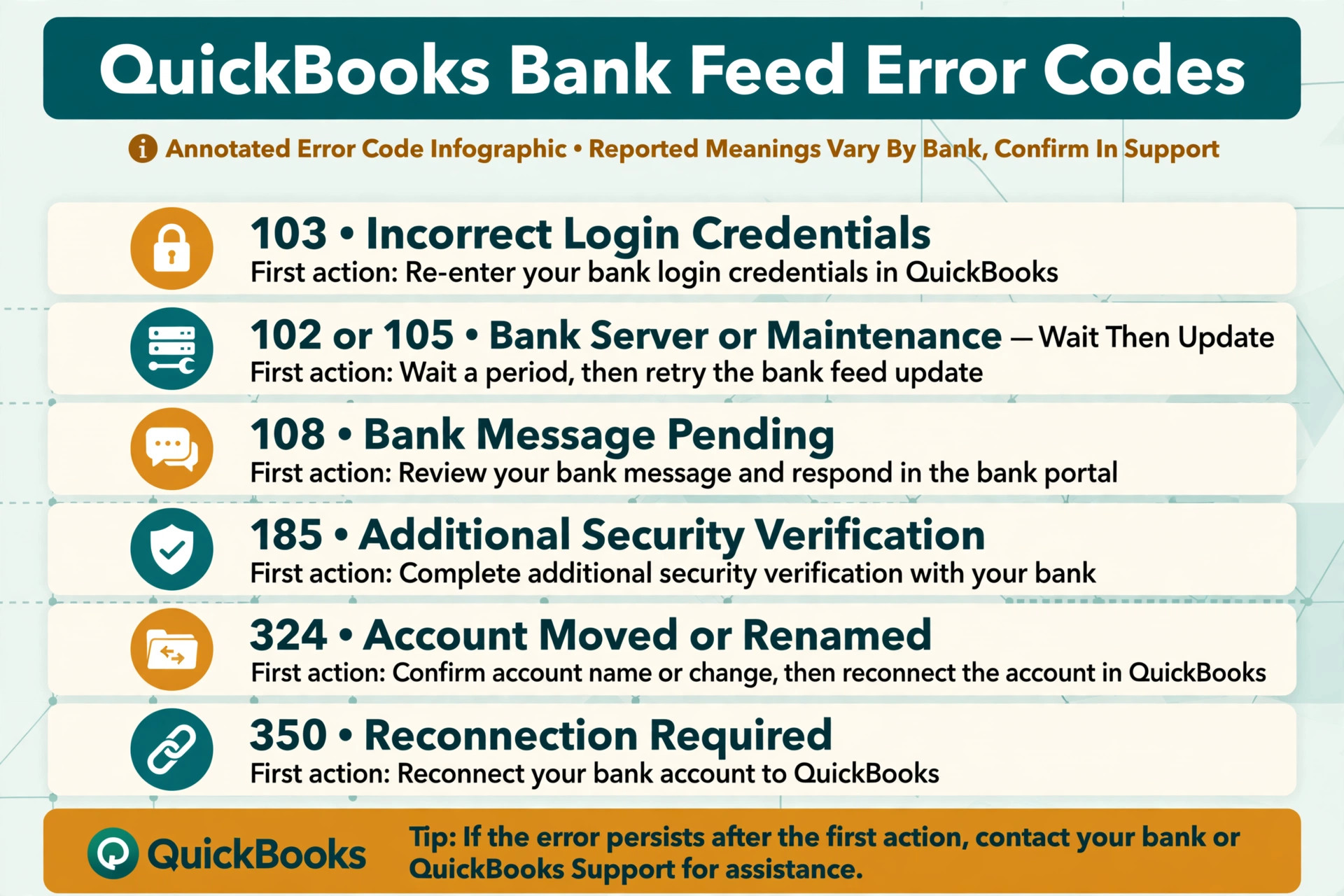
The table below summarises error codes reported in QuickBooks support community pages and troubleshooting guides. Codes can vary by bank, by product and by version, and the same code can have more than one cause, so use the table as a starting diagnosis, not as a final authority, and confirm the code in QuickBooks support for your bank. If your code is not listed, start with the bank website check and the Update step, then follow the support guidance for that code.
| Error code | Reported meaning | First action |
|---|---|---|
| 101 | Bank login or bank server issue preventing an update | Check the bank website, then Update in QuickBooks |
| 102 | Bank website or server issue, often maintenance | Check for a bank notice, wait a few hours, then Update |
| 103 | Incorrect login credentials in QuickBooks | Sign in to the bank directly, then update sign in information |
| 105 | Bank could not be reached, often maintenance or outage | Check the bank website, wait two to three hours, then Update |
| 106 | Bank requires an action on its website | Complete the bank action, then Update in QuickBooks |
| 108 | Important bank message pending | Read and clear the bank message, then Update |
| 109 | Bank password updated or changed | Update sign in information with the new credentials |
| 185 | Bank requesting additional security verification | Complete the multi factor or security prompt during Update |
| 324 | Account moved, renamed or closed at the bank | Use Update and Check connections, and update the account link if the bank issued a new number |
| 350 | Bank connection temporarily unavailable or reconnection required | Follow the reconnect prompts and link to the existing account |
| 590 | Temporary disruption in the bank connection, reported as self resolving within about 48 hours in a support thread | Wait a few hours, then try connecting again |
A code that points to waiting is not a failure of the workflow to fix QuickBooks bank feed not syncing small business accounts. Bank maintenance and provider outages often resolve within hours, and repeated reconnect attempts during an outage can create duplicate accounts or lock a credential. If the bank website shows maintenance, or if the code is a bank server code such as 102 or 105, wait the period the support guidance suggests, then Update once and check the result. If the same code persists after the bank site is normal and credentials are confirmed, that persistence itself is useful evidence for support, because it shows the problem is not a simple password or maintenance issue.
Codes that point to credentials deserve care with timing. If a bank password was changed, update it in QuickBooks promptly, but do not change the bank password again solely to fix QuickBooks, because a second change can create a new mismatch. If several people share a bank login, check whether another user is signed in to the bank on another device, because some banks block a second session during a feed update. Sign out of the bank on other browsers and devices, wait a short period, and then Update again. That session check, reported in troubleshooting guides for error 179 and similar credential issues, is often missed because it feels unrelated to QuickBooks.
Reconnecting Without Creating Duplicates
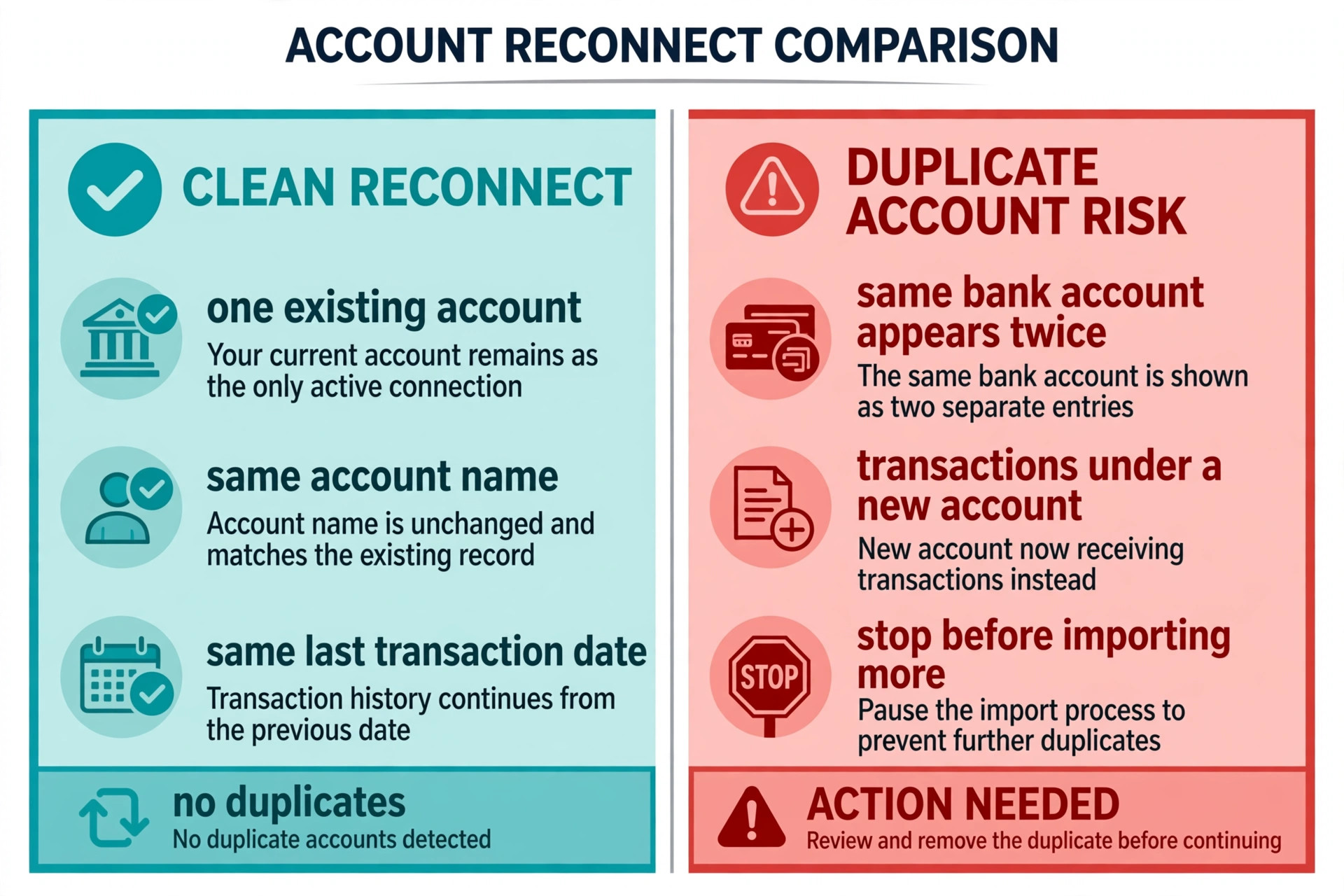
Reconnecting, when you fix QuickBooks bank feed not syncing small business accounts, is safe when it is done as a link to an existing account, and risky when it creates a second account for the same bank account. Before reconnecting, note the exact QuickBooks account name, the bank account type, and the last transaction date that downloaded successfully. After reconnecting, check those three details before importing or categorising anything. If QuickBooks offers a new account name that differs from the existing one, or if it shows the bank account as a new connection, pause and map it to the existing account.
Duplicate transactions usually come from overlapping date ranges, not from a single bad import. A feed that resumes after a gap may download transactions that were already imported manually during the gap, and a manual import that covers a period the feed later downloads will duplicate the same entries. The prevention rule is simple. For any manual import, record the exact start and end dates, and when the feed resumes, check that date range for duplicates before categorising new transactions. If duplicates appear, exclude the duplicate entries rather than categorising both, because categorising both will double count income or expenses.
If a duplicate account already exists, resolve it before reconciling. In QuickBooks Online, the usual path is to disconnect the duplicate, rename accounts clearly while resolving, and merge or move transactions only after checking which account holds the correct history. Do not delete an account that holds categorised transactions without checking where those transactions will go, because deletion can break reconciliation history. When the duplicate involves a credit card or a loan account with a balance, take extra care, and consider asking an accountant to review the merge before it is finalised.
Manual Import Without Duplicates
Manual import, when you fix QuickBooks bank feed not syncing small business accounts, is a bridge, not a replacement for a feed, and it works best when it is kept narrow and dated. Download transactions from the bank for the exact missing period only, not for a full year, because a wide import increases the duplicate risk and the categorisation workload. Choose the file format QuickBooks handles best for your bank, usually CSV or QBO, and check the file before importing by confirming the first and last dates and the transaction count against the bank statement for the same period.
During import, map the columns carefully. Date, description and amount must map to the correct QuickBooks fields, and a reversed sign on amounts will turn expenses into income and vice versa. After import, review the transactions in Bank transactions before categorising. Sort by date and amount, look for entries that match transactions already in QuickBooks, and exclude duplicates. Only after that review should categorisation and matching begin. A manual import that is categorised immediately, without a duplicate check, is how a small gap becomes a reconciliation problem.
Keep a simple import log for the business. Record the account, the import date, the file date range, the transaction count and the person who imported it. That log answers the question that arises a month later, when a duplicate appears and nobody remembers whether it came from a feed or a file. A log that takes thirty seconds to write can save an hour of investigation at month end, and it is the habit that separates a business that recovers cleanly from a feed outage from one that carries the outage forward as a bookkeeping error.

QuickBooks Desktop Differences
QuickBooks Desktop uses Bank Feeds rather than the Online Bank transactions flow, and the steps differ in wording even when the logic is the same. In Desktop, the feed centre is reached through Banking, then Bank Feeds, then Bank Feeds Center, where an account can be refreshed. Deactivating and reactivating Bank Feeds for an account is the Desktop equivalent of a reconnect, and it should be done one account at a time, with the account name noted before deactivation so the reactivated feed can be mapped to the same account.
Desktop also has its own error families, including OL errors reported in troubleshooting guides, such as OL-301 for a bank account not syncing. The general diagnosis still applies, meaning check the bank website first, refresh the feed, update credentials where the code points to them, and deactivate and reactivate only when the diagnosis calls for it. Desktop users should also update QuickBooks Desktop itself before deep troubleshooting, because an outdated version can cause compatibility issues with bank connections that no reconnect will fix.
A Desktop file that has been through several deactivations and reactivations deserves a data check. If accounts cannot be deactivated, if transactions appear under unexpected accounts, or if the file shows other signs of damage, stop and get support or accountant help rather than forcing further changes. A company file problem is not a feed problem, and repeated feed resets will not fix it. The same caution applies to Online when an account repeatedly fails after correct credentials and a normal bank website, because that pattern points to a provider or account mapping issue that needs support.
Preventing the Next Feed Failure
Prevention, when you fix QuickBooks bank feed not syncing small business accounts, starts with credential discipline. Change bank passwords carefully, update QuickBooks promptly after a bank password change, and avoid frequent credential changes that trigger fresh authentication cycles. If the bank offers a dedicated third party access or a read only connection for accounting software, use it where available, because a connection designed for accounting is less likely to break when a personal login changes. Record the date of any bank credential change on the account record, so the next feed failure can be checked against that date in seconds.
Reconcile weekly, not monthly, while a feed is fragile and as a standing habit afterwards. A weekly reconciliation catches a stopped feed within days, when the missing period is small and manual import is easy. A monthly reconciliation catches it after weeks, when the missing period is large and duplicate risk is higher. The weekly check need not be a full close. Compare the QuickBooks balance with the bank balance, check the last downloaded date for each connected account, and investigate any account that has not updated in more than a few days.
Monitor bank notifications as part of the same routine. Banks send messages about security changes, new authorisation requirements and maintenance windows, and those messages often precede a feed failure by days. A business that reads bank messages promptly can complete a required action before the feed breaks, rather than diagnosing it after. Assign that check to one person, with a backup, so it does not depend on whoever happens to see the message first.
When to Contact Support or an Accountant
Contact QuickBooks support, when you fix QuickBooks bank feed not syncing small business accounts, when the bank website works, credentials are confirmed, the Update step has been tried after a reasonable wait, and the same error persists, because that pattern points to a provider or mapping issue that a business cannot fix from the settings alone. When contacting support, give the account name, the error code, the last successful download date, the bank name and the steps already tried. That record prevents a support conversation that repeats the same basic checks and gets to the actual problem faster.
Contact an accountant when the feed failure has already affected reconciliation, when duplicates exist across several months, or when a duplicate account holds categorised transactions. An accountant can review the reconciliation, advise whether to exclude, merge or move transactions, and confirm that the books are clean before tax filing. A feed fix that restores downloads but leaves duplicates in the books is only half a fix, and an accountant review is the check that closes it.
Do not share bank credentials with support staff, forum helpers or anyone who asks for them by phone, email or message. QuickBooks support does not need a bank password to diagnose a feed code, and a request for one is a sign of a scam rather than a support process. The same rule applies to one time codes from the bank. Those codes are for the business owner to enter during a legitimate authentication prompt, not to read out to a caller.
Measuring Recovery and Keeping the Books Clean
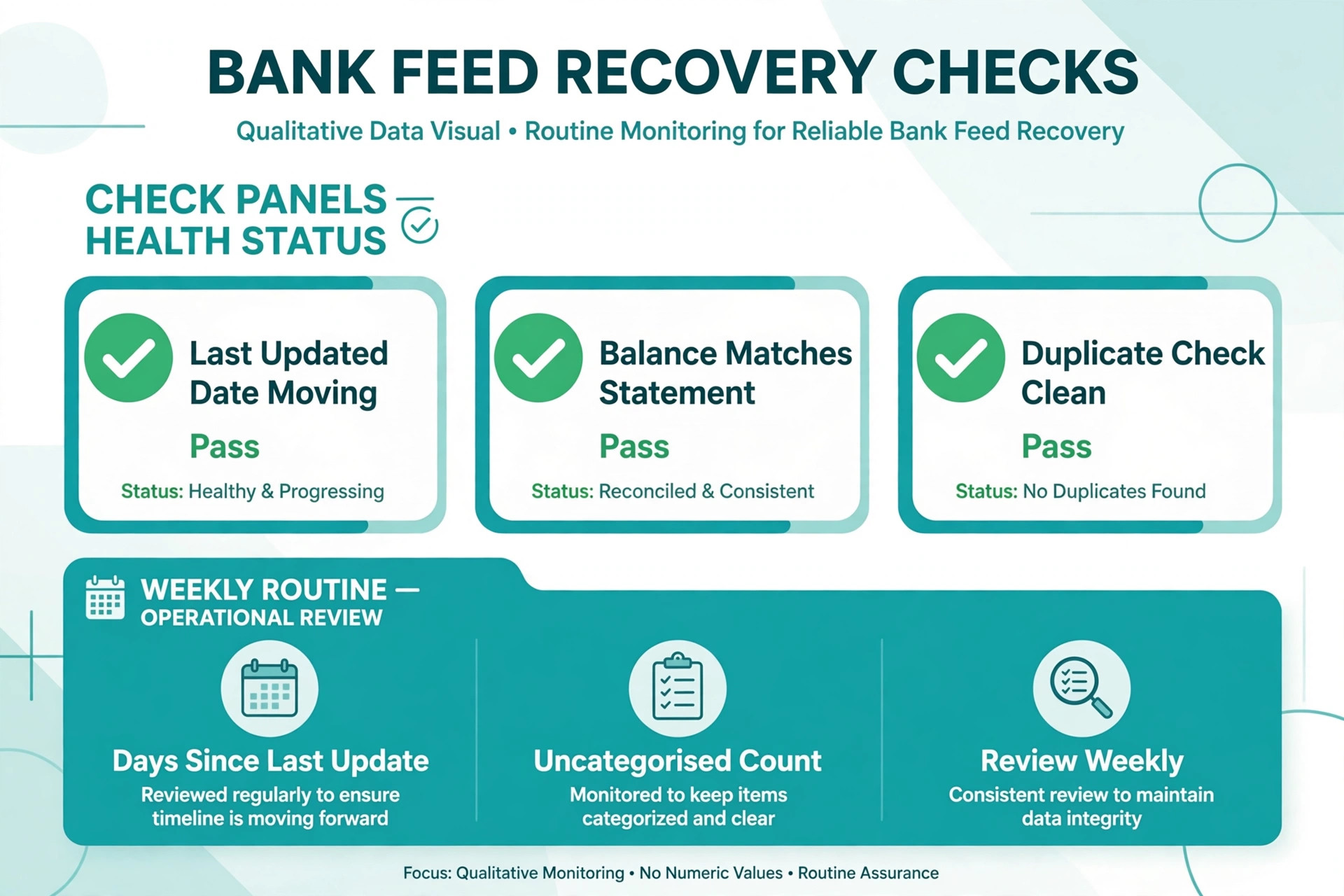
Recovery should be measured, not assumed. After a fix, check three things over the next week. First, does the last updated date move on each connected account, and do new transactions arrive without manual import. Second, does the QuickBooks balance match the bank statement balance after the missing period is imported and reconciled. Third, does the duplicate check come back clean for the overlap period between manual import and feed resumption. If all three checks pass, the feed is recovered. If any check fails, the fix is incomplete, and further imports should pause until the failing check is understood.
Add two standing numbers to the monthly bookkeeping review. The first is days since last feed update for each account, which shows whether any account is drifting silently. The second is uncategorised transaction count, which shows whether downloaded transactions are being processed or piling up. A feed that downloads but is never categorised is not a working bookkeeping system, it is only a growing backlog. A monthly review of those two numbers, with one action agreed where either number is high, keeps the books current without a large overhaul.
The habit that matters most is the simplest one. Record the fix. Note the date, the account, the error code, the cause found and the step that fixed it. Next time the same code appears, that note turns a diagnosis into a repeat of a known fix, and it turns a support call into a short conversation with evidence. Businesses that record feed fixes rarely spend long on the second occurrence. Businesses that do not record them start from zero every time.
Mistakes That Make a Stopped Feed Worse
The most common mistake, when you fix QuickBooks bank feed not syncing small business accounts, is disconnecting immediately, before checking the bank website or the error code. Disconnecting can break the account mapping, lose the transaction link, and create a duplicate account on reconnection. It feels decisive, but it often turns a password problem into a reconciliation problem. Check the bank, read the code, and only then decide whether a reconnect is the right step.
The second mistake is importing a wide date range manually while the feed is still trying to resume. A wide import overlaps with the feed download and creates duplicates that must then be found and excluded one by one. Import only the exact missing period, log the dates, and check for duplicates when the feed resumes. A narrow import is easier to verify and easier to reverse if something goes wrong.
The third mistake is categorising imported transactions before checking for duplicates. Once a duplicate is categorised, it affects reports and reconciliation, and removing it takes more work than excluding it before categorisation. The order matters. Import, check for duplicates, exclude duplicates, then categorise. That order is the whole discipline of manual import, and it should not be skipped because month end is close. A rushed categorisation that doubles income is worse than a late categorisation that is correct.
Verdict, What to Do First When the Feed Stops
When you need to fix QuickBooks bank feed not syncing small business accounts, the first hour should follow a short order. Check the bank website, note the error code, try Update and complete any authentication prompt, and only then decide between a credential update, a wait, or a reconnect. Import manually only for the exact missing period, check for duplicates before categorising, and reconcile against the statement. That order fixes most stopped feeds without creating a second problem, and it gives support a clear record if the feed still will not sync.
The longer lesson is about routine rather than rescue. A weekly balance check, a prompt credential update after a bank password change, and a written record of each fix will prevent most feed failures from becoming bookkeeping crises. A bank feed is a convenience that becomes a dependency, and dependencies deserve a routine. Build that routine now, while the feed is working, and the next time it stops, the fix will be a known step rather than a search for a missing month of transactions.
Start with the account that stopped most recently, work through the workflow for that account alone, and do not change settings for other accounts until the first account is understood. If the first account reveals a shared bank cause, the other accounts will usually follow the same fix. If the first account reveals a single account cause, the other accounts should be left alone. That discipline, one account at a time, is what keeps a feed fix clean.

More Reading on Stratilyze
For a related small business system, read best accounting software for small business and best CRM for cleaning companies. For a different service workflow, see best scheduling software for home care agencies.
Frequently Asked Questions
Why did my QuickBooks bank feed stop syncing suddenly
The most common causes are a changed bank password, bank maintenance or a security change, a pending bank message, or a fresh authentication request from the bank. Check the bank website directly first, confirm credentials and clear any bank message, then try Update in QuickBooks. A sudden stop after a password change usually points to credentials, while a stop during a bank maintenance window usually resolves after waiting.
Should I disconnect the bank account to fix a stopped feed
No, not as a first step. Disconnecting can break the account mapping and create a duplicate account on reconnection. Check the bank website, note the error code and try Update first. Reconnect only when the error code or support guidance calls for it, and map the reconnected feed to the existing QuickBooks account rather than creating a new one.
What do QuickBooks bank error codes 102 and 105 mean
Codes 102 and 105 are reported in support community pages as bank server or connection issues, often linked to bank maintenance or a temporary outage. Check the bank website for a maintenance notice, wait two to three hours, then try Update again. If the bank site is normal and the code persists after credentials are confirmed, contact support with the code and the last successful download date.
How do I import missing transactions without creating duplicates
Download transactions from the bank for the exact missing date range only, import them through Upload from file, and review the imported list for duplicates before categorising anything. Compare dates, amounts and descriptions against transactions already in QuickBooks, exclude duplicates, and only then categorise and match. Log the import date range, so a later feed download can be checked against it.
How long should I wait before trying to reconnect a bank feed
For bank server codes such as 102 or 105, wait two to three hours after the bank site returns to normal before retrying Update, and longer if the bank reports ongoing maintenance. For a temporary disruption code reported as self resolving within about 48 hours, wait a few hours and try again rather than reconnecting repeatedly. Repeated reconnect attempts during an outage can create duplicate accounts.
Can a stopped bank feed affect my reconciliation and tax filing
Yes, a stopped feed leaves transactions missing, balances drift from the bank statement, and reconciliation becomes a reconstruction exercise with a higher duplicate risk. Reconcile weekly to catch a stopped feed early, import only the missing period, check for duplicates, and reconcile against the statement before filing. If duplicates span several months, ask an accountant to review the books before filing.