
Move to Teams only if your team already lives in Microsoft 365, or plans to within the next year. For that team, the decision to switch Zoom to Teams is usually a cost and consolidation decision, not a video quality decision. Zoom still runs excellent meetings, and a team that only needs video calls has little reason to move. The move pays when you are already paying for Outlook, Word, Excel and OneDrive, and Zoom is a second subscription doing a job Teams can already do. In that case, cancelling Zoom can save hundreds of dollars a year, and it puts meetings, chat, files and calendar in one place instead of two.
This guide is built for teams of roughly 5 to 50 people, with no full time IT department and no appetite for a messy month of broken links. It covers the decision, the licence maths, the meeting and recording checklist, the rebuild in Teams, the things that do not transfer, and the training week that decides whether staff adopt the new tool. Prices are US list prices found in October 2026, and they change often, so check checkout before you pay for anything named here.
Who Should Move, and Who Should Stay on Zoom
Start with an honest audit of how your team actually works. If most of your day is spent in Outlook, Word, Excel and SharePoint, Teams will feel like a natural extension of tools you already open. Meetings appear in the same calendar, files open in the same OneDrive storage, and chat sits next to the documents people are already editing.
If your team rarely uses Microsoft 365, or your clients insist on Zoom links, staying is often the smarter call. A migration that saves money but creates daily friction is a tax on every meeting, paid in confused guests and support questions. The same applies if you depend heavily on Zoom Phone, Zoom Rooms hardware, or large webinars, which need separate planning and testing.
Run a two week usage count before you decide. Count meetings per host, internal versus client meetings, cloud recording use, breakout rooms, polls and whiteboards, and recurring meetings. That count tells you what must be rebuilt and what can be dropped. A team with 12 recurring internal meetings has a weekend sized job. A team with 80 recurring client meetings and a webinar series has a project. Teams that should switch Zoom to Teams usually share one trait. Their daily work already runs through Microsoft tools, so the move removes a duplicate subscription rather than forcing a new way of working.
Appoint one owner for the whole move. Migrations without an owner drift, links get half updated, and the old subscription keeps renewing because nobody was sure it was safe to cancel. A named owner, a written checklist and a fixed cutover date prevent most of that drift.
How to Switch Zoom to Teams Without Losing a Single Recording
The biggest fear in any move is loss. Staff worry about recordings they need for training or compliance, and managers worry about recurring meetings that clients rely on. Both fears are manageable if you treat recordings and meetings as separate jobs. Recordings are files, and files can be copied and checked. Meetings are calendar events, and they must be rebuilt and tested one by one.
Begin with a full inventory. Export a list of Zoom cloud recordings, with meeting name, date, owner, duration and size. Then ask each host where their local recordings live, because those will not appear in any admin export. Copy local files to a shared folder before anything else changes.
Next, decide what actually needs to move. Training videos, client onboarding sessions and compliance records usually do. A routine internal standup from eight months ago usually does not. Keep anything still linked from a document, a course or a client portal, and anything required for legal or quality records. Archive the rest in a single folder labelled by year, and delete duplicates.
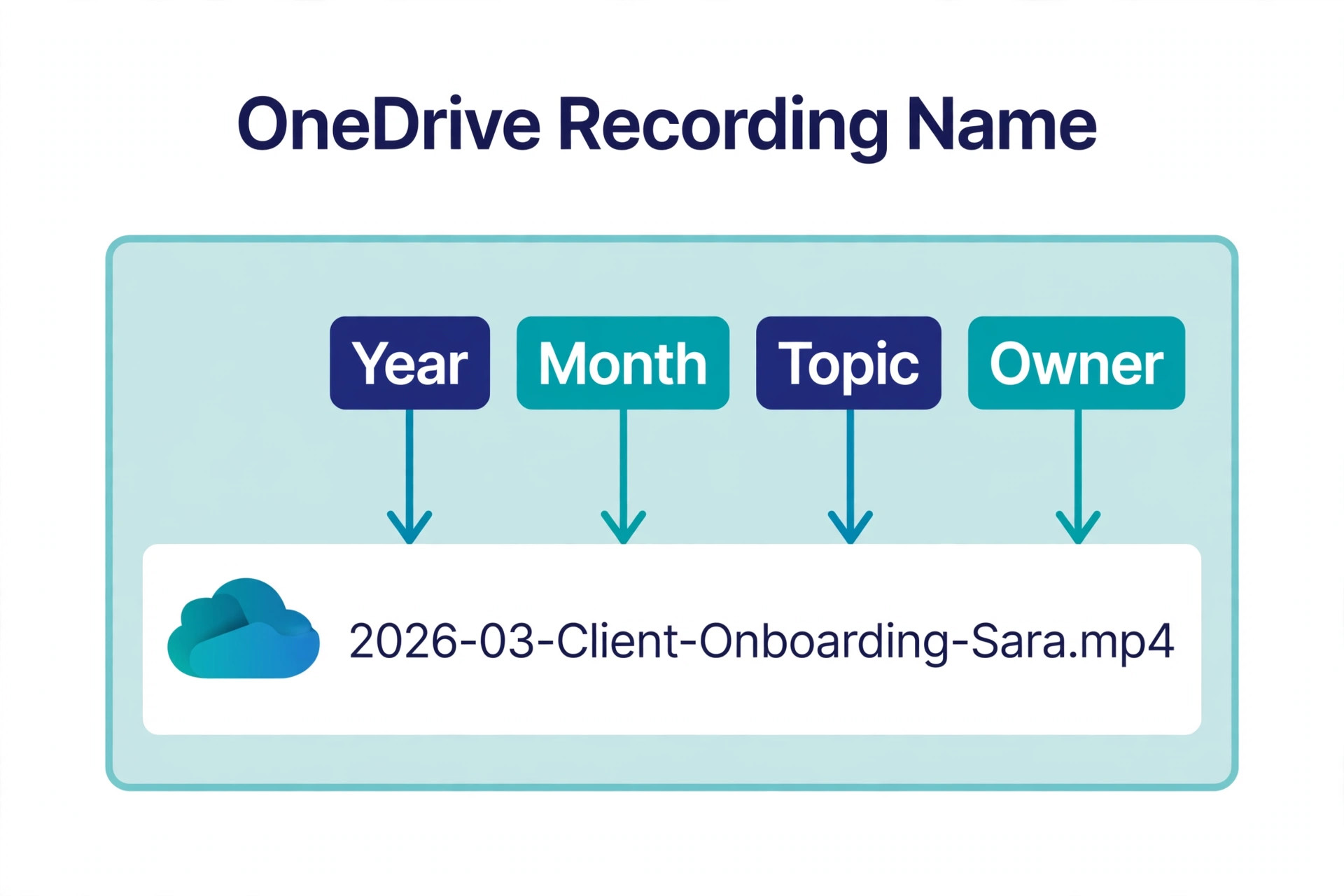
For recordings you keep, download the cloud files and upload them to OneDrive for personal recordings and SharePoint for shared team recordings. Rename files with year, month, topic and owner, because Zoom export names are often vague. Then update every link that pointed at the old Zoom recording, since a moved file with a dead link is only slightly better than a lost file.
Licence Costs Compared, With the Overlap Counted Twice
Licence maths is where small teams either save real money or fool themselves. The trap is comparing a single Zoom price with a single Teams price, while forgetting that Teams often arrives inside a Microsoft 365 plan you already pay for. If you already pay for Business Basic or higher, Teams is already included. If you do not, count the full new Microsoft bill against the Zoom bill you are leaving.

Zoom Workplace prices found in October 2026 were consistent across several pricing trackers. Basic is free, with group meetings capped at 40 minutes and 100 participants. Pro is 14.16 dollars per user a month billed annually, or 16.99 dollars billed monthly. Business is 18.33 dollars billed annually, or 21.99 dollars monthly, with 300 participants. Business Plus is 22.49 dollars billed annually and bundles phone features.
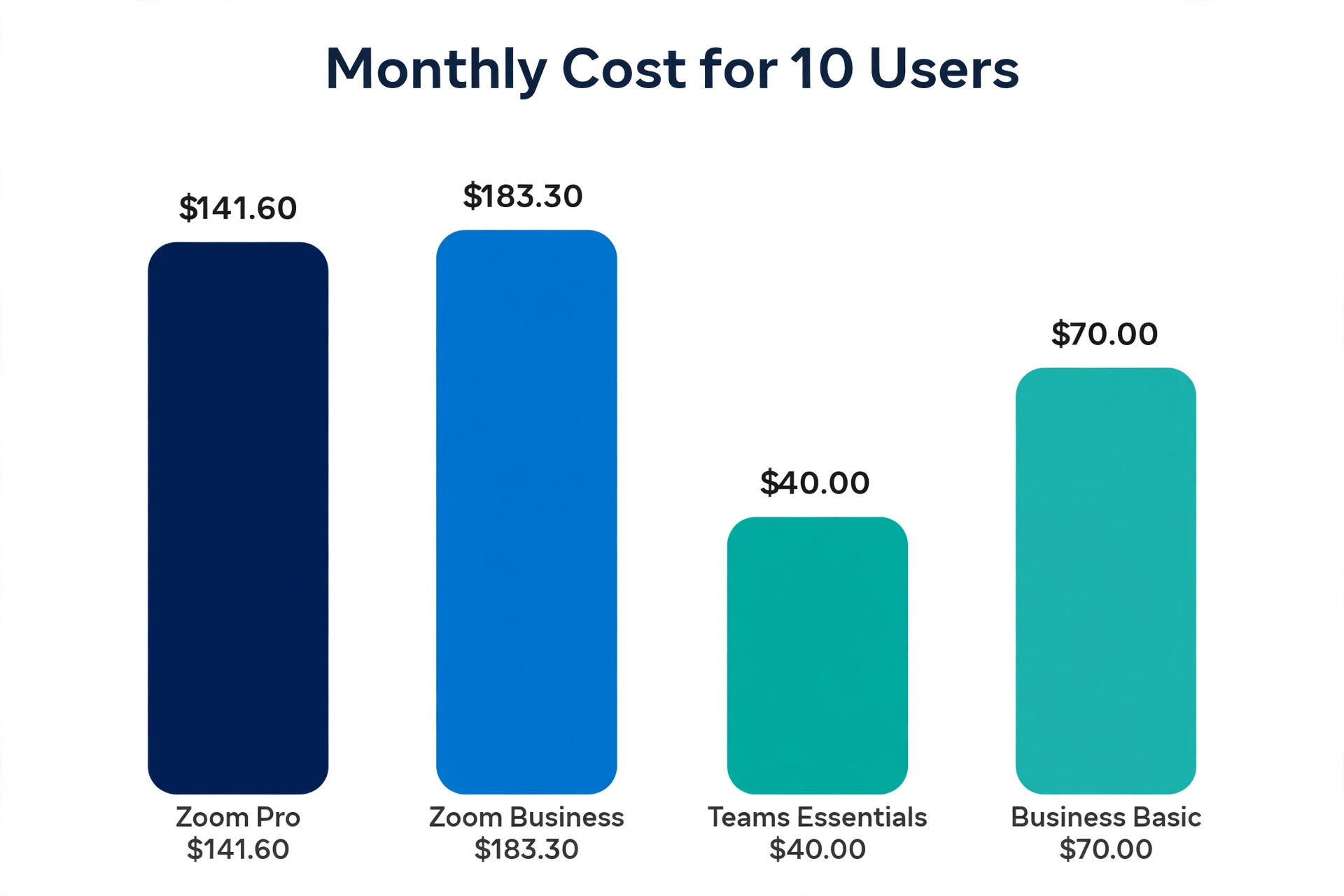
Microsoft pricing is messier in 2026, because Microsoft reshuffled how Copilot is bundled into business plans during the year. On the official Microsoft comparison page, Teams Essentials was 4.00 dollars per user a month billed annually, and Business Basic was 7.00 dollars. Business Premium was widely listed at 22.00 dollars. Business Standard listings diverge most, from near 12.50 dollars in older listings to near 21.00 dollars list and near 23.50 dollars with Copilot bundled. Budget against the higher end until checkout confirms your exact plan.
The table below shows the comparison for a 10 person team on annual billing. It counts only the meeting licence, not phone, webinar, storage or AI add ons, which are priced separately on both sides. When you switch Zoom to Teams, count the overlap month too. Budget for one month where both subscriptions run, so staff can fall back to Zoom if a Teams meeting fails. A failed client meeting costs far more than one extra month of Zoom.
| Plan | Price per user a month, annual billing | Cost for 10 users a month | What it includes for meetings |
|---|---|---|---|
| Zoom Pro | 14.16 dollars | 141.60 dollars | Meetings to 30 hours, 100 participants, cloud recording |
| Zoom Business | 18.33 dollars | 183.30 dollars | Meetings to 30 hours, 300 participants, admin controls |
| Teams Essentials | 4.00 dollars | 40.00 dollars | Meetings to 30 hours, 300 participants, 10 GB storage per user |
| Microsoft 365 Business Basic | 7.00 dollars | 70.00 dollars | Teams plus web and mobile Office apps, 1 TB storage per user, business email |
| Microsoft 365 Business Premium | 22.00 dollars | 220.00 dollars | Teams plus desktop Office apps, advanced security and device management |
Read the table with care. Essentials looks dramatically cheaper than Zoom Pro, and for a team that only needs meetings, it is. But Essentials gives Teams only, with 10 GB per user and no desktop Office apps and no business email. Business Basic at 7.00 dollars is often the better comparison, because it adds email, web and mobile Office apps and 1 TB per user. A team already on Business Basic pays nothing extra for Teams, so cancelling Zoom Pro for 10 users saves about 141.60 dollars a month, or about 1,699 dollars a year, before tax. A team buying Basic from scratch pays 70.00 dollars a month, saving about 71.60 dollars a month against Zoom Pro.
Phone and webinar costs sit outside this table and deserve their own line in your budget. Zoom Phone and Teams Phone are both priced separately, number porting takes time, and webinar capacity differs by plan. If you run paid webinars or take client calls on a business number, price those pieces before you commit, not after.
The Meeting and Recording Migration Checklist
This is the part to print, copy into a shared document, and tick off as you go. Work through it in order. Each phase has a task and a done test, so you know when a phase is truly finished rather than mostly finished. When you switch Zoom to Teams, this table is your control sheet. Do not skip ahead to cancellation until every done test passes.
| Phase | Task | Done test |
|---|---|---|
| 1. Inventory | Export Zoom cloud recordings with owner, date and size | A spreadsheet exists and every owner has confirmed it |
| 1. Inventory | Collect local recordings from every host computer | Files sit in one shared folder, not on individual laptops |
| 1. Inventory | List every recurring meeting, its host, guests and frequency | No recurring meeting is missing from the list |
| 1. Inventory | List Zoom integrations, such as calendar, CRM and scheduling tools | Each integration has a Teams equivalent or a replacement plan |
| 2. Triage | Mark recordings to keep, archive or delete | Every recording has one of the three marks, with no blanks |
| 2. Triage | Mark meetings to rebuild, retire or merge | Retired meetings are cancelled, not left as dead links |
| 3. Move files | Download kept cloud recordings and upload to OneDrive or SharePoint | Each file opens and plays from its new location |
| 3. Move files | Rename files with year, month, topic and owner | A stranger could find a recording from its name alone |
| 3. Move files | Update every document, course and portal link that pointed at Zoom | Clicking an old link lands on the new file, not an error page |
| 4. Rebuild meetings | Remove Zoom details from each Outlook invite and add a Teams meeting | No invite still contains a Zoom link or meeting ID |
| 4. Rebuild meetings | Send updated invites and test each key external link as a guest | A guest can join without a Microsoft account where guest access is intended |
| 4. Rebuild meetings | Recreate breakout room, poll and whiteboard setups in Teams | Hosts have tested each setup in a practice meeting |
| 5. Accounts and access | Create Teams teams and channels that match real work | Every staff member can find their team and channel on day one |
| 5. Accounts and access | Set recording, transcription and guest access policies | Policies match your privacy and client commitments |
| 6. Cutover | Run Teams only for internal meetings for one week | Internal meetings run on Teams with no Zoom fallback used |
| 6. Cutover | Run Teams for client meetings in week two, with Zoom on standby | Client meetings succeed, and any failure has a written fix |
| 6. Cutover | Cancel Zoom only after recordings, links and meetings are verified | Cancellation date is set and the renewal is stopped |
Two details cause most failures. The first is guest access testing. A Teams link that works for staff can still fail for a client, because guest policies and lobby settings differ. Test with a real outside email address, on a phone and on a desktop, before you send the link to a paying client. The second is the link update job. Recording links hide in training documents, onboarding emails and client portals, so search for old Zoom links after the move and fix them in batches.
Rebuild Your Meetings in Teams, Step by Step
Start with internal meetings, because they are forgiving. Pick one team, rebuild its recurring meetings first, and run them on Teams for a week while the rest of the company still uses Zoom. That pilot team will surface the real problems, such as a host who cannot find the recording button or an invite that still carries an old Zoom link. Fix those problems on a small scale, write the fixes into a one page guide, and only then roll out to the next team.
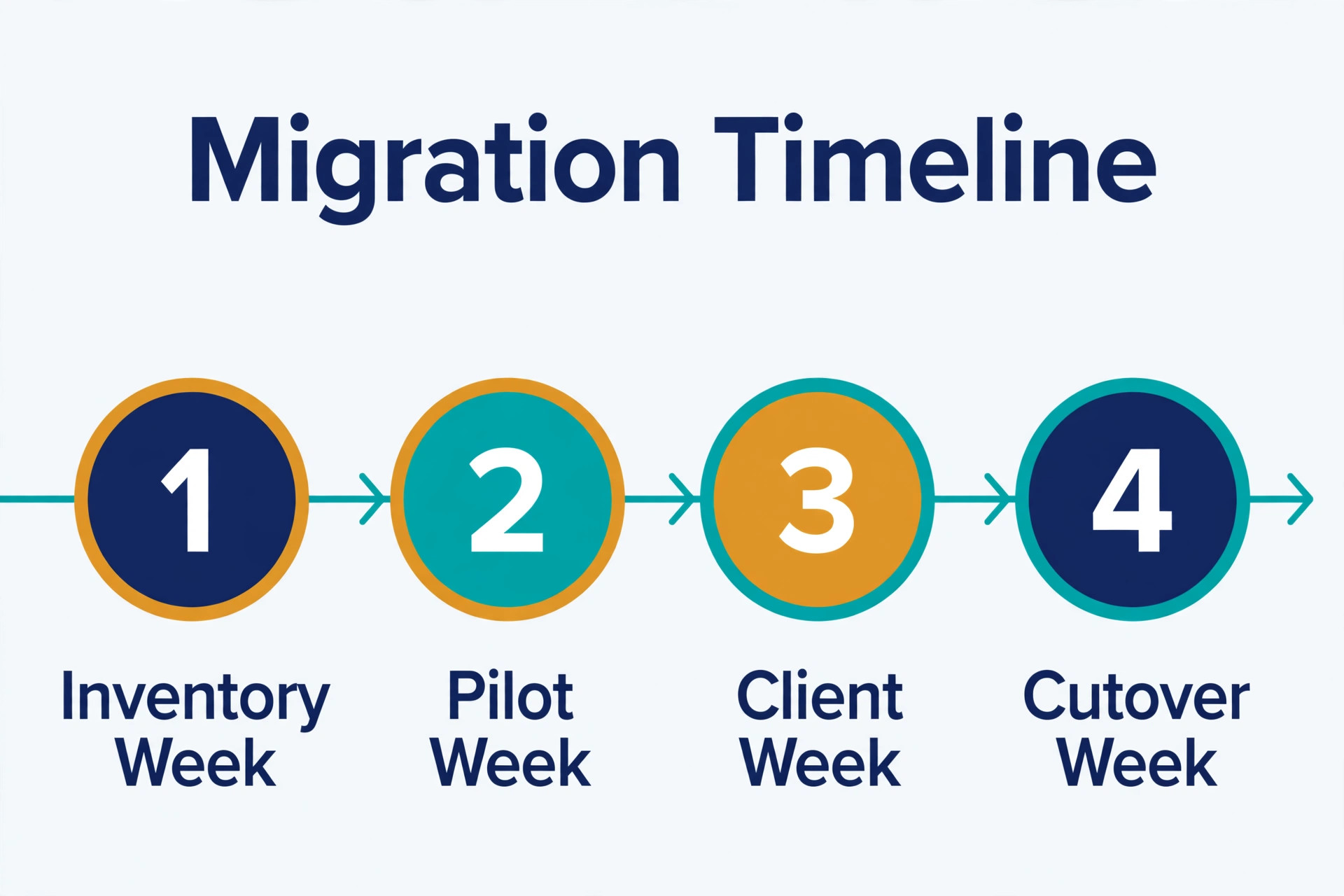
In Outlook, open the recurring meeting, delete the Zoom link from the location field and the body, then add a Teams meeting from the toolbar. If the Teams button is missing, the Teams add in is not enabled, which is a short admin fix. Send the updated invite, then reopen it to confirm the Teams details saved and the Zoom details are gone. Do this for the series, not just one occurrence, or the old link will reappear next week.

Recreate meeting settings deliberately, rather than assuming Teams defaults match Zoom defaults. Check who can bypass the lobby, who can present, whether chat is allowed, whether recording starts automatically, and whether transcription is on. For training sessions, check that recording goes to the right SharePoint site, so the whole team can find it later.
To switch Zoom to Teams cleanly, breakout rooms, polls and whiteboards need a practice run, not just a settings check. Run a 20 minute practice meeting with two or three colleagues, split into breakout rooms, run a poll, open a whiteboard, share a screen, and record a short clip. Also write a short joining note for clients, explaining that they can join from a browser without installing anything, and add it to your standard invite template.
What Does Not Transfer, and What to Do About It
Zoom chat history does not move into Teams chat in a clean, searchable form. There is no supported one click import that preserves every Zoom chat thread, with its files and reactions, inside Teams. Save what matters by copying important decisions, links and files into a Teams channel or a shared document before access ends. For compliance chats, store the relevant threads with your records, with dates and participants noted.
Zoom whiteboards also do not transfer as editable whiteboards. Screenshots and PDF exports preserve the content, but not the live editing. If a whiteboard holds a plan the team still edits, rebuild it in a Teams whiteboard or a shared document during the pilot week, while the original is still available. The same applies to polls, which must be recreated in Teams.
Meeting settings, waiting room rules, personal meeting IDs and branded invite templates do not carry over either. A host who relied on a personal Zoom room link for drop in calls needs a new habit in Teams, such as a standing channel meeting or a bookable meeting link. Clients who bookmarked a personal Zoom link will need the new link sent directly, with a clear note that the old link will stop working on a stated date. Do not rely on clients noticing a calendar update. Before you switch Zoom to Teams, send a direct message for your most important external contacts, and confirm they received it.
Zoom Phone numbers, Zoom Rooms hardware and webinar registrations are separate projects, not meeting migration tasks. Phone numbers can usually be ported to Teams Phone, but porting takes days to weeks and must be tested before the old number stops working. Zoom Rooms devices may need reconfiguration or replacement, and webinar pages and attendee lists must be rebuilt, with past data exported before the Zoom account closes.
Teams Setup That Prevents the First Week Chaos
Teams chaos usually comes from structure, not from video quality. A team that creates a new team for every project and every client will end up with dozens of teams nobody can navigate. Create teams around stable groups of people, such as departments, and use channels inside those teams for individual projects, so conversations and files stay together.
Naming discipline pays off fast. Agree on a naming pattern before you create anything, share it with every team creator, and limit who can create new teams to a small group. Teams sprawl is easy to create and painful to clean, and a small team without an admin will feel the pain within a month.
Policies deserve a decision before go live, not after a complaint. Decide who can record meetings, where recordings are stored, how long they are kept, and who can invite external guests. Business Basic gives 1 TB per user, which is generous for most small teams, but Essentials gives only 10 GB per user, which is not. Set a retention rule, such as deleting routine internal recordings after 90 days while keeping training and client recordings longer.
Training a Small Team in One Week
Training fails when it is a long video nobody watches. It works when it is short, practical and tied to the next meeting each person actually has. Plan three short sessions, each under 30 minutes. Session one covers joining, hosting, sharing a screen and recording. Session two covers channels, chat, files and finding recordings. Session three covers breakout rooms, polls, external guests and webinar basics. Record each session in Teams itself, so staff who miss it can watch it in the new tool.
Give every person a practice task before their first real Teams meeting. Ask them to start a meeting with a colleague, share their screen, record 60 seconds, stop the recording, and find the recording afterwards. That five minute task surfaces almost every common problem, from a missing microphone permission to a recording saved in an unexpected folder.
Create a one page cheat sheet, not a 20 page manual, answering the questions staff will actually ask in week one. How do I join a meeting. How do I share my screen. Where did my recording go. How do I invite a client. Pin it in your main Teams channel, and update it after week one with the real questions staff asked. Appoint Teams champions in each small group too, colleagues who learned the basics a week early and will answer quick questions. When staff switch Zoom to Teams with a champion nearby, adoption moves faster than any top down announcement can achieve.
Migration Helper Tools Worth a Look
Most small teams do not need a paid migration tool for meetings and recordings, because the manual checklist in this guide covers the work, and the volume is small enough to check by hand. Paid tools earn their place when recordings number in the hundreds, or when meeting structures must be recreated across many teams and channels.
The first option is the native route, using Zoom exports, OneDrive and SharePoint uploads, and Outlook rebuilds, with no extra software. It costs nothing beyond staff time, and it is the right choice for teams with under 50 recordings and under 30 recurring meetings. Its limit is scale, since manual work that is careful at 30 meetings becomes error prone at 300.
The second option is a scripted or admin assisted move, where an admin or contractor uses Zoom and Microsoft admin tools to bulk download recordings and bulk update invites where possible. Pricing is usually quoted as a service, so get a written quote before you agree. Ask any provider to show a sample of migrated files, with names, links and playback tested, before they run the full job.
The third option is a dedicated migration product, such as E-Migrator Z2T, which is marketed for moving Zoom meetings, recordings, transcripts, chats and attachments into Microsoft 365 and Teams structures. Products in this category are usually quote based, so treat any price in an article as unconfirmed until the vendor quotes your volume. Before buying, test it on a small sample and confirm exactly what transfers and what does not.
How to Choose Your Teams Licence
Choose by what your team already pays for, then by storage, then by meeting needs. If you already pay for Microsoft 365 Business Basic or higher, you already have Teams, and the licence decision is made. Do not buy Essentials on top of a plan that already includes Teams, a common error that is easy to miss because the purchases often sit in different admin accounts.
If you do not already use Microsoft 365, start with the smallest plan that covers your real needs, and upgrade only when a limit bites. Essentials suits a team that only needs meetings, chat and basic file sharing. Business Basic suits a team that also needs business email, web and mobile Office apps, and 1 TB per user. Business Premium suits a team that needs advanced security, device management and desktop Office apps, and that price should be justified by a security need, not by a vague sense that premium must be better.
Check three limits before you buy. First, participant count. Essentials and Business plans support meetings with up to 300 participants, which covers almost every small team meeting, but large webinars need a different plan or add on. Second, storage. Essentials at 10 GB per user will feel tight for a team that records training videos weekly, while Basic at 1 TB will not. Third, webinar capacity, which you should confirm at checkout. If you switch Zoom to Teams on a trial first, test the hard cases, external guests, large meetings, breakout rooms and recordings, and only then pay for a year.

Mistakes That Break a Zoom to Teams Move
The first mistake is cancelling Zoom too early. Staff need a fallback during the first two weeks, clients need time to update bookmarks, and recordings need verification after the move. Cancel only after the checklist is fully ticked, after old links have been searched and fixed, and after a full week of Teams only internal meetings has succeeded.
The second mistake is rebuilding every meeting on day one, including meetings that should have been retired. Cancel dead recurring meetings, merge overlapping standups, and retire project meetings for finished work. Prune first, rebuild second, and your new Teams structure will start clean.
The third mistake is skipping guest testing. Internal staff will forgive a rough first week. Clients will not, and a client who cannot join a sales call will remember the failure longer than the saving. Test every important external meeting type as a guest, on a phone and on a desktop, before you announce the change, and update your joining note after the first real client meeting reveals what confused people.
The fourth mistake is forgetting integrations. Zoom often connects to calendars, CRMs, scheduling tools and help desks, and those connections do not rebuild themselves. List every integration during inventory, test each one in Teams, and replace or retire the ones with no equivalent.
The fifth mistake is training by announcement. An email that says we now use Teams is not training. Staff need a practice meeting, a cheat sheet and a champion in their group. Without those, half the team will keep using personal Zoom accounts. The sixth mistake is ignoring recording retention and privacy. Decide retention and sharing rules before go live, set them in admin policies, and tell staff in plain words. A team that tries to switch Zoom to Teams in a single day, without a pilot, a checklist and a fallback week, usually learns these lessons the hard way.
For related reading on the wider meeting tool field, see Zoom vs Microsoft Teams for a direct feature comparison, and best AI meeting assistants if you want AI notes on top of either platform. If chat is a daily workspace, Slack vs Microsoft Teams helps you judge whether Teams chat alone will satisfy your team.
Frequently Asked Questions
Can I switch Zoom to Teams and keep my Zoom recordings?
Yes, if you download them before the Zoom account closes and upload them to OneDrive or SharePoint. Zoom recordings do not transfer automatically into Teams, so the download and upload step is essential. After upload, update every document and portal link that pointed at the old Zoom file, and test playback from the new location before you cancel Zoom.
Will my recurring Zoom meetings still work after I cancel Zoom?
No. Each recurring meeting must be rebuilt with a Teams link, because the Zoom link stops working when the account or the meeting is removed. Rebuild the series in Outlook, not just one occurrence, send the updated invite to all guests, and test the new link as a guest before the first live meeting on Teams.
How long does a small team migration usually take?
A team of 5 to 15 people with few recordings can complete the core move in one to two weeks, including a pilot week. A team of 20 to 50 people with hundreds of recordings and many client meetings should allow three to six weeks, with phone and webinar work sequenced after the core meeting move. Inventory and triage decide the real timeline, so do those first before promising a date.
Do clients need a Microsoft account to join a Teams meeting?
No, guests can usually join from a browser or the Teams app without a Microsoft account, subject to your guest and lobby policies. Test guest joining with a real outside email address before you send links to clients, because lobby settings and tenant policies can change the experience. Add a short joining note to your invite template so guests know what to expect.
What happens to Zoom chat history when I move to Teams?
Zoom chat history does not import cleanly into Teams chat, so save anything important before access ends. Copy key decisions, links and files into a Teams channel or a shared document, and store compliance related threads with your records. After the Zoom account closes, recovery may be impossible, so treat chat triage as part of the inventory phase, not as an afterthought.
Is Teams cheaper than Zoom for a small team?
It depends on what you already pay for. If you already pay for Microsoft 365 Business Basic or higher, Teams is already included, and cancelling Zoom Pro can save about 141.60 dollars a month for 10 users on annual billing, before tax. If you buy Microsoft 365 from scratch, Business Basic at 7.00 dollars per user a month still undercuts Zoom Pro at 14.16 dollars, but the saving is smaller, and add ons can change the total. Check checkout for your exact plan and region.
Move Once, Move Cleanly
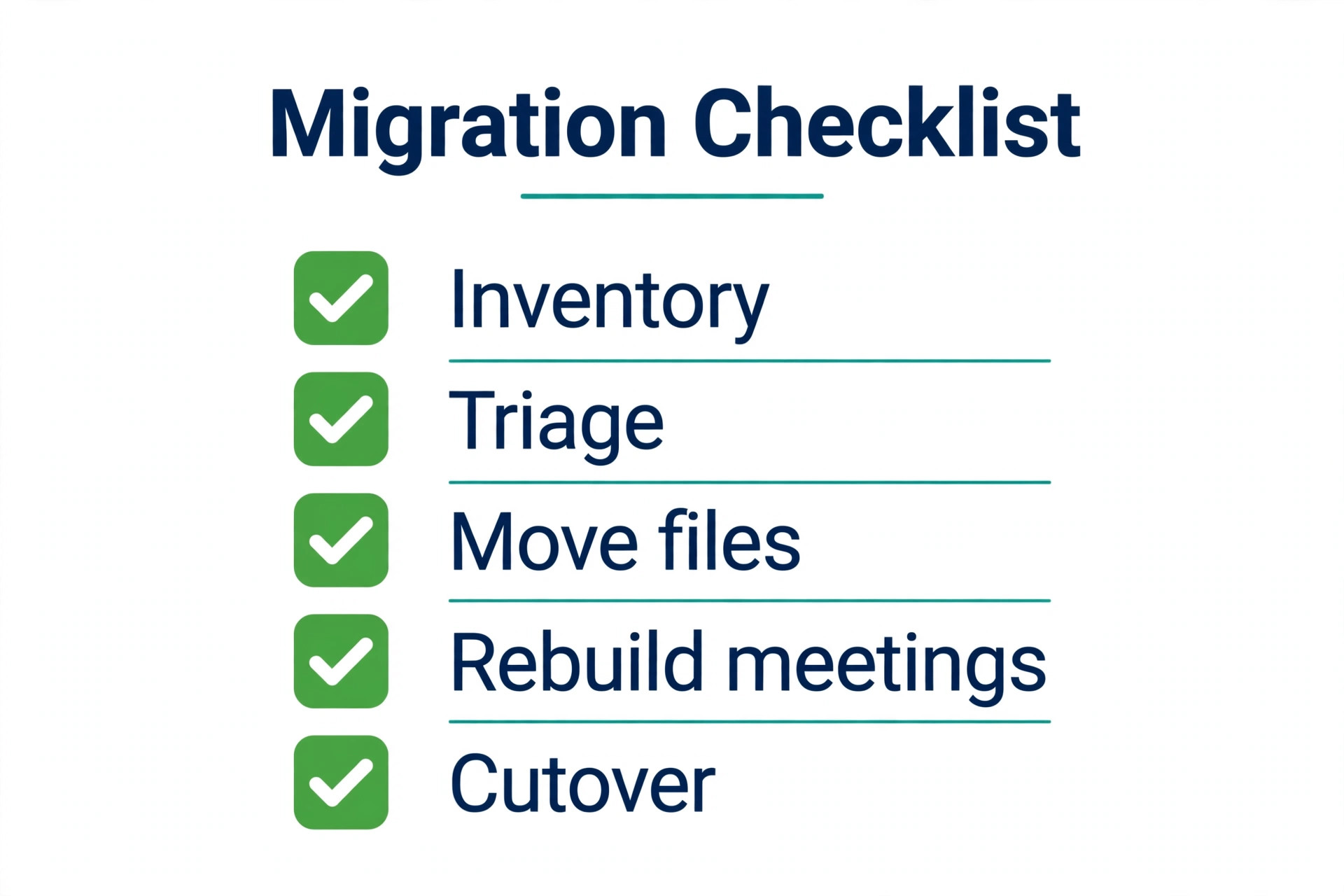
A move to Teams succeeds when it is treated as a checklist project, not as a licence purchase. Inventory your recordings and meetings, triage what deserves a new home, move files and update links, rebuild meetings and test them as a guest, set policies, train staff with practice meetings, and only then cancel Zoom. That sequence protects clients, protects training material, and protects the saving that motivated the move.
Start with the inventory this week, even if cutover is a month away. The inventory will tell you whether this is a two week job or a six week job, whether you need a paid helper tool, and whether phone or webinar work needs separate planning. Once the inventory is done, the rest of the checklist follows in order, and the team can stop paying for two meeting tools to do one job.
Prices here are US list prices from October 2026, and they change often. Check the official Microsoft Teams pricing page and the official Zoom pricing page, and confirm the total at checkout, including tax and seat minimums, before you pay.