

Verdict first. If you sell advice by the hour, run discovery calls, or take paid consultations alongside other work, use Calendly for consultation bookings on the Standard plan unless you need team routing, in which case Teams is the right step up. That single recommendation holds for most solo consultants and small practices because Calendly removes the email thread that usually eats the sale, it protects the gaps between calls, and it gives you a reminder system that most consultants never build by hand. You do not need a bigger scheduling suite to fix a leaky booking process.
You need a booking page that asks the right questions, a calendar that cannot double book you, and a follow up routine that turns a booked call into a call that actually happens.
This guide builds that system from scratch. You will set up event types that match how you really sell, connect your calendars so personal commitments block booking, add buffers and daily limits that stop back to back exhaustion, collect payment or commitment before the call where it fits, and run a no-show routine that Calendly itself reports has cut missed meetings for many sales users. Prices in this guide come from public pricing summaries checked in October 2026, and you should confirm the figure at checkout before you pay, because Calendly has added Plus tiers and adjusted plan names during 2026.
Every step below is written for a consultant who books real clients, not for a demo account with no stakes.
The Short Verdict for Busy Consultants
Most consultation businesses lose money in three quiet places, and none of them look like a pricing problem at first. The first loss is the thread. A prospect asks for a time, you reply with three options, they reply two days later, two of those options are gone, and the conversation restarts. By the third exchange, enthusiasm has cooled and a competitor with a booking link has already taken the call. The second loss is the gap. A 60 minute call that runs five minutes over, with no buffer, pushes the next client into a rushed start and leaves you answering notes from the first call while the second client waits. The third loss is the empty slot.
A client books, forgets, and never reschedules, and you only learn about it when you open the video link to an empty room.
Calendly fixes the first loss by letting the prospect pick from your live availability. It fixes the second loss with buffers and daily caps that you set once and then forget. It reduces the third loss with automated reminders, a visible reschedule link, and optional payment, though no tool removes no-shows entirely. That distinction matters. A booking tool is not a sales tool. It will not make a weak offer convert, and it will not rescue a consultation that has no clear outcome. What it does is stop good demand from leaking away through admin friction, and for a consultant whose product is time, that leak is often the largest hidden cost in the business.
What a Consultation Booking Actually Costs When It Goes Wrong
Put a number on the problem before you judge the tool. Suppose you charge 150 dollars for a 60 minute consultation and you hold eight consultation slots in a week. Two no-shows in that week cost 300 dollars in lost fees, but the real cost is larger, because those two hours could have gone to preparation, delivery work, or a paying client on a waiting list. Add the admin time. If each booking takes four email exchanges at five minutes each, eight bookings cost close to three hours of inbox work before any call happens. That is time you cannot bill, and it is time that often falls in the evening, when you should be resting or preparing.
How to use Calendly for consultation bookings in one working week
Treat setup as a one week project with a clear finish line, not as an afternoon of clicking settings you will revisit forever. Day one is structure. Day two is calendars and availability. Day three is the booking page copy and questions. Day four is reminders, buffers, and payment. Day five is a test booking with a friend or colleague, followed by fixes. By the end of the week, the link should be live on your website, in your email signature, and in the reply you send to every enquiry. A link that lives only inside Calendly helps nobody.
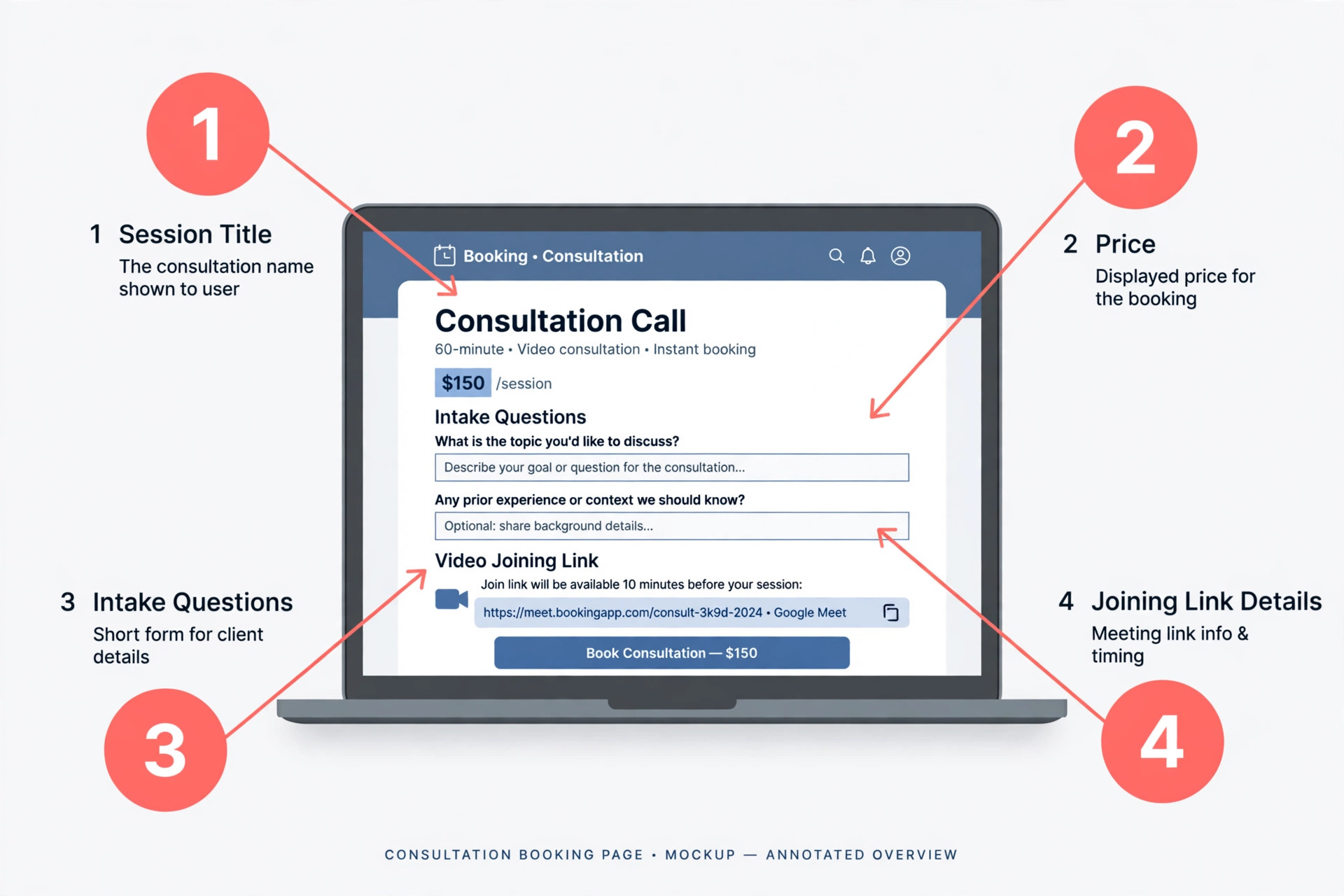
Set up event types that match how you sell
Create one event type for each distinct consultation you sell, and name it the way a client would search for it. A 20 minute discovery call, a 60 minute paid consultation, and a 30 minute follow up call are three different products with different questions, prices, and preparation steps, so they deserve three event types. A discovery call should ask about the problem, the timeline, and the budget range, in plain language, and it should state clearly whether it is free and what decision it leads to. A paid consultation should ask about the specific issue, any documents the client should bring, and the outcome they want from the hour.
A follow up call should ask what changed since the last session, so you do not spend the first ten minutes reconstructing history.
Keep the number of questions small. Four to six questions is a workable range for a paid consultation. More than that, and completion drops, because the booking form starts to feel like an application. Fewer than three, and you arrive blind, which wastes the opening minutes of the call. Make the outcome question required, because it is the one answer that lets you prepare, and make the phone number optional unless you plan to send text reminders, in which case explain why you need it. Every question should earn its place by changing what you do before or during the call. If an answer would not change your preparation, cut the question.
Connect calendars and protect personal time
Connect every calendar that can conflict with a consultation, not just your work calendar. Calendly checks connected calendars for busy times, and on paid plans you can connect up to six calendars according to public plan summaries. That matters for consultants who work from a personal calendar, a teaching calendar, or a shared family calendar. A booking that lands on a school run, a medical appointment, or a delivery day is not a small error. It is a cancellation you have to explain, and it teaches the client that your system is unreliable.
Set your working hours to your real working hours, not your aspirational ones. If you do your best consultations between 10 in the morning and 3 in the afternoon, set availability inside that window and leave the edges for preparation, admin, and rest. Add a minimum notice period, such as 12 or 24 hours, so a client cannot book a call for an hour from now while you are in the middle of other work. Add a maximum booking window as well, such as 14 days ahead, so your calendar does not fill with speculative bookings that go stale.
Short windows also help attendance, because a call booked for next week is easier to remember than a call booked for next month.
Write a booking page that sells the call honestly
The booking page is a sales page in miniature. The title should name the consultation and the result, not just the length. The description should say who the call is for, who it is not for, what you will cover, and what the client should bring. That honesty filters out poor fits before they book, which is a feature, not a loss. A client who books the wrong call costs you a slot and leaves disappointed, while a client who self selects out after reading an honest description may return later for the right service.
Pricing and Which Plan Fits a Consultation Practice
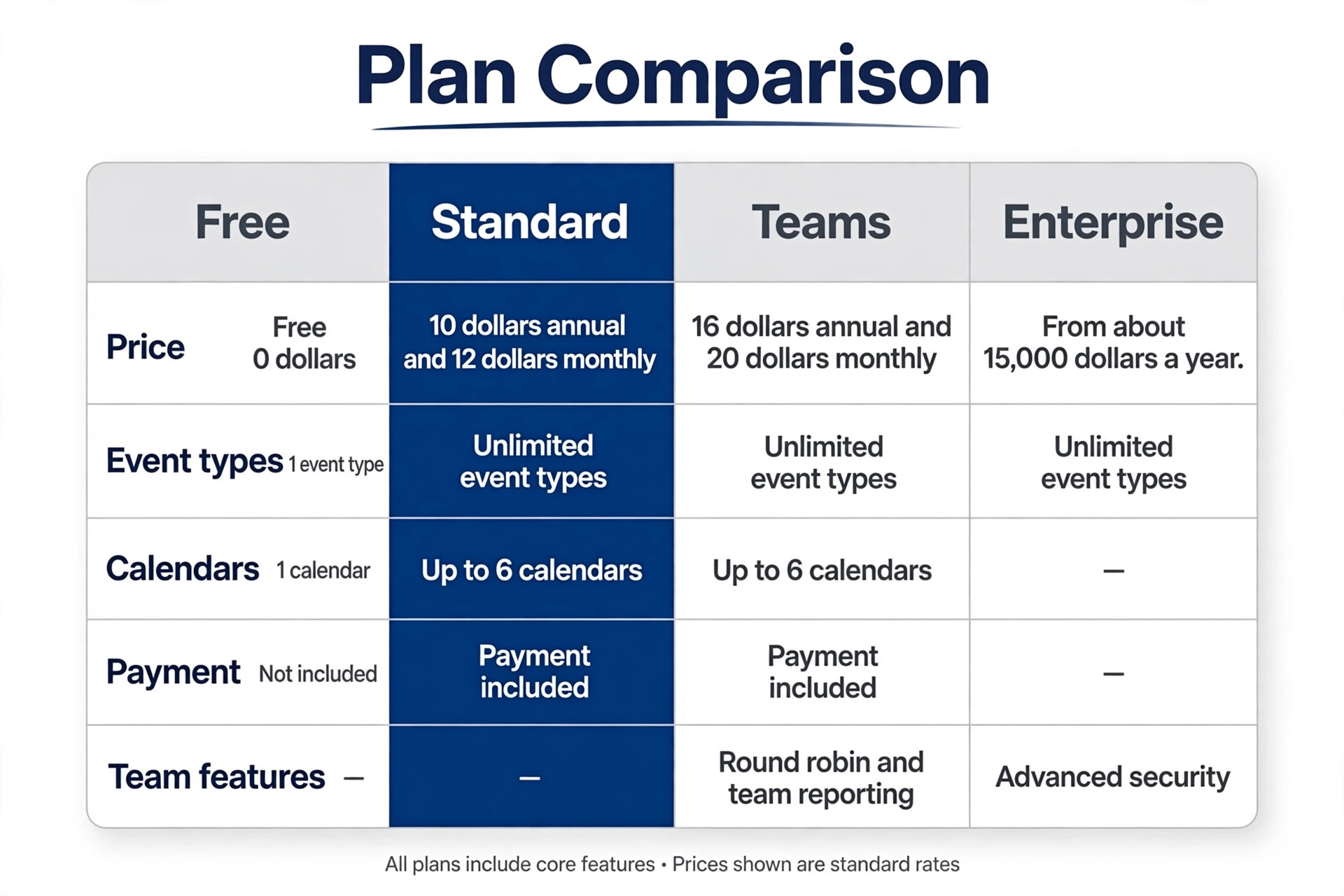
Public pricing summaries checked in October 2026 list four main tiers, plus Plus tiers that add AI meeting features. The Free plan costs 0 dollars and gives one event type and one connected calendar, which is enough to test the idea but too narrow for a real consultation practice with more than one offer. Standard costs 10 dollars per seat per month on annual billing, or 12 dollars on monthly billing, and adds unlimited event types, up to six connected calendars, payment collection, and workflow automations. Teams costs 16 dollars per seat per month on annual billing, or 20 dollars monthly, and adds round robin scheduling, lead routing, and team reporting.
Enterprise starts at about 15,000 dollars a year and is quoted for larger organisations that need advanced security and admin controls. Check the official Calendly pricing page at checkout, because Plus tiers at higher per seat rates were added during 2026 and plan details can change.
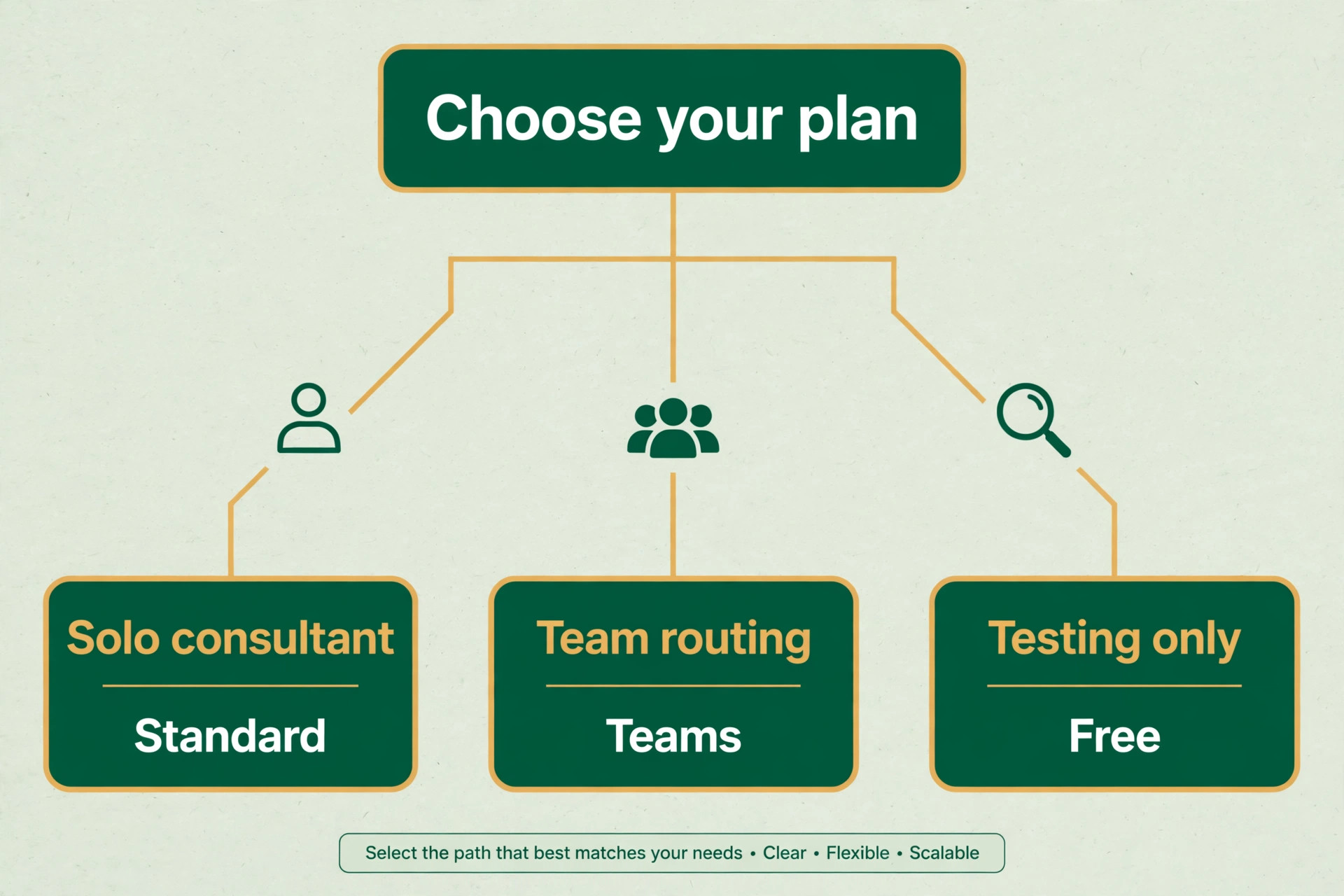
For most solo consultants, use Calendly for consultation bookings on Standard. It covers the features that actually change outcomes, which are multiple event types, payment collection, automated reminders through workflows, and enough calendar connections to protect personal time. Free is a trial in disguise, because one event type forces you to squeeze a discovery call and a paid consultation into the same form, and that compromise creates confusion. Teams makes sense when two or more consultants share a booking page, when you need round robin assignment so the next available consultant takes the call, or when you need team reporting to see who converts bookings into clients.
Paying for Teams as a solo user buys features you will not use, and that money is better spent on a better microphone, a booking page review, or a month of reminders testing.
| Plan | Annual billing per seat per month | Monthly billing per seat per month | Best fit for consultations |
|---|---|---|---|
| Free | 0 dollars | 0 dollars | Testing one event type only |
| Standard | 10 dollars | 12 dollars | Solo consultants and small practices |
| Teams | 16 dollars | 20 dollars | Shared pages and round robin teams |
| Enterprise | From about 15,000 dollars a year | Annual only | Large organisations with security needs |
The Booking Workflow That Protects Your Time
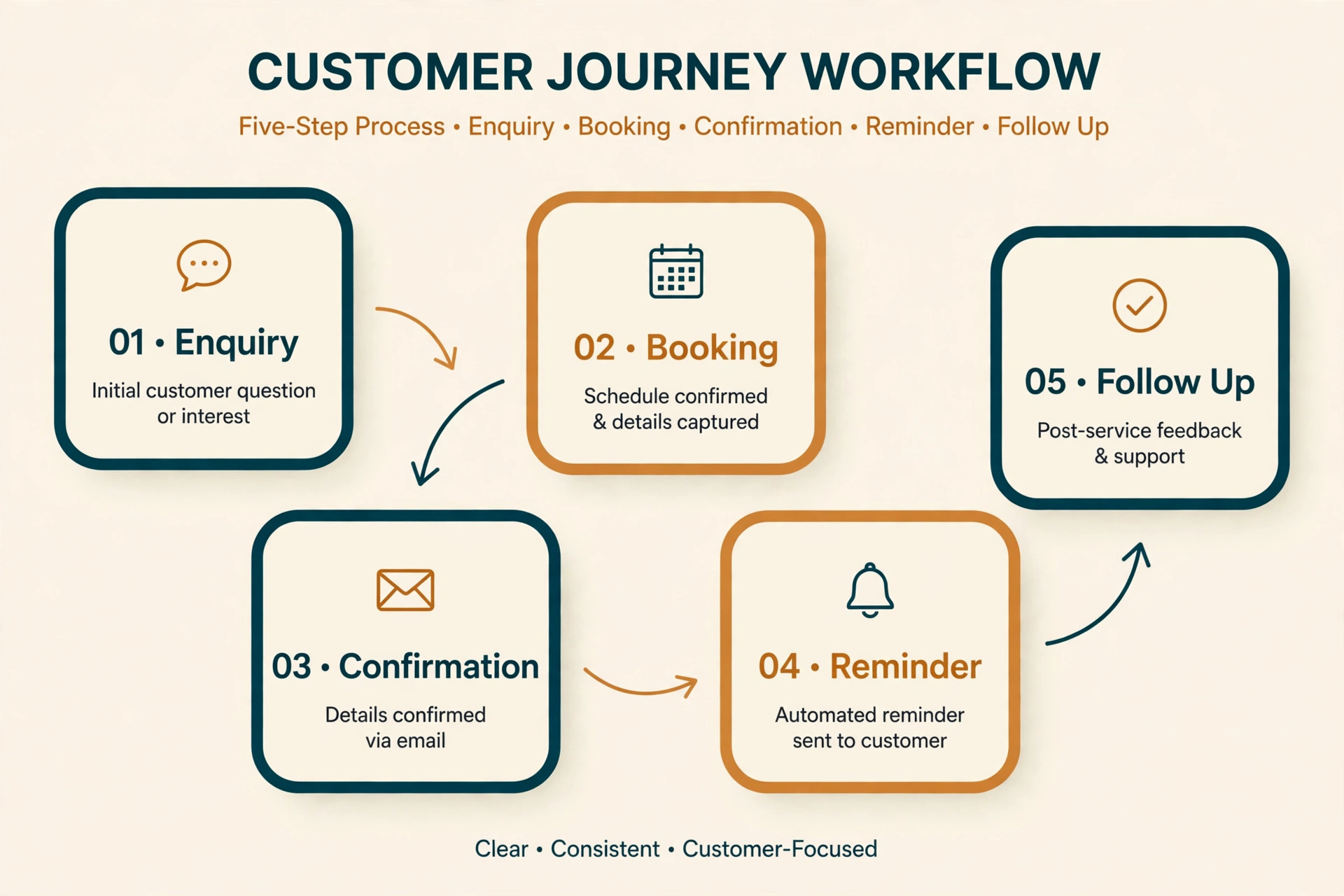
When you use Calendly for consultation bookings, the workflow is the full journey from first click to post call follow up, and it is the first half of the overview proof element in this guide. Most consultants set up the calendar and stop, which leaves the journey half built. A complete workflow has seven stages, and each stage has one job. The enquiry stage gives the prospect a link, not a thread. The booking stage collects the outcome, the timeline, and the preparation answer. The confirmation stage sends the agenda, the joining link, and the preparation note. The reminder stage brings the call back to attention. The call stage starts on time because the buffer protected it.
The follow up stage sends notes and the next step within a day. The rebooking stage makes it easy for a no-show or a finished client to pick a new time without emailing you.
Map that workflow before you touch settings. Write down, on paper or in a document, what happens at each stage, who sends it, and what the client must do. Then build it in Calendly with event types for booking, workflows for reminders and follow ups, and a cancellation and reschedule policy that clients can use without asking permission. The policy matters more than most consultants expect. If rescheduling requires an email, clients who need to move will often vanish instead. If rescheduling is one click from the confirmation email, those same clients move the call and still show up. Calendly workflows let you add that reschedule link to reminders, and you should turn that option on for every event type.
Buffers, Limits and Availability That Stop Back to Back Burnout
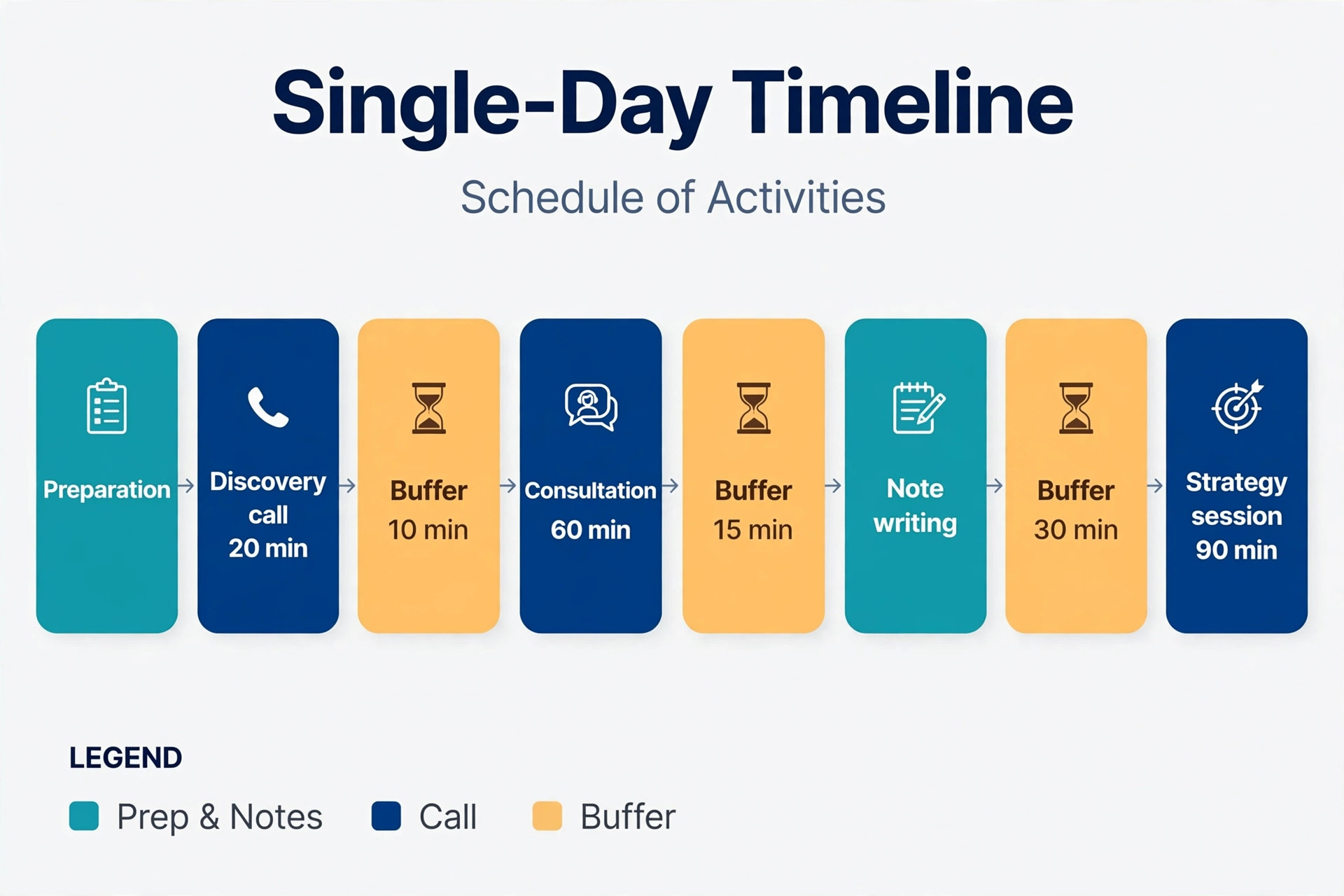
When you use Calendly for consultation bookings, buffers are the most underused setting in Calendly, and they are the difference between a day that feels professional and a day that feels frantic. A buffer is a blocked period before or after an event, and for consultations it should cover the work that happens around the call, not just the call itself. A 15 minute buffer after a 60 minute consultation gives you time to write notes, send the follow up, drink water, and reset before the next client. A 10 minute buffer before a call gives you time to read the intake answers and open the relevant documents.
Without those gaps, notes pile up until the evening, follow ups slip to the next day, and the next client can feel that you are still thinking about the previous one.
Set buffers by call type, not by a single global rule. A 20 minute discovery call may need only a 10 minute buffer after it, because the follow up is a short email. A 60 minute paid consultation needs a longer buffer, because the notes and the next step proposal take real time. A 90 minute strategy session may need a 30 minute buffer, because it generates a plan that must be written while it is fresh. Calendly lets you set buffers on the event type, so use that control instead of leaving gaps to chance.
If you find that buffers are eating too much of the day, the answer is usually fewer slots or a higher price, not smaller buffers, because a day without recovery time produces worse calls, not more revenue.
The No-Show Checklist That Actually Moves Attendance
When you use Calendly for consultation bookings, this checklist is the second half of the overview proof element in this guide, and it is the routine to run for every consultation, not just for clients you suspect will miss. Calendly has reported that its sales users cut no-show rates by 28 percent on average with automated reminders, and that 88 percent of surveyed sales users reported fewer no-shows after using reminder workflows, figures you can read in the official Calendly guide linked at the end of this section.
Those are vendor reported figures from a survey, not a guarantee for your practice, but they point in the same direction as the wider evidence, which is that people forget, and a timely nudge brings some of them back. Your job is to build the nudge into a system, then measure your own rate over four weeks.
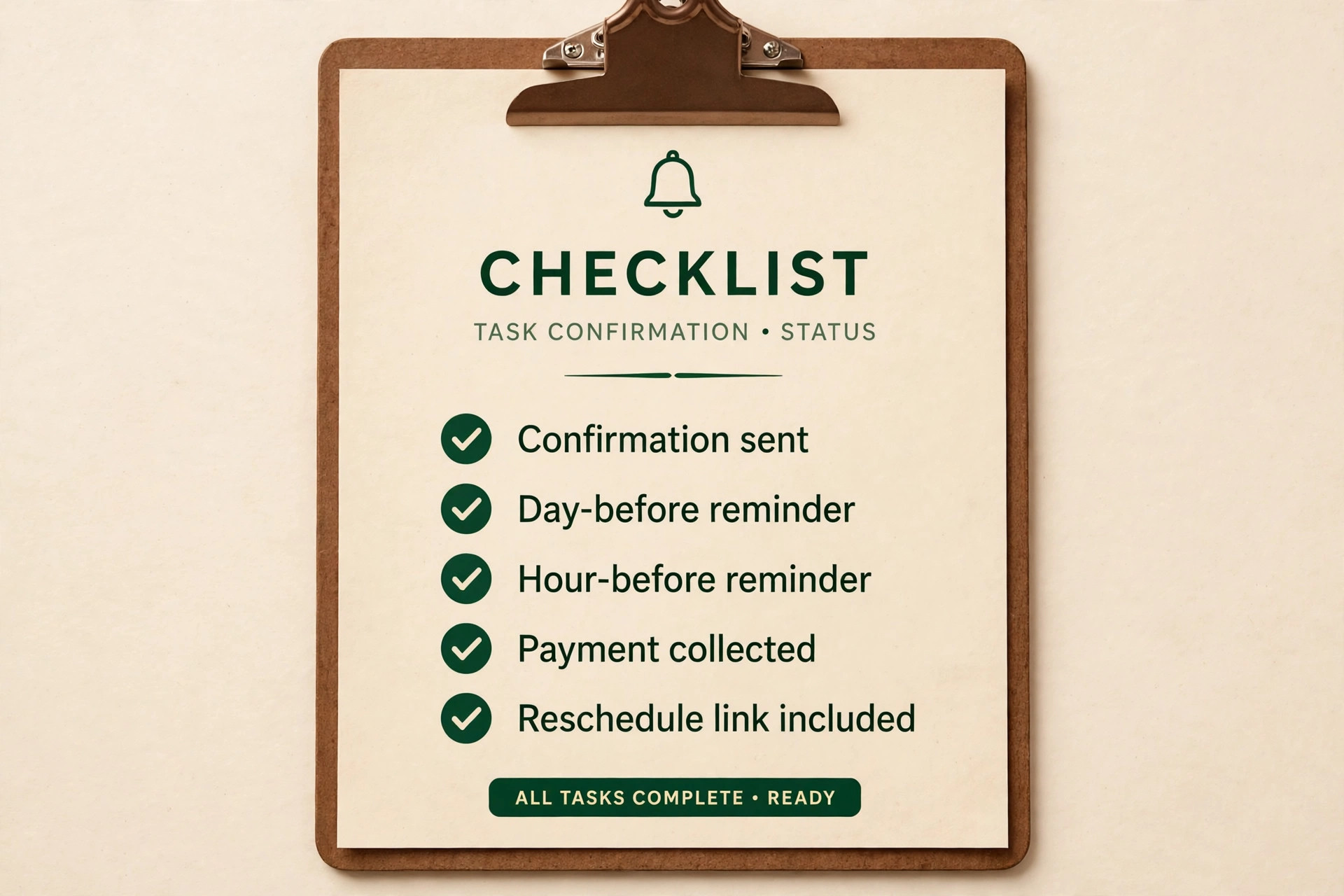
Run this checklist for every booking. First, send a confirmation the moment the booking lands, with the agenda, the joining link, and one preparation task. Second, send a reminder one day before, with the same joining link and a visible reschedule link, so a client who cannot make it can move the call instead of vanishing. Third, send a short reminder one hour before, with only the joining link and the start time, because a long email at that point will not be read.
Fourth, ask one qualifying question before booking, such as the outcome they want or the timeline they face, because a client who has invested an answer is more likely to attend than a client who clicked a bare time slot. Fifth, collect payment or a deposit for paid consultations through Stripe or PayPal where that fits your model, because money is a commitment device and it filters out casual bookings. Sixth, keep the booking window short, as described above, so interest does not fade before the call.
Seventh, send a no-show follow up within two hours of a missed call, with a fresh booking link and a short, kind note, because many no-shows are genuine diary errors that can still be recovered the same day.
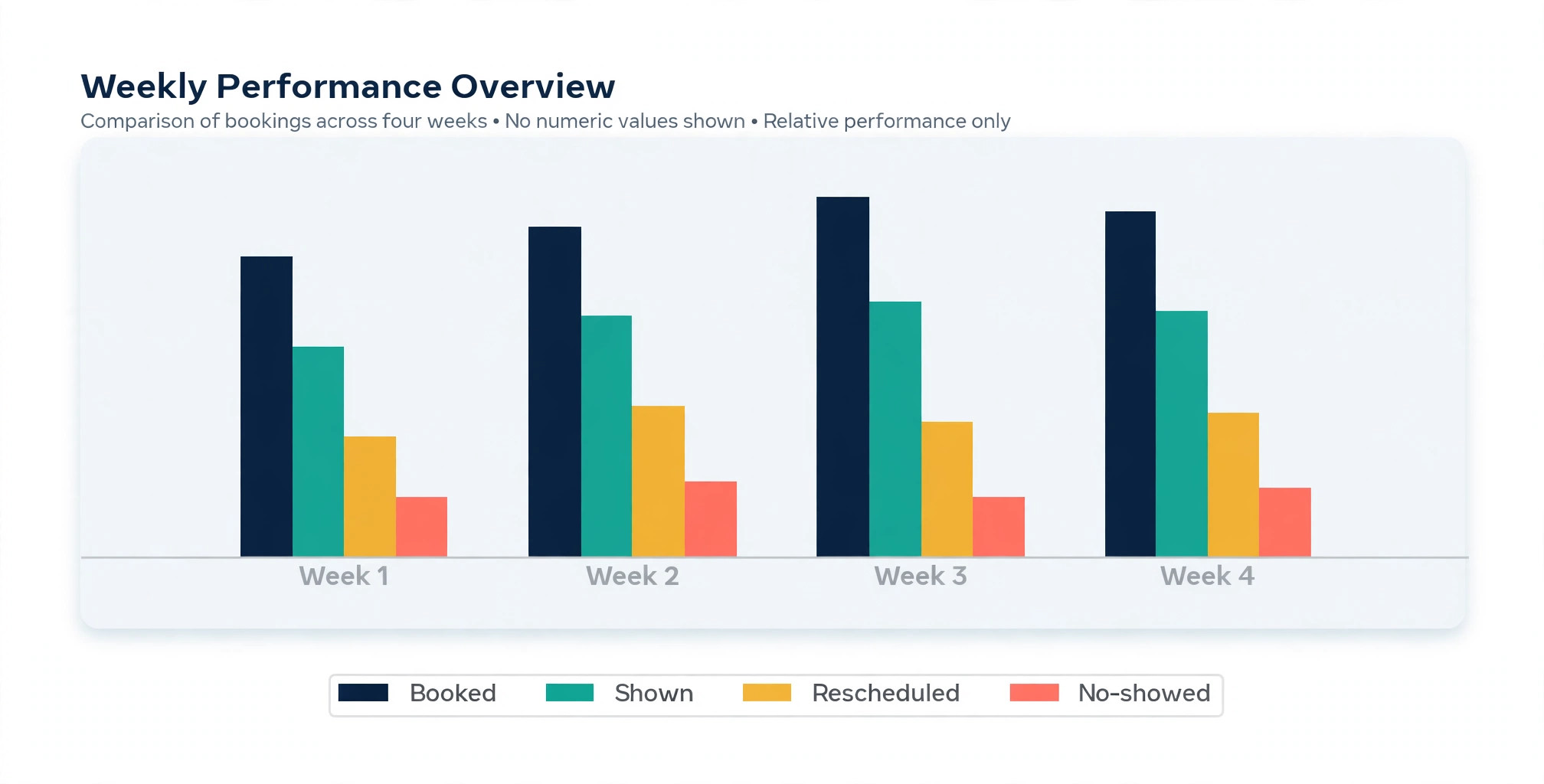
Measure the checklist, or it will drift. Each week, record how many consultations were booked, how many showed, how many rescheduled before the call, and how many no-showed without contact. After four weeks, you will see which stage leaks most. If most losses are silent no-shows, strengthen the one hour reminder and the payment step. If most losses are late reschedules, tighten the booking window and the qualifying question. If most losses cluster on one event type, rewrite that booking page, because the problem may be a vague description rather than forgetfulness. A checklist without measurement becomes a ritual, while a checklist with weekly numbers becomes a system you can improve.
Payments, Confirmations and Follow Up
Payment changes the psychology of a consultation, and Calendly supports collection through Stripe and PayPal on paid plans. For a paid consultation, collect payment at booking unless you have a strong reason not to, such as a corporate client who pays by invoice. Payment at booking does three jobs at once. It confirms that the client values the hour, it removes the awkward payment chase after the call, and it gives you a clean cancellation policy, because you can state the refund window on the booking page. State that policy in plain language, with the number of hours notice required for a refund or a free reschedule, and apply it consistently.
A policy that bends for every request teaches clients that the policy is negotiable.
Follow up is where consultations turn into clients, and it should happen within one business day. Send a short summary of what was agreed, the next step, and the link to book that step, while the conversation is still fresh. Calendly workflows can automate the follow up email, but the summary itself should be personal, because a generic thank you note adds nothing after a paid hour of advice. If the next step is a proposal, give a date for it in the follow up, and book a short follow up call if the proposal needs discussion.
A consultation without a dated next step often ends with a polite email and no decision, while a consultation with a booked next step keeps momentum that a reminder alone cannot create.
How to Choose Between Calendly and a Simpler Alternative
Calendly is not the only scheduling tool, and when you use Calendly for consultation bookings you should still test it against a simpler route, and the honest choice depends on your booking volume, your team size, and your existing stack. If you book fewer than five consultations a month and you already use Google Calendar or Microsoft Outlook heavily, a native booking page inside your calendar suite may be enough, and the extra features of a paid Calendly plan may not earn their cost. If you book consultations weekly, need payment collection, and want workflows that send reminders without manual work, Calendly Standard is the stronger pick.
If you run a team page where clients should reach the next available consultant rather than a named person, Teams with round robin routing is the feature that decides the choice, and a simpler tool without routing will force you back to email coordination.
Consider the integration question before you decide. Calendly connects with common tools such as HubSpot, Salesforce on higher plans, Zoom, Stripe, PayPal, and Zapier on paid plans, according to public plan summaries. If your client records live in a CRM, a tool that writes bookings into that CRM without manual copying will save more time than a cheaper tool that leaves you exporting lists. If you work alone and your records live in a spreadsheet, that integration advantage matters less, and simplicity matters more. Trial both routes for two weeks with real bookings, not demo bookings, and judge by the number of emails you still have to send, not by the beauty of the dashboard.
Mistakes That Quietly Break a Consultation Booking System
The first mistake when you use Calendly for consultation bookings is leaving availability wide open. A calendar that offers every hour of every day looks generous, but it produces back to back days, stale bookings, and a consultant who dreads opening the calendar. Tighten the window, cap the day, and protect preparation time, and clients will respect the scarcity because it signals that your time is genuinely limited. The second mistake is asking too many questions, or too few. A form with twelve questions feels like an exam, while a form with only a name and email leaves you unprepared. Test the form on a colleague and cut every question that does not change your preparation.
The sixth mistake is never reviewing the numbers. A consultant who does not track bookings, shows, reschedules, and no-shows cannot tell whether a change helped. Review the four numbers weekly for a month after launch, then monthly, and change one setting at a time, so you know what caused any improvement. Changing reminders, buffers, prices, and questions in the same week makes it impossible to learn what worked. The seventh mistake is copying a competitor booking page without adapting it to your practice. A page that works for a sales team booking demos may fail for a consultant booking paid advice, because the questions, the payment step, and the preparation are different.
Borrow the structure, but write the copy for your clients.
If you run a consulting practice, the wider tool guides on this site help you place scheduling inside the rest of your stack. The guide to best AI tools for consultants covers the tools consultants use alongside booking, from research to delivery, while best scheduling apps compares scheduling options beyond a single vendor. If you want the direct alternatives before you commit, Calendly alternatives lists other scheduling tools by use case, and Calendly vs Cal.com compares Calendly with its most discussed open source rival on pricing and features. Read those guides after you have mapped your workflow, so you compare tools against your real booking volume and team shape, not against a feature list alone.
Frequently Asked Questions
Is the Calendly Free plan enough for consultation bookings?
Free works for a test, because it gives one event type and one connected calendar at no cost. It falls short for a real practice, because most consultants need at least two event types, such as a discovery call and a paid consultation, plus payment collection and automated reminders, which sit on paid plans. Start on Free to test the booking flow, then move to Standard when you take real client bookings each week.
How much does Calendly cost for a solo consultant?
A solo consultant on Standard pays 10 dollars per seat per month on annual billing, or 12 dollars on monthly billing, based on public pricing summaries checked in October 2026. That is 120 dollars a year on annual billing, against 144 dollars monthly, so start monthly for a month, confirm the system earns its keep, and switch to annual only when you are sure. Enterprise pricing starts at about 15,000 dollars a year and is not aimed at solo practices.
What buffer should I set between consultation calls?
Set a 10 minute buffer after a short discovery call, a 15 minute buffer after a 60 minute paid consultation, and a 30 minute buffer after a 90 minute strategy session, then adjust after two weeks of real bookings. The buffer should cover note writing and follow up, not just a break, so if notes regularly spill past the buffer, lengthen the buffer or reduce the daily cap rather than skipping the notes.
Do Calendly reminders really reduce no-shows?
Reminders help, though no tool removes no-shows entirely. Calendly has reported that its sales users cut no-show rates by 28 percent on average with automated reminders, and that most surveyed sales users reported fewer missed meetings after using reminder workflows. Treat those as vendor reported figures, run your own four week measurement of booked, shown, rescheduled, and no-showed calls, and judge the reminder system by your own numbers.
Should I take payment before a consultation or after it?
Take payment at booking for paid consultations, unless a corporate client must pay by invoice. Payment at booking confirms commitment, removes the post call payment chase, and lets you state a clear refund and reschedule policy on the booking page. For free discovery calls, use a qualifying question and a short booking window instead of payment, because the commitment there comes from the answer and the agenda, not from money.
Can I use Calendly for consultation bookings with a team?
Yes, and Teams is the plan built for that shape, with round robin scheduling, lead routing, and team reporting. Set up a team page that routes each booking to the next available consultant, or to the consultant whose expertise matches the intake answers, and keep a named personal page alongside it for clients who want a specific consultant. Test routing with real bookings before you publish the team link widely, because a routing error sends clients to the wrong person and is harder to spot than a single page error.
Book the Call, Protect the Hour, Keep the Client
A good system for anyone who wants to use Calendly for consultation bookings does three jobs, and it does them quietly. It lets a prospect book in minutes, without an email thread. It protects the hour around the call, with buffers, limits, and preparation time that keep the work professional. It brings the client back to the call, with reminders, a reschedule link, and a follow up that turns one conversation into a next step. Calendly earns its place in that system not because it has the most features, but because it does those three jobs with settings you can set once and then trust.
Start this week, not next month. Create one event type for your main consultation, connect the calendars that can conflict, set a 15 minute buffer and a daily cap you can sustain, write a booking page that states the outcome and the price honestly, and turn on the confirmation, one day reminder, and one hour reminder with a reschedule link. Book a test call as a client, fix the hesitation points, and publish the link on your website, in your email signature, and in your enquiry reply. Then measure for four weeks, change one setting at a time, and keep the routine that brings clients to the call prepared and on time.
That is the whole system, and it is enough to stop good demand from leaking away through admin.
For official detail on reminder workflows and no-show follow ups, read the Calendly guide to reducing no-show rates at Calendly on reducing no-show rates and the Calendly workflows guide at Calendly workflows. Confirm current prices at checkout before you pay, because plan names and Plus tier rates changed during 2026.