
A WordPress site can look healthy on the day you decide to move it, and still lose traffic, leads, and search visibility within a week of launch. The new design is usually not the problem. The damage comes from the quiet parts of the move. A blog URL changes by one word. A contact form posts to a plugin that no longer exists.
A category archive disappears without a redirect. A checkout, booking, or quote form stops sending mail, and nobody notices until a customer complains. If you plan to migrate WordPress to Webflow, treat the move as a data and routing project first and a redesign second, because the design is easy to admire while the routing failures are easy to miss.
This guide gives you that order of work. You will audit what you actually own, map every URL that earns traffic or links, rebuild pages and collections in a way Webflow can sustain, replace forms and plugin functions one by one, and run a pre-launch check covering SEO, speed, mobile layout, and lead capture. It also covers real costs and limits that change the plan, including Webflow plan prices, CMS caps, form behaviour, and redirect rules. Prices were checked against Webflow’s own pricing page at draft time, and you should still check checkout before you pay, because Webflow changed its site plans in 2026 and older guides still quote retired tiers.
Why Most Migrations Break in the Same Quiet Places
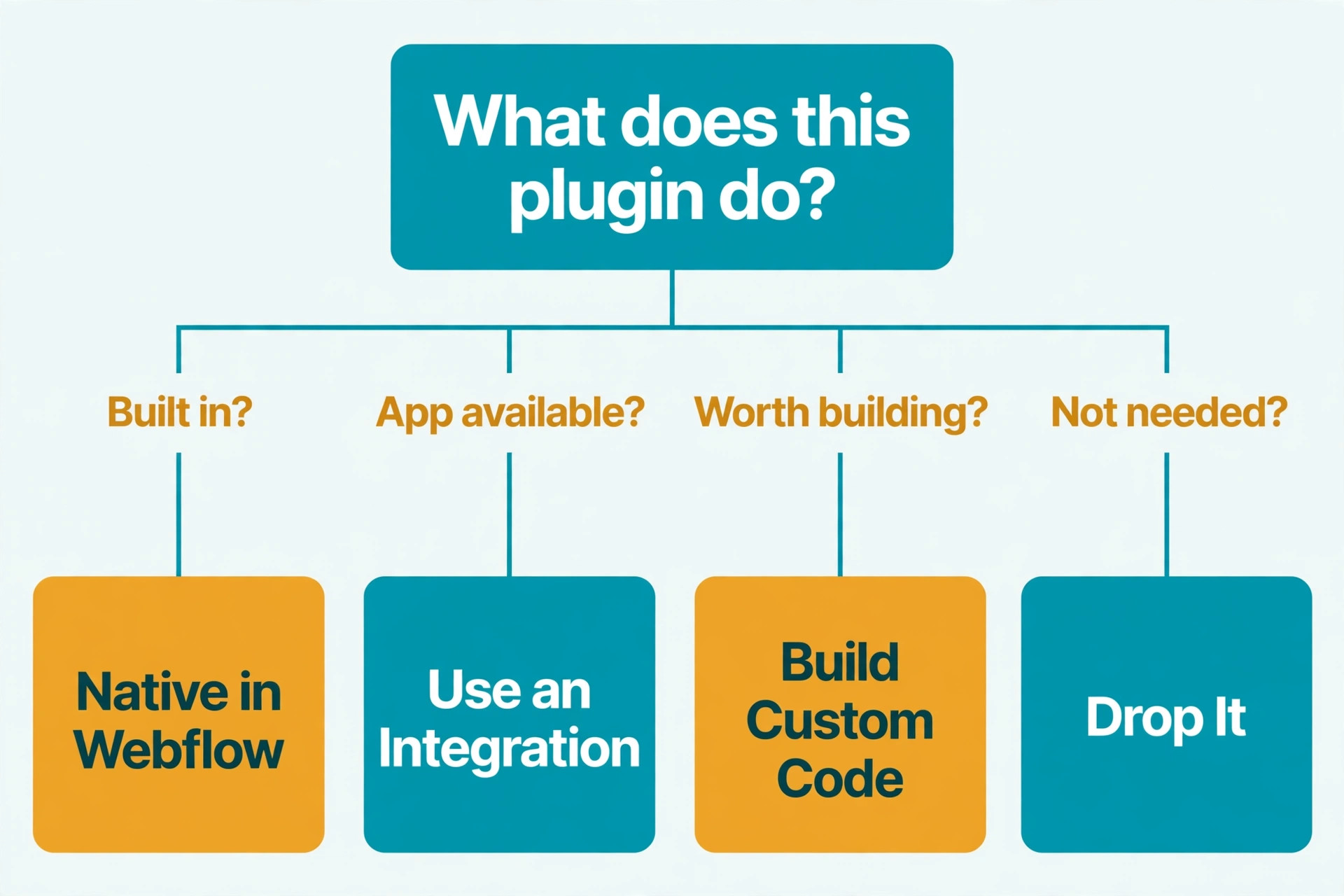
Migrations rarely fail because a team cannot build a good-looking Webflow site. They fail because WordPress and Webflow organise a site in different ways, and the translation between those two models is where work gets dropped. WordPress grows by plugins. A form plugin handles submissions, a SEO plugin handles titles and redirects, a membership plugin gates content, and a page builder holds layout code that only that builder understands. Webflow replaces much of that stack with native hosting, a visual builder, and a structured CMS, but it does not import plugin logic. Every plugin function must be named, judged, and rebuilt or replaced, and any function left unnamed is a function that will break silently on launch day.
How to Migrate WordPress to Webflow Without Losing Rankings
A safe migration follows a simple rule. Nothing that earns traffic, links, or leads moves without a named owner and a tested destination. That rule sounds slow, and it is slower than a lift and shift, but it is faster than recovering rankings after launch. Start with a freeze window. Agree a date after which no new WordPress content, URL changes, or plugin changes happen except urgent fixes, so your inventory stops moving while you map it. Then work in four passes. Audit and inventory. Map URLs and SEO assets. Rebuild and import. Test, redirect, and monitor. Each pass ends with a check you can show a colleague, not a feeling that things look about right.
Audit First, Because You Cannot Map What You Have Not Listed
Start with a crawl, not a guess. Run a crawler such as Screaming Frog over the live WordPress site and export every URL it finds, including pages, posts, categories, tags, author archives, paginated archives, attachment pages, and search result pages. Add the sitemap, the analytics top pages report for the last 90 days, the Search Console top queries and pages report, and a backlink export if you have one. Merge those lists and remove duplicates. The result is your master URL list, and it is usually longer than anyone expected. A site with 200 blog posts can easily have 600 or more crawlable URLs once archives, pagination, and tag pages are counted, and each one needs a migration decision.
Next, inventory content by type, not just by URL. List static pages, blog posts, case studies, services, team members, testimonials, and any custom post type. For each type, note the fields it uses. A blog post may carry a featured image, an author, a category, and a custom excerpt. Webflow collections need those fields defined before import, and a field forgotten at design time becomes manual rework across hundreds of items. Also mark each item as keep, merge, update, or retire, with a reason for retire and merge decisions, because migration is the cheapest moment to prune thin tag pages and outdated posts.
Map Every URL and Protect What Earns Traffic
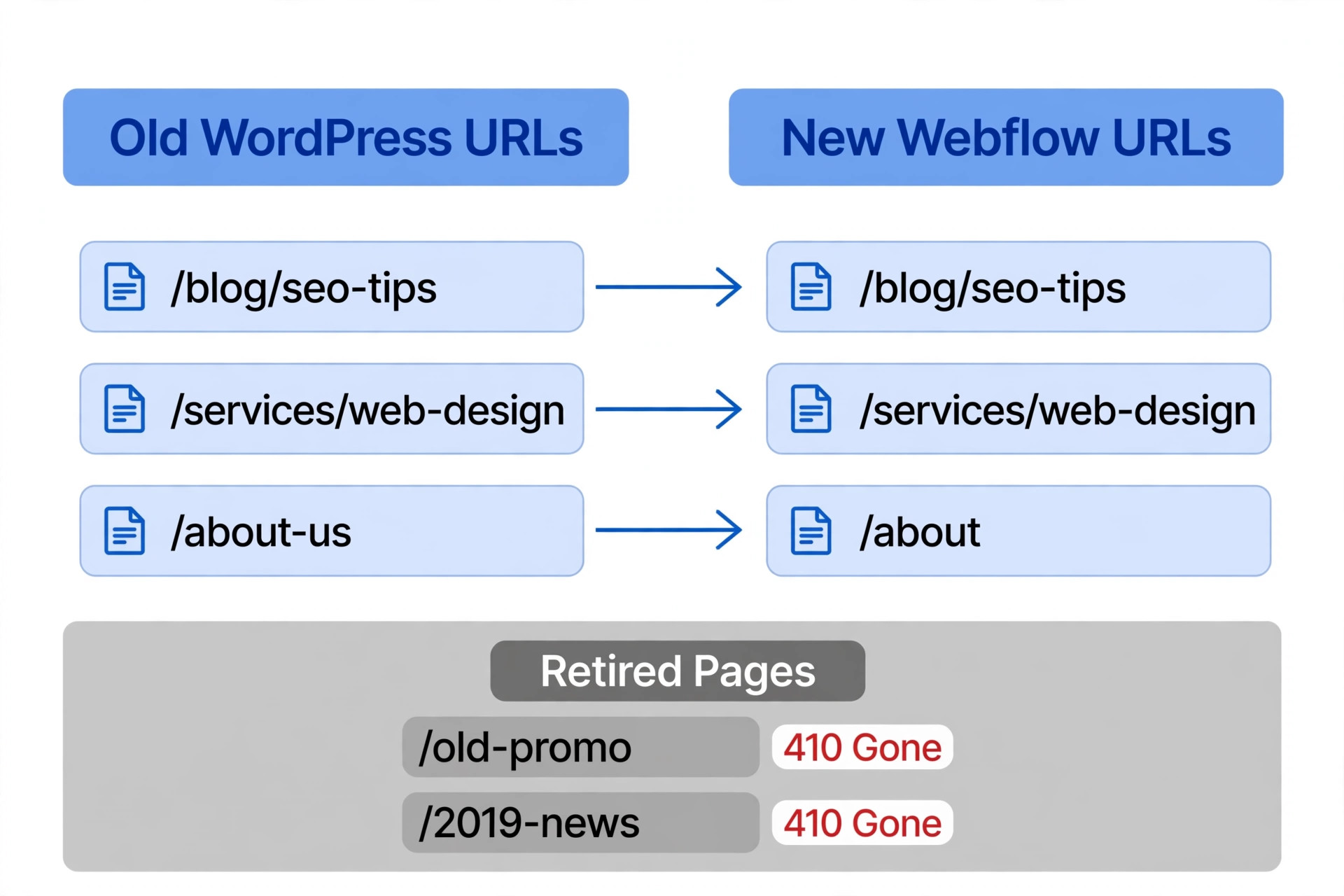
URL mapping is the single most valuable document in the whole project. Build it as a spreadsheet with one row per old URL and columns for old URL, new URL, action, traffic in the last 90 days, backlinks, and owner. The action column should use only four values. Keep the same URL, redirect with a 301, merge into another page with a 301, or retire with a deliberate 404. Every row must have an action. Sort by traffic and backlinks, and give the top pages extra review, because a redirect error on a page earning 5,000 visits a month costs far more than the same error on a page nobody visits.
Webflow handles 301 redirects in site settings, and it requires a paid site plan, or a workspace with a paid workspace plan, before you can add them. That detail matters for timing, so do not leave redirect entry until the day you buy the plan. Webflow’s own help guidance notes that there is no hard cap on total redirects, but it recommends keeping the count at or below 1,000 as a best practice, because each rule is added to the site manifest that browsers download.
For a large site, use wildcard rules to collapse a folder move into one pattern, rather than writing a rule per post. Wildcards handle straight folder moves well. They do not handle complex restructuring, query strings, or full regular expressions, so if your old structure needs that logic, put a proxy or edge layer in front of Webflow, or simplify the new structure so wildcards can carry the load.
The redirect and SEO preservation table below is the minimum record to keep. It covers the assets that most often get lost, and it forces a decision for each one. Use it as a template, expand it to every URL on your master list, and keep it as the audit trail after launch. Redirect to the closest equivalent, never to the homepage by default, and never chain redirects to an intermediate URL. If a stakeholder asks why a page changed, this table is the answer.
| SEO asset | WordPress reality | Webflow action | Check before launch |
|---|---|---|---|
| Blog post URL | Often date based or category based | Keep the slug where possible, or 301 to the new slug | Old URL returns 301, not 404 |
| Category and tag pages | Auto generated archives with pagination | Rebuild as collection lists or redirect to a hub page | Paginated pages resolve or redirect |
| Author pages | Auto generated per author | Rebuild as a collection or redirect to a team page | Author bylines still link somewhere real |
| Homepage and money pages | Highest traffic and most links | Keep URLs identical wherever possible | Titles, descriptions, and headings match or improve |
| Old landing pages | May still earn links and ads traffic | 301 to the closest live equivalent, never to the homepage by default | Backlink targets tested one by one |
| XML sitemap | Generated by an SEO plugin | Webflow auto generates a sitemap, then submit it in Search Console | New sitemap lists live URLs only |
| Meta titles and descriptions | Stored per post by an SEO plugin | Map title and description fields into the CMS template | Top 50 pages checked by hand |
| Image alt text | Stored per media item | Import alt text as a CMS field, not as an afterthought | No decorative image carries keyword stuffed alt text |
| Structured data | Often added by a plugin or theme | Add JSON-LD per template in custom code | Rich result test passes on templates |
| Internal links | Hardcoded in post content | Rewrite links to new slugs during import cleanup | Crawl finds no internal 404s |
Rebuild Pages and Collections for Webflow, Not as a Copy
Webflow is not a WordPress theme, and the cleanest migrations redesign the content model instead of copying the old database shape. Start by defining collections for repeating content. Blog posts, case studies, team members, services, locations, events, and testimonials each deserve a collection when three or more pages share the same structure. Static pages such as home, about, contact, and pricing stay as static pages, because their layouts are one-off and hand-crafted. Deciding this split early prevents the most common rework, which is building 40 blog posts as static pages and then discovering that every small change must be repeated 40 times.
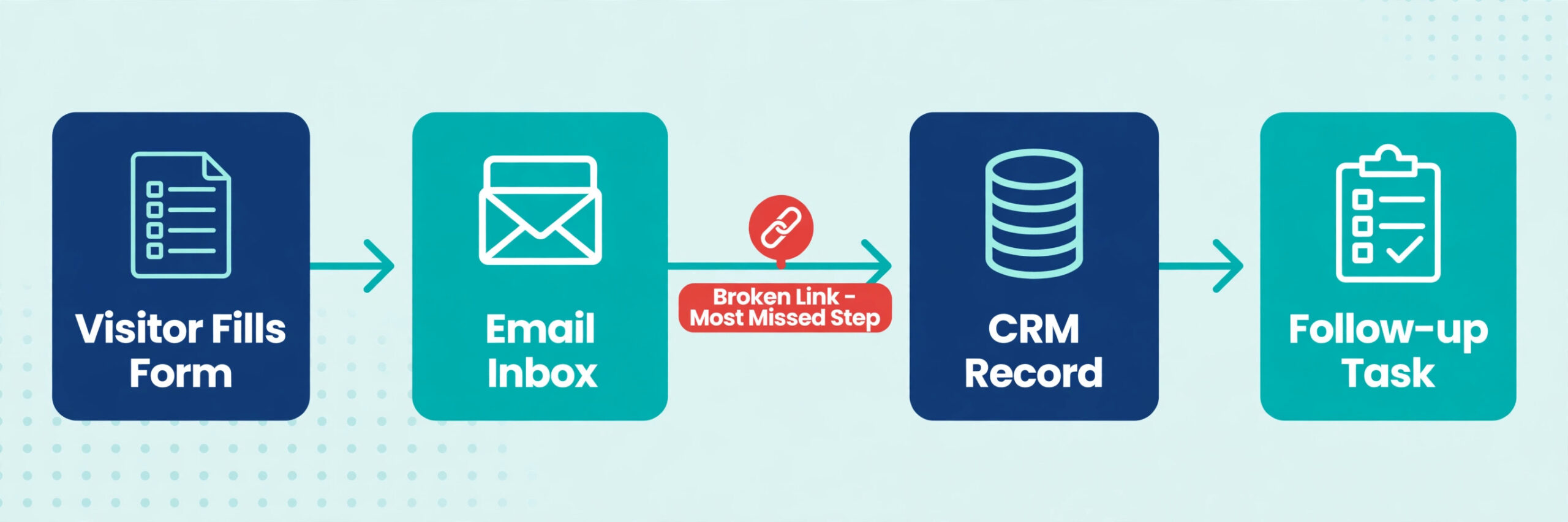
Design the CMS template before you import content. The template decides how titles, excerpts, featured images, authors, dates, categories, and body content render, and it decides where SEO fields sit. If the template is finished first, import becomes a data task. If import happens first, every template change risks breaking imported items. For each collection, define the fields, mark required fields as required, and decide slug rules. A slug should be short, readable, and stable, because changing slugs after launch creates another redirect round. Avoid dates in slugs unless the date is part of the content identity, and avoid category prefixes that you may later want to rename, because renaming a collection slug changes every item URL inside it.
Import in batches and check a sample from each batch by hand. WordPress exports content as XML, while Webflow imports CMS content as CSV, so most teams use an export plugin or a conversion step to produce clean CSV files. Clean the data before import, not after. Strip shortcodes and builder markup, fix heading hierarchy so there is one H1 per page, rewrite internal links to the new slugs, and compress images before upload. A batch of 50 items, fully checked, teaches you more than 500 items imported blind.
Forms Are Where Migrations Lose Leads
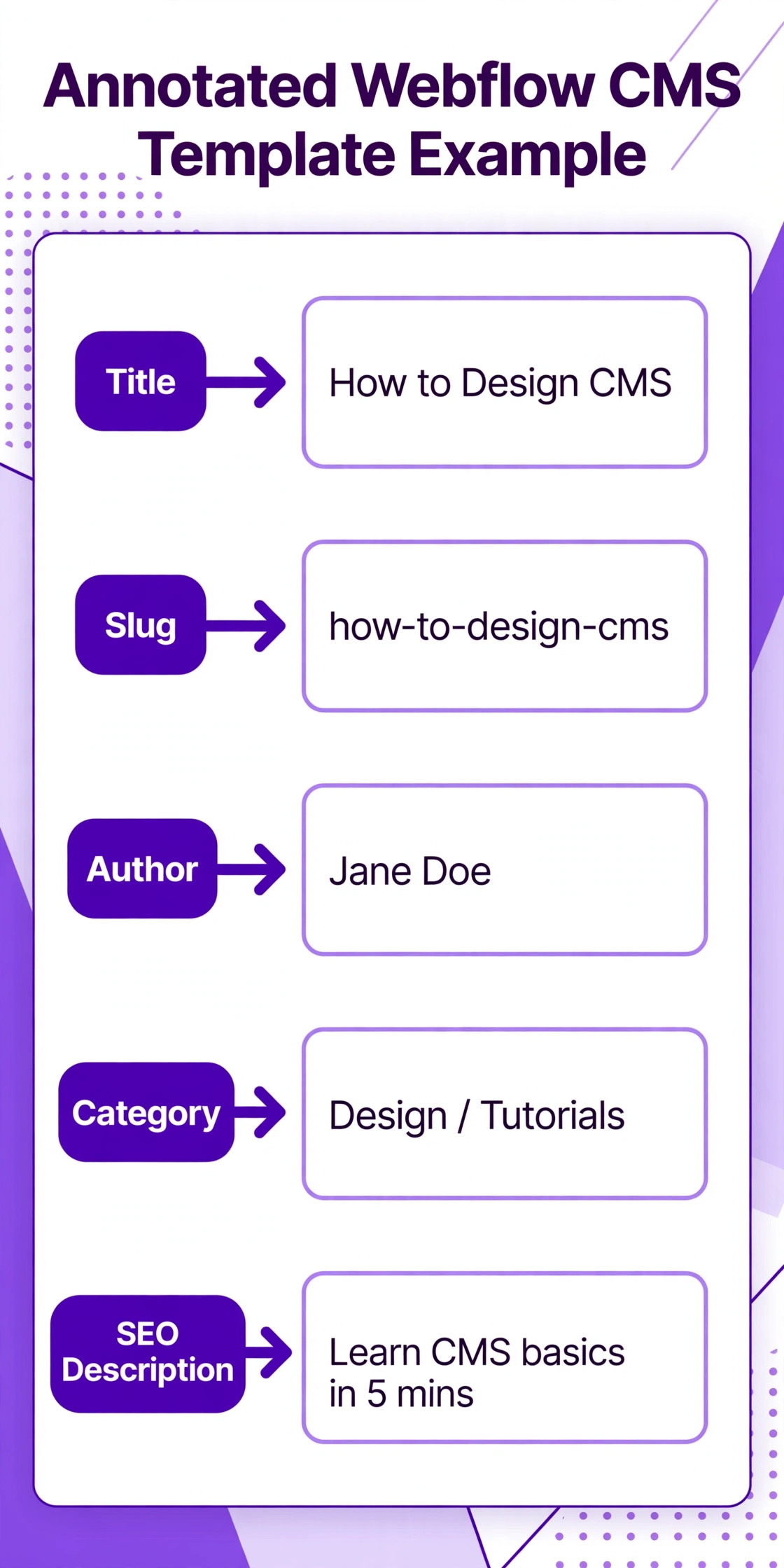
A form audit starts with a list, and most sites have more forms than the owner thinks. Count the contact form, every quote and booking form, newsletter signups, demo requests, support forms, job applications, gated download forms, and any form embedded in a landing page or popup. For each form, record the fields, the required fields, the confirmation message or redirect, the notification recipients, the storage location, and every downstream step, such as a CRM record, a Slack message, an autoresponder, or a sales assignment rule. That record is the test script for the new form. A form that passes a visual check but sends notifications to the wrong inbox has failed, even though it looks finished.
Webflow forms submit to Webflow by default, and paid site plans carry unlimited form submissions on the current pricing comparison, while the free Starter plan is limited to 50 submissions. From Webflow, you can send email notifications, connect integrations, or route submissions through tools such as Zapier or Make to a CRM. That routing must be built and tested per form, not assumed. Test with real data, and check every destination.
Submit the form, confirm the success message, check the inbox, check the CRM record, and check spam folders. Test on mobile, because keyboards, autofill, and date pickers break forms that work on desktop. Test error states too. A blank required field, an invalid email, and an oversized file upload should each produce a clear message, not a silent failure.
Spam protection deserves its own test. WordPress sites usually rely on a plugin or a captcha, and that protection does not move with the form. Webflow forms need their own spam handling, whether built-in filtering, a captcha, or a third-party tool. A form that worked quietly on WordPress can be flooded within days of launch if spam controls were never rebuilt. Watch submission volumes for the first two weeks against the WordPress baseline. A sudden drop may mean a broken form. A sudden spike of junk may mean missing spam controls.
SEO Settings That Must Be Rebuilt by Hand
Webflow gives you strong SEO controls, but it does not import your WordPress SEO settings automatically. Titles and descriptions, canonical tags, open graph images, sitemap controls, and robots rules must be set deliberately, and the CMS template must pull them from fields for every item. Test the template with a real item, not with empty fields, because a template that looks right with placeholder text can produce blank titles or duplicated descriptions on live items.
Check that each page has one H1, that headings follow a logical order, and that heading tags are not used just for visual size. Designers sometimes pick a heading level because it looks right, and that choice breaks the document outline that search engines and screen readers rely on.
Set canonical tags to the live public URL on every page, and confirm that staging URLs never appear as canonicals. Control the sitemap and robots file, exclude thank you pages and password protected pages, and submit the new sitemap in Search Console on launch day. Add structured data per template with JSON-LD for content types that benefit from it, such as articles, organisations, and FAQs, and validate each template in a rich results test before launch. A schema error repeated across 300 CMS items is 300 errors, not one.
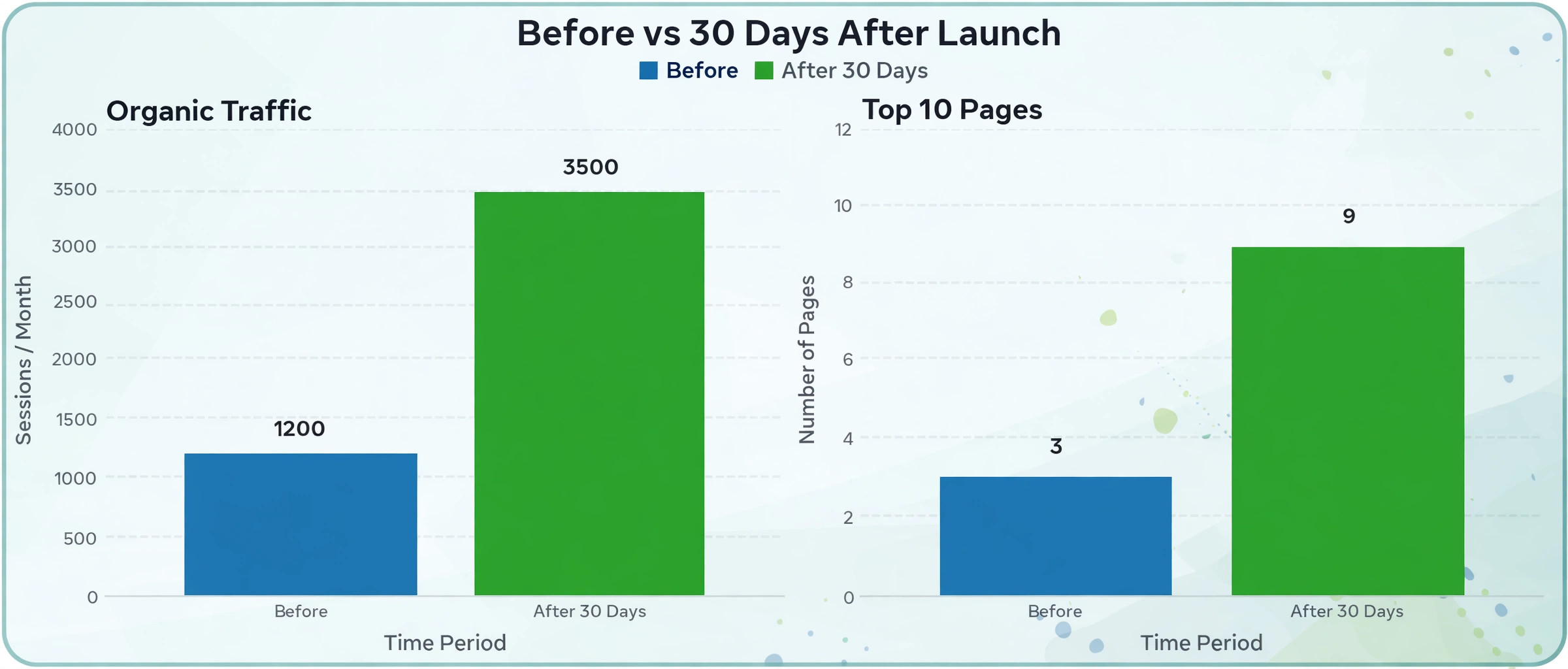
Analytics and tracking must be rebuilt with the same care. Reconnect Google Analytics, Search Console, and any ad or social pixels, and verify that pageviews, form submissions, and key conversions fire on the new site. Keep the same analytics property where possible, so history stays comparable, and annotate the launch date so future reports can explain the step change. Verify Search Console for the live domain, not just staging, and submit the sitemap there.
What the Move Really Costs
Platform cost is the smallest part of most migration budgets, but it is the part people quote most often, so get it right. On Webflow’s pricing page, the Basic site plan is listed at 15 dollars per site per month billed yearly, for simple sites that do not need a CMS, with 300 static pages and 10 GB of bandwidth. The Premium site plan is listed at 25 dollars per site per month billed yearly, for content-rich sites, with the Webflow CMS, site search, and form file upload.
The old CMS plan at 23 dollars and Business plan at 39 dollars that many older guides still quote have been merged into Premium, so any budget built from an old guide will be wrong.
Ecommerce plans are separate, with Standard at 29 dollars, Plus at 74 dollars, and Advanced at 212 dollars per month billed yearly. Workspace plans are a second bill for teams, with Core at 19 dollars and Growth at 49 dollars per month billed yearly, plus per-seat charges. When you migrate WordPress to Webflow, check checkout for monthly rates, taxes, bandwidth add-ons, and add-ons such as Localize and Optimize, which can add 9 dollars to 299 dollars per month.
The larger costs are labour, tool replacements, and lost revenue during problems. A small marketing site with 20 pages and one form can move in a few weeks of part-time work. A content site with 500 posts, multiple collections, and several forms can take two to three months when audit, design, import cleanup, QA, and monitoring are counted honestly. Agency migrations commonly run into four or five figures once design and development are included, and that range widens fast for ecommerce, membership, multilingual, or heavily custom sites. Do not compare the Webflow plan price with a WordPress hosting price and call the difference a saving.
Compare total ownership. WordPress costs include hosting, premium plugins, security and backup tools, and developer time on updates. Webflow costs include the site plan, workspace seats, replacement tools, and design time. For many small teams Webflow is cheaper month to month, because updates and security patching disappear. For a large site with many editors and high bandwidth, model bandwidth add-ons at 20 dollars per 50 GB billed yearly before launch, not on an invoice after it.
Two Migration Helper Options, and When Each Fits
Most teams do not need a large toolset for this move. They need a clean export, a clean import, and a way to check the result. Two helper approaches cover most cases when you migrate WordPress to Webflow, and the right one depends on site size and how much manual cleanup you are willing to do. First, the WordPress export plus CSV cleanup route uses the built-in export or an export plugin, then a spreadsheet pass to clean shortcodes, fix links, and shape fields for Webflow CSV import.
It costs little beyond time, and suits small sites where a human can check every item. Past a few hundred items, spreadsheet cleanup becomes slow and error prone, and media handling stays manual.
Second, a dedicated migration service such as CMS2CMS automates much of the content transfer, including posts, pages, categories, and media, with a demo migration to check before paying for the full run. It suits mid-size sites that want speed and a repeatable transfer. Its weakness is that it moves content, not design or plugin logic. You still rebuild templates, forms, redirects, and integrations by hand, and you should still audit migrated items, because automated transfers can carry over shortcodes and messy formatting.
How to Choose the Right Scope for Your Site
Scope is a business decision, not a technical one, and it depends on what the site must do on day one. A brochure site with a contact form and a blog needs a faithful move with strong redirects and one tested form. A lead generation site needs a form-first scope, where every lead path is tested before design polish. An ecommerce site needs a separate plan for products, checkout, payment, and order emails, and may need to stay on WordPress if Webflow ecommerce does not fit its product model. A membership site needs a separate plan for gating, accounts, and payments, because those tools each carry limits that must be tested with real accounts.
Use three questions to set scope. Which pages earn the most traffic, links, or revenue, and what happens if each one breaks for a week. Which forms produce leads or orders, and who notices first if they stop. Which plugin functions would force a rollback if they failed on launch day. The answers become the must-pass list for launch. Everything else can launch in a second phase. A phased launch might move the marketing site and blog first, keep a complex tool on a subdomain temporarily, and migrate it once the main site is stable.
Mistakes That Cost Rankings After Launch
The most common mistake is launching with redirects added but never tested on the live domain. Staging tests pass, DNS changes, and a domain setting, a trailing slash difference, or a case difference breaks a batch of redirects that nobody retests. Test the top URLs within hours of launch, and run a full crawl within 48 hours. The second mistake is changing slugs, titles, and content all at once. Each change is defensible alone, but together they make it hard to tell whether a traffic drop came from the platform, the URLs, or the content. Change one variable at a time where you can, and keep a change log for the first month.
The third mistake is treating launch day as the end of the project. Rankings and indexing take weeks to settle, and form problems often appear only under real traffic. Monitor Search Console daily for the first two weeks, then weekly for a month, watching for coverage errors and pages that drop from the index. Compare organic traffic and form volumes with baselines weekly. If you migrate WordPress to Webflow and see a sharp drop on one template, such as all blog posts, the cause is usually a template problem or a sitemap error, and it is fixable if caught early. A drop left for two months becomes a recovery project.
Pre-Launch Checklist, Page by Page and Form by Form
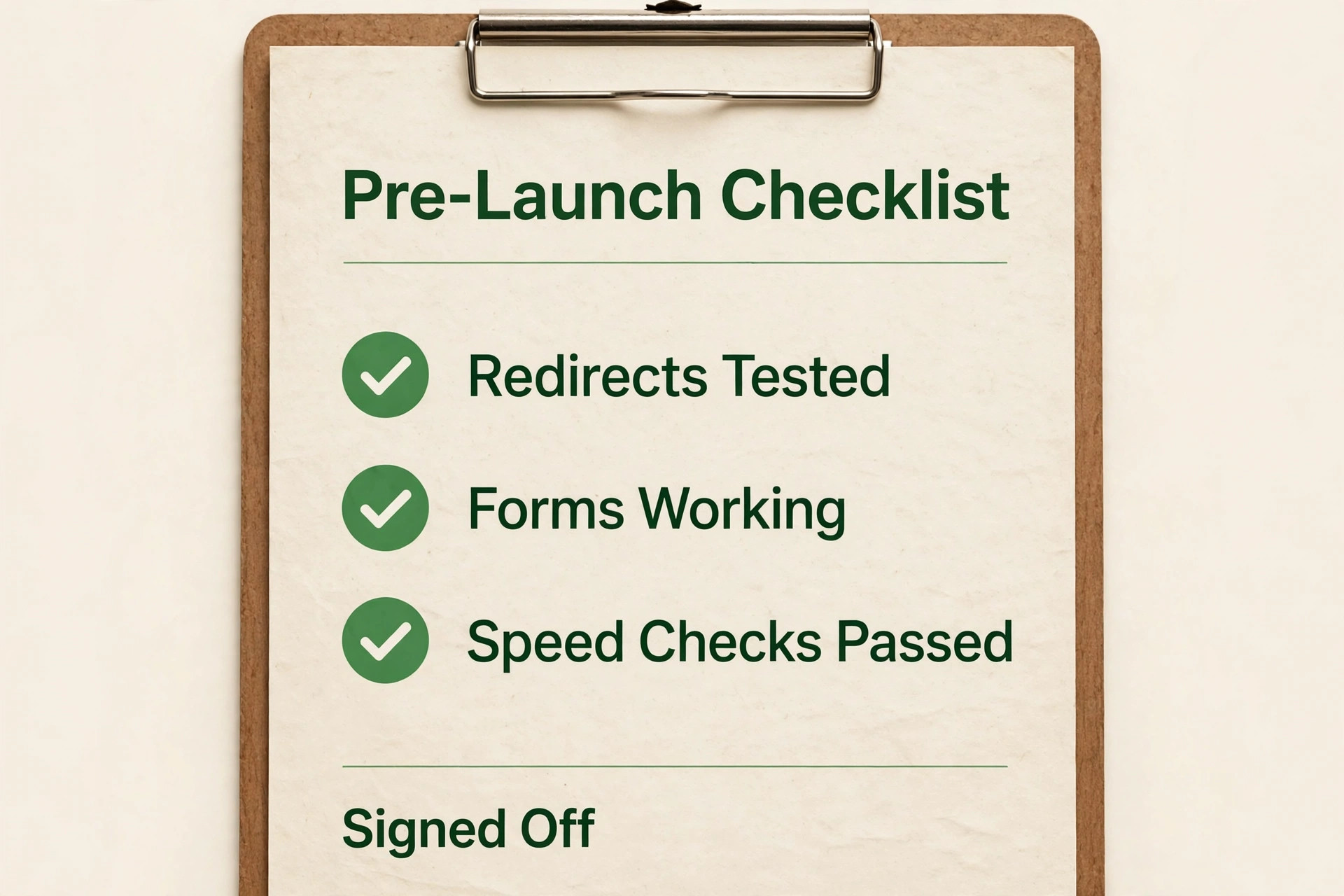
This checklist is the overview-proof part of the guide, because it is the document you actually sign off before DNS changes. Use it as the sign-off gate when you migrate WordPress to Webflow. Print it, assign an owner to each line, and require evidence for each pass, such as a crawl export or a test submission in the CRM. A checklist with ticks but no evidence is a wish list. Run it once on staging, fix everything, and run it again on the live domain after launch, because the second run catches domain and DNS problems the first run cannot.

– Inventory signed off, with every old URL assigned to keep, redirect, merge, or retire, and the spreadsheet saved with the project. – Backups saved off-server, including the WordPress database, uploads, and redirect and SEO exports. – Staging blocked from search engines, with no canonical tag pointing at staging and no staging links in the live sitemap. – Every top 50 traffic page checked on desktop and mobile for layout, headings, images, and links, with no overflow or unreadable text.
– Every redirect tested on staging with a crawler, with zero 404s from old URLs assigned a redirect and zero redirect chains. – Every form submitted with real data, with success message, inbox notification, CRM record, and autoresponder each confirmed, plus spam controls tested.
– Meta titles and descriptions checked by hand on the top 50 pages, and by template sample on CMS items, with no blank or duplicated titles. – Sitemap submitted in Search Console for the live domain, robots file checked, and analytics verified and firing on live pages. – Page speed checked on the five most important pages, with the largest mobile problems fixed and scores recorded.
– Structured data validated on each template, open graph images checked, and favicon and 404 page in place. – DNS and SSL checked, with the custom domain connected, HTTPS forced, and no mixed content warnings on key pages. – Rollback plan written, stating who can revert DNS, how long a revert takes, and what triggers it.
For related reading, webflow alternatives helps if you are still comparing platforms, wordpress alternatives covers the wider field, and wix vs wordpress is useful if a simpler builder is also on your shortlist. If forms are your main risk, best AI form builders covers form tools in more depth, and best AI SEO tools covers audit and monitoring tools. For rebuilding site structure from scratch, how to build a website with AI and best AI website builders give a broader view of builder options.
Frequently Asked Questions
How long does it take to migrate WordPress to Webflow?
A small marketing site with 20 pages and one form can move in two to four weeks of part-time work, including audit, build, and testing. A content site with several hundred posts and several forms usually takes two to three months when import cleanup and QA are counted honestly. Ecommerce, membership, or multilingual sites take longer, because each custom function needs its own rebuild and test. Freeze content early, keep URLs stable, and phase complex features after launch, rather than rebuilding everything at once.
Will I lose SEO rankings when I migrate WordPress to Webflow?
You can keep most rankings if URLs stay the same where possible, every changed URL gets a 301 redirect to the closest equivalent, titles and descriptions are preserved, and the new sitemap is submitted promptly. Short-term fluctuation is normal while Google recrawls the new site. Lasting loss usually traces to a specific error, such as missing redirects, a blocked robots file, staging canonicals left in place, or a template that drops titles. Baselines and a 30 day monitoring plan let you find and fix that error before it becomes permanent.
Do Webflow 301 redirects handle every old WordPress URL?
Webflow 301 redirects handle most straightforward moves, including single URL changes and wildcard folder moves, and they require a paid site plan or a paid workspace plan. They do not support full regular expressions, complex query string rules, or temporary 302 logic in the same way a server config does. Webflow’s own guidance recommends keeping redirect counts at or below 1,000 as a best practice. For very large sites, simplify the new URL structure so wildcards can carry the load, or put a proxy in front of Webflow for complex rules.
What happens to my WordPress plugins after the move?
Plugins do not move to Webflow. Each plugin function must be rebuilt with a Webflow-native feature, replaced with an integration or third-party tool, or dropped deliberately. Forms, SEO settings, redirects, and backups have native or straightforward replacements. Membership, booking, calculators, and complex ecommerce logic need a dedicated tool or custom code, and that need should be found during the audit, not during QA.
Can Webflow handle a large WordPress blog?
Yes, for most blogs. The current Premium site plan carries 20,000 CMS items across 40 collections, which covers a large archive, and collection lists can be paginated beyond 100 items per list. The limits to check are reference fields per collection, capped at 10 on Premium, and the display limit of 100 items per collection list. A blog with heavy cross-linking should have its content model drawn on paper before import, so reference limits are known before content moves.
Should I redesign my site during the migration?
If rankings and leads matter, it is safer to migrate first and redesign second. Keep URLs, titles, and core content stable for the move, launch, monitor for two to four weeks, and then redesign in steps, so any traffic change can be traced to one cause. If a redesign cannot wait, accept a longer checklist and monitoring period, because you will be debugging a platform change and a design change at the same time.
Go Live When the Checklist Says Yes, Not When the Calendar Says So
A move succeeds when you migrate WordPress to Webflow with the boring work finished before the exciting work goes live. The inventory is complete, every valuable URL has a destination, every form has been followed from submit button to inbox or CRM, and the SEO settings that WordPress plugins used to handle are now set deliberately in Webflow. That work does not show in a design review, but it protects the traffic and leads the old site spent years earning. A beautiful new site that loses its best pages and its lead flow is not a successful migration, no matter how good it looks.