

A portable monitor costs money, takes up bag space and still needs a cable, a stand and a power plan. An iPad already in your bag does the same job for most desk work, and on a Mac it does it for free. That comparison is the whole decision in one line. If you buy a portable monitor, you get a larger, dumber screen that only shows a picture. If you set up iPad as second monitor, you get a smaller, smarter screen that can also take touch and Apple Pencil input and, when you disconnect it, go back to being a tablet. The trade is size against flexibility, and for travel and small desks, flexibility usually wins.
This guide covers the real choice, not just the button clicks. You will learn which route fits a Mac and which fits a Windows PC, when a cable beats Wi-Fi, what the screen can and cannot do for design and spreadsheet work, and how to test lag before a setup ruins a client call. Prices quoted here are the ones found in vendor listings at the time of writing, and you should check the checkout page before you pay, because display apps have changed from one time purchases to subscriptions over the years.
The Short Answer for Your Desk
If you own a compatible Mac and a compatible iPad, start with Sidecar. It is built into macOS and iPadOS, it costs nothing extra, and it takes about two minutes to try. Open System Settings on the Mac, go to Displays, add your iPad, and choose whether to extend or mirror the desktop. If the iPad does not appear, the problem is almost always compatibility, the Apple Account, or a wireless setting.
If you own a Windows PC, Sidecar is not available, so the choice changes. Duet Display is the most widely used paid route for Windows plus iPad, Luna Display is a hardware route that suits designers, and spacedesk is a free Windows only route worth trying before you pay for anything.
If you own an older Mac that Sidecar does not support, do not assume you are stuck. Duet Display and Luna Display both support a wider range of older hardware than Sidecar, and that wider support is the main reason to pay for them on a Mac. If your iPad is very old, a third party app may accept it where Sidecar will not, but performance will be limited by that old hardware, so test it with your real apps before you rely on it.
One more distinction saves confusion. Sidecar turns the iPad into a second display for the Mac. Universal Control is different. It lets one keyboard and trackpad control a Mac and a nearby iPad, while the iPad keeps running its own apps, and it does not give the Mac more screen space. Apple explains the difference in its Universal Control support page.
How to Set Up iPad as Second Monitor on a Mac with Sidecar
Sidecar is the simplest route, and most of its setup is checking that the two devices are allowed to talk to each other. Keep both devices charged for the first test, because a low battery iPad that sleeps mid setup looks exactly like a connection failure.
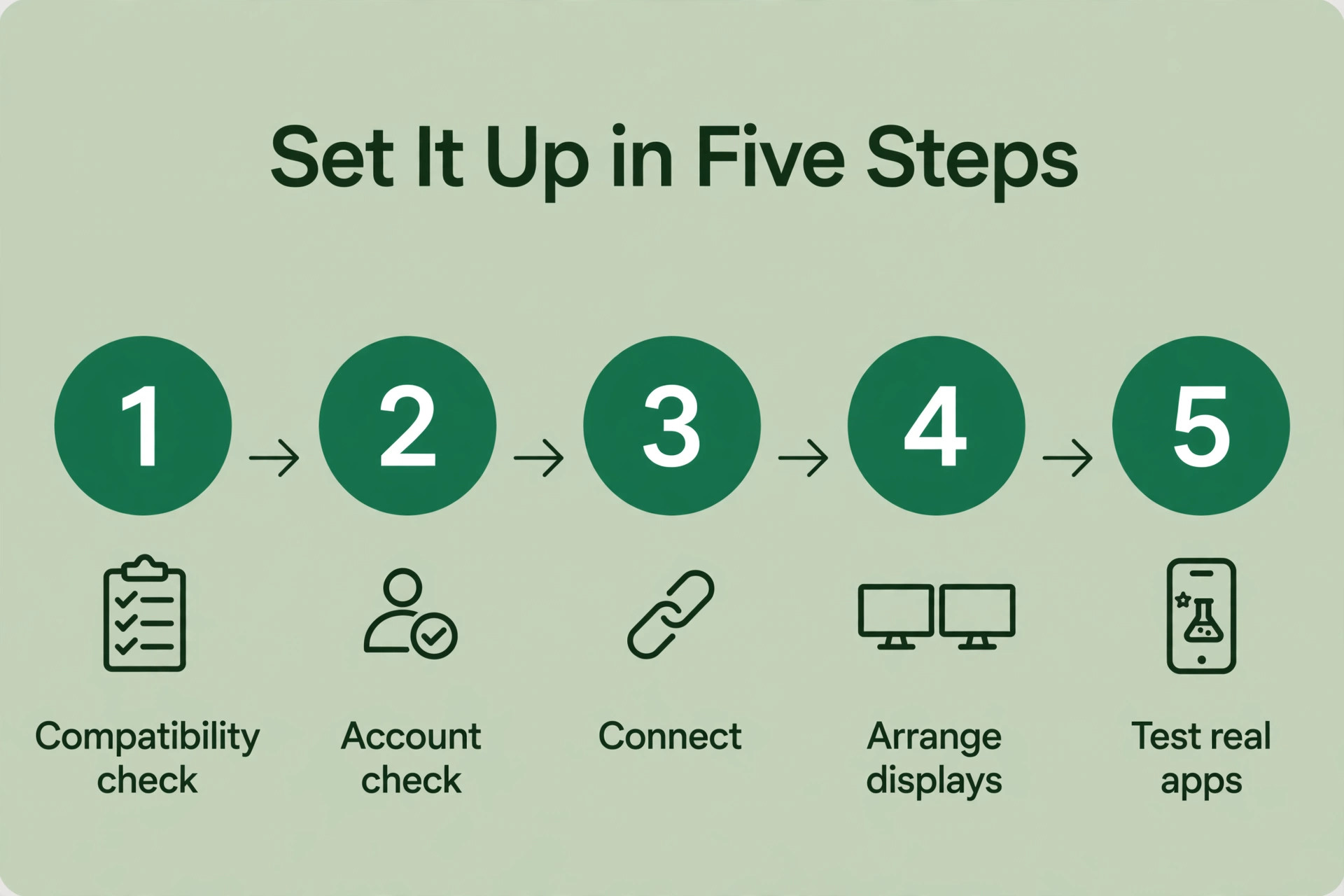
Check Compatibility First
Sidecar needs a Mac running macOS Catalina 10.15 or later and an iPad running iPadOS 13 or later, and both devices must be on the supported hardware list. On the Mac side, that list includes MacBook Pro from 2016, MacBook Air from 2018, MacBook from 2016, Mac mini from 2018, iMac from late 2015 for the 27 inch Retina 5K model and from 2016 for other models, iMac Pro from 2017, Mac Pro from 2019, and every Mac Studio model. Every Apple Silicon Mac falls inside that range.
On the iPad side, Sidecar supports every iPad Pro model, iPad Air from the third generation, iPad mini from the fifth generation, and the standard iPad from the sixth generation. If you are unsure which model you own, check Settings, then General, then About on the iPad, and the Apple menu, then About This Mac, on the Mac. A Mac that runs the latest macOS does not automatically support Sidecar, and a USB-C port does not guarantee support either, so check the model lists rather than guessing from the port shape. Both devices must also be signed in to the same Apple Account, with two-factor authentication turned on.
That account check is the most common reason an iPad never appears in the Displays list, so if you use one Apple Account for work and another for personal use, sign both devices into the same one for the Sidecar session.
Connect Wirelessly in Two Minutes
For a wireless connection, turn on Wi-Fi, Bluetooth and Handoff on both devices, and put them on the same Wi-Fi network. Apple advises keeping the iPad within about 10 metres of the Mac, and a crowded office network or a thick wall will hurt performance long before that distance limit matters. A quiet home network usually works well. A busy cafe network is a much harder test.
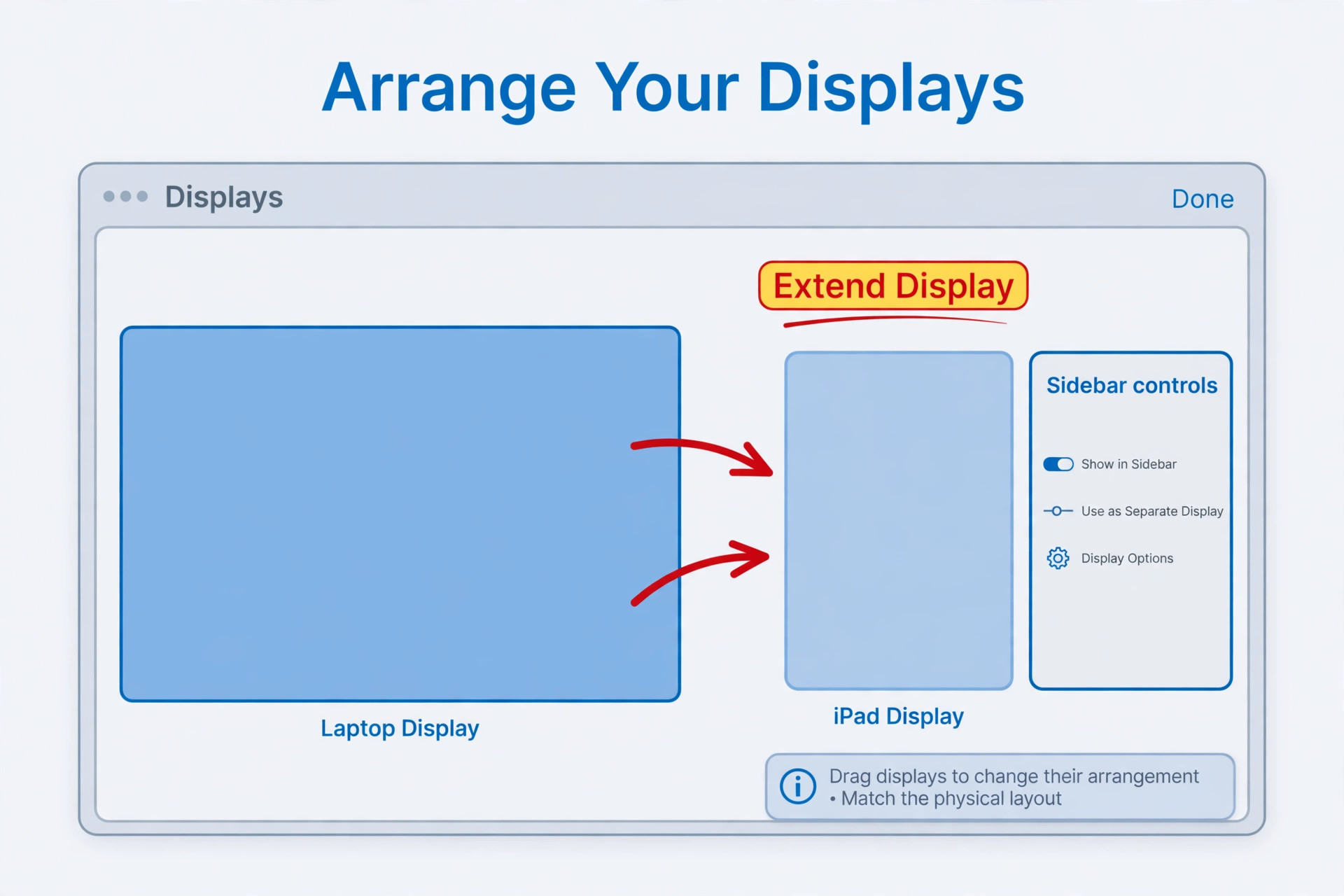
On the Mac, open System Settings, then Displays. Click the add display control, usually shown as a plus sign, and select your iPad from the list. On older macOS versions the same control lives in System Preferences, then Sidecar, or in the AirPlay menu. Once connected, choose Extend Display for extra workspace, or Mirror if you want the iPad to show the same picture as the Mac for presentations.
If the iPad does not appear, do not reinstall anything yet. Check the account first, then check that Bluetooth, Wi-Fi and Handoff are on, then restart both devices. That restart fixes more Sidecar failures than any other single step. If the iPad appears over a cable but never wirelessly, the problem is in the wireless settings or the network, not in compatibility.
Connect with a Cable When Stability Matters
A cable connection uses the same Displays menu, but it removes the network from the equation. Plug the iPad into the Mac with a USB-C cable, or a Lightning cable for older iPads, and select the iPad in Displays as before. Use a cable that carries data, not just power. Some cheap charging cables will charge the iPad and do nothing else, and that silent failure confuses a lot of first time setups. The cable that came in the iPad box carries data, so use that one for the first test.
A cable also keeps the iPad charged during a long session, which matters because a second display drains battery faster than reading or note taking. Wireless work over a full day can leave an iPad flat by late afternoon, especially at higher brightness. For video calls, screen sharing and design work, cable steadiness is worth the loss of wireless freedom. For reference material or a chat window, wireless is fine.
Arrange Displays and Use Apple Pencil
Once connected, drag the iPad rectangle in the Displays arrangement view to match its real position on your desk. If the iPad sits to the right of the Mac, put its rectangle on the right. When the arrangement matches the desk, moving the cursor between screens feels natural. When it does not match, you will keep losing the cursor at the wrong edge, and the setup will feel broken even though it is working correctly.
Sidecar also shows a sidebar on the iPad with controls for the menu bar, the Dock, the on screen keyboard and modifier keys, plus a Touch Bar strip for apps that support it. You can move the sidebar to either edge, or hide it to gain back screen space. Apple Pencil works as an input device in Mac apps on the iPad screen, which makes Sidecar useful for signing documents, sketching and photo retouching. Finger touch has historically been more limited, with direct tapping to click Mac interface elements only arriving in newer macOS and iPadOS releases, so check software versions if finger tapping matters to you.
Set Up on Windows When Sidecar Is Not an Option
Windows has no built in equivalent of Sidecar for iPad, so every Windows route involves an app on both devices, and usually a companion program on the PC. That extra layer is also why Windows setups vary more in lag and reliability. The app has to capture the PC screen, compress it, send it over a cable or network, and draw it on the iPad. A weak network or an old PC makes the delay obvious.
To set up iPad as second monitor on a Windows PC, start with the free test, then pay only if the free test shows you a gap that matters. Install spacedesk on the PC and the spacedesk client on the iPad, put both on the same Wi-Fi network, and connect from the iPad app. Windows display settings then treat the iPad like any other monitor. Spacedesk is Windows only, but for a Windows owner it answers the first question, which is whether a small second screen helps your daily work at all.
Duet Display is the paid step up from that free test. Recent listings put Duet Air at about 4 dollars a month billed annually and Duet Pro at about 5 dollars a month billed annually, with a short trial period, but Duet pricing has changed several times, so check the Duet checkout page before you buy. Duet runs on macOS and Windows, works wired or wirelessly, and supports touch and Apple Pencil input, with pencil features on the higher tier. That cross platform support is the real reason to choose Duet. If you switch between a Windows laptop at work and a Mac at home, one Duet setup covers both desks.
Luna Display takes a different approach. It is a small hardware dongle that plugs into a USB-C port on the Mac or PC, plus apps on the computer and the iPad, and it presents the iPad to the computer as a real display. The USB-C version was listed at 89.99 dollars on the Astropad shop at the time of writing, with older listings showing 79.99 dollars, so check the shop page for the current price and connector type before ordering. Astropad also publishes a guide to using an iPad as a monitor with Luna Display.
Luna suits designers because it is built around touch, pencil and full resolution display, and it can also drive a Mac mini with an iPad as its only screen. The downside is that you pay for hardware, occupy a port, and must carry the dongle.
Splashtop Wired XDisplay is another free route, with a clear limit in its name. It works over a cable only, and it needs a USB-C video cable rather than a basic charging cable. Whichever Windows route you pick, test it with the apps you actually use, not with a blank desktop. A setup that looks fine showing a static web page can stutter badly when you scroll a large spreadsheet.
Wired or Wireless. Which Setup Fits Your Work
The wired versus wireless question is not about which technology is better in the abstract. It is about which failure you can tolerate in the work you are doing. A wired connection fails rarely and recovers fast. A wireless connection fails when the network gets busy, and it recovers when the network calms down, which may not be during your meeting.
| Setup | Best for | Main weakness | Cost pattern | First test |
|---|---|---|---|---|
| Sidecar wired | Video calls, design, screen sharing | Cable tethers the iPad to the desk | Free with compatible hardware | Plug in and select the iPad in Displays |
| Sidecar wireless | Reference notes, chat, reading | Lag and drops on busy networks | Free with compatible hardware | Same Wi-Fi network, devices close together |
| Duet Display wired | Windows desks, mixed Mac and PC work | Subscription cost over time | Monthly subscription, trial available | Cable first, then test wireless |
| Duet Display wireless | Travel, flexible desk layouts | Lag varies with network quality | Monthly subscription, trial available | Quiet network, lower resolution first |
| Luna Display | Drawing, photo work, Mac mini desks | Hardware cost and a used port | One time hardware purchase | Dongle in, apps installed, iPad nearby |
| spacedesk wireless | Free Windows test, casual second screen | Windows only, no pencil focus | Free | Same Wi-Fi network, connect from iPad |
When you set up iPad as second monitor for a full workday, start wired for the first week even if you plan to go wireless later. A wired week gives you a baseline. You learn what the screen size feels like, which windows belong on the iPad, and whether the setup helps at all, without network problems muddying the test. If the wired week works, try wireless for a day of light work, and keep the cable handy for calls. If it drops during a call, you have your answer, and the cable is not a defeat. It is the setup that protects your work.
Resolution and scaling deserve a decision too. Running the iPad at full retina sharpness looks better but asks more of the Mac or PC and the connection. Running it at a lower scale gives larger text and a steadier picture, which is often better for a reference screen. Try the sharper setting for design work, and the larger text setting for chat, email and task lists. A second screen you cannot read comfortably will sit unused within a week.

Lag and Compatibility Checklist Before You Rely on It
A second screen that lags is worse than no second screen, because it steals attention every time the cursor stutters or a window redraws late. Run this checklist before you depend on the setup for a deadline or a paid client session. It takes about fifteen minutes, and it catches almost every problem that shows up later at the worst moment.
- Confirm both devices are on the supported model lists. A new operating system does not add Sidecar to unsupported hardware.
- Confirm both devices share the same Apple Account for Sidecar, with two-factor authentication on.
- Confirm Wi-Fi, Bluetooth and Handoff are on for wireless Sidecar, on the same Wi-Fi network.
- Keep the iPad within about 10 metres of the Mac for wireless work.
- Test with a cable first. If the iPad appears over a cable but never wirelessly, the fault is the network, not compatibility.
- Use a data cable for the cable test, not a power only cable.
- Open your real apps on the iPad screen. Scroll a long document and move a large spreadsheet.
- Drag a window across the boundary several times. The cursor should cross at the edge you expect.
- Join a test video call with the iPad in use, and share a window from the main screen. Watch for stutter.
- Check battery drain over an hour of real work.
- Check Apple Pencil behaviour in your design or signing app, including pressure and palm rejection.
- Check what happens when the iPad sleeps or receives a call.
- Check display arrangement after every move.
If three or more checklist items fail, do not push ahead with that route for important work. Switch routes instead. A wireless setup that fails on a busy network becomes a wired setup. A Sidecar setup that fails on old hardware becomes a Duet or Luna setup. A setup that fails because the iPad is too small for your main app becomes a different plan, such as using the iPad for notes and buying a larger external monitor later.

How to Choose Between the Routes
Choose Sidecar if you have a compatible Mac and iPad and you want the lowest cost and the least software to maintain. It is the right default, and any paid route has to beat it on a specific need, such as Windows support, older hardware support, or a Mac mini desk with no other display.
Choose Duet Display if you work across Windows and Mac, or if your hardware falls outside Sidecar support but still runs well. Weigh the subscription over two or three years, compared with a one time hardware purchase or a free built in feature. If you will use the second screen every day, that subscription may be good value. If you will use it twice a month on trips, a free route plus a cable may serve you better.
Choose Luna Display if pencil and touch control are central to the work, or if you need an iPad to act as the main display for a Mac mini. Designers and photo retouchers get the most from Luna, because it is built for that input. The hardware price is easier to justify when the iPad replaces a drawing tablet as well as a second monitor. If you never draw, Luna is harder to justify against free Sidecar, unless you need its wider hardware support.
Choose spacedesk if you are on Windows and you want to test the whole idea for free. It is also a sensible permanent choice for casual use, such as keeping email or a calendar on the iPad while you work on the PC. Its limits show up in pencil work and very demanding visual work, but for a reference screen those limits may never matter.
When you set up iPad as second monitor for a team, add support as a factor. Sidecar needs almost no training and no licence tracking. A subscription app needs someone to own renewals and updates. A hardware dongle needs someone to track who has it and which connector type each desk needs.

Fix the Most Common Problems
Most iPad second screen problems fall into a short list. Start with the account and compatibility checks, then the wireless checks, then the cable, then the app, then the network. Changing five settings at once makes it impossible to know which change fixed the problem.
If the iPad never appears in Displays, check the Apple Account first, then the model lists, then two-factor authentication, then a restart of both devices. If the picture is blank, check that you chose Extend Display and that the iPad is awake and unlocked. If the cursor will not cross to the iPad, check the display arrangement, because the iPad rectangle is probably on the wrong side in settings. If you set up iPad as second monitor and wireless performance stutters, move closer to the router, lower the resolution in the app settings, and try a cable for comparison. If the cable test is smooth and wireless is not, the network is the limit.
If both stutter, check the host computer, because display encoding adds work on top of everything else.
If the iPad disconnects when it sleeps, change the auto lock setting and keep it plugged in. If notifications keep pulling you out of work, turn on a Focus mode during second screen sessions. If Apple Pencil input feels offset, check the pencil pairing and test it in a simple drawing app before blaming the display connection.
Mistakes That Waste the Second Screen
The first mistake is putting the wrong windows on the iPad. Before you set up iPad as second monitor for a full week, decide which windows belong on each screen. People often drag their main work to the iPad because it is new, then spend the day squinting at a small screen while a large monitor shows email. Put the main work on the largest screen you own, and put glanceable material on the iPad. If you catch yourself leaning in to read the iPad for more than a few minutes at a time, the windows are on the wrong screens.
The second mistake is skipping the arrangement step. A second screen with the wrong left and right order feels broken, and many people blame lag when the real problem is a rectangle on the wrong side of the settings view. Fix the arrangement every time you move the iPad. The third mistake is judging wireless performance on the worst network you will ever use. A cafe test tells you about that cafe, not about your home office. Judge wireless at your normal desk, on your normal network, with your normal apps open.
The fourth mistake is buying before testing. Test Sidecar or spacedesk free first, list what is missing, and buy only to fill that specific gap. The fifth mistake is forgetting ergonomics. An iPad flat on a desk forces your neck down. Use a stand that holds the iPad at eye height beside the main screen, so you are turning your head rather than bending your neck.
When you set up iPad as second monitor for long sessions, the sixth mistake is ignoring battery and heat. A bright iPad running as a display for eight hours needs power, and a hot iPad in direct sunlight will dim its screen to protect itself. Keep it plugged in, keep it out of direct sun, and keep brightness at a comfortable level rather than maximum.

What an iPad Cannot Replace
An iPad second screen has hard limits, and naming them now prevents a purchase regret later. Size is the first limit. Even a 13 inch iPad is smaller than most desktop monitors, and it shows less of a large document or timeline at a readable size. Scaling helps, but it cannot create screen area that is not there. If your work needs two large windows side by side at full detail, an iPad will not replace a 27 inch monitor.
Refresh rate and colour accuracy are the next limits. A dedicated monitor built for design or video work will usually offer higher refresh rates, wider colour support and better calibration than an iPad acting as a second display over a compressed connection. For general office work, that difference is invisible. For colour critical print work, test with your own files before trusting the iPad for final checks. Touch input is another limit. Sidecar and third party apps differ in how fully they support finger touch, and none of them turns the iPad into a full touch Mac. Apple Pencil input is strong, and finger tapping varies by software version and app.
There are also practical limits. An iPad second screen needs the iPad itself, so a dead battery or a software update ends the setup. A dedicated monitor just needs power. Finally, Windows users face a platform limit. There is no free built in Windows equivalent of Sidecar, so a Windows second screen always depends on a third party app or hardware. None of these limits makes the iPad a bad second screen. They make it a portable, flexible second screen with a clear ceiling, and that ceiling is fine for most office work.
For readers organising the rest of their desk setup, related reading includes best note taking apps for capturing ideas from the second screen, best AI tools for project managers for multi screen project work, and Asana vs Monday for choosing the project workspace that will live on that extra screen.
Frequently Asked Questions
Can I use an iPad as a second monitor for a Windows PC?
Yes, but not with Sidecar, because Sidecar is Mac only. On Windows, use Duet Display for a paid wired or wireless setup, Luna Display for a hardware based setup, or spacedesk for a free wireless test. Install the companion program on the PC and the app on the iPad, and arrange the iPad in Windows display settings like any other monitor.
Does Sidecar cost anything extra?
No. Sidecar is built into macOS and iPadOS, so there is no purchase and no subscription for the feature itself, provided your Mac and iPad are on the supported hardware lists. The only optional costs are a stand or a longer data cable. That free price is the main reason to try Sidecar before any paid app.
Is a wired connection always better than wireless?
A wired connection is usually steadier and keeps the iPad charged, which makes it better for video calls, design work and screen sharing. Wireless is better for flexibility, travel and light reference work. If wireless stutters during a call, use the cable for calls and wireless for everything else.
Why does my iPad not appear in the Displays settings?
The most common causes are a different Apple Account on the two devices, a device outside the Sidecar hardware lists, two-factor authentication turned off, or Bluetooth, Wi-Fi or Handoff turned off on one device. Check those in that order, restart both devices, and then try a cable. If the iPad appears over a cable but never wirelessly, focus on the wireless settings and the network.
Can I draw with Apple Pencil on the iPad second screen?
Yes, with limits that depend on the route. Sidecar supports Apple Pencil input in Mac apps, and Luna Display is built around pencil and touch input. Duet Display supports pencil input too, with fuller pencil features on its higher tier. Test pressure and palm rejection in your actual drawing or signing app, because support varies by app.
Is an iPad second screen good enough for full time desk work?
It is good enough for full time office work when the iPad holds secondary material, such as notes, chat, email and reference documents, while a larger screen holds the main work. It is less good as the only large screen for video editing, large spreadsheets or colour critical design, where a dedicated monitor gives more area and more predictable colour.
The Desk Test. Keep the iPad or Buy a Monitor
Run the setup for one real workweek before you decide anything permanent. Put reference material on the iPad, main work on the largest screen, and note each time the setup helps and each time it gets in the way. If the notes show faster research and fewer window switches, keep the iPad setup and spend any spare budget on a stand that holds it at eye height. If the notes show squinting, stuttering calls and a dead battery by lunch, change the route first, wired instead of wireless, or a different app instead of Sidecar, before you spend money on new hardware.
When you set up iPad as second monitor and it survives that week, you have gained something a portable monitor cannot give you. You have a second screen that travels in the same bag as your tablet, that takes pencil notes when the workday ends, and that costs nothing extra on a compatible Mac. When it does not survive the week, you have still learned exactly how much screen area and stability your work needs. That answer should decide whether your next purchase is a stand, a subscription, a dongle or a larger monitor. Start with the free test, keep the cable handy, and let a week of real work make the decision.
