

Surveys of browser users keep returning to the same picture. Most people do not open 40 tabs because they enjoy clutter. They open them because each tab feels like a task not yet finished, an article not yet read, or a purchase not yet decided. The cost shows up quietly at first, then all at once. Pages take longer to load, typing lags in a document, video stutters, and the laptop fan runs for no obvious reason. If that pattern sounds familiar, you need a plan to fix Chrome slow too many tabs, not another promise that one setting will solve everything on its own.
This guide gives you that plan. You will diagnose the real cause in five minutes, run a 30 minute cleanup that closes, groups, bookmarks, or sleeps the tabs you do not need live, tune the settings that matter, audit extensions, and finish with a short checklist you can repeat every week. It works on Windows, Mac, and Chromebook, and it works whether you have 25 tabs open or 125. Prices are checked at draft time and Chrome itself remains free to download and use, so the fixes here cost nothing unless you choose a paid extension extra. Check the official pricing page and checkout before paying for any tool mentioned here.
Why Too Many Tabs Slow Chrome Down
Every open tab is work for your computer, even when you are not looking at it. A tab can hold a page in memory, run scripts in the background, refresh a feed, play a muted video, or keep a connection open to a chat service. One heavy page can use roughly 100 megabytes of memory on its own, and that figure rises fast for pages with video, large images, live dashboards, or dozens of trackers. Multiply that by 30 or 50 tabs and you can see why a machine with 8 gigabytes of memory starts to struggle. The browser is not broken.
It is doing exactly what you asked it to do, which is to keep a large pile of live pages ready at all times.
Memory is only part of the story. The processor also matters. Background tabs can wake up to check for new mail, update a social feed, or run an animation you cannot see. Extensions add a second layer of load, because many of them run on every page you visit. A password manager, an ad blocker, a grammar checker, and a screenshot tool can each be useful on their own, yet together they can add noticeable load to every new tab. When Chrome feels slow, the cause is rarely a single villain. It is usually a combination of many live tabs, a few heavy pages, and a handful of extensions all competing for the same limited memory and processor time.
Find the Real Culprit in Five Minutes
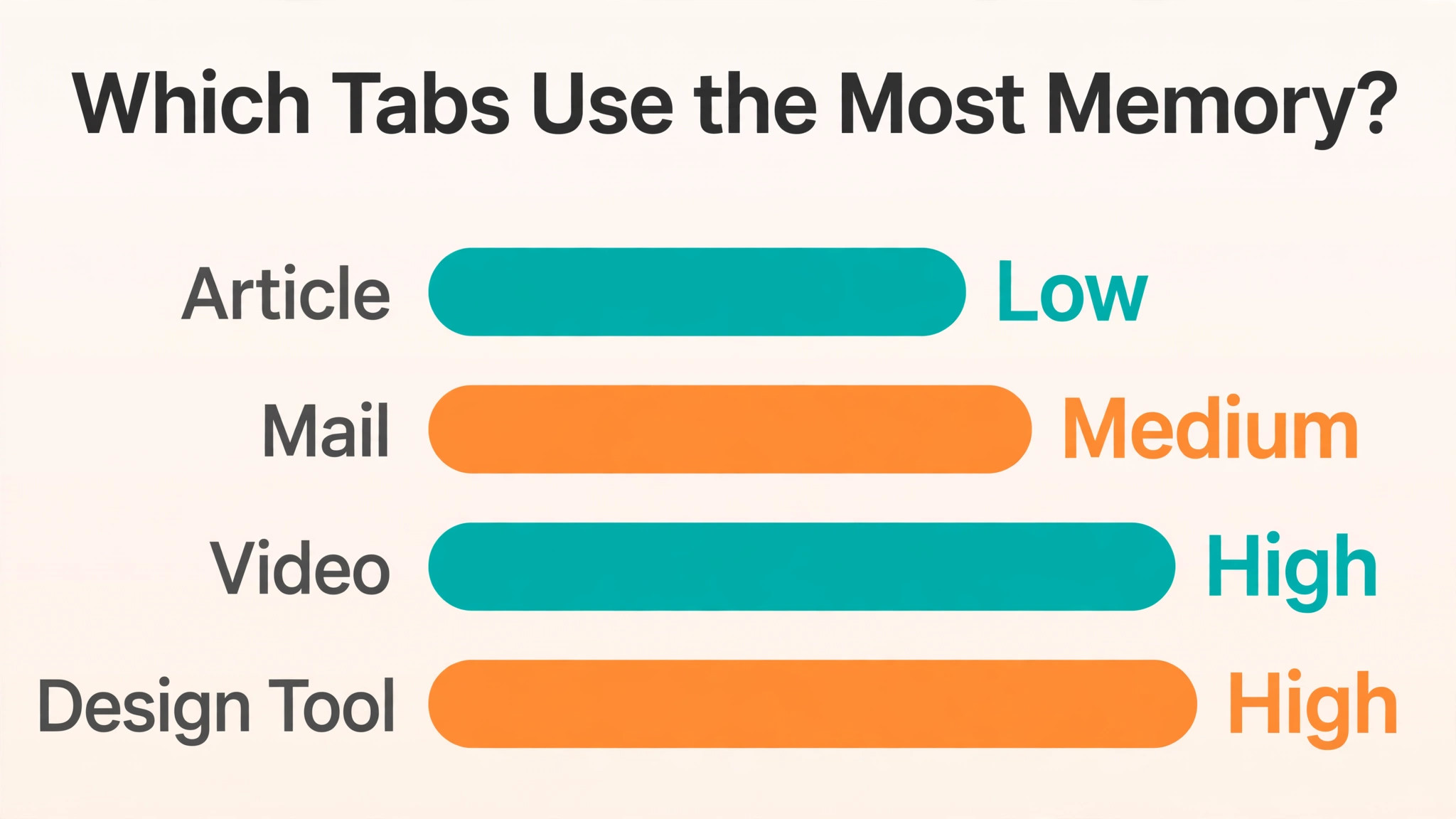
Start with Chrome Task Manager, a built in tool that shows exactly which tab or extension is using memory and processor power. On Windows, press Shift and Escape together inside Chrome. On a Chromebook, use Search and Escape. On a Mac, open the Window menu and choose Task Manager, or use the three dot menu and then More tools and then Task Manager. Sort the list by memory, then by CPU. The top few rows are your suspects. A single news site with autoplay video, a webmail inbox with several accounts, a design tool, or a streaming page can each use far more than a plain article page.
Write down the top three memory users and the top two CPU users before you close anything. That short note turns a vague feeling of slowness into a concrete list. If one tab uses more than the rest combined, close or reload that tab first and test again. If extensions dominate the list, the extension audit later in this guide matters more than closing tabs. If every tab uses a similar modest amount, the problem is volume, not one bad page, and the cleanup workflow below is the right response.
Next, check your machine as a whole. On Windows, open Task Manager from the operating system and look at total memory use. On a Mac, open Activity Monitor and look at memory pressure. If memory pressure is high even with Chrome closed, another program may be the main cause, and closing tabs alone will not fix the whole machine. If memory pressure drops sharply when Chrome closes, tabs are confirmed as the main load. That five minute check saves you from chasing settings that were never the problem.
How to Fix Chrome Slow Too Many Tabs in 30 Minutes
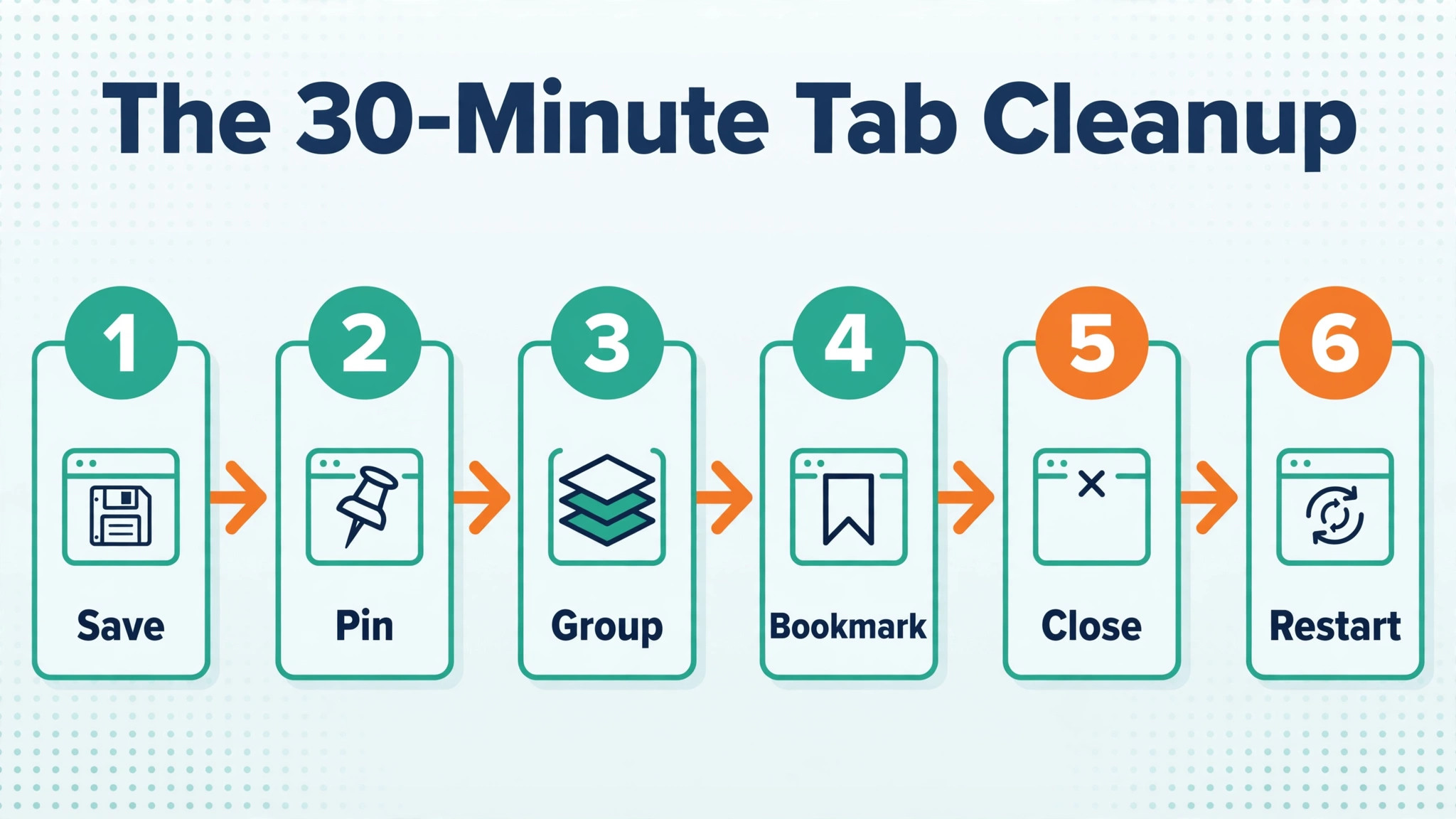
This is the core workflow. It is designed to fix Chrome slow too many tabs in one focused session, without losing work you still need. Set a timer for 30 minutes and work through the steps in order. Do not start by closing tabs at random, because random closing is how people lose a page they needed and then reopen 20 tabs trying to find it again.
Step 1 is to save before you close. Open a new note, a document, or a bookmark folder named for today, and save anything you must not lose. That includes a half written form, a checkout page, a document you are editing in the browser, and any page with unsaved work. If a page holds unsaved text, finish or copy that text first. No cleanup is worth losing real work.
Step 2 is to pin the essentials. Pin the three to five tabs you genuinely need every day, such as mail, calendar, and a work dashboard. Pinned tabs stay small, stay at the left of the tab bar, and survive a restart if your settings restore the previous session. Pinning also makes a useful rule visible. If a tab is not important enough to pin, it probably does not need to stay live all day.
Step 3 is to group what remains by task. Create tab groups for the jobs you are actually doing, such as research for one project, shopping for one purchase, or reading for the weekend. Give each group a clear name and a colour, then collapse groups you are not using right now. A collapsed group keeps its tabs available without keeping every page fully live and visible, and it turns a wall of tiny tab titles into a short list of named jobs.
Step 4 is to bookmark or save the rest. For tabs you want to read later, use bookmarks, a reading list, or a save for later tool, then close the tab. A bookmark is not a failure. It is a decision. The tab bar is for work in progress, not for a library. If you have not opened a tab in two weeks, it has already become a library entry, and it belongs in bookmarks, not in live memory.
Step 5 is to close with confidence. Close every tab that is not pinned, grouped for an active job, or saved elsewhere. Then restart Chrome. A restart clears memory left behind by pages and extensions, and it gives you a clean test. After the restart, open only the pinned tabs and the one group you need first. Notice how fast the browser feels. That feeling is your baseline, and it is the standard your weekly checklist should protect.
Step 6 is to test before you add anything back. Open your normal work pages one group at a time and watch for the point where speed drops. If speed drops when you open one particular group, that group holds a heavy page, and the diagnosis section can identify it. If speed stays good with your normal groups open, the problem was volume, and the habit changes at the end of this guide matter more than any new tool.
| Cleanup step | Time it takes | What you gain |
|---|---|---|
| Save unsaved work | 3 minutes | No lost forms or drafts |
| Pin essentials | 2 minutes | Daily tools stay in reach |
| Group by task | 8 minutes | A readable tab bar |
| Bookmark and close the rest | 10 minutes | Memory freed at once |
| Restart and test | 7 minutes | A clean speed baseline |
Tune Memory Saver So Inactive Tabs Sleep
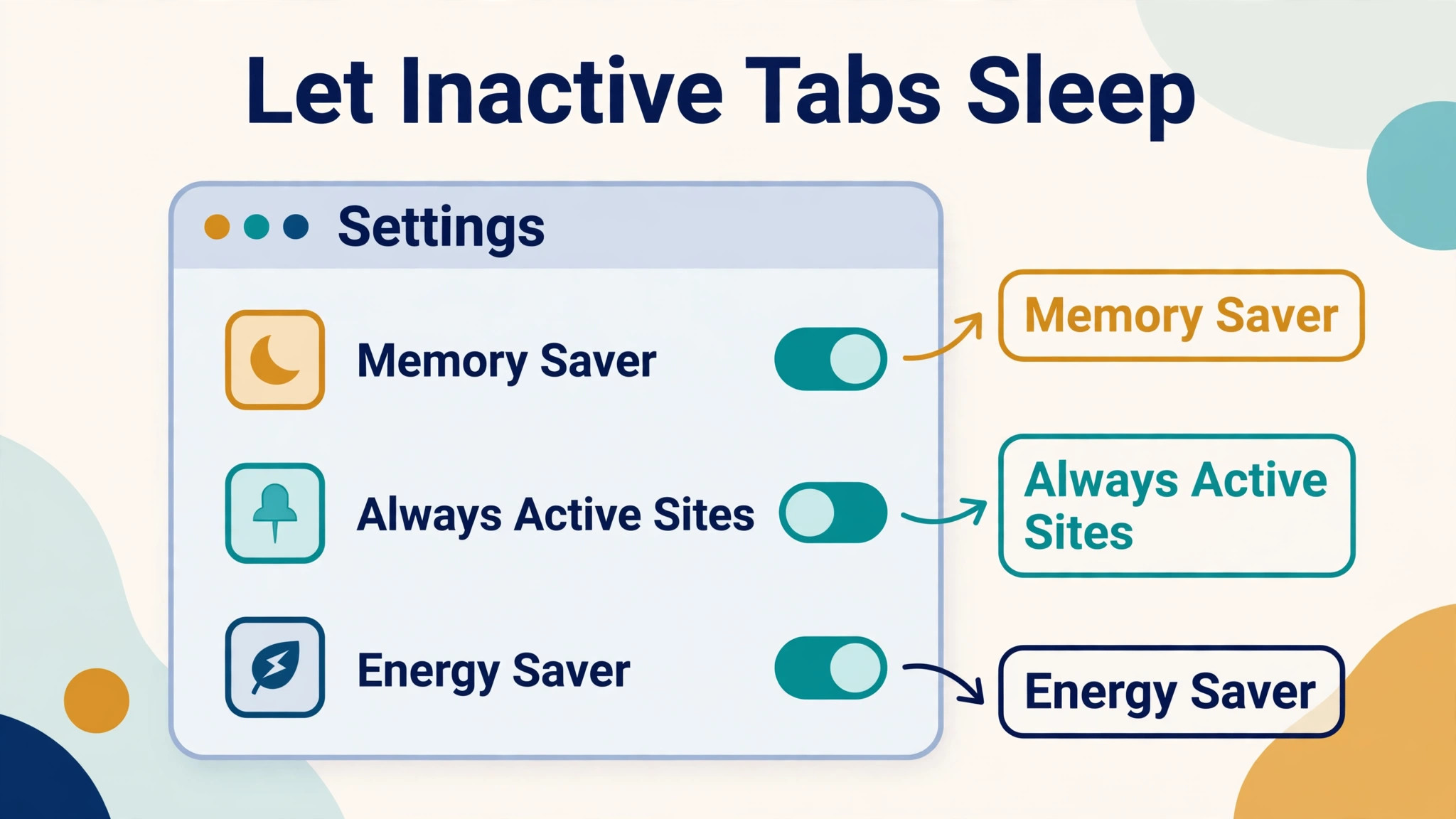
Memory Saver is the single most useful built in setting for tab heavy users. It frees memory from tabs you have not used in a while, so the active tab and your other programs have more room. When you return to a sleeping tab, Chrome reloads it. That reload takes a second or two, which is a fair trade for a browser that stays fast all day. Most users should start with the Balanced setting, which aims for a sensible middle ground. Moderate keeps tabs live longer and suits machines with plenty of memory. Maximum sleeps tabs sooner and suits machines that struggle, though it can mean more reloads.
To turn it on, open Settings, choose Performance, and switch on Memory Saver. Then choose the level that matches your machine. If you have 16 gigabytes of memory or more, Moderate or Balanced will usually feel best. If you have 8 gigabytes or less, Balanced or Maximum will usually help more. You do not need to guess forever. Try Balanced for three days, note how often tabs reload, and move one step in either direction if reloads feel annoying or speed still feels weak.
Add exceptions for sites that must stay live. This step matters when you fix Chrome slow too many tabs on a laptop you use for calls and music, because a sleeping music tab or dashboard can interrupt work. Mail that needs instant notifications, a music player, a live dashboard, a web chat, and a page with a long download should be added to the list of sites that always stay active. Without exceptions, you may return to a music tab to find it stopped, or return to a dashboard to find it reloaded and reset. Exceptions are the difference between a setting that helps quietly and a setting that annoys you into switching it off.
Organise With Tab Groups, Pins, and Bookmarks
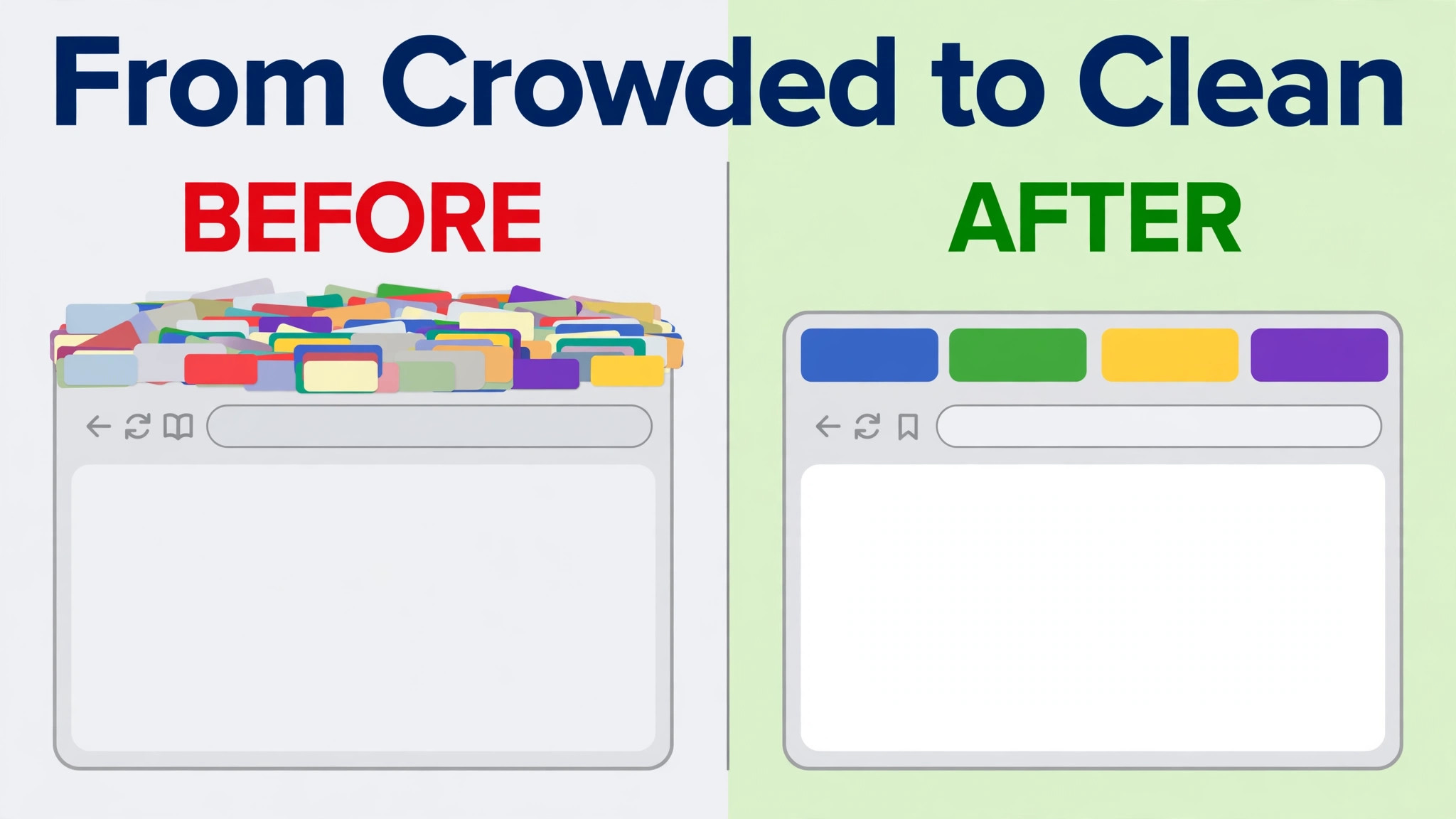
Tab groups work best when they match real jobs, not vague categories. A group named Research is less useful than a group named for the project or decision it serves. When you finish a job, close the whole group instead of leaving it open as a reminder. A finished job that stays open becomes clutter within a day, and clutter is how a clean browser drifts back to 60 tabs by Friday.
Use colours with meaning and keep the number of groups small. A tidy group system is part of how you fix Chrome slow too many tabs for good, rather than cleaning once and drifting back. Five groups for five active jobs is manageable. Fifteen groups is just a tab bar with extra steps. If you need more than five groups at once, you probably have more active jobs than one person can track well, and the honest fix is to park some jobs in bookmarks until their turn comes.
Pins deserve a strict limit. Five pinned tabs is a good ceiling for most people. Beyond that, pinned tabs stop being quick access and start being another pile. Review pins once a month and remove any pin you have not clicked in two weeks. A pin should earn its place by daily use, not by past importance.
Bookmarks need a system too, or they become a second pile. Create a small set of folders for active projects, reading for later, reference, and shopping, and put new bookmarks in the right folder at the moment you save them. A bookmark saved to a general folder with no name is almost as hard to find as a tab lost in a crowd. Once a month, open the reading folder, read or delete what is there, and keep the folder short. A reading list that grows forever is a guilt list, not a tool.
Audit Extensions Before You Blame Tabs
Extensions are a common hidden cause of slowness, and they deserve their own audit because they run even when you have few tabs open. Open the extensions page, list every extension you have installed, and sort them honestly into daily use, weekly use, and forgotten. Remove the forgotten group outright. Disable the weekly group until you need it, because a disabled extension uses no memory while it waits. Keep only the daily group active, and keep that group as short as you can.
OneTab is a useful free option for people who need to clear a large pile at once. Clicking its icon turns all open tabs in a window into a single list page, which frees the memory those tabs were using. You can restore tabs one by one or all at once, and you can lock or name a list for a project. The extension itself is free, with an optional cloud sync extra reported at about 7 dollars a year in recent comparisons, so check the official listing and checkout before paying for sync. OneTab stores lists in browser storage by default, so export important lists as a backup before a browser reinstall or a major cleanup.
Auto Tab Discard is a different kind of tool. Instead of closing tabs into a list, it suspends inactive tabs after a time you choose, and it can preserve scroll position and check for unsaved form text before discarding. That control suits users who want tabs to stay visible in the bar but not consume memory while idle. It is free in its basic form, with settings that let you exempt sites you never want suspended. Choose between a list tool and a suspend tool by asking one question. Do you want the tab bar clear, or do you want the tabs visible but asleep. Clear bar users suit OneTab.
Visible but asleep users suit a discarding tool or Memory Saver alone.
| Tool or setting | Cost at draft time | Best for |
|---|---|---|
| Chrome Memory Saver | Free, built in | Sleeping inactive tabs automatically |
| Tab groups and pins | Free, built in | Organising active jobs |
| OneTab | Free, optional sync about 7 dollars a year | Clearing a large pile into a list |
| Auto Tab Discard | Free, basic form | Suspending tabs on your own timer |
| Extension audit | Free | Removing hidden background load |

Clear Cache, Update, and Restart the Right Way
Cache clearing helps when pages load incorrectly or when old files cause odd behaviour, but it is not a magic speed fix on its own. Clearing cached images and files forces sites to fetch fresh copies, which can make the first visit after clearing feel slower, not faster. Use cache clearing when a site misbehaves, when a page shows old content after an update, or as part of a monthly tidy, not as a daily habit. Do not clear cookies unless you are ready to sign in again on most sites, because that side effect annoys more users than the cache ever helped.
The Weekly Speed Checklist You Can Repeat
A one time cleanup fades fast without a habit to protect it. The checklist below is the second half of the overview proof element in this guide, paired with the 30 minute workflow above. It takes about ten minutes once a week, and it is designed to catch drift before it becomes slowness again. Print it, keep it in a note, or set a weekly reminder for Friday afternoon, when closing the week is natural.
First, count your tabs. This weekly count is how you fix Chrome slow too many tabs before it returns, because drift is visible in the count weeks before it is felt in speed. If the count is above 20, run the group and close step before the weekend. Second, close finished groups, not just finished tabs, so completed jobs leave the bar entirely. Third, review pins and remove any pin you did not use that week. Fourth, check Chrome Task Manager for any tab or extension that has grown unusually large. Fifth, clear the reading folder by reading, bookmarking properly, or deleting what you saved. Sixth, check for a Chrome update and restart the browser.
Seventh, note your speed in one sentence, such as fast all week or slow after opening the research group. That note turns next week into a comparison, not a guess.
Set a personal tab ceiling and write it down. A ceiling of 15 live tabs suits most laptops with 8 gigabytes of memory. A ceiling of 25 suits machines with 16 gigabytes or more, provided heavy pages are few. A ceiling is not a punishment. It is a signal. When you hit it, you pause and choose, instead of opening tab 46 and wondering why the machine groans. Pair the ceiling with a Friday close down, and the browser stays near its baseline without daily effort.
| Weekly check | Pass mark | If it fails |
|---|---|---|
| Tab count | 20 or fewer live tabs | Group, bookmark, and close |
| Finished groups | None left open | Close the whole group |
| Pins | 5 or fewer, all used | Remove unused pins |
| Task Manager | No single tab dominating | Close, reload, or exempt it |
| Reading folder | Short and current | Read, file, or delete |
| Browser update | Latest version running | Update and restart |

How to Choose What to Keep, Sleep, or Close
Every tab belongs in one of three buckets, and the decision becomes easy once you name them. Keep live means the tab is needed today, it holds unsaved work, or it must stay active for notifications or playback. Sleep means the tab is needed this week, but not right now, so Memory Saver, a discarding tool, or a collapsed group can hold it cheaply. Close means the tab is finished, saved elsewhere, or not opened in two weeks, so it should leave the bar entirely.
Use four questions to sort a tab in seconds. Sorting by these questions is how you fix Chrome slow too many tabs without losing pages you still need. Will I use this tab today. Does it hold unsaved work. Can I find it again from history or bookmarks in under a minute. Is it part of an active job with a named group. If the answer to the first two questions is no and the answer to the third is yes, close it. If the tab is part of an active job but not needed today, sleep it in a collapsed group. Only tabs that pass the today or unsaved work test earn a live place.
Heavy pages deserve special treatment. A video editor, a design tool, a large spreadsheet, and a streaming page each use far more resources than a plain article. Keep only one heavy page live at a time when you can, and close heavy pages when you switch jobs, even if you plan to return later. Returning to a heavy page costs a reload, but keeping three heavy pages live costs speed all day. That trade is almost always worth making.
For readers comparing note and project tools for that decision note, related reading includes best note taking apps for capturing shortlists and research summaries, and best AI tools for project managers for keeping a project group tidy. If your tab pile comes from study or coursework, AI tools for students covers tools that can turn a pile of reading into structured notes. If your pile comes from planning content, how to plan a month of social media content with AI shows a batching system that reduces daily tab opening.

Mistakes That Bring the Slowness Back
The first mistake is treating the tab bar as a to do list. People who fix Chrome slow too many tabs and then relapse usually relapse here, because tasks creep back into the bar one tab at a time. A to do list belongs in a task app or a note, where items have dates and priorities. A tab bar has no dates, no priorities, and no reminder to act, so tasks saved as tabs are simply forgotten while still consuming memory. Move tasks to a real list on the day you open them, and close the tab once the task is recorded.
The second mistake is reopening everything after a restart. Chrome can restore the previous session, which is convenient, but restoring 60 tabs at once recreates the exact problem you just fixed. Restore only pinned tabs and the group for the current job, then reopen other groups when their job starts. If you use session restore, set it to restore pinned tabs and one group, not the full pile, by closing groups before you shut down.
The third mistake is installing a new extension for every small annoyance. Each extension adds load and a possible point of failure, and many extensions overlap. Before installing, check whether Chrome already does the job with a group, a bookmark, Memory Saver, or a built in setting. If it does, use the built in option first for a week. Only add an extension when the built in option has clearly failed.
The fourth mistake is clearing cookies and cache daily in the hope of speed. Daily clearing signs you out, forces fresh downloads, and rarely helps, because cache exists to make repeat visits faster. Clear cache when a site misbehaves, clear cookies when you need to sign out or fix a login problem, and leave both alone the rest of the time.
The fifth mistake is ignoring the machine around the browser. A laptop with a nearly full drive, a heavy backup running, or a video call in another app will make Chrome feel slow even with few tabs. Check the whole machine when slowness appears suddenly, especially after a software update or a new program install. Browser tuning cannot fix a machine wide load, and blaming tabs for it wastes an afternoon.
When New Hardware Is the Honest Answer
Software tuning has a limit, and it is kinder to name it than to promise endless fixes. If your machine has 4 gigabytes of memory, keeping 30 tabs open will always be a struggle, even with Memory Saver at Maximum and a clean extension list. In that case, the honest options are a strict tab ceiling of 10 to 12 live tabs, a lighter workflow with bookmarks doing the heavy lifting, or a memory upgrade if the machine allows it. Check the machine manual or maker support page before buying memory, because some laptops have soldered memory that cannot be upgraded.
Before spending, run the full workflow once and measure the result. Note your tab count, memory use, and a simple speed test, such as how long a familiar news homepage takes to load, before and after the cleanup. If the after result is good, hardware can wait. If the after result is still poor with few tabs and few extensions, hardware or a deeper machine issue is the next investigation, not another extension.
Frequently Asked Questions
Why does Chrome get slow when I have many tabs open?
Each open tab uses memory and can run background scripts, refresh feeds, or hold video and chat connections. With enough tabs, memory fills up, the operating system moves data to slower disk storage, and every tab switch or new page load takes longer. Closing, grouping, or sleeping tabs frees that memory and restores speed.
How many tabs is too many for Chrome?
There is no single safe number, because a plain article uses far less than a video editor or a live dashboard. As a practical guide, 15 live tabs suit most 8 gigabyte machines, and 25 live tabs suit most 16 gigabyte machines, provided heavy pages are few. Judge by Task Manager memory use and by feel, not by count alone.
Does Memory Saver delete my tabs or lose my work?
Memory Saver does not delete tabs. It frees memory from inactive tabs and reloads them when you return. It can, however, interrupt pages with unsaved form text on some sites, so exempt sites where you type for a long time, and save work before leaving a tab idle for hours.
Should I use OneTab or just use Chrome tab groups?
Use tab groups when you want tabs visible and organised by job, and use OneTab when you want the tab bar clear at once and the pages saved as a list. Many users use both, with groups for active jobs and OneTab for clearing a finished job into a saved list. Export important OneTab lists as a backup.
Will clearing my cache make Chrome faster every day?
Clearing cache helps when a site loads old or broken files, but it does not speed up daily browsing, because cache exists to make repeat visits faster. Clear cached images and files when a site misbehaves, and avoid daily cookie clearing, which signs you out of most sites.
Is it better to fix Chrome slow too many tabs with an extension or with built in settings?
Start with built in settings, because Memory Saver, tab groups, pins, bookmarks, and Task Manager solve most cases for free and without extra load. Add an extension only for a specific gap, such as clearing a huge pile into a list or suspending tabs on a custom timer, and remove extensions you no longer use each month.
Your Browser, Back to Full Speed
A fast browser is not a browser with no tabs. If you fix Chrome slow too many tabs with the workflow above, protect the result with the weekly checklist, not with another round of random closing. It is a browser where every live tab has a reason to be live today, where finished jobs are closed rather than stored in the bar, and where settings and extensions serve the work instead of adding to it. Run the 30 minute workflow once, keep the weekly checklist short, and set a tab ceiling you can actually hold.
That combination protects speed without forcing you to give up research, shopping comparisons, or reading for later, because those jobs move to bookmarks and lists where they belong.
Start today with the smallest version of the plan. Pin your essentials, group the active job, bookmark the rest, close the pile, and restart. Notice the difference, then add Memory Saver and the extension audit in the same session if you have time. If speed returns, you have your answer, and the weekly ten minute check will keep it. If speed stays poor with few tabs and few extensions, check the whole machine and the hardware section above before buying anything. Either way, you will have replaced guessing with a test, and that is the change that keeps Chrome fast long after today.