
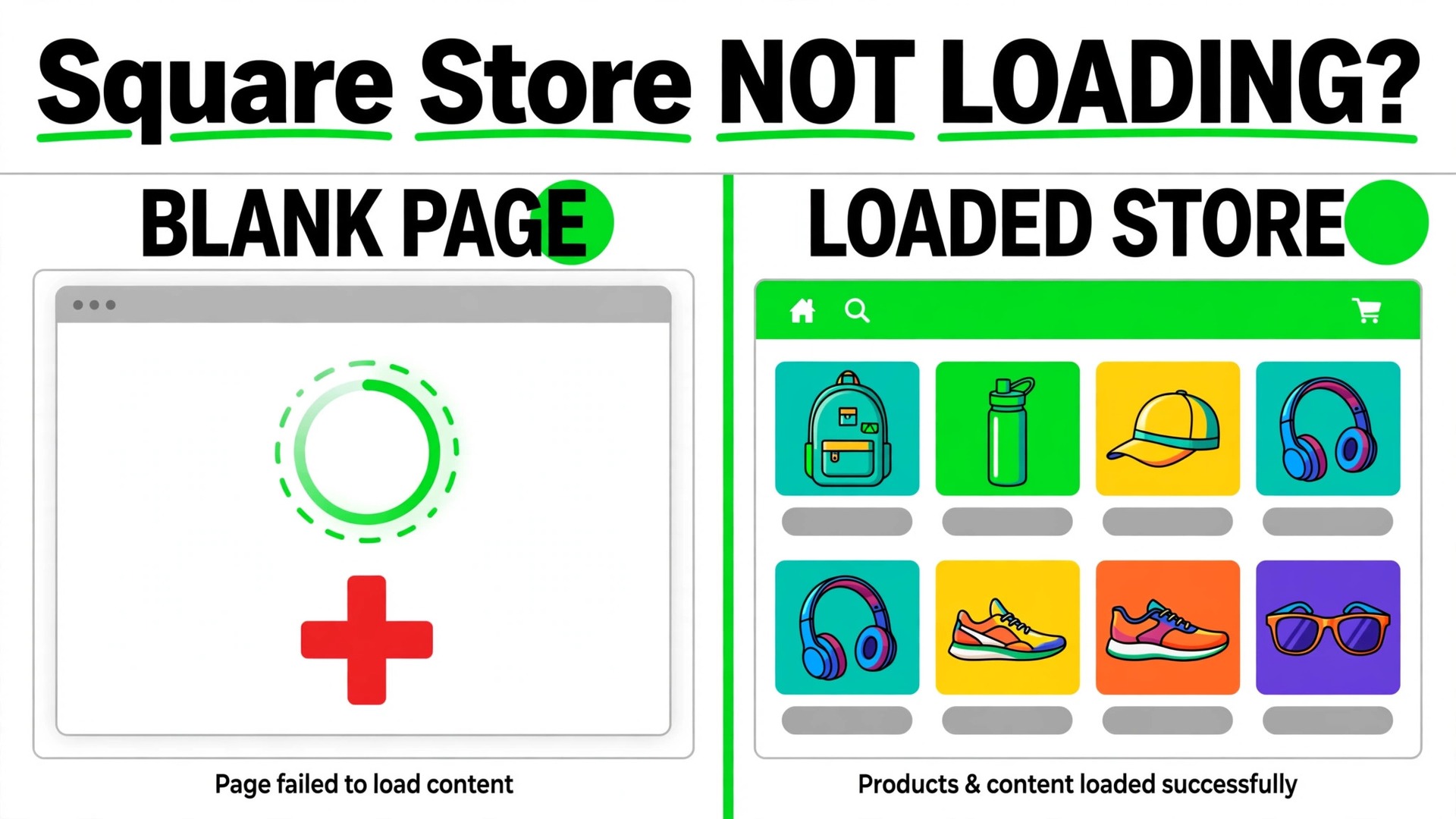
The verdict is this. Most Square stores that will not load are not broken in any deep technical sense. They are unpublished, their items are hidden or out of stock, their ordering is switched off, or a single setting is blocking checkout. To fix Square online store not loading small business trouble, check those four causes first, in that order, before you rebuild pages, change themes, or pay someone to look at code. The owners who fix this fastest are the ones who test the store the way a customer sees it, not the way it looks from inside the dashboard.
That distinction matters, because the dashboard can look perfect while the public store is empty. Items can exist in the item library yet be invisible online. A store can be beautifully built yet never published. Ordering can be turned off for a scheduled closure and never turned back on. Each of those states produces the same customer complaint, which is that the store will not load or will not let them buy. This guide separates those states with a diagnosis you can run in order, so you know which one you are facing before you change anything.
How to Fix Square Online Store Not Loading Small Business
Start by opening the store exactly as a customer would. Use a private browser window, paste in the public store address, and look at what actually appears. Do not use the preview inside the editor, because a preview can show unpublished work and hide the very problem your customers are hitting. Note what you see in plain words. Is the page blank, does it show an error message, does it load but show no items, or does it load items but refuse checkout. Each answer points to a different step below.
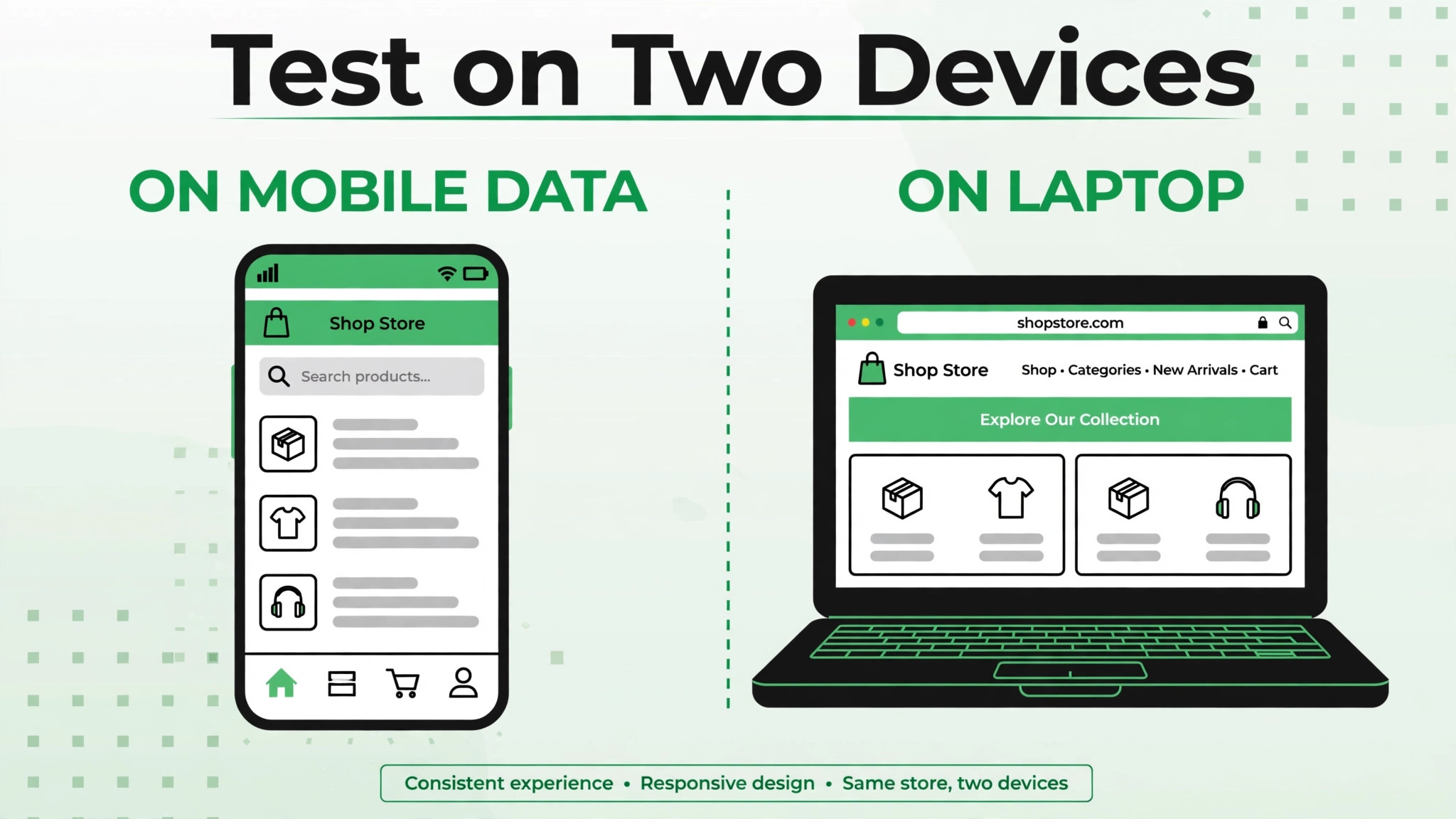
Next, check the same store on a second device and a second connection, such as a phone on mobile data. If the store loads on one device and not another, the problem is likely browser cache, an extension, or a local network issue rather than the store itself. If it fails everywhere, the problem is in the store settings, the items, or the account. That one test, done before any setting changes, saves hours of editing a store that was never the problem. Write down the results of both tests, because support will ask for them if you need help later.
Step Diagnosis in Order for a Store That Will Not Load
Work through these steps in order to fix Square online store not loading small business trouble. The steps move from the store itself outward to the browser, the items, and the account, because the most common causes sit in the store settings and the item setup. Do not skip to code or custom settings until the earlier steps are ruled out.

Step 1. Confirm the Store Is Published
A store that was never published, or that was unpublished for an edit and never republished, will not load for customers no matter how complete it looks in the editor. Open the online store dashboard and confirm the published state. If the store shows as unpublished or as a draft, publish it, then test again in a private window. Community reports from Square sellers describe exactly this trap, where a store that looked finished in the dashboard was never actually live, and publishing it resolved the complaint at once.

Republishing is also a useful reset when a store that was working suddenly stops. Unpublish and then republish the site, which forces a fresh version of the store to go live and clears a stale published state. Test again in a private window after republishing, and test on a second device as well. If the store loads after republishing, the cause was a stale or incomplete publish, and no further setting changes are needed. If it still fails, move to the next step with that result recorded.
Step 2. Check Ordering and Fulfilment Settings
A store can load its pages yet refuse to sell, and customers often describe that as the store not loading. Check whether online ordering is enabled in the store checkout settings. Square community guidance for a store showing that it is not accepting orders lists this as the first check, reached through the dashboard online store settings and checkout area. If ordering is switched off, whether for a closure, a holiday, or an accidental toggle, switch it back on and test a full order path.
Then check fulfilment. Items need a fulfilment method applied, such as pickup, delivery, or shipping, and the method must match what the customer is trying to do. Community reports describe stores where switching between pickup and shop modes left items showing in one mode and missing in the other. Check each fulfilment method the store offers, and confirm that at least one method is active and correctly set up. A store with ordering on but no working fulfilment method will frustrate customers at the exact moment they try to buy.
Step 3. Check Item Visibility, Stock, and Location Availability
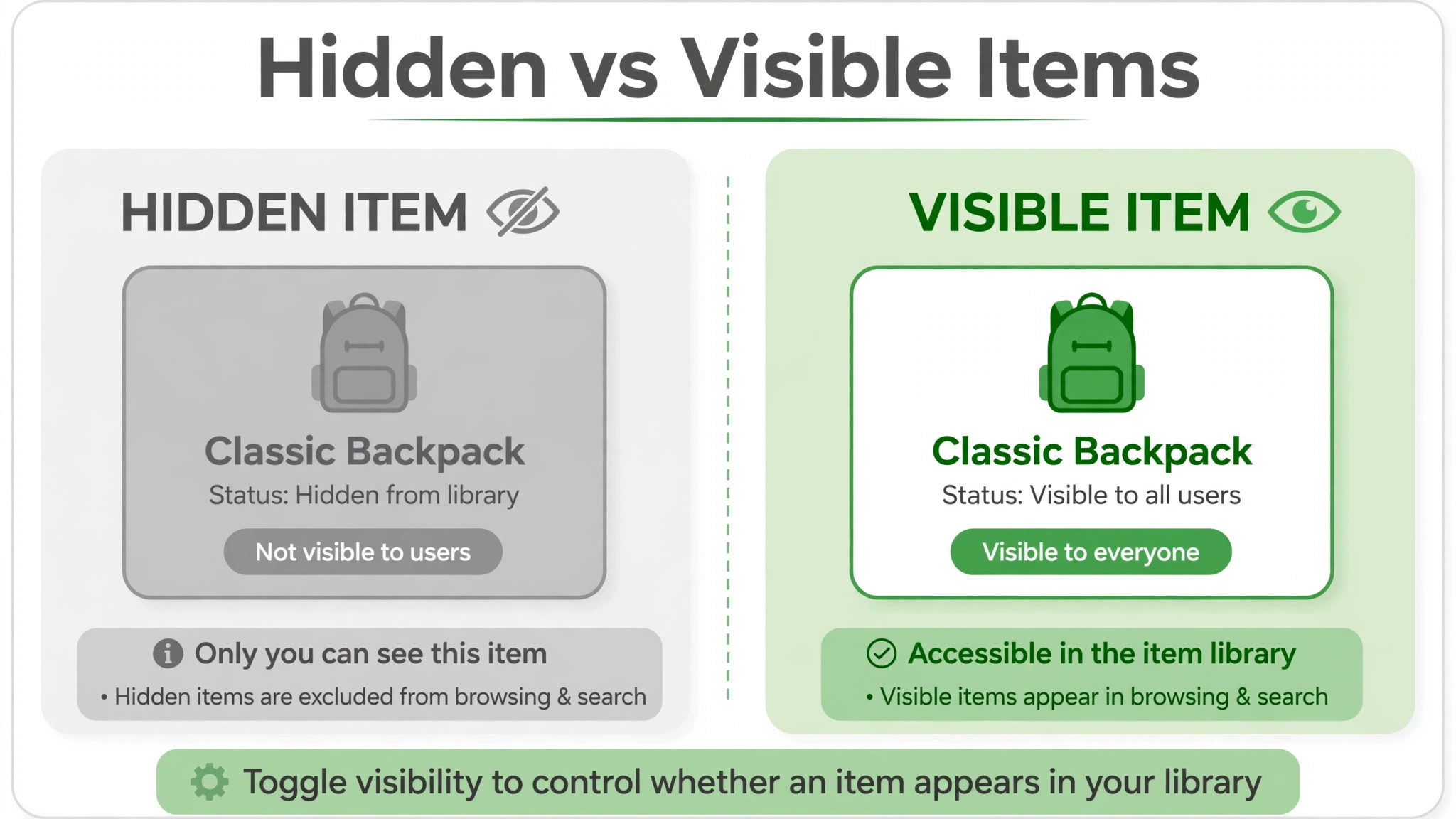
Most empty looking Square stores are item problems, not page problems. Open the item library and check three things for the items that should appear. First, each item must be set to visible for the online store. Second, each item must be in stock, or must allow orders when out of stock where that setting fits the business. Third, each item must be available at the location the store serves. Square community guidance for missing products stresses checking that items are enabled for the right fulfilment type and set to visible, and sellers can bulk edit items to confirm this across the catalogue.
Pay special attention to variations and prices. Community reports describe items that Square treated as unavailable because a variation was missing a price, even when other variations had prices. Check that every variation a customer can select carries a price, and that no variation is left in a half finished state. Also check location toggles carefully, because reports describe toggles that appeared to change availability in one location while making the item unavailable everywhere. After any item fix, test the public store again rather than trusting the dashboard view.
Step 4. Clear the Browser Side Before Blaming the Store
If the store loads for other people but not for you, or loads on one device but not another, the browser is the likely cause. Clear the cache and cookies for the store, or test in a private window, which starts without stored cache, cookies, or extensions. Disable browser extensions one at a time and retest, because ad blockers and privacy extensions can interfere with store scripts and checkout. Update the browser to the latest version, since an outdated browser can fail on modern store pages in ways that look like a store outage.
Ask a customer who reported the problem to try the same steps, and ask them what device and browser they used. A report from a single customer on a single old browser is a different problem from reports across many customers and devices. The first points to that customer browser. The second points to the store or the account. Recording the device and browser for each report turns vague complaints into a pattern you can act on, and it gives support a precise starting point if the problem persists.
Step 5. Check for Custom Code and Recent Changes
Custom code is a common cause of a store that worked yesterday and fails today. Check for code added to the site header, to product pages, or to any custom section, and think back to the most recent change before the problem started. If a change and the failure line up in time, that change is the prime suspect. Remove the custom code temporarily and test the public store again. If the store loads without the code, the code was the cause, and it needs fixing before it goes back in.
Do not assume a platform update is the cause just because the timing feels close. Platform changes can coincide with a failure without causing it, and sellers in community threads have sometimes blamed updates for problems that turned out to be settings or item issues. Rule out the settings, items, and browser steps first, so that if you do report a possible platform problem, you can show that the store settings are correct and the failure is reproducible in a private window on more than one device.
Step 6. Test the Full Checkout Path, Not Just the Home Page
A store home page that loads is not proof the store works. Walk the full path a customer walks. Open a category, open a product, add it to the cart, open the cart, start checkout, and reach the payment step. Note the exact point where the path breaks, and the exact message shown there. A cart that will not accept items, a checkout page with no payment field, and a place order button that stays disabled are three different failures, and each points to a different setting or item problem.
Community reports describe a checkout page where the card entry field vanished and the place order button stayed disabled even after all fields were completed. That kind of failure needs the exact symptom reported, because a fix for a missing payment field is not the same as a fix for a disabled button. Record the step, the message, and a screenshot for each failure point. That record turns a report of “the store does not work” into a report a support team can reproduce and fix.
Step 7. Check the Account and Payment Setup
If the store loads but checkout reports that the store is not yet accepting payments, the account setup is the likely cause. Community reports describe new sellers seeing that message while their account verification was still incomplete, including cases where the verification flow looped without finishing. Open the account and payment setup from the desktop dashboard rather than only from an app, and confirm that payment acceptance is fully set up and verified. Complete any outstanding verification step, and test checkout again after it is confirmed.
Also confirm that the store is connected to the right Square account and location, especially for businesses with more than one location. Reports from multi location sellers describe items that became unavailable at specific locations after system changes, and orders that appeared late or not at all in the dashboard. For a multi location business, test one location at a time, and confirm that the items, fulfilment methods, and ordering settings are correct for each location separately rather than assuming one location fix covers them all.
When the Problem Is a Square Outage, Not Your Store
Sometimes the store is set up correctly and still will not load, because the platform itself is having a problem. The way to tell is breadth. If many customers on different devices and networks report the same failure at the same time, and your settings, items, and checkout path all check out, a platform problem becomes more likely. Check any status page or community channel Square provides for outage reports, and look for other sellers reporting the same symptom at the same time.
During a suspected outage, resist the urge to rebuild the store. Changing settings, items, or code during an outage can create new problems that remain after the outage ends, and it makes the original failure harder to diagnose. Note the start time, the symptom, and the devices affected, and wait for a platform update before making changes. If the store recovers on its own without any setting change, that recovery itself is evidence the cause was outside your store. Record it, so the next similar failure is recognised faster.
Store Loading Checklist
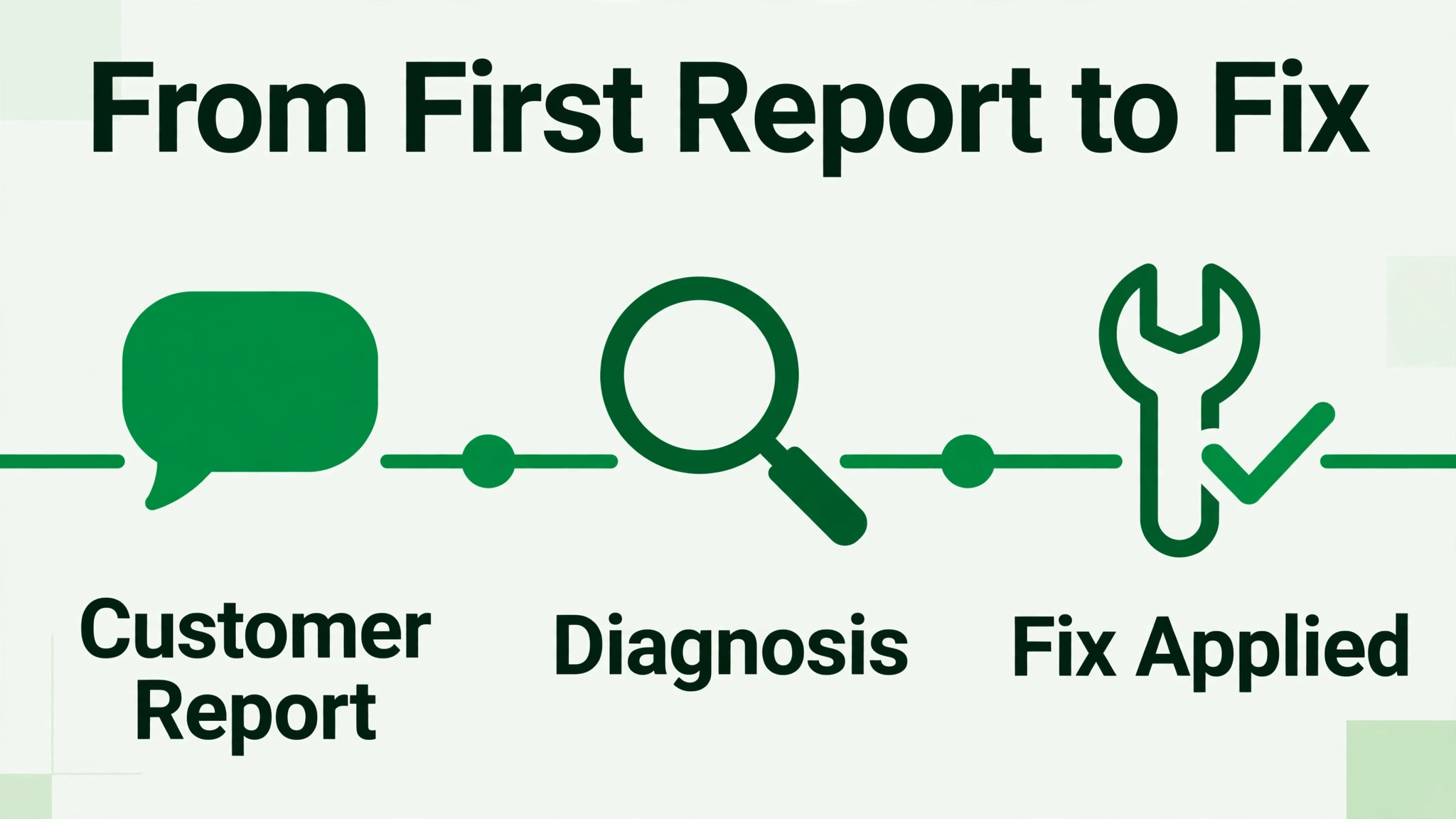
Use this checklist every time you need to fix Square online store not loading small business trouble, before rebuilding anything. It collects the diagnosis above into a routine that takes under an hour for a small catalogue, and it stops the common error of redesigning a store whose only problem was an unpublished state or a hidden item.
– Open the public store in a private window and write down exactly what loads and what does not. – Test on a second device and a second connection, and note whether the failure follows the device or the store. – Confirm the store is published, and republish it if the published state is unclear or stale. – Confirm online ordering is enabled in the checkout settings, and that at least one fulfilment method is active. – Confirm every item that should appear is visible, in stock, priced for every variation, and available at the right location. – Clear cache and cookies or test in a private window, disable extensions, and update the browser. – Remove custom code temporarily and test again, if any custom code was added recently. – Walk the full checkout path to the payment step, and record the exact step and message where it breaks. – Confirm payment acceptance and account verification are complete, from the desktop dashboard. – Save screenshots, device details, and test results in one note for any later support contact.
If every item on the checklist passes and the store still fails, you have a genuine escalation case with evidence. If one item fails, fix that item first, because that item is the most likely cause, and retest before changing anything else.

Fix the Item Catalogue So the Store Loads Cleanly
A store that loads cleanly is usually a catalogue that is clean. Audit the item library at least monthly, and remove or hide items that are discontinued, out of stock with no return date, or half finished. Half finished items with missing prices or missing variations are a recurring cause of unavailable messages, and they confuse customers even when the store technically loads. A smaller, complete catalogue sells better than a large catalogue full of gaps.
Use consistent naming and clear categories, so customers can find items without relying on search alone. Check that each item has a clear photo, a price, and a description that states what is included, because a store page that loads slowly or looks empty often reflects items with missing images or missing details rather than a technical failure. Keep the catalogue audit as a routine, not as a rescue job after a failure, and the store will load cleanly far more often. For a related payout problem, see our guide to the Square payouts delayed fix, and for a related hardware problem, see the Square card reader fix.
Speed Problems That Feel Like Loading Failures
A store that loads slowly can feel exactly like a store that does not load, because customers give up before the page finishes. Large images are the most common cause. Compress product photos before uploading them, and avoid uploading full resolution camera files directly to the store. A photo that looks the same at a smaller file size loads far faster, and the improvement is visible on mobile connections first, which is where most customers shop.
Too many items on one page can also slow loading, especially on a phone. Break a large catalogue into categories, and keep the home page focused on featured items rather than the whole range. Remove heavy custom sections that add scripts or large media without helping a sale, and test the store on a mobile connection after each change. A store that loads in a few seconds on a phone will keep customers who would otherwise report it as broken, and that perception change alone can cut support complaints sharply.
Mistakes That Make a Loading Problem Worse
The most common mistake is rebuilding the store before diagnosing it. A rebuild can lose settings, hide the original cause, and leave the owner with a new store that has the same unpublished state or the same hidden items. Diagnose first, change one thing at a time, and test after each change. That discipline feels slow, but it is faster than rebuilding twice and still not knowing what was wrong.
The second mistake is testing only in the editor preview. A preview shows unpublished work and can hide the failure customers see, so an owner can spend hours fixing a preview that was never broken. Always test the public address in a private window. The third mistake is changing many settings at once. When the store starts working after five simultaneous changes, no one knows which change fixed it, and the original cause can return unnoticed. Change one setting, test, record the result, and only then move on.
The fourth mistake is ignoring the pattern in customer reports. One report on one old browser is a browser problem. Ten reports across devices at the same time is a store or platform problem. Treating both the same way wastes time in both directions, because a browser fix will not help ten customers, and a store rebuild will not help one old browser. Read the reports together, look for the pattern, and let the pattern choose the fix.
When to Contact Square Support and What to Send
Contact support when the checklist is complete, the store still fails, and the failure is reproducible in a private window on more than one device. That point usually arrives after the publish, ordering, item, browser, code, checkout, and account steps have all been checked, and the failure still appears. Contacting support before that point usually produces a reply asking you to complete the same steps, and it costs days.
Send support a short, complete message to fix Square online store not loading small business trouble. Include the public store address, the exact symptom, the step where checkout breaks, the device and browser tested, the private window test result, the publish state, the ordering and fulfilment settings, and screenshots of the failure. State what you have already changed and what each change did, so support does not ask you to repeat steps you have done. Keep a copy of the message and the case reference, and note the reply, so any later contact starts from the full record rather than from the beginning.
Keep a Weekly Store Health Check
A weekly check prevents most loading failures from ever reaching a customer, and it takes less time than a single rescue after a failure. Once a week, open the public store in a private window, check that the home page loads, that featured items appear, and that a test item can reach the payment step. Confirm that the store is published, that ordering is enabled, and that no item you expect to sell has quietly become hidden or out of stock. That routine is the simplest way to fix Square online store not loading small business trouble before it costs a day of orders.
Record the result of each weekly check in a short log, with the date, the device tested, and any item or setting you changed. A log turns a vague sense that the store “sometimes fails” into a dated record, and that record shows whether failures cluster after catalogue edits, after fulfilment changes, or at particular times of day. Patterns in the log point to the cause far faster than memory does, especially when more than one person edits the store.
Treat the weekly check as part of opening the shop, like checking the lights and the till. Assign it to one person, keep it on the same weekday, and review the log monthly for repeat causes. A store with a weekly check and a dated log rarely suffers a long outage, because problems are caught while they are small, and the fix is usually one toggle rather than a rebuild. That habit is what separates a store that loads reliably from one that fails at the worst possible moment and needs urgent work to fix Square online store not loading small business trouble again.
Frequently Asked Questions About Square Stores Not Loading
Why does my Square store look fine in the editor but not for customers
The editor preview can show unpublished work, while customers only see the published store. If the store was never published, or was unpublished for an edit and never republished, customers will see an old version or nothing at all. Confirm the published state in the online store dashboard, publish or republish the store, and then test the public address in a private window. That test shows what customers actually see, and it is the only test that counts for a loading complaint.
Why do my products not show on the Square online store
Products fail to show when they are hidden, out of stock, missing a price on a variation, or unavailable at the location the store serves. Open the item library and check visibility, stock, variation prices, and location availability for each missing item, and bulk edit where needed to confirm the settings across the catalogue. Also confirm the item has a fulfilment method applied, such as pickup, delivery, or shipping, because an item without a working fulfilment method may not appear for ordering. Test the public store after each fix.
Why does my Square store say it is not accepting orders
That message usually means online ordering is switched off in the checkout settings, or payment acceptance is not fully set up. Check the checkout settings in the dashboard and confirm ordering is enabled, then confirm payment setup and account verification are complete from the desktop dashboard. Also check that items are in stock and have fulfilment methods applied, because a store with ordering on but no orderable items can show a similar message. If all of those check out, test in a private window on a second device before contacting support.
Can browser cache really stop a Square store from loading
Yes, for the person using that browser. Stored cache, cookies, and extensions can make a store appear broken on one device while it loads cleanly on others. Test in a private window, which starts without stored cache, cookies, or extensions, and clear cache and cookies if the private window test succeeds. Update the browser, and disable extensions one at a time to find any extension that interferes with store scripts or checkout. If the store fails in private windows on several devices, the cause is in the store or the account rather than the browser.
Should I rebuild my Square store if it will not load
Rebuild only after diagnosis, not instead of it. Most loading failures come from publish state, ordering settings, item visibility, or browser cache, and all of those can be fixed without a rebuild. Diagnose first, change one thing at a time, and test after each change. A rebuild that keeps the same unpublished state or the same hidden items will fail in exactly the same way, and it can lose settings that were working. Keep a rebuild as a last resort, after the checklist has been completed and support has been consulted.
How do I know if the problem is Square itself or my store
Breadth is the clue. If many customers on different devices and networks report the same failure at the same time, and your publish, ordering, item, browser, and account checks all pass, a platform problem becomes more likely. Check any status or community channel Square provides for matching reports from other sellers. If only one customer on one device reports the failure, the cause is more likely that customer browser or connection. Record the start time, the symptom, and the devices affected in both cases, because that record speeds up any support contact.
The Verdict on a Store That Will Not Load
A Square store that will not load is usually telling a simple story, and the job is to listen to it in the right order. Publish state first, ordering and fulfilment second, items third, browser fourth, and account last. Most owners who follow that order find the cause within the hour, and the fix is often a single toggle, a single republish, or a single item setting rather than a rebuild.
Keep the checklist from this guide with the store routine, and run it to fix Square online store not loading small business trouble the moment a customer reports a loading problem rather than after a week of lost orders. Test the public store in a private window, change one thing at a time, and record what each change does. A store managed that way loads cleanly, sells cleanly, and when it does fail, the cause is visible in minutes rather than hidden behind a pile of simultaneous changes. For pricing background, see our guide to the cost of Square for small business.