

Monday.com is easier on day one. ClickUp is easier on day 300. That is the sentence most small teams land on when they outgrow Monday boards, and it is the reason to learn how to switch from monday to clickup for small teams before the next renewal locks in another year of a tool that no longer fits. The switch is not hard, but it is not a button press either. Boards, automations, docs, and files all move differently, and a team that plans the move finishes in two weeks, while a team that wings it spends a month fixing what the importer missed.
This guide gives a small team a practical migration plan. It covers the export, the ClickUp structure, the automations that do not transfer, the docs that need rebuilding, the training that makes the switch stick, and the pricing maths that decides whether the move saves money. Prices here come from vendor pages and comparisons checked in late 2026, so check the vendor pricing page before committing, because ClickUp is changing its plans and Monday prices vary by billing country. Nothing here deletes your Monday account. Keep it read only until the new system has run for a month.
The reason teams move is usually the same three things. They want everything about a client in one place, with deals, contacts, jobs, and service history on one screen. They want fewer tools, because ClickUp includes time tracking, docs, forms, and chat, so there is less to pay for and less to connect. And they want a price that fits a small team, because Monday requires three seats minimum on every paid plan, and seats scale upward in blocks of five after that, while ClickUp has no seat minimum.
Why Small Teams Outgrow Monday
Monday is a beautiful tool for a simple process. Boards look good, status colours make sense at a glance, and a new team member can use it within a day. That simplicity is the product, and it is also the ceiling. When a team needs one place to run sales, projects, and service together, Monday starts to feel like a set of separate boards that do not talk to each other, and the workarounds pile up.
The second reason is price shape. Monday Basic costs 9 dollars per seat a month billed yearly, Standard costs 12 dollars, and Pro costs 19 dollars, all with a three seat minimum. A two person business still pays for three seats, and a six person team pays for ten, because seats scale in blocks of five. ClickUp Core costs 9 dollars per user a month billed yearly, Business costs 17 dollars, and there is no seat minimum, so a two person team pays for two. For a small team, that difference is real money every month.
The third reason is depth. ClickUp gives a framework of Spaces, Folders, Lists, and tasks, and inside that framework a team can build a CRM, a client management system, a project tool, and a service desk without leaving the app. Monday gives boards and templates, and a team that needs more buys more tools. A team that wants one place to run the whole business will find ClickUp the better home, provided it is willing to spend an afternoon setting it up properly.
How to Switch from Monday to ClickUp for Small Teams in Two Weeks
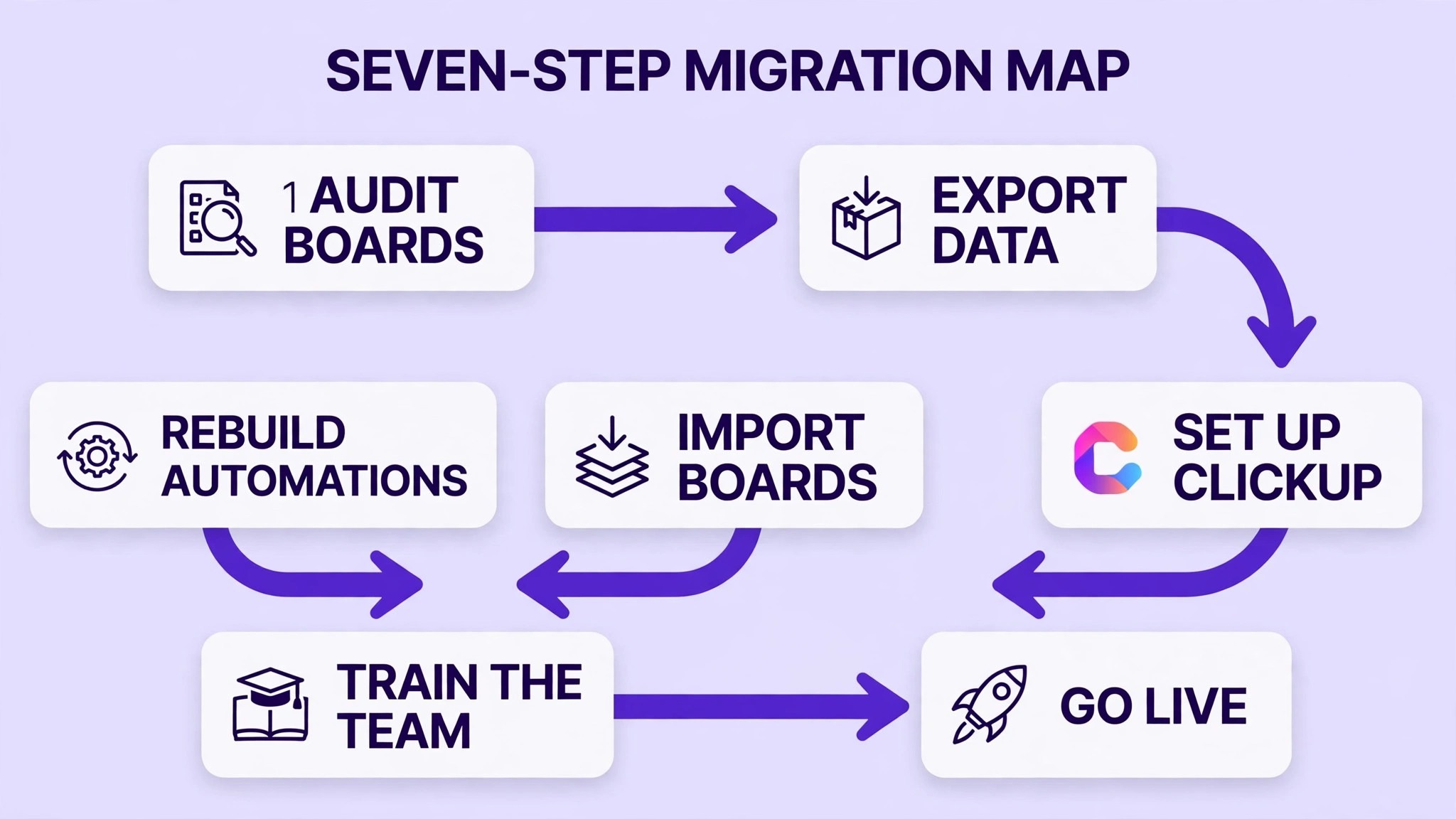
| Phase | Days | Main job | Done looks like |
|---|---|---|---|
| Audit | 1 to 2 | List every board and automation | Full inventory with owners |
| Export | 3 to 4 | Export boards and files | Clean CSVs and a file backup |
| Build | 5 to 8 | Rebuild structure in ClickUp | Spaces, Lists, and fields live |
| Rebuild | 9 to 11 | Automations, docs, and views | Workflows tested on real work |
| Train and go live | 12 to 14 | Train the team and cut over | Old boards read only, new work in ClickUp |
The plan starts with an inventory because a team cannot move what it has not listed. Count every board, every automation, every integration, and every doc, and name an owner for each one. Most teams discover that a third of their boards are dead, and that discovery alone saves a week of migration work. Archive the dead boards in Monday before you export anything.
Phase two moves the data. Phase three rebuilds the structure, which is the part the importer cannot do for you. Phase four rebuilds the workflows, which is where most migrations fail. Phase five trains the team and cuts over, with a parallel run so nobody loses work. A team that follows this order finishes in two weeks. A team that imports first and plans later spends a month untangling a mess.
Step 1: Audit Every Board, Automation, and Doc
Start by listing every Monday board, its purpose, its owner, and how many people use it each week. Tag each board as keep, rebuild, or archive. Keep means the board moves as it is. Rebuild means the board needs a new structure in ClickUp. Archive means nobody uses it and it stays in Monday read only. Most teams archive a third of their boards at this step, and that is a good thing.
Next, list every automation and integration. Monday Standard includes about 250 automation and 250 integration actions a month, and Pro includes 25,000 of each. ClickUp Core includes 1,000 automations a month, and Business includes 10,000. Count how many actions you actually use, and note which ones are essential and which ones are nice to have. Automations do not transfer between tools, so every one needs rebuilding by hand, and the essential list is the one that matters.
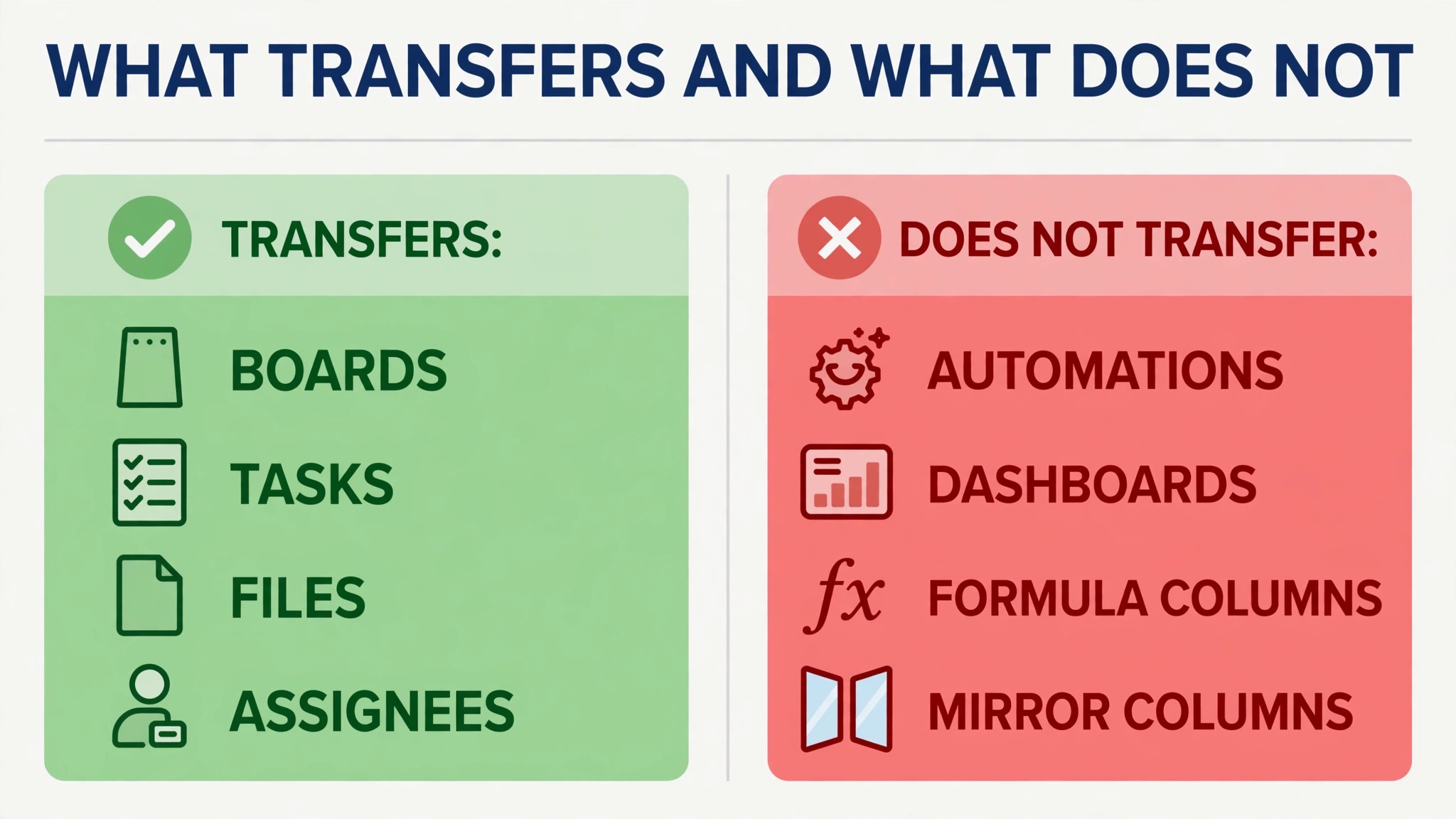
Then list every doc, file, and dashboard. Monday docs and dashboards do not export cleanly into ClickUp, and files need a separate backup. Download every file to a shared folder, note which board each file belongs to, and decide whether each doc becomes a ClickUp Doc, a task description, or an archived file. A migration that loses the files loses the history, and the history is what the team searches for every week.
Step 2: Export Your Monday Data Cleanly
Export each board to CSV from Monday, one board at a time, and check the export before you move on. Monday exports carry the board columns as CSV fields, but formula columns, mirror columns, and linked items export as values or not at all, so check each file for missing data. A column that exports as blank needs a manual fix, and it is better to find that now than after the import.
Clean the data before import, and treat this as the step that decides whether the whole move feels smooth. Merge duplicate items, fix missing owners, standardise status labels, and delete test items and old completed work that nobody needs. A clean import takes an hour, and a messy import takes a week of fixing inside ClickUp, while the team blames the new tool for a data problem. The best time to clean data is before it moves, not after, and every guide on how to switch from monday to clickup for small teams says the same thing for a reason.
Back up everything separately. Download the CSVs, download the files, and take screenshots of your most important dashboards and automations. Keep the Monday account active and read only for at least a month after cutover, so the team can check the old system when something looks wrong. A migration without a backup is a gamble, and a small team cannot afford to lose its history.
Step 3: Build Your ClickUp Structure
ClickUp structure is a hierarchy, and it needs a plan before you build it. A Space is a department or a big area of work, such as Sales or Delivery. A Folder groups related Lists inside a Space, such as one Folder per client. A List holds the tasks, and a task holds the work. A team that builds this hierarchy on paper first will build it once. A team that builds it inside the app will rebuild it three times.
Map each Monday board to a ClickUp List, and decide which Monday columns become ClickUp Custom Fields. Status, priority, owner, and due date map cleanly. Formula columns and mirror columns do not, and they need a new approach, such as a calculated field, a rollup, or a manual process. Write the mapping down for each board, and have the board owner sign it off before you import. That sign off is what stops arguments later.
Set up the views your team actually uses. A List view for daily work, a Board view for status, a Calendar view for deadlines, and a Dashboard for the weekly meeting cover most small teams. Do not build twenty views on day one. Build the four that matter, use them for a week, and add more only when someone asks for one. A ClickUp workspace with too many views confuses the team more than a workspace with too few.
Step 4: Rebuild Automations, Docs, and Views
Automations are the part of the switch that takes the most time, because none of them transfer. Rebuild the essential automations first, test each one on a real task, and leave the nice to have automations for week three. A typical small team needs five to ten essential automations, such as moving a task when its status changes, assigning an owner when a form is submitted, and sending a reminder when a due date approaches. Build those, test them, and move on.
Docs need rebuilding too. Monday docs become ClickUp Docs, but the formatting and links need checking by hand, and this is the step most teams underestimate when they plan how to switch from monday to clickup for small teams. Move the ten most used docs first, and archive the rest in a shared folder until someone asks for them. A doc that nobody has opened in six months does not need migrating. It needs archiving, and the team will thank you for the smaller library.
Files need a home as well. ClickUp tasks accept attachments, and the file storage limits depend on the plan, with 60 MB on the free plan and more on paid tiers. Upload the files that belong to active work, and keep the archive in a shared drive. A workspace that carries every file from five years of Monday work will be slow and hard to search, so move the active files and archive the rest.
Step 5: Train the Team Before Cutover
A switch fails in the training room, not in the import. Book two training sessions, one for the core team and one for everyone else, and run them on real work, not on demo data. Show the team how to find their tasks, update a status, attach a file, and ask a question in ClickUp Chat. A team that learns on its own work will use the tool on Monday morning. A team that watches a generic demo will forget it by Friday.
Write a one page guide for the new workflow, with screenshots of the four main views and the five most common actions. Keep it short, keep it on the shared drive, and update it after the first week when the team finds the rough edges. A guide that is ten pages long will not be read. A guide that is one page long will be used every day for a month.
Name one ClickUp owner on the team, the person who answers questions, fixes views, and owns the workspace. That owner needs an hour a week for the first month to tidy the workspace, answer questions, and remove the views nobody uses. A workspace without an owner drifts into chaos within a month, and the team will blame the tool for a governance problem. How to switch from monday to clickup for small teams successfully is mostly a training and ownership job, not a technical one.
Step 6: Go Live With a Parallel Run
Cut over on a Monday morning, not on a Friday afternoon. Move new work into ClickUp from day one, and keep Monday read only for the old work. Run both systems for two weeks, until every old task has either finished or moved. A parallel run costs a little extra effort for two weeks, and it saves a month of lost work when something was missed in the import.
Check the numbers daily during the parallel run. Count how many tasks are created in ClickUp, how many are still open in Monday, and how many automations fired correctly. If the ClickUp count is growing and the Monday count is shrinking, the switch is working. If tasks are still being created in Monday after week one, find out why, because the team is telling you something is missing in the new setup.
At the end of week two, hold a short review. Ask each person what works, what is slow, and what is missing. Fix the top three complaints in week three, and archive the Monday boards that are fully moved. Keep the Monday account read only for another month as a safety net, then cancel it at the next renewal. A team that cancels on day one has no safety net. A team that keeps it forever pays for two tools.
Pricing: Monday Against ClickUp
| Point | Monday.com | ClickUp |
|---|---|---|
| Free plan | Up to 2 seats, 3 boards | Unlimited members, 60 MB storage |
| First paid plan | Basic 9 dollars a seat | Core 9 dollars a user |
| Next plan up | Standard 12 dollars a seat | Business 17 dollars a user |
| Top plan | Pro 19 dollars a seat | Max 100 dollars a user |
| Seat minimum | 3 seats, then blocks of 5 | None |
| Automations, entry tier | None on Basic | 1,000 a month on Core |
| Automations, mid tier | 250 a month on Standard | 10,000 a month on Business |
| Time tracking | Pro tier and up | From Core |
| Docs and whiteboards | Add-ons and separate tools | Built in |
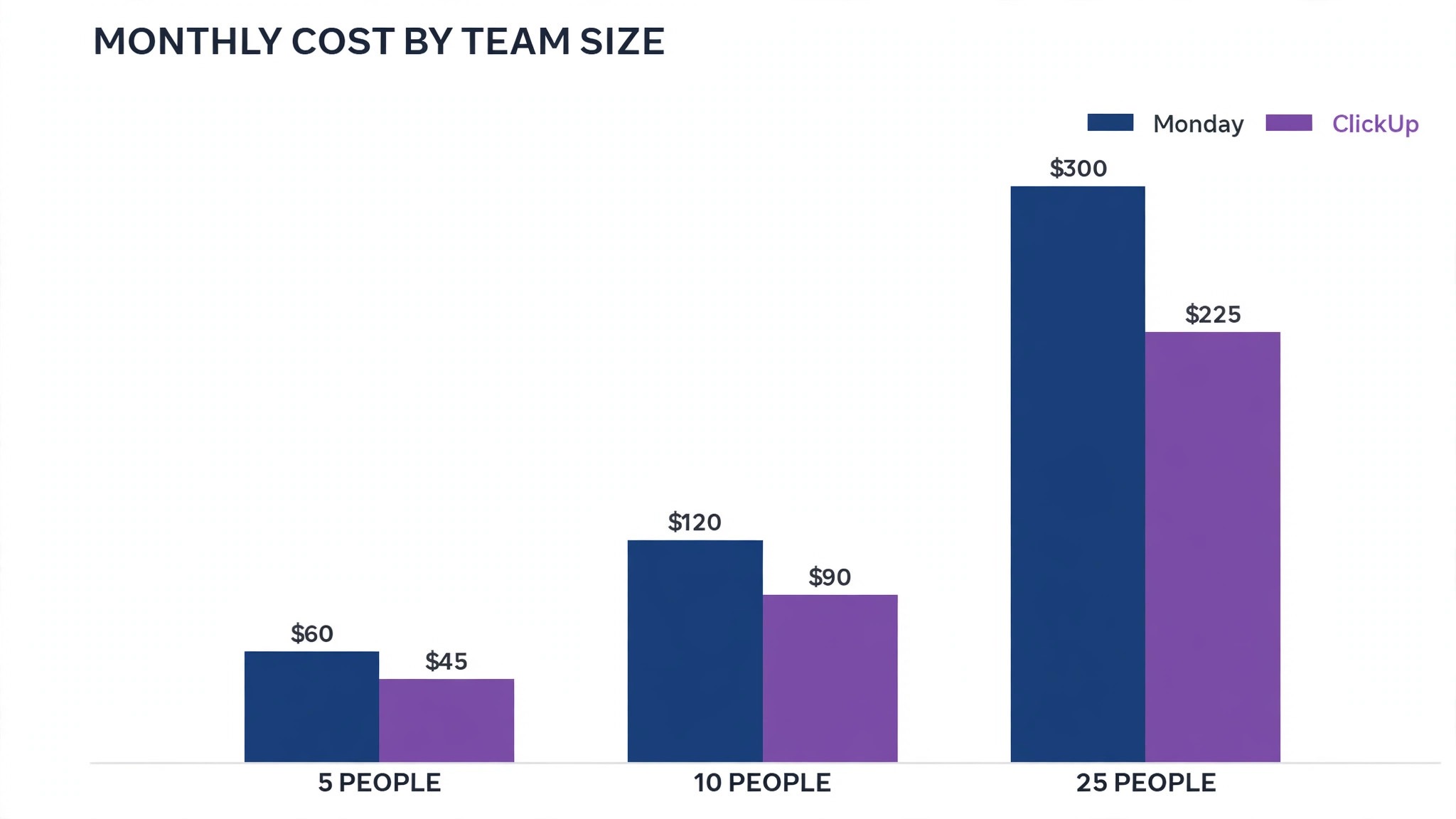
The table shows the structural difference clearly. Monday is cheaper at the mid tier for a team that fits its seat blocks, and ClickUp is cheaper for a small team that does not. A two person team pays for three seats on Monday Basic, or 27 dollars a month, and 18 dollars on ClickUp Core. A ten person team pays for ten seats on Monday Standard, or 120 dollars a month, and 90 dollars on ClickUp Core. The maths flips by team size, so work out your own row before deciding.
ClickUp is changing its plans, so treat these figures as a snapshot checked in late 2026 and confirm the current prices on the vendor page before you buy. Monday prices vary by billing country and exclude tax, and the company has raised prices more than once in 2026. The plan names and limits matter more than the headline price, because the plan that fits your team is the plan that saves you money.
Monthly Cost Worked Out for Three Teams
| Team | Monday plan | Monday cost | ClickUp plan | ClickUp cost | Saving |
|---|---|---|---|---|---|
| 2 people | Basic, 3 seats | 27 dollars | Core, 2 users | 18 dollars | 9 dollars |
| 5 people | Standard, 5 seats | 60 dollars | Core, 5 users | 45 dollars | 15 dollars |
| 6 people | Standard, 10 seats | 120 dollars | Core, 6 users | 54 dollars | 66 dollars |
| 10 people | Standard, 10 seats | 120 dollars | Business, 10 users | 170 dollars | Minus 50 dollars |
| 10 people, needs time tracking | Pro, 10 seats | 190 dollars | Core, 10 users | 90 dollars | 100 dollars |
A two person team saves 9 dollars a month by switching, and a six person team saves 66 dollars, because Monday charges for ten seats while ClickUp charges for six. A ten person team that only needs the mid tier pays more on ClickUp Business than on Monday Standard, by 50 dollars a month, which is why the mid tier comparison matters. A ten person team that needs time tracking pays 190 dollars on Monday Pro and 90 dollars on ClickUp Core, saving 100 dollars, because time tracking is included from Core.
The practical rule is simple. Count your seats, count your needs, and buy the plan that covers both. A team that needs time tracking and automations will save money on ClickUp. A team that needs only boards and a mid tier price will pay less on Monday Standard. How to switch from monday to clickup for small teams and save money depends on your team size and your feature needs, not on a generic claim that one tool is cheaper.
What ClickUp Does Better, and What It Does Worse
ClickUp does depth better. Time tracking, docs, whiteboards, forms, goals, and chat all live in one place, so a team can run a client from first enquiry to final invoice without opening a second tool. Monday does simplicity better. A new team member can use Monday within a day, while ClickUp takes a week to learn well, because the framework offers more choices and more ways to get lost. A team that values depth over simplicity will prefer ClickUp. A team that values simplicity over depth will prefer Monday, and that is a fair choice.
ClickUp does price shape better for small teams. No seat minimum means a two person team pays for two, and a six person team pays for six, while Monday charges in blocks that punish odd team sizes. Monday does the mid tier better for a team of exactly ten, where Standard at 12 dollars a seat beats Business at 17 dollars a user, unless the team needs time tracking. The price answer follows the team size, and the cost table above shows the maths for each size.
ClickUp does customisation better, and that is also its weakness. A team can build almost anything in ClickUp, which means a team can also build a mess. Monday limits customisation, which keeps workspaces tidy but stops a team that needs more. How to switch from monday to clickup for small teams well means using that customisation slowly, adding one view and one automation at a time, and letting the workspace grow with the team rather than arriving fully built on day one.
Mistakes Teams Make When Switching
The first mistake is switching tools without fixing process ownership. A team that moves a messy Monday workspace into ClickUp will have a messy ClickUp workspace, and the new tool will get the blame for an old problem. Fix the process first. Name an owner for each board, archive the dead work, and agree on the status labels before you migrate. A clean process moves cleanly. A messy process moves messily.
The second mistake is over-customising early. ClickUp offers endless Custom Fields, views, and automations, and a team that builds all of them in week one will have a workspace nobody understands. Start with the four views and the five essential automations, use them for a month, and add more only when someone asks. A workspace that grows with the team stays usable. A workspace that is built in a weekend stays confusing.
The third mistake is skipping training. A team that is given a login and no training will use ClickUp like Monday, and then complain that it is worse. Book the training, write the one page guide, and name an owner. The switch costs two weeks of effort, and training is half of it. A team that trains properly will be faster in ClickUp by week three. A team that does not train will still be fighting the tool in month three.
Switch Checklist
Use this checklist to run the migration, and review it at the daily standup during the switch fortnight.
- List every board, automation, integration, and doc, with an owner for each.
- Archive dead boards in Monday before you export anything.
- Export each board to CSV and check every file for missing data.
- Clean the data, merging duplicates and standardising status labels.
- Back up all CSVs, files, and dashboard screenshots separately.
- Map each Monday board to a ClickUp List and each column to a Custom Field.
- Build the four main views and the five essential automations, and test them on real work.
- Rebuild the ten most used docs in ClickUp Docs and archive the rest.
- Train the team on real work and write the one page guide.
- Go live on a Monday morning with a two week parallel run, then review and fix the top three complaints.
Related Guides
Keep exploring with these guides on Stratilyze:
- Switch From Monday to ClickUp for a Small Team
- Switch from Monday to Smartsheet as a Small Team
- Switch from Trello to ClickUp as a Small Team
Frequently Asked Questions
Can I import Monday boards directly into ClickUp?
Yes, ClickUp offers an importer for Monday, and it moves boards, items, and basic fields. Formula columns, mirror columns, linked items, automations, and dashboards do not transfer cleanly, so expect to rebuild those by hand. Test the importer on one small board first, check the result carefully, and only then import the rest. A test import on a small board saves hours of fixing later.
How long does the switch take for a small team?
Plan two weeks from audit to full cutover, including a two week parallel run. Data cleaning takes longer than the import for most teams, and rebuilding automations takes longer than a demo suggests. How to switch from monday to clickup for small teams in two weeks means starting with the audit, not with the import, because the audit decides what moves and what stays behind.
Will I lose data when I switch?
Not if you back up first. Export every board to CSV, download every file, screenshot your dashboards and automations, and keep the Monday account read only for a month after cutover. The importer moves most board data, but formula and mirror columns need manual work. A migration with a full backup loses nothing. A migration without one is a gamble.
Is ClickUp cheaper than Monday for a small team?
It depends on team size. A two person team pays 18 dollars on ClickUp Core against 27 dollars on Monday Basic, and a six person team pays 54 dollars against 120 dollars, because Monday charges in blocks of five. A ten person team on the mid tier pays more on ClickUp Business than on Monday Standard, unless it needs time tracking, which Monday only offers on Pro. Work out your own row in the cost table before deciding.
Do automations transfer from Monday to ClickUp?
No. Automations do not transfer between tools, and every one needs rebuilding by hand in ClickUp. List your essential automations, rebuild those first, test each one on a real task, and leave the nice to have automations for week three. A typical small team needs five to ten essential automations, and rebuilding them takes a day, not a week.
Should I cancel Monday on day one of the switch?
No. Keep Monday read only for at least a month after cutover, so the team can check the old system when something looks wrong. Cancel it at the next renewal, once every task has finished or moved and the team is working fully in ClickUp. A team that cancels on day one has no safety net, and a team that keeps it forever pays for two tools.
A Final Word Before You Switch
The switch from Monday to ClickUp is a good move for a small team that wants one place to run the whole business, provided the team plans it properly. Audit first, clean the data, rebuild the structure on paper, train the team on real work, and run a parallel fortnight. That is the whole plan, and a team that follows it will be faster in ClickUp by week three.
Do not switch because a sales page told you to. Switch because your team has outgrown boards that do not talk to each other, because the seat maths no longer works, or because you want time tracking, docs, and chat in one place. If none of those are true, Monday is fine, and the best tool is the one your team already uses well. How to switch from monday to clickup for small teams comes down to that honest check, made before the next renewal, with a plan the whole team understands.